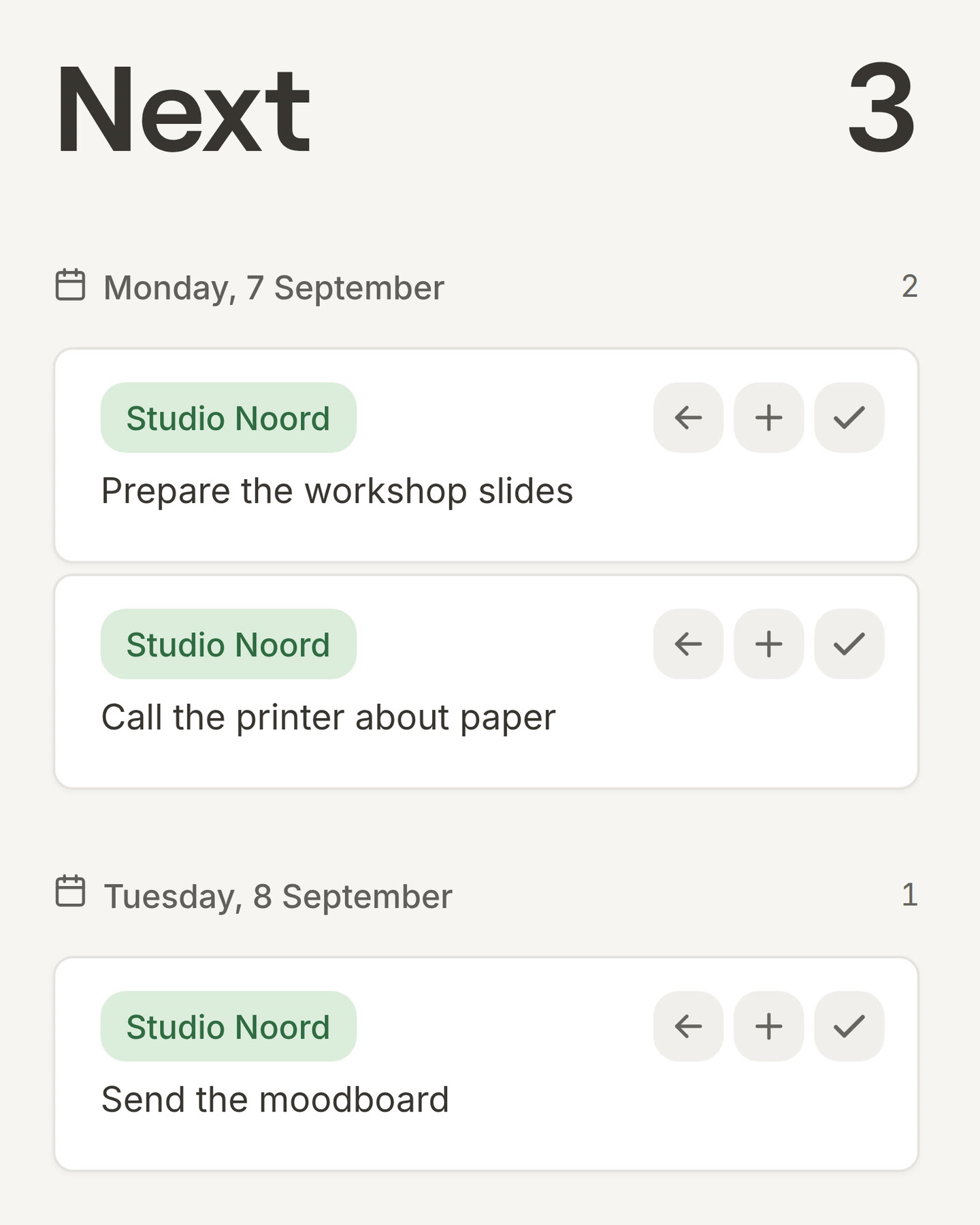
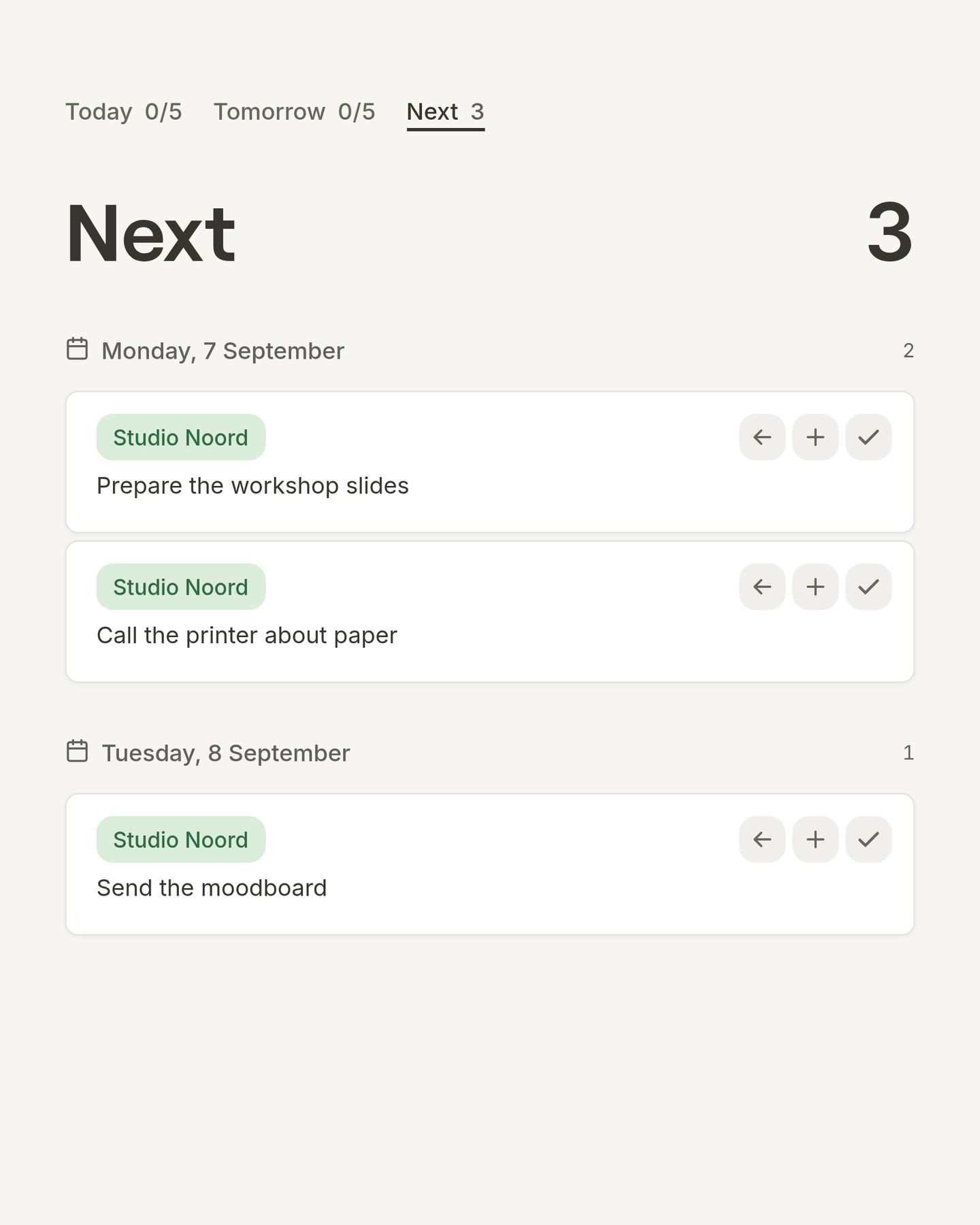
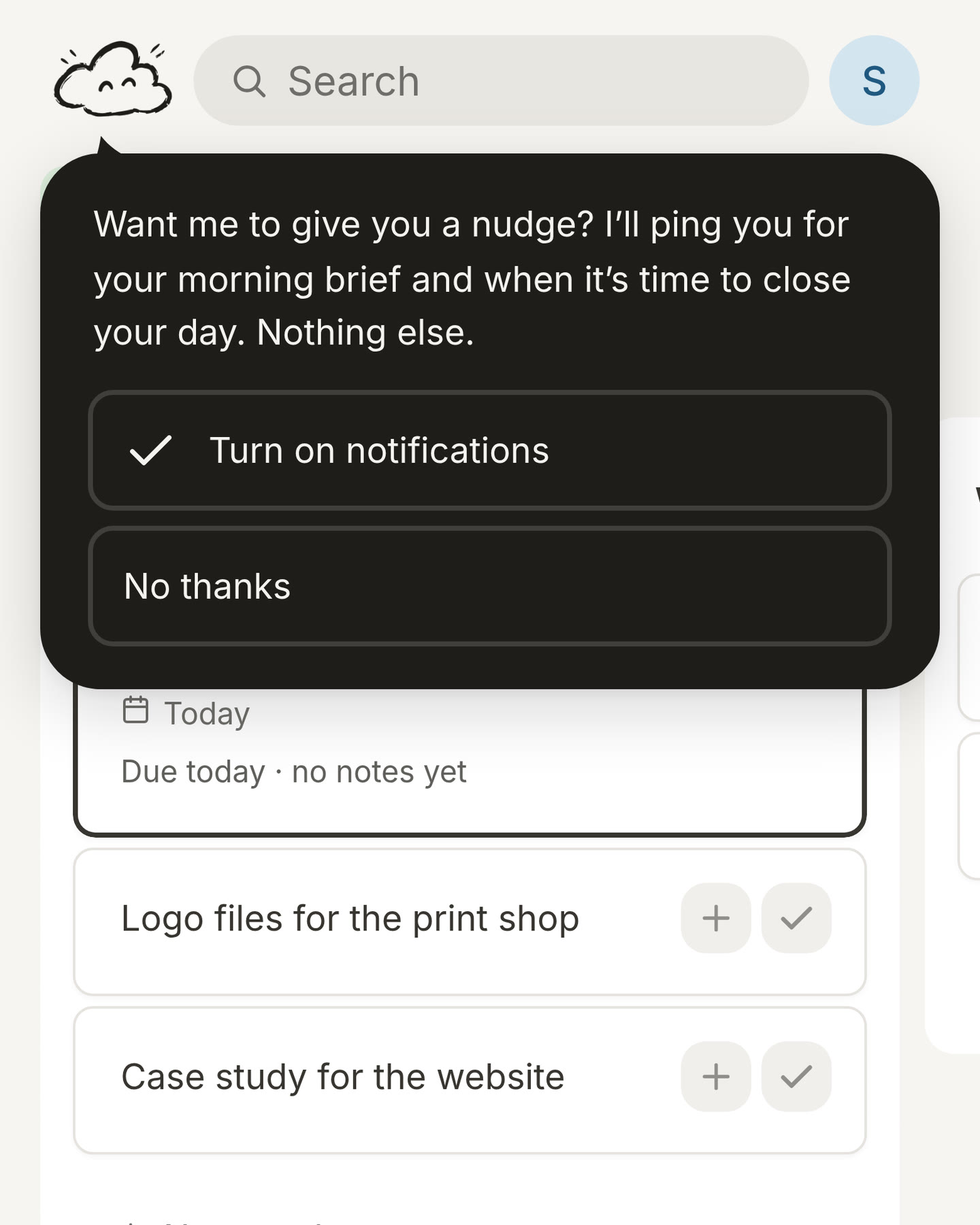
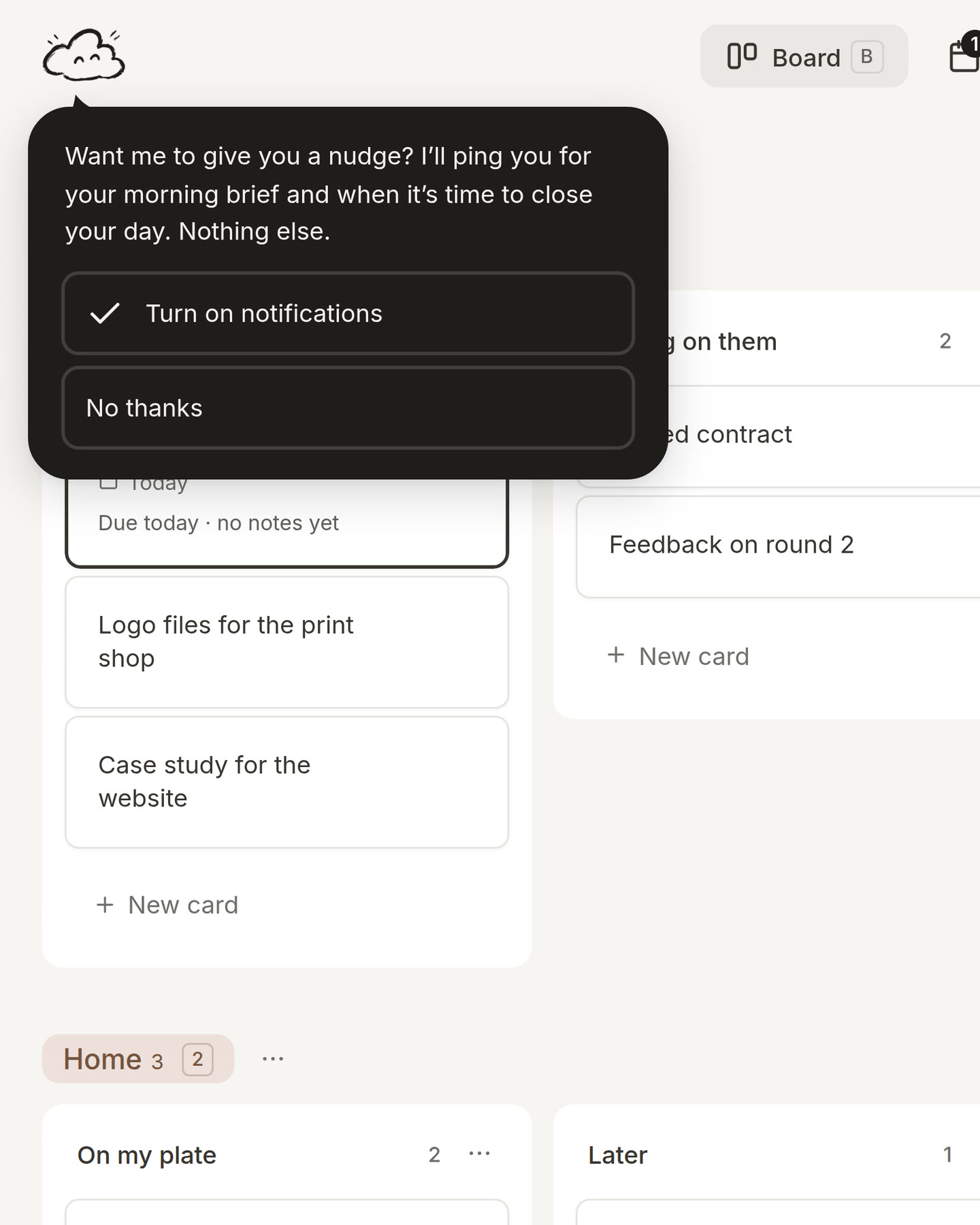
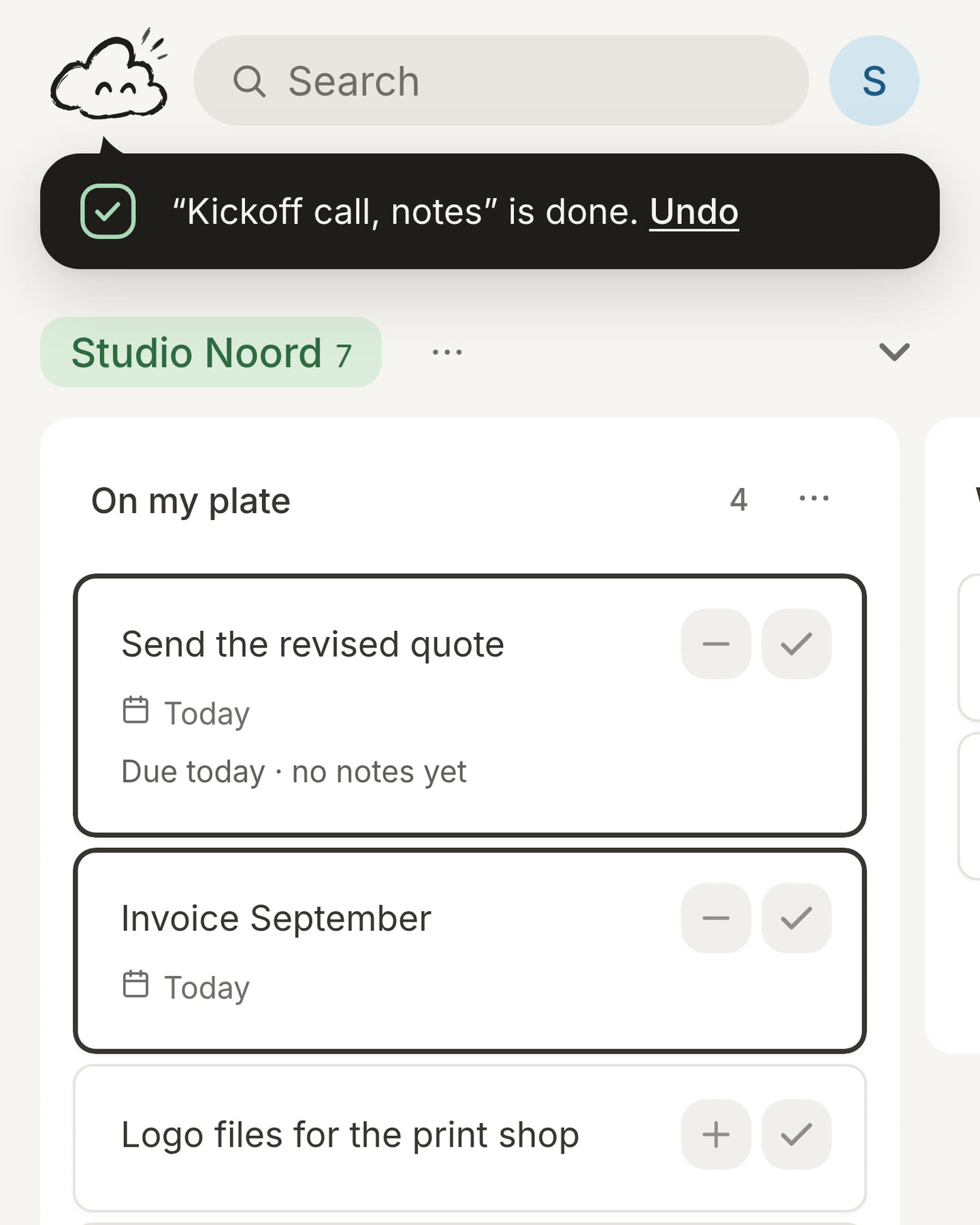
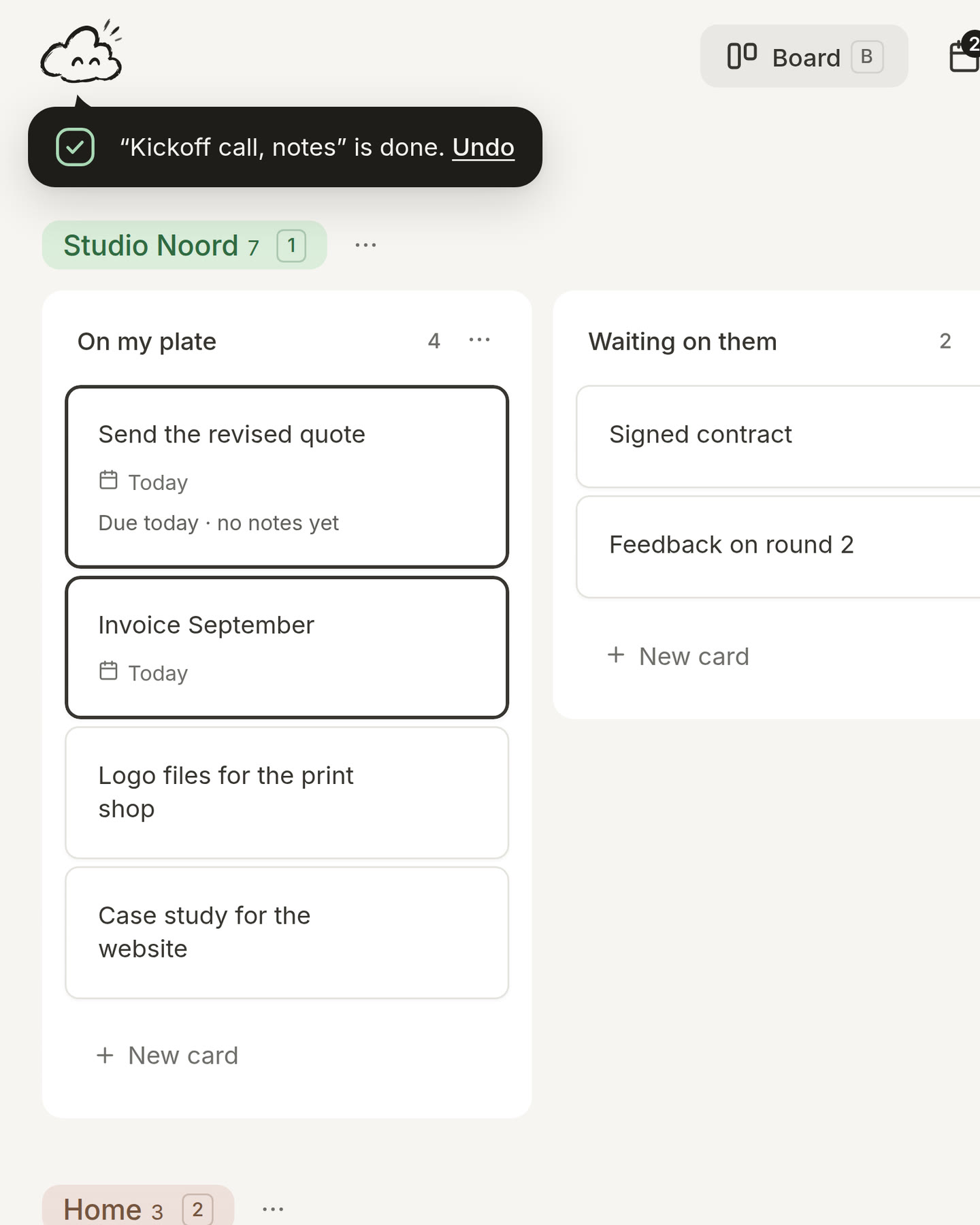
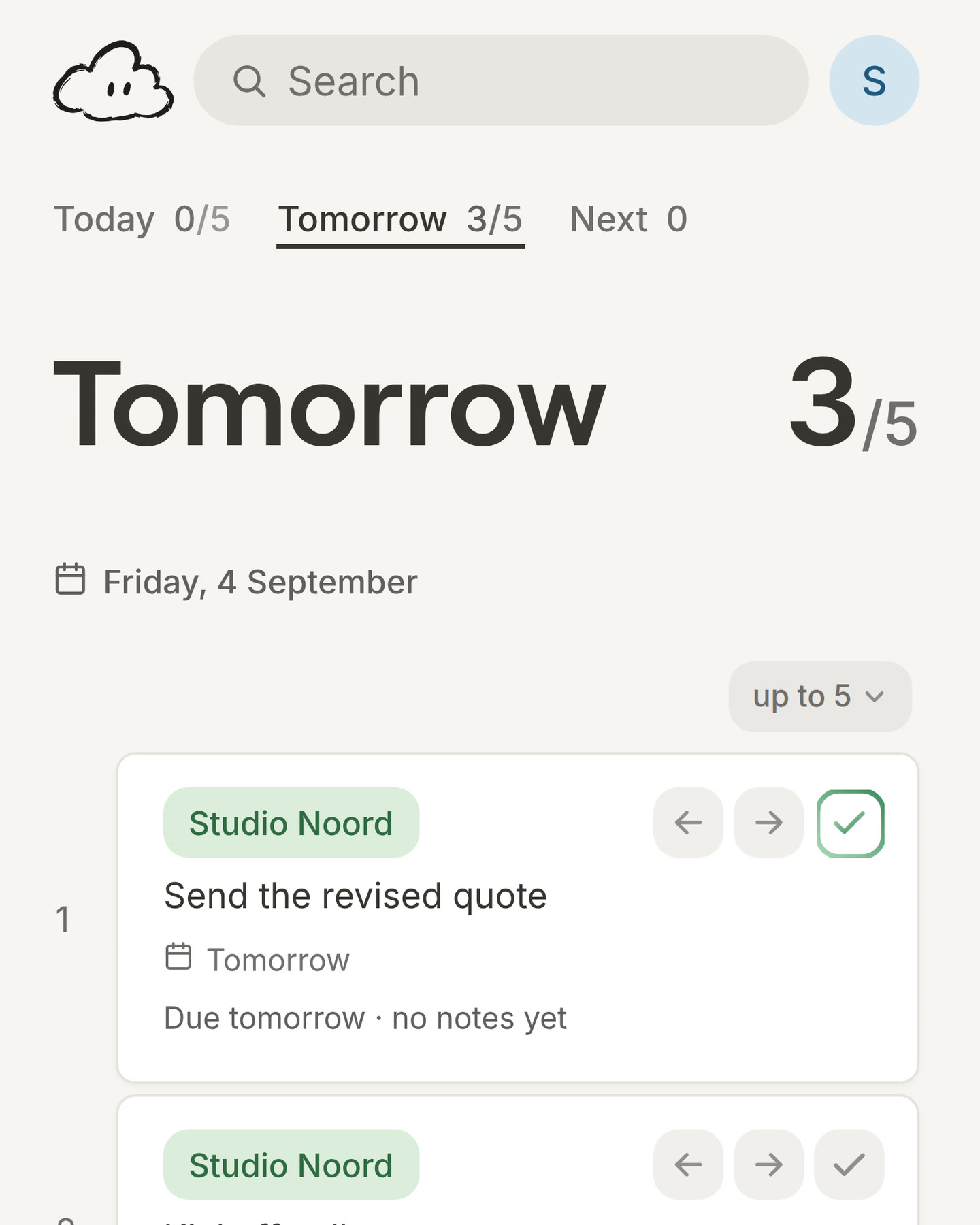
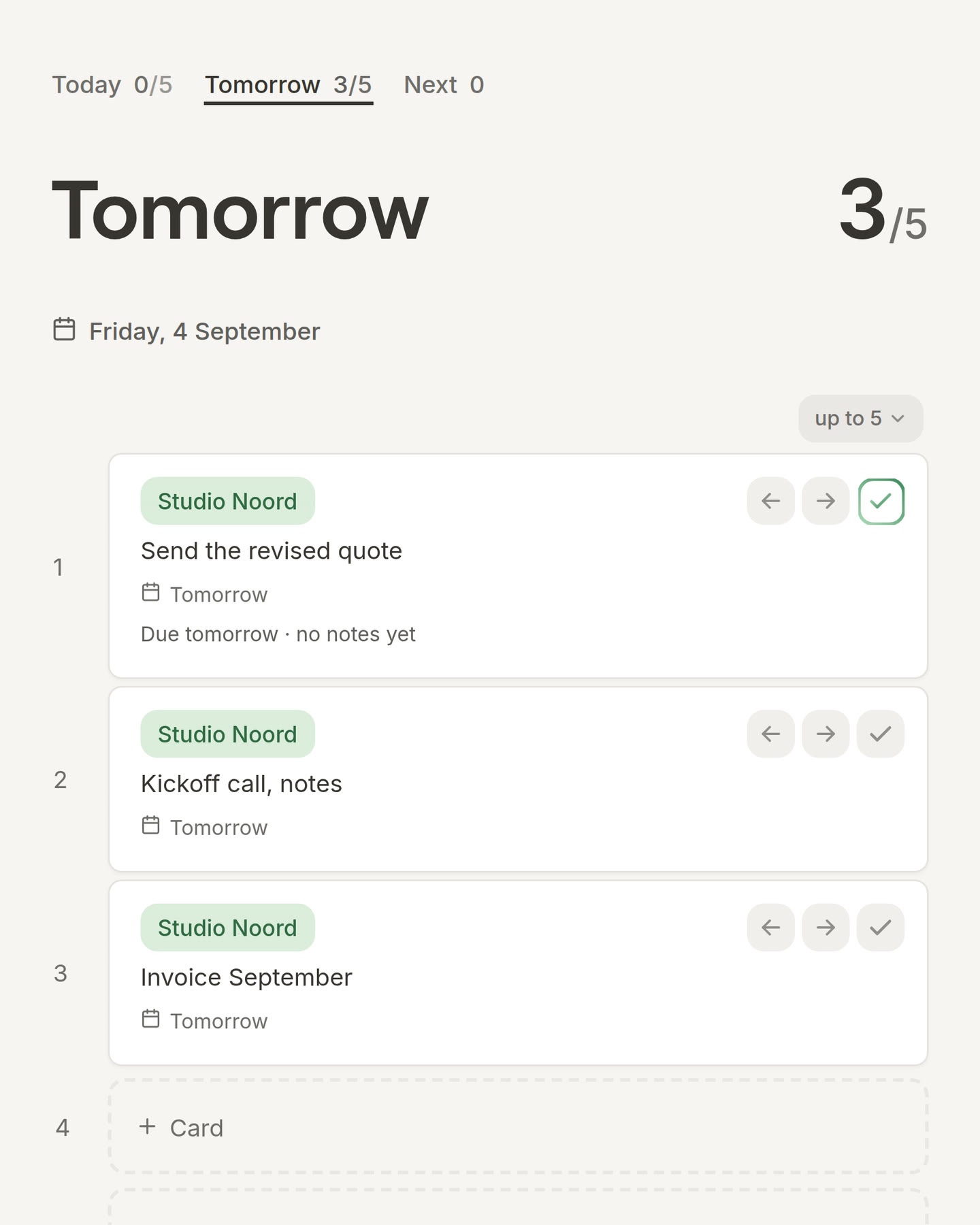
Move a card from Next to tomorrow. On Next, every card now has an arrow pointing left. Press it and the card moves to tomorrow. Want it on Today instead? Press the plus next to it.
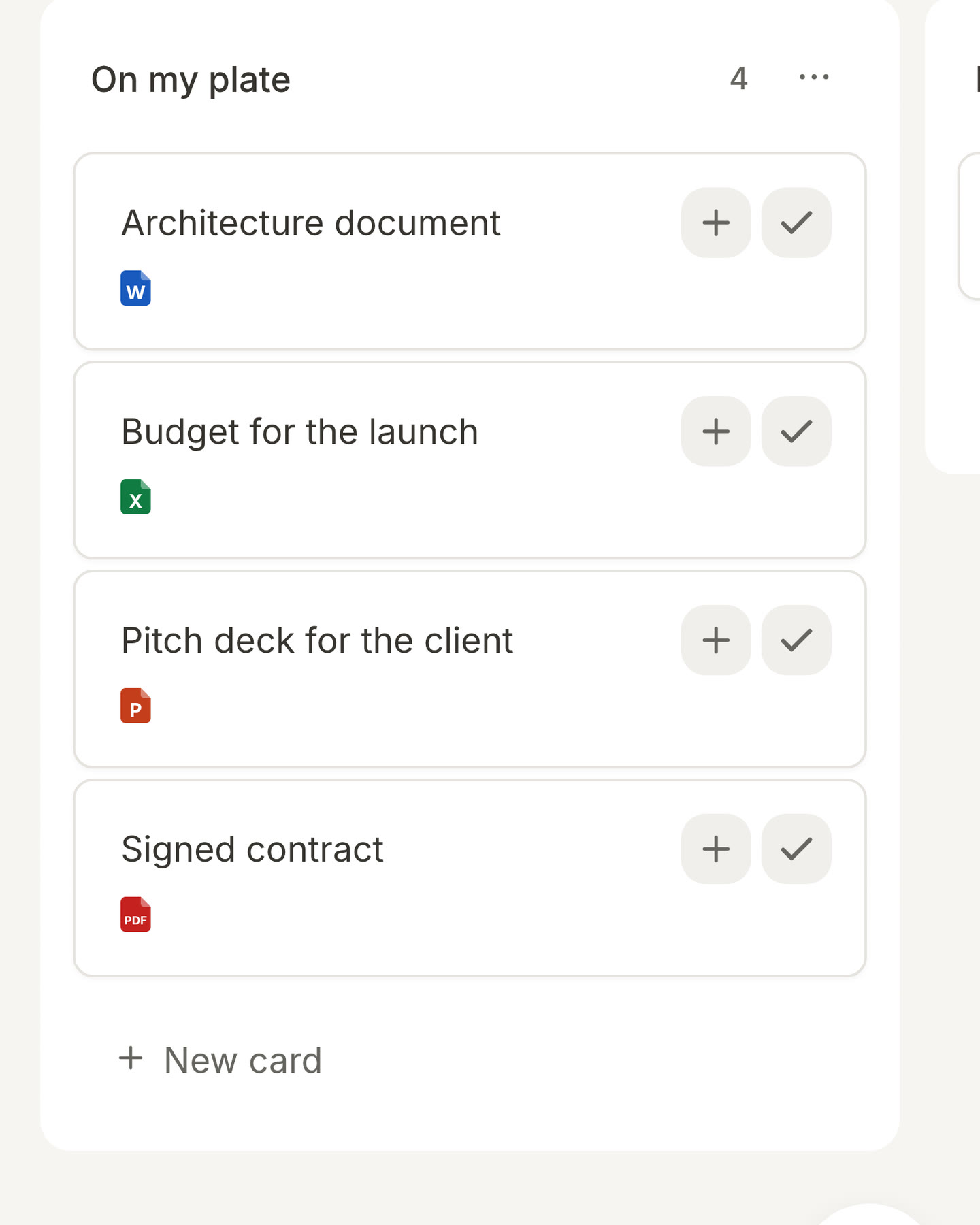
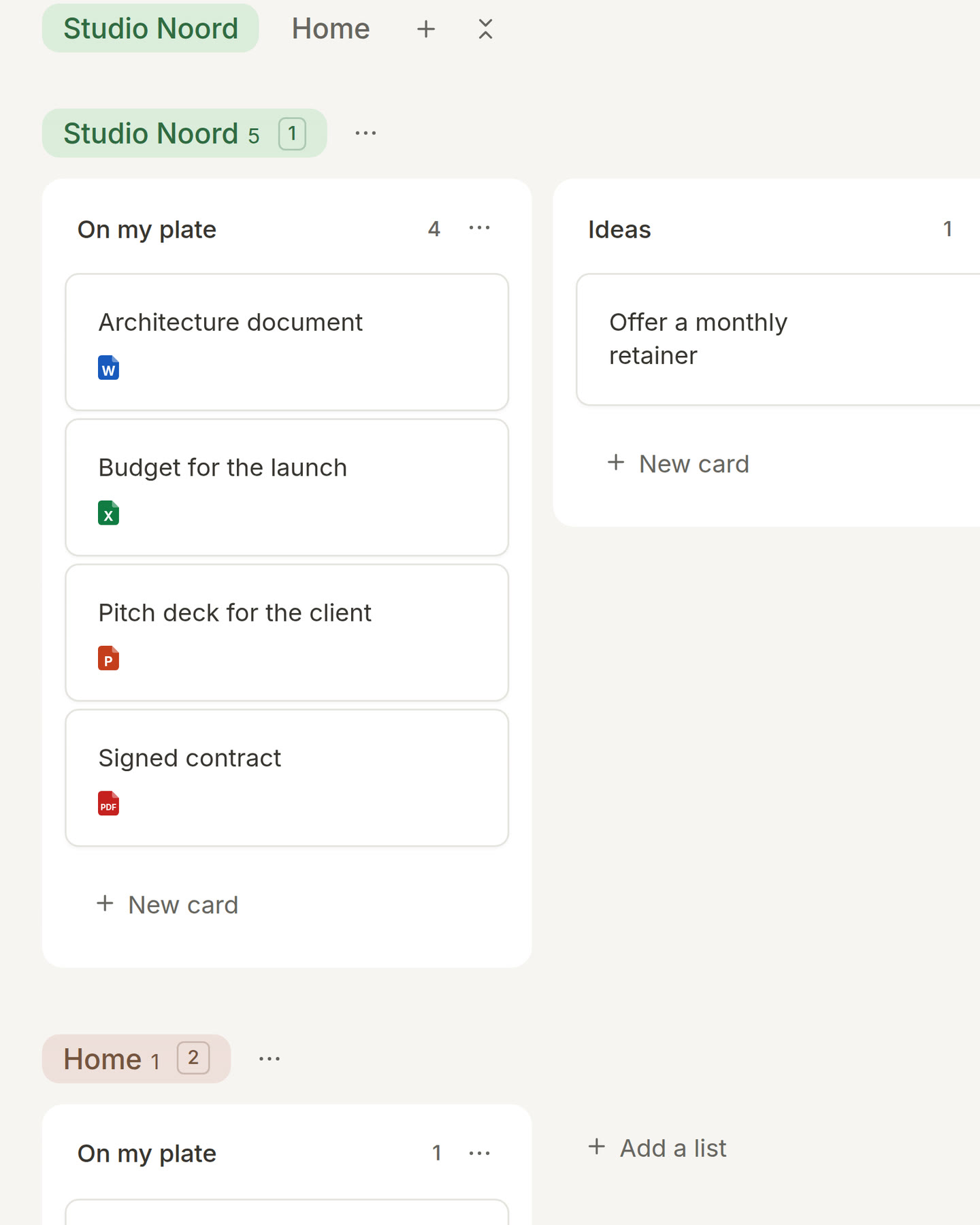
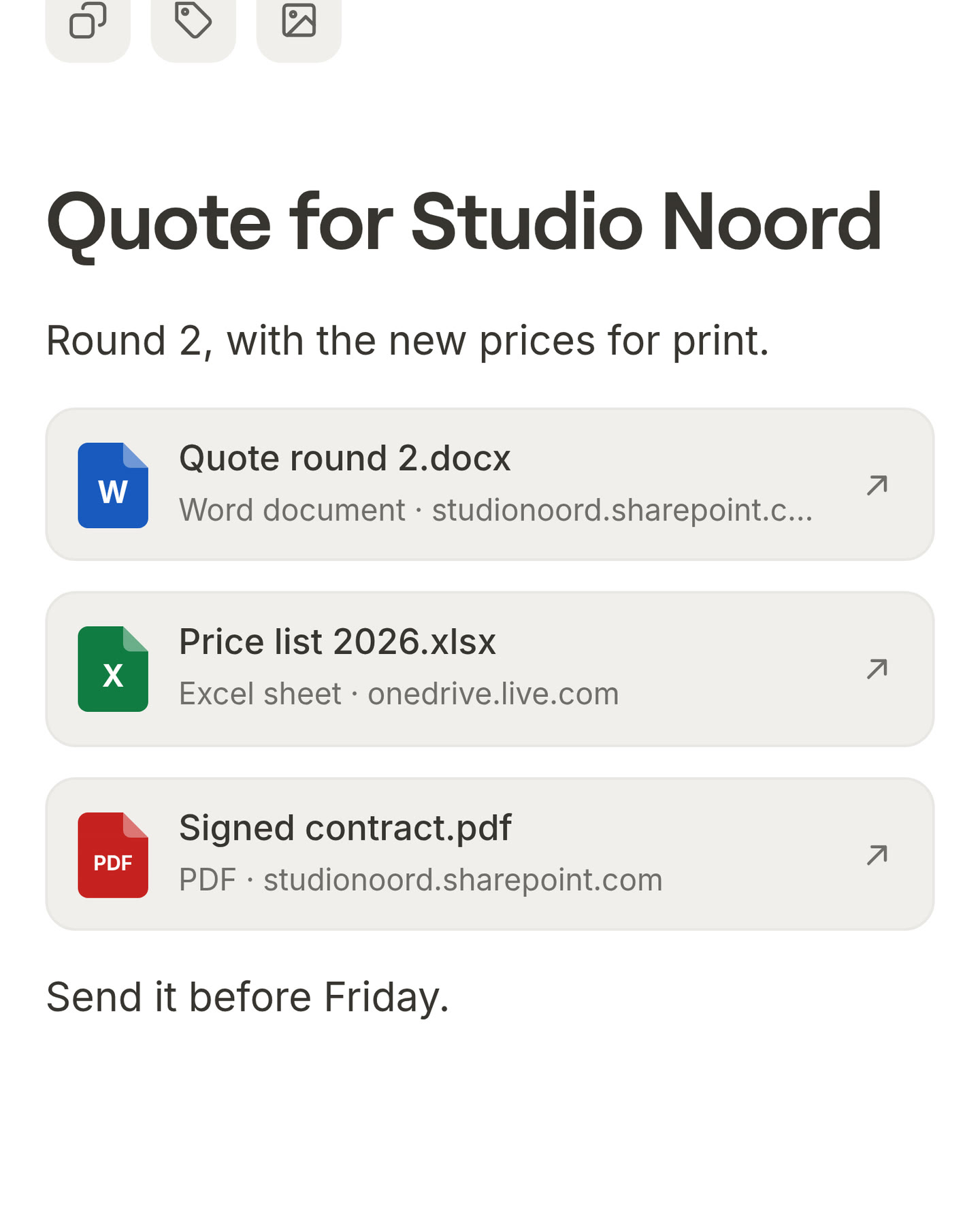
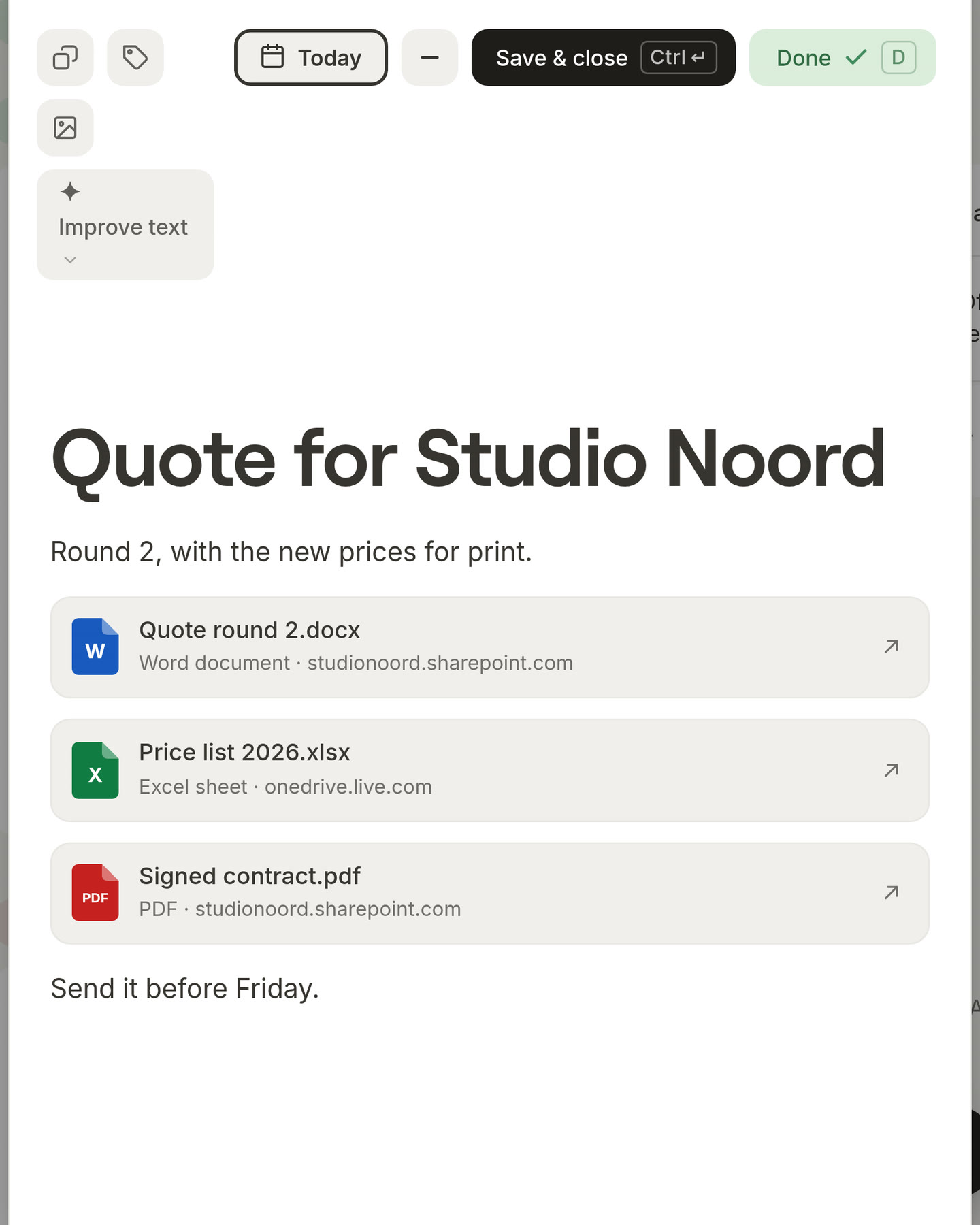
See which file is on a card. A card with a Word document now shows a small blue page with a W on your board, so you can spot it at a glance. Excel, PowerPoint and PDF files have their own small page too, each in its own colour. You see the same marks when you search.
1.4.6
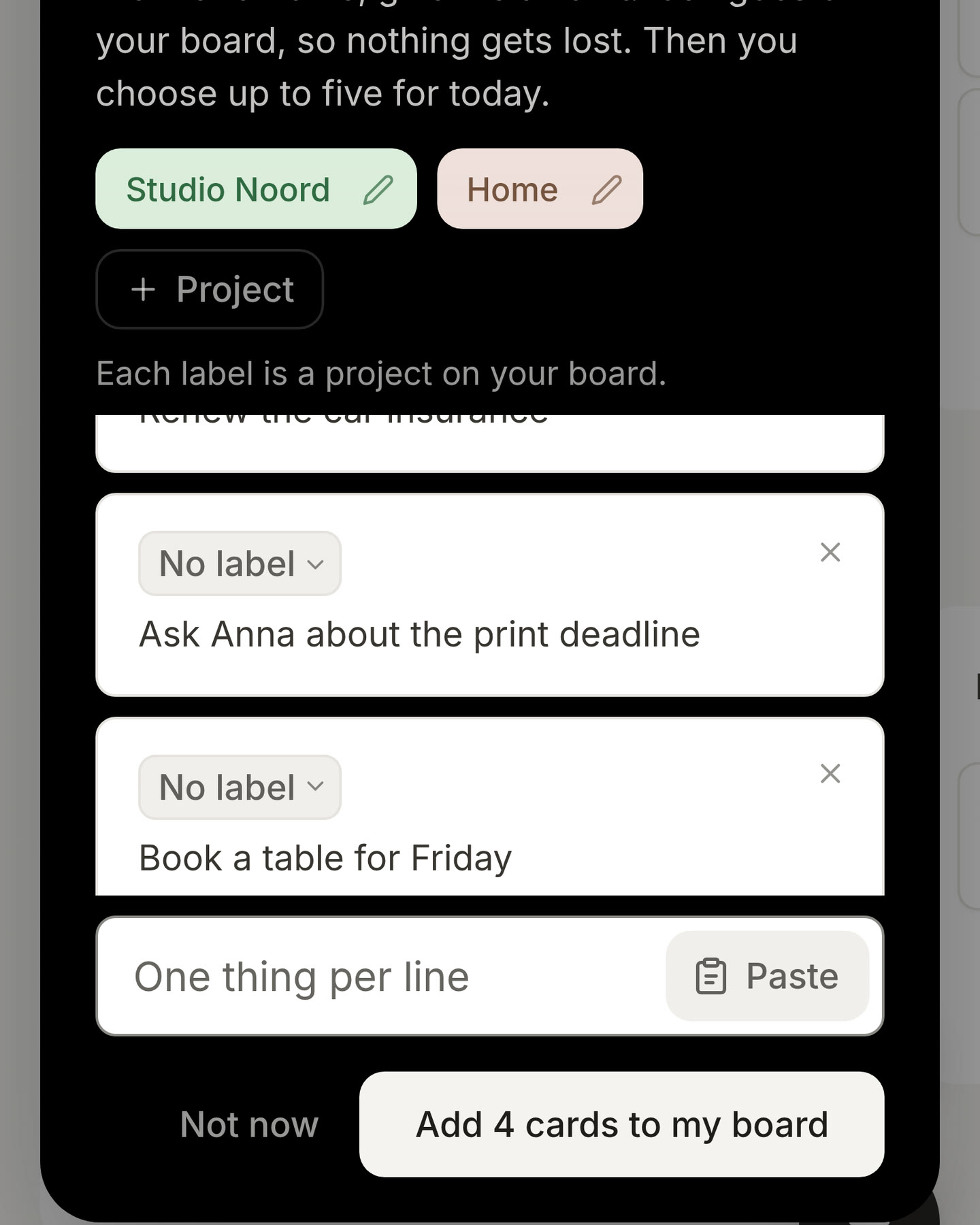
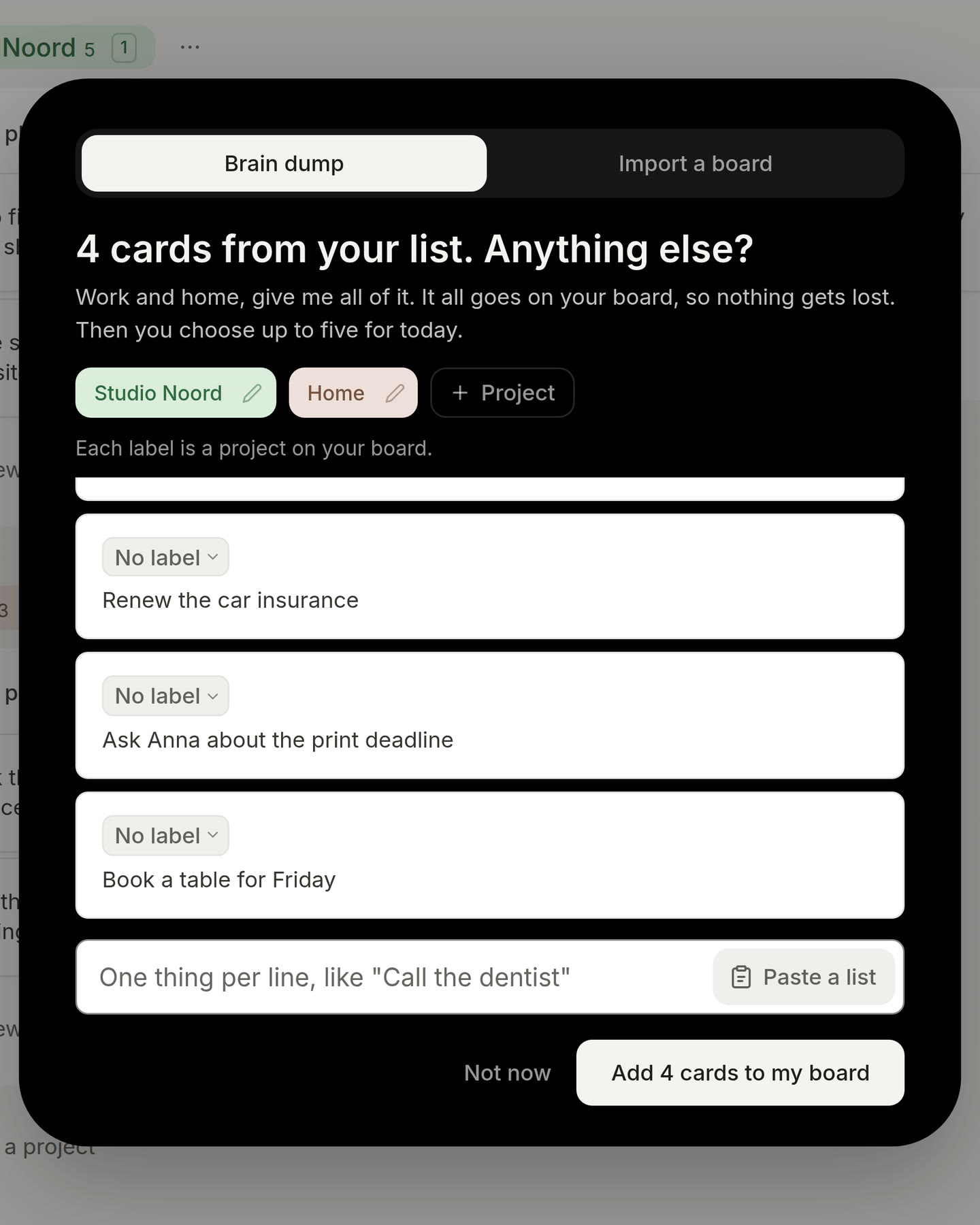
Fill your brain dump faster. Copied a to-do list from your notes? Press Paste a list next to the field, and every line becomes a card.
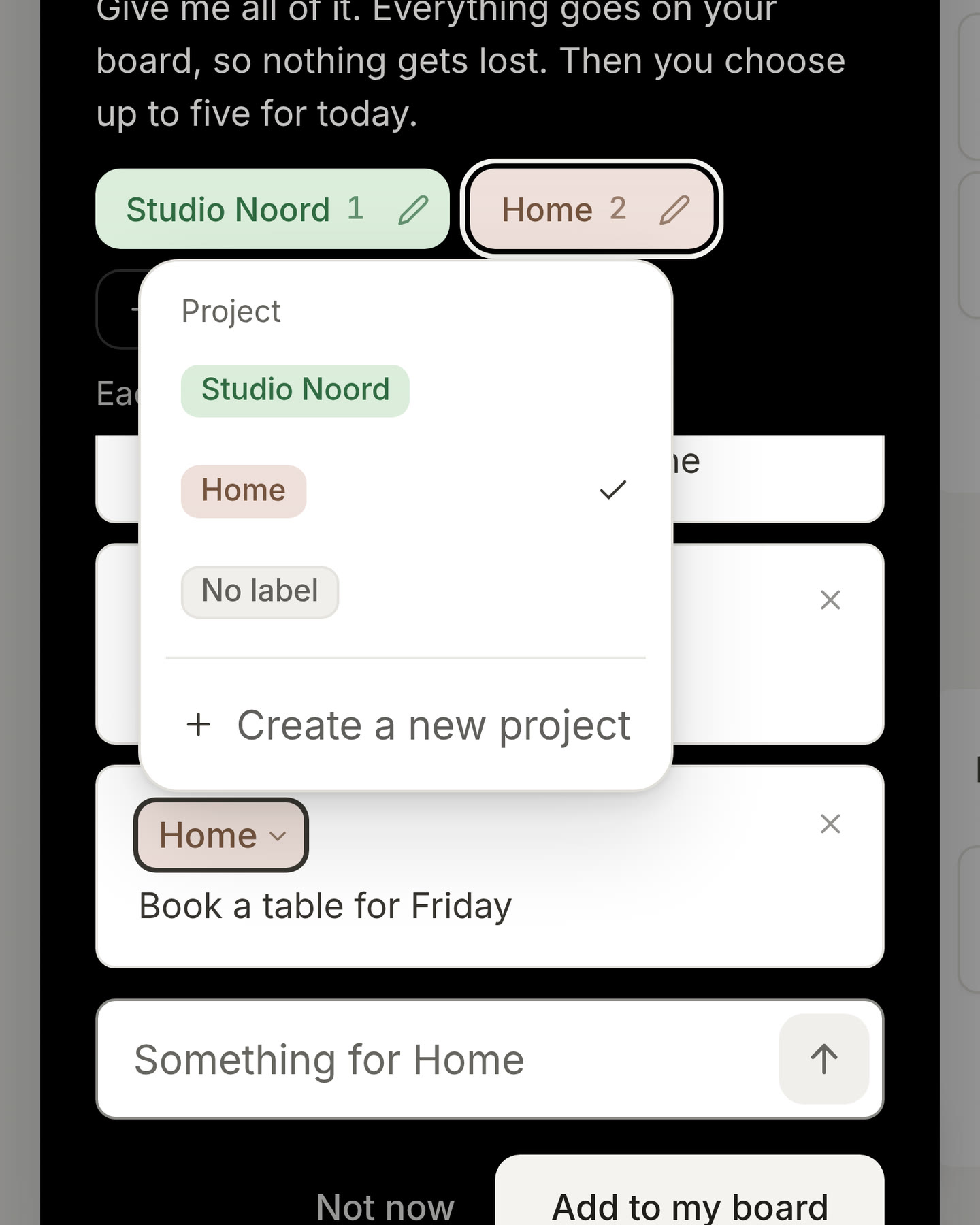
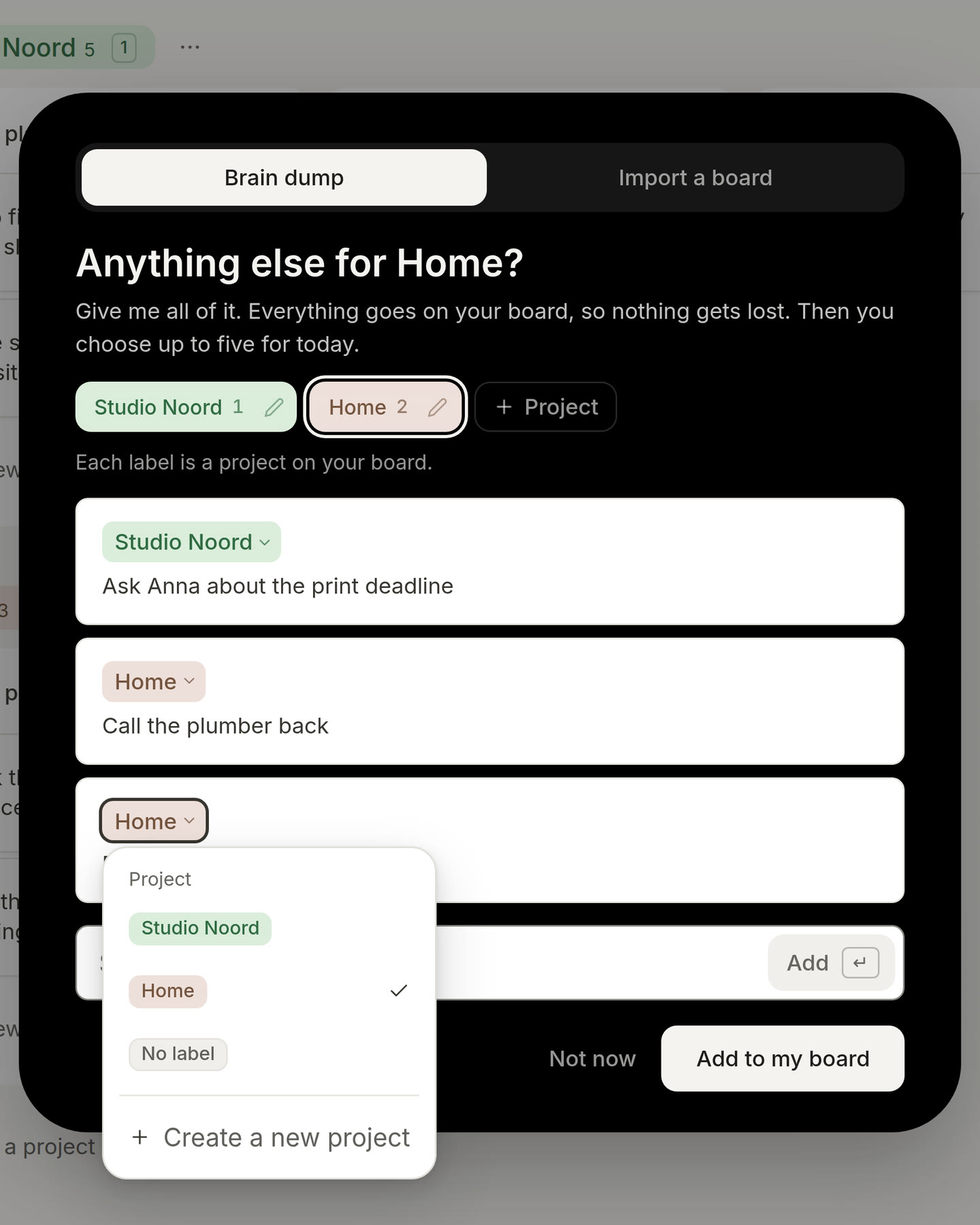
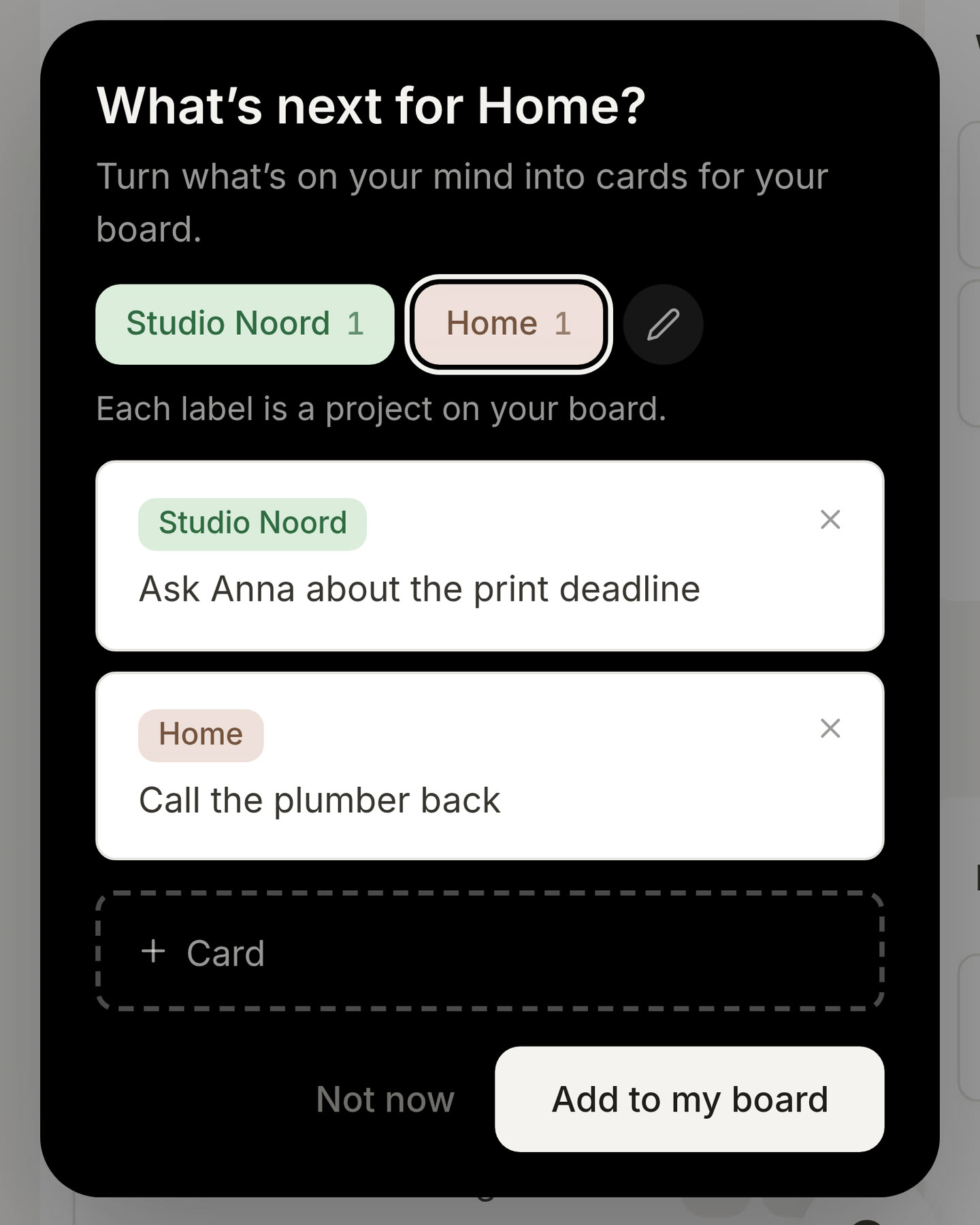
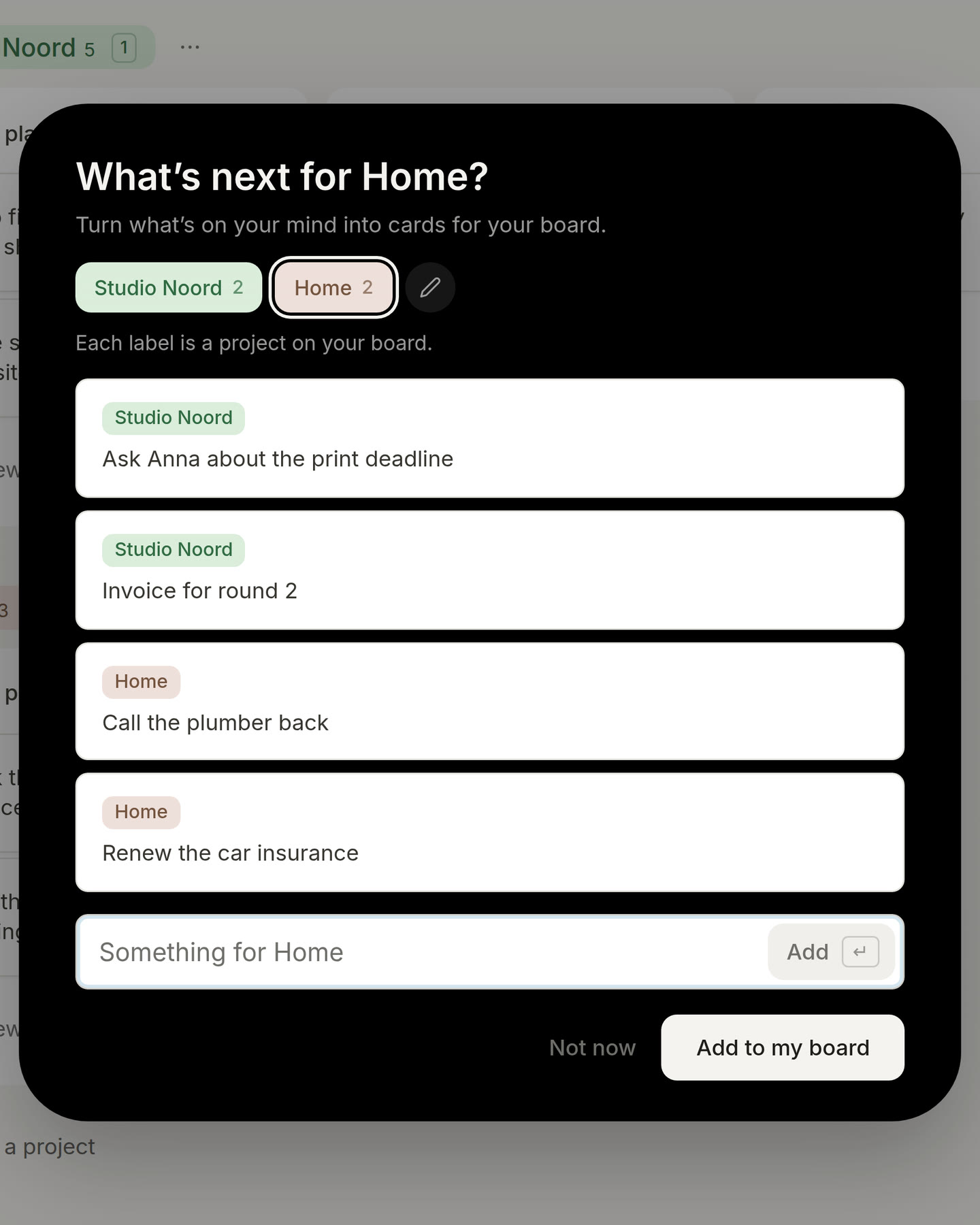
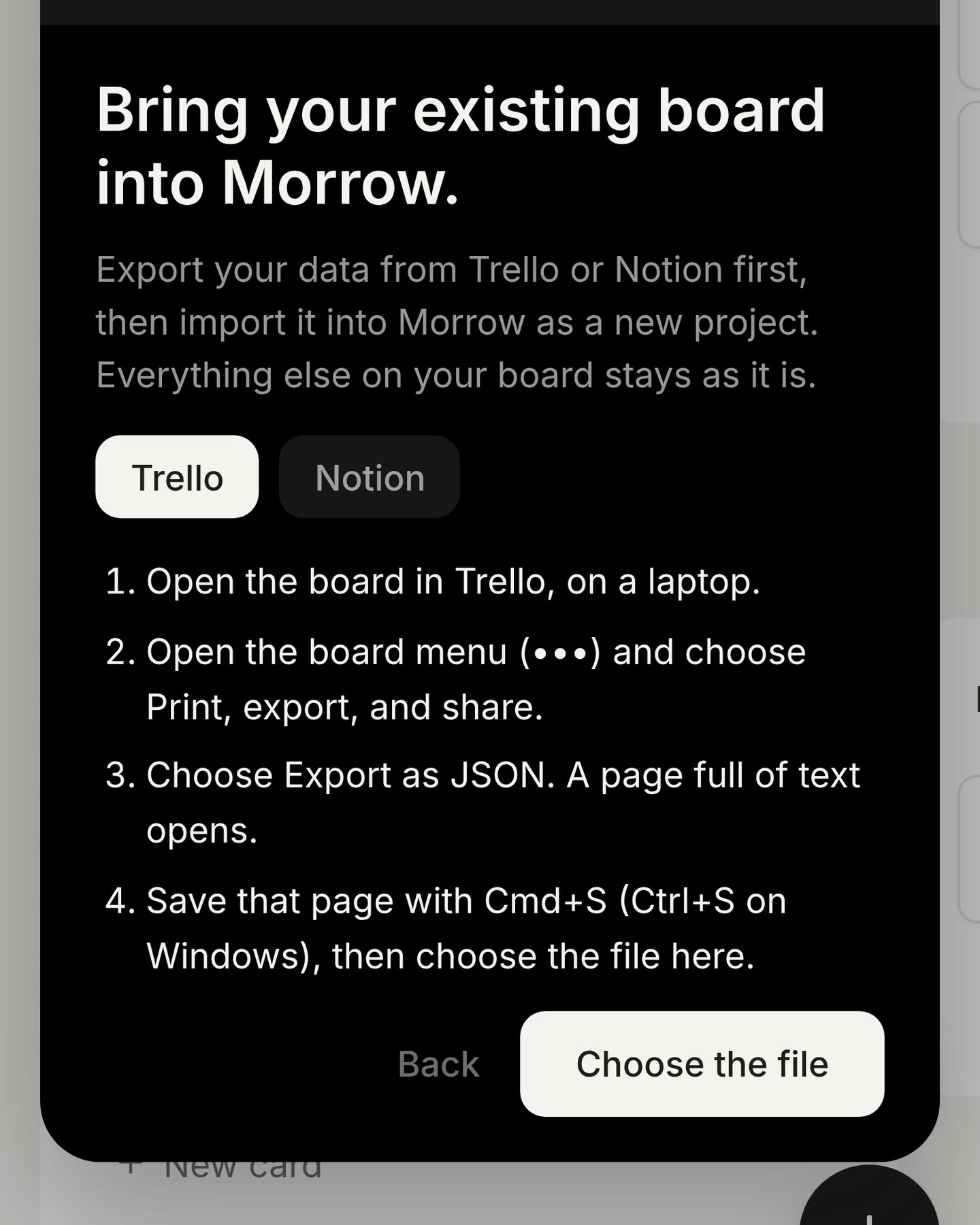
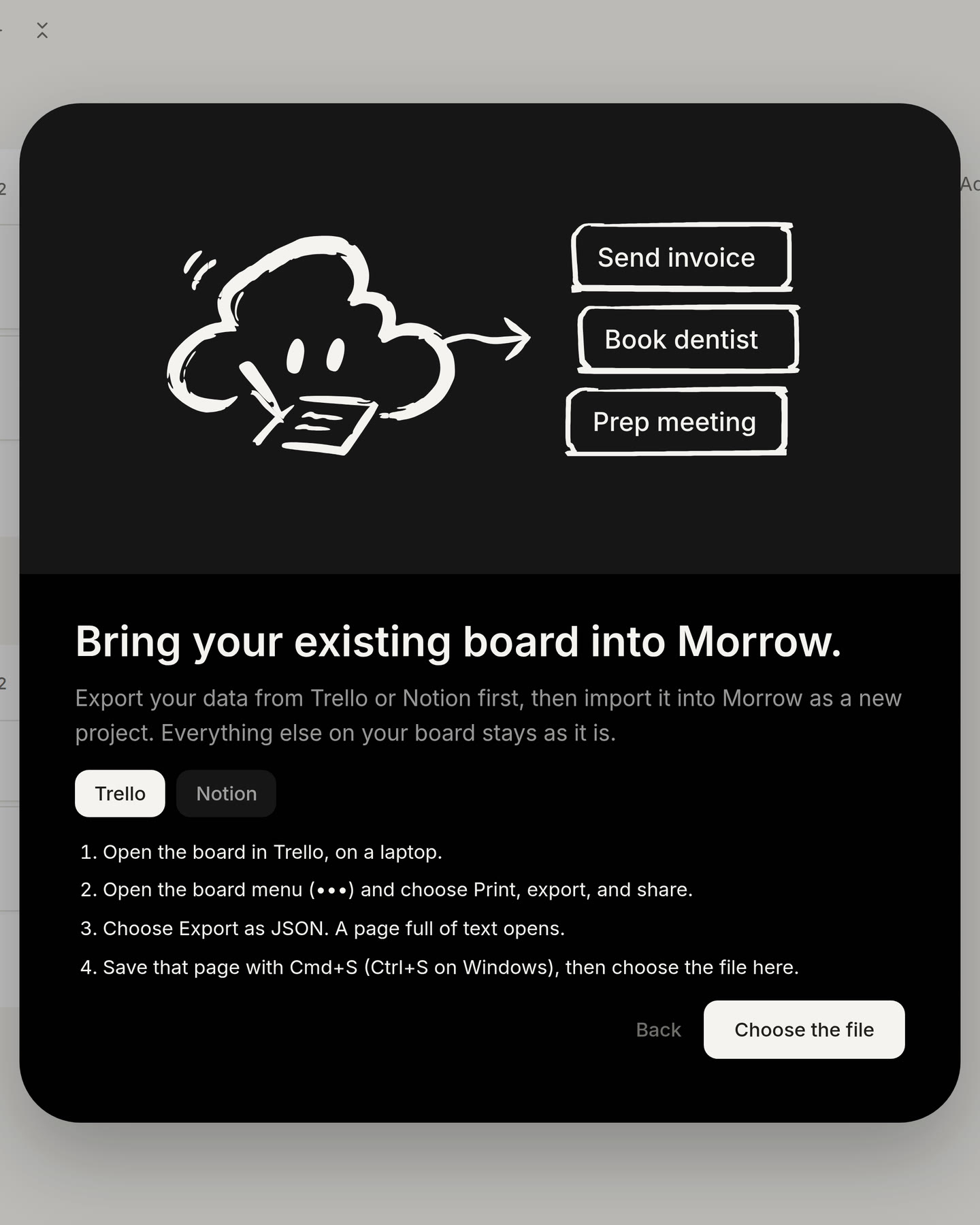
Choose a project for each thing in your brain dump. Every thing you type in the brain dump now shows its project, with a small arrow. Press it to choose another project. Is the right one not there yet? Press Create a new project and give it a name, and the card goes into it. To rename a project at the top, press the pencil next to its name. Moving a board from Trello or Notion now has its own tab, Import a board.
1.4.5
Find your blocks faster. The menu where you choose a block in a card, like a to-do list or a heading, is taller now, so you see more of them at once. The blocks you use most stand at the top, under Most used, so they are always one click away.
Open a folded project with one tap. When a project on your board is folded, press its name to open it again. You no longer have to find the small arrow beside it. When the project is open, pressing its name still lets you rename it.
1.4.4
Every link becomes a bookmark. Put a web address on a line of its own in a card, and it turns into a tidy bookmark with its name and its site. You can paste it or type it and press Enter, and it works without https:// too, like morrow.do/blog or www.morrow.do. A link inside a sentence stays part of the sentence.
1.4.3
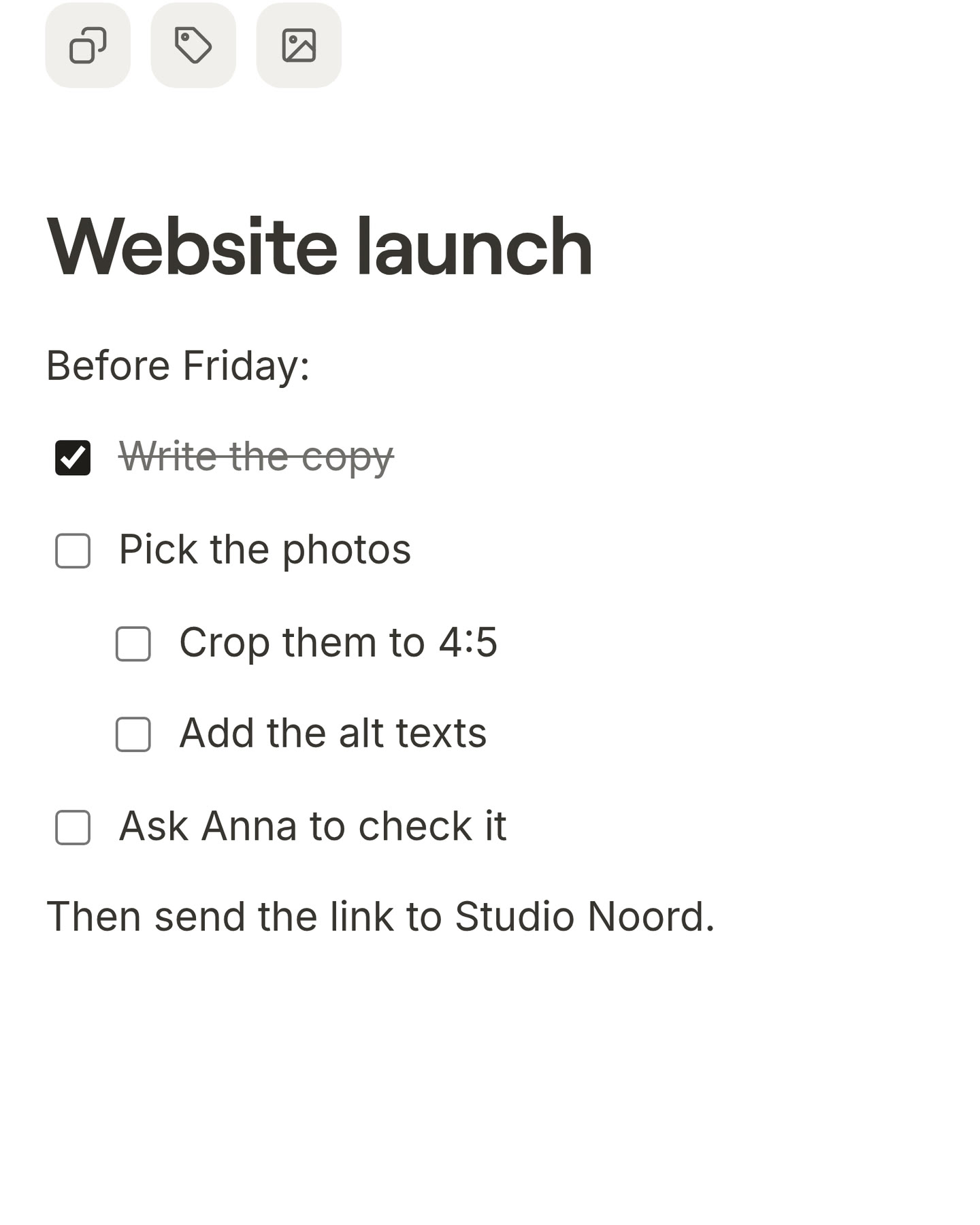
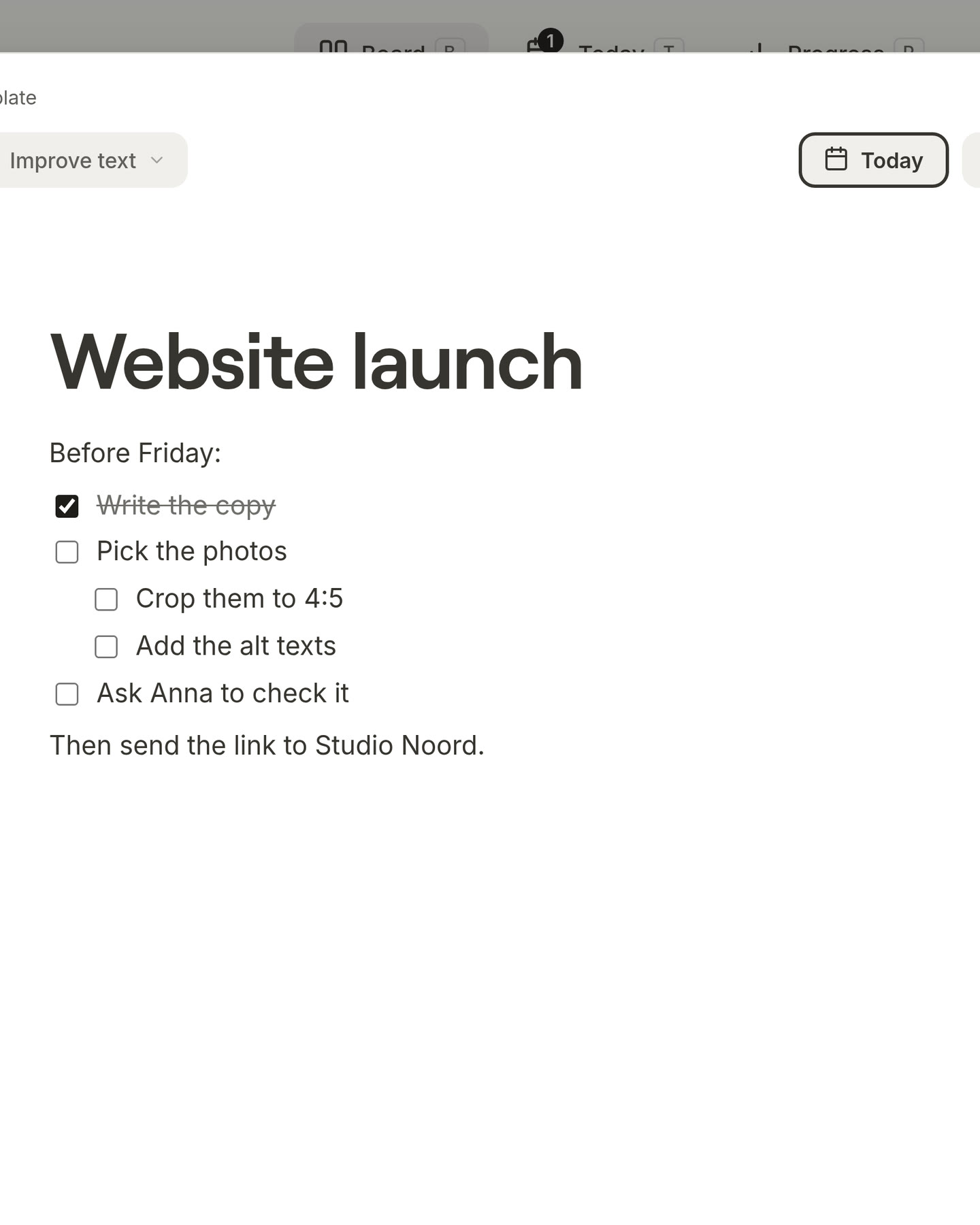
Bigger checkboxes. The boxes in a checklist inside a card are bigger now, so they are easier to tap with your finger on your phone, and easier to click on a laptop.
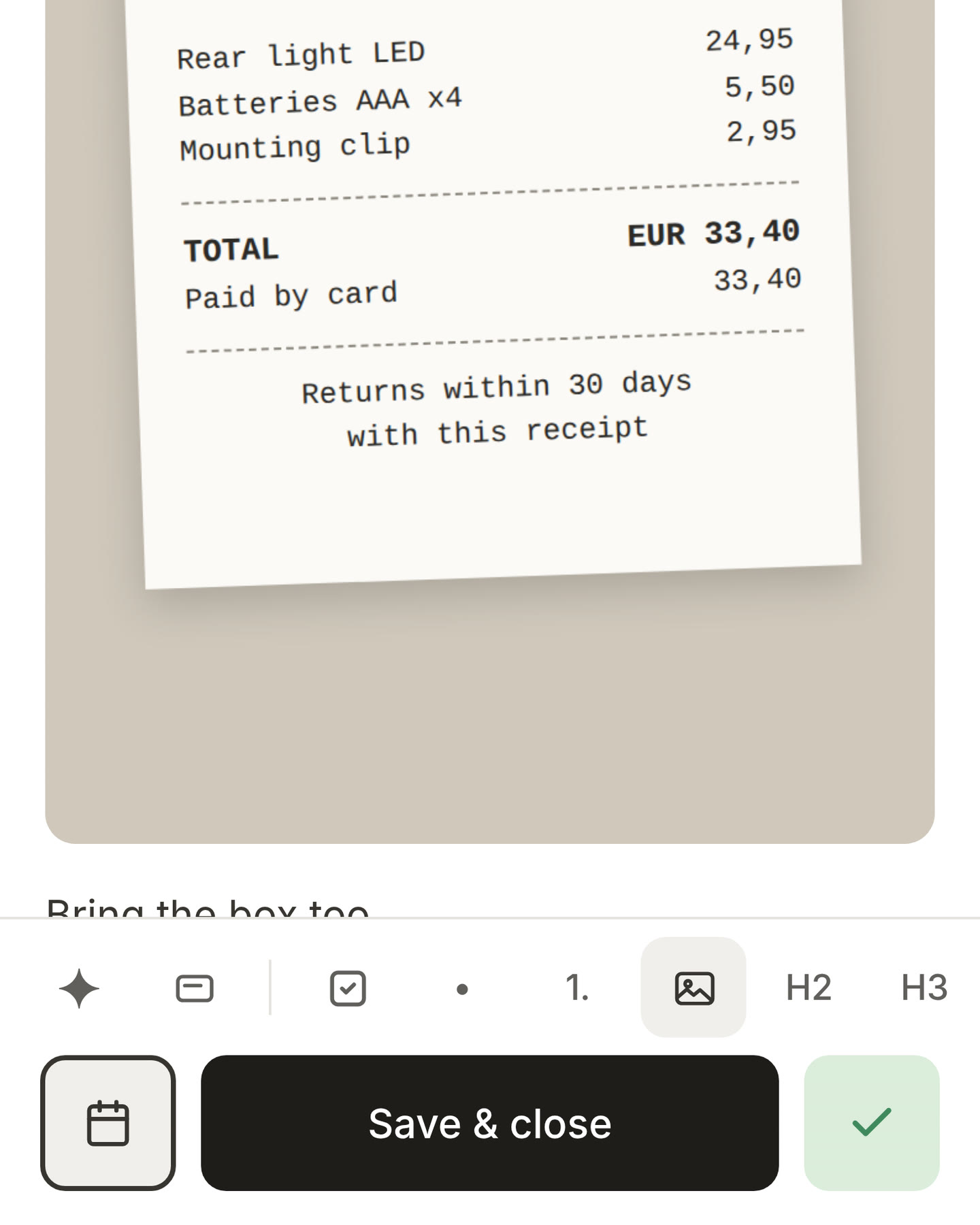
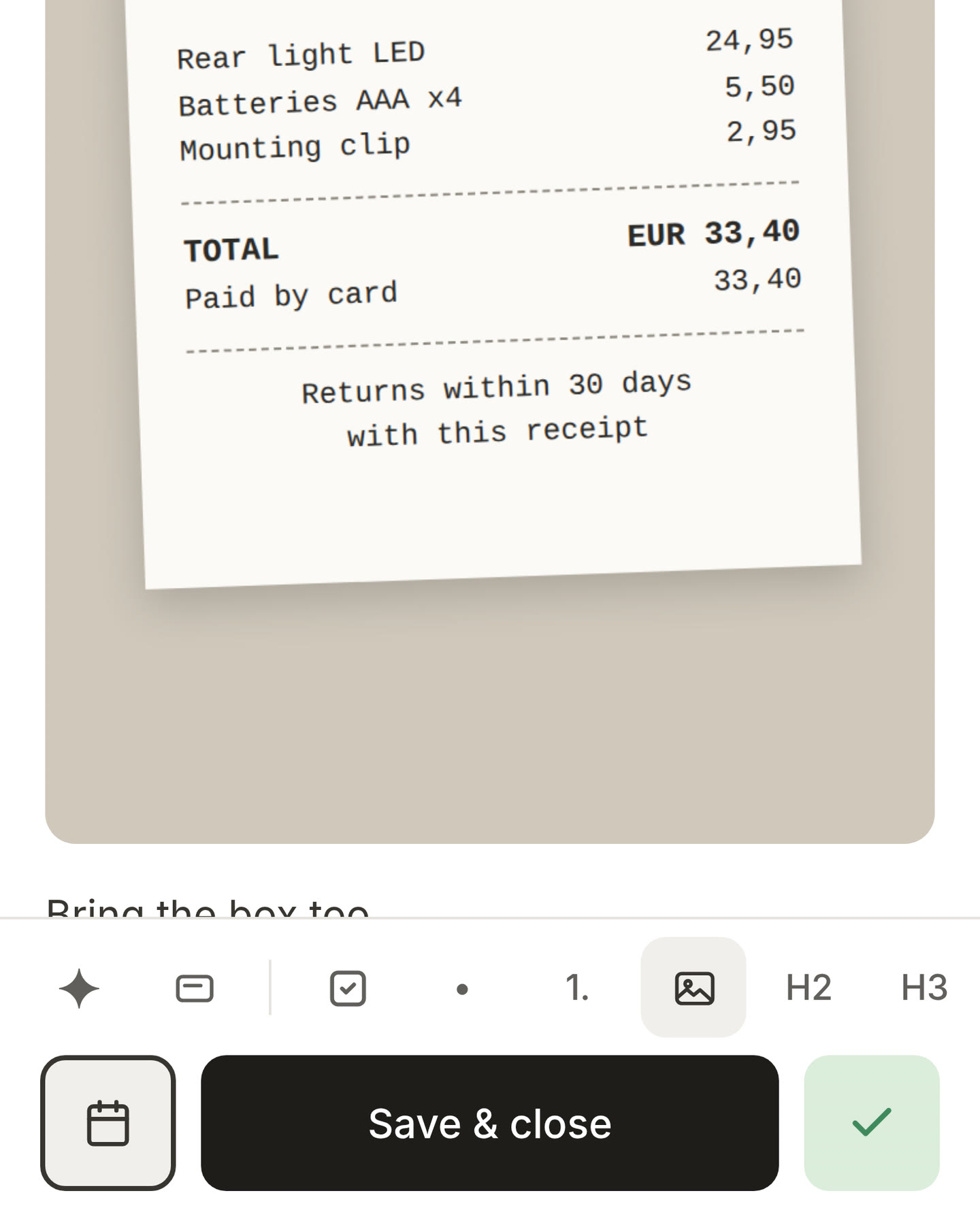
Remove a picture with Backspace. Put the cursor at the start of the line under a picture in a card, and press Backspace. The picture goes, and the words on your line stay where they are. Changed your mind? Press Undo in the message that appears.
1.4.2
Progress shows your day more clearly. Open Progress and look at When you peak. It now shows every card you finished, across the whole day from 0:00 to 24:00, with a line for the time right now. If you have more than one busy moment, it says so, for example Three peaks. Under Your daily pace you now see how many cards you finished today next to a typical day, and today has the dark bar.
Sign in with a code from the mail. The sign-in mail now also holds a short code. Type it on the sign-in screen and you are signed in right there. This helps most when Morrow is on your iPhone home screen, because a link in a mail always opens your browser instead of the app. (thanks to feedback from user Robert)
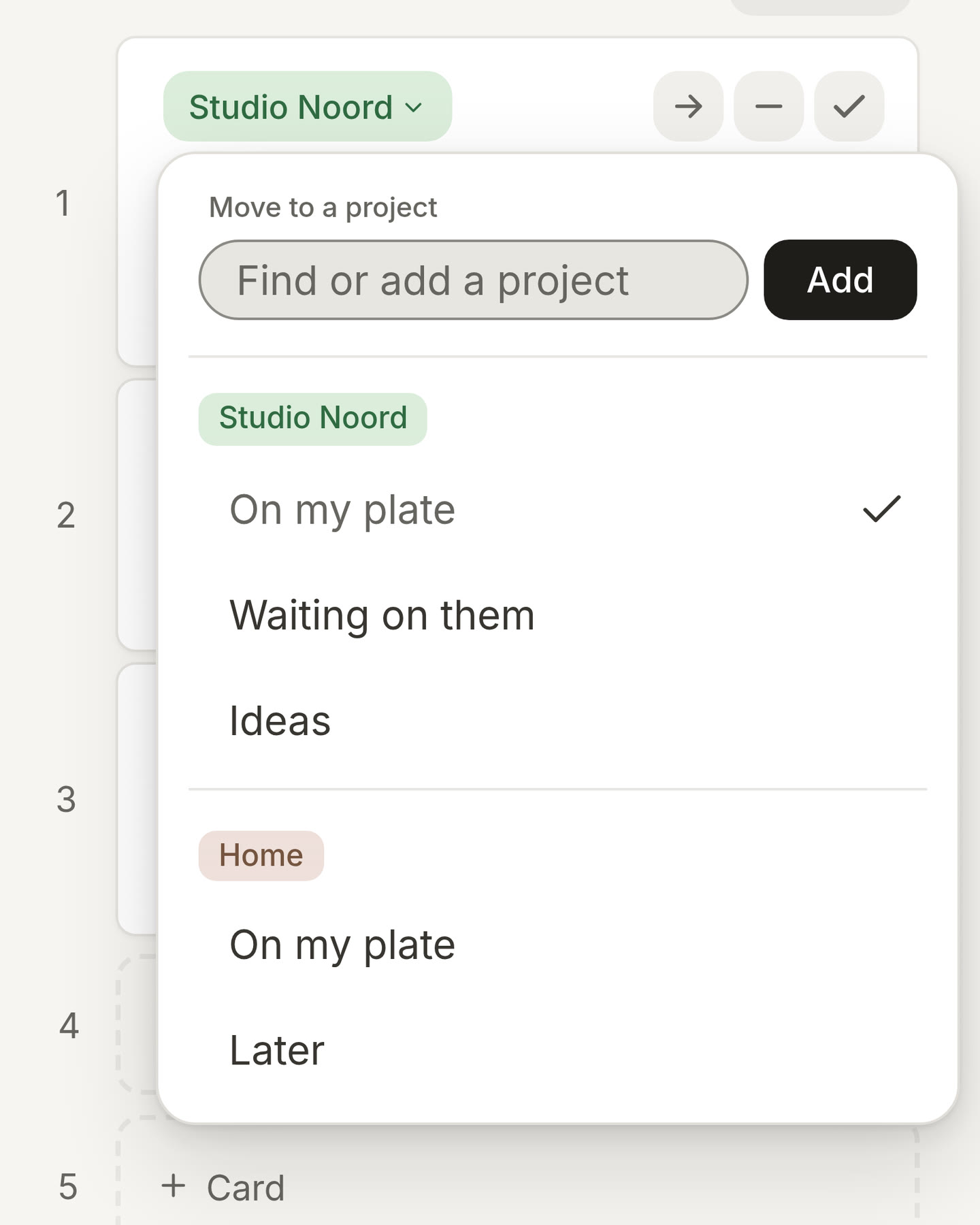
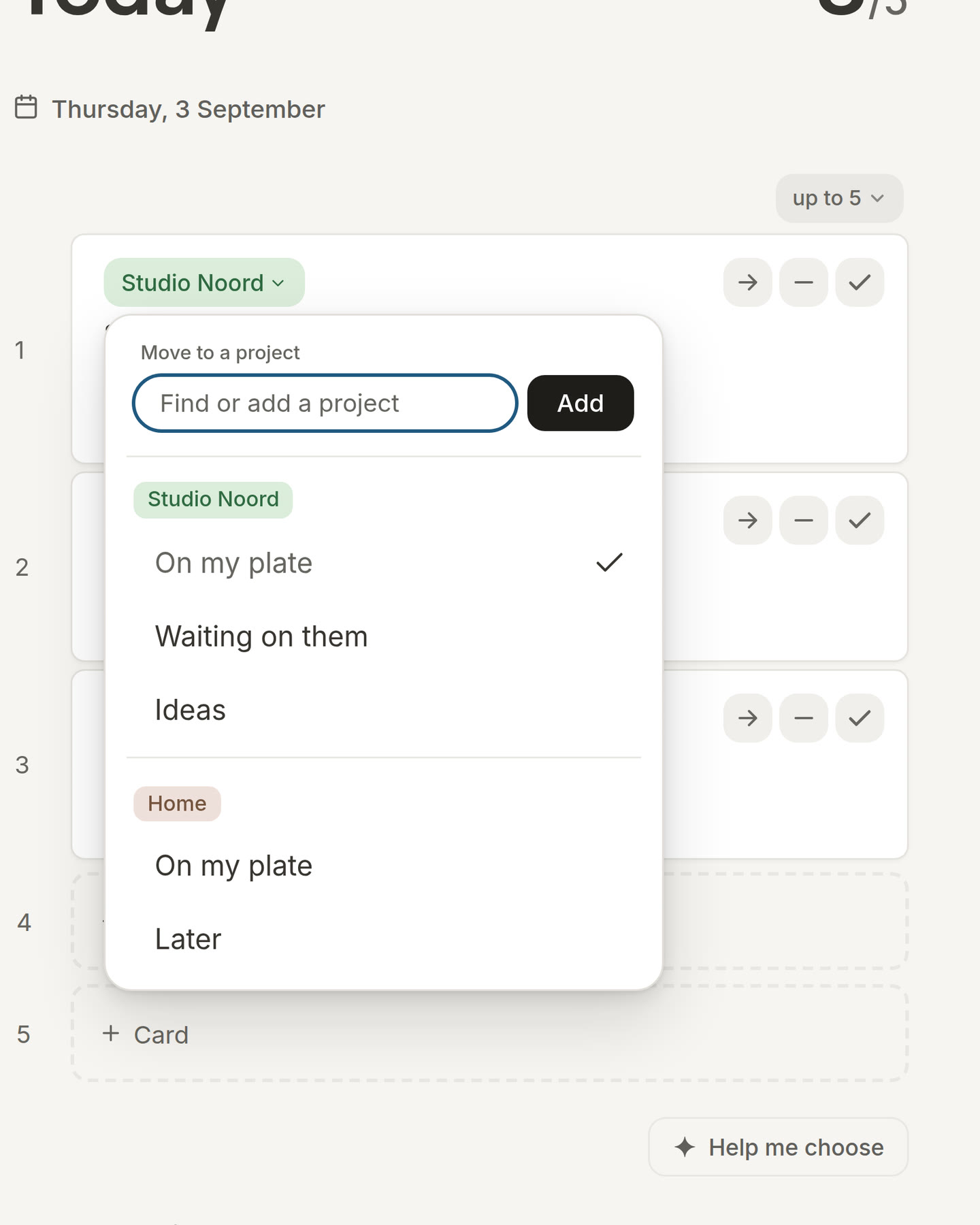
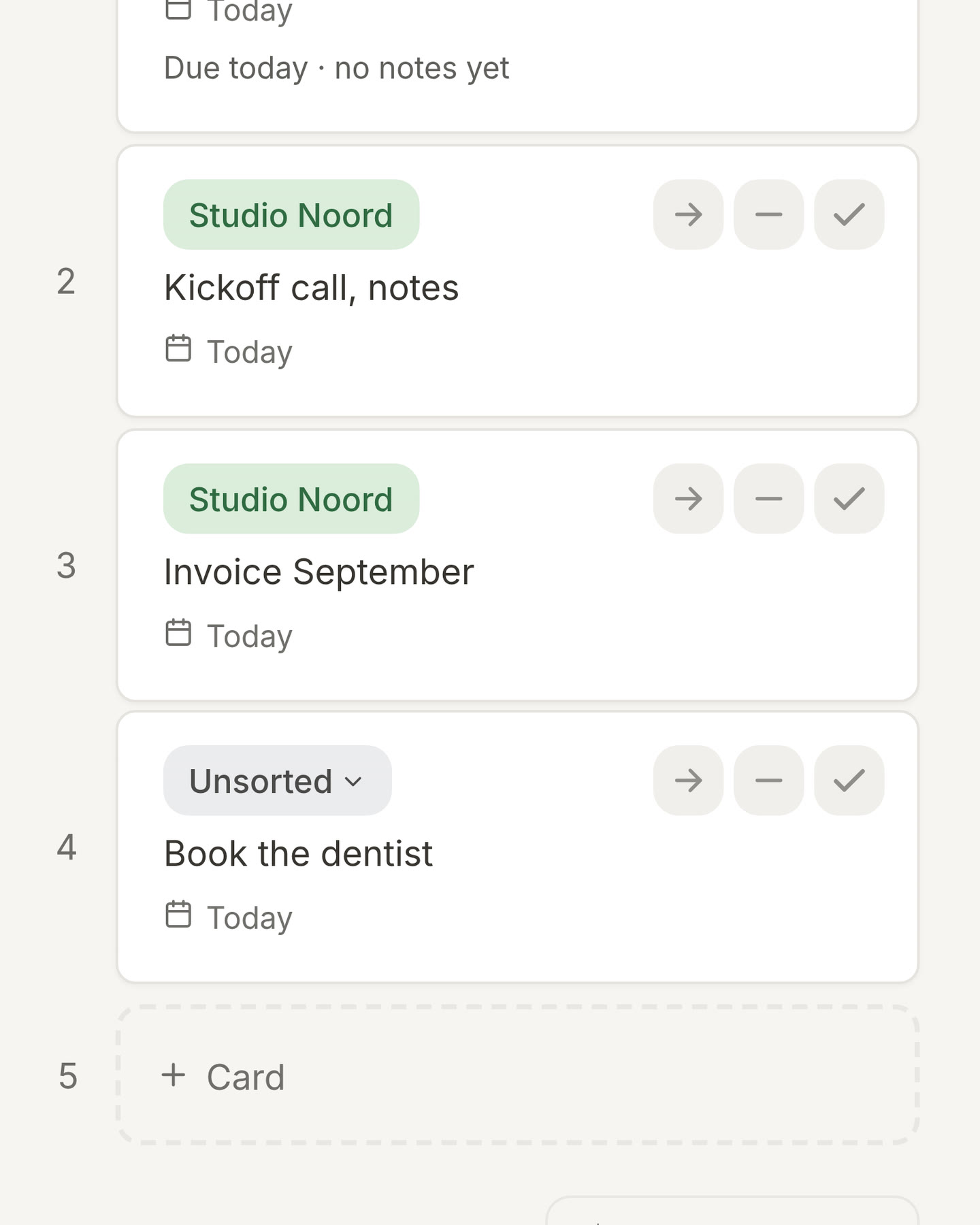
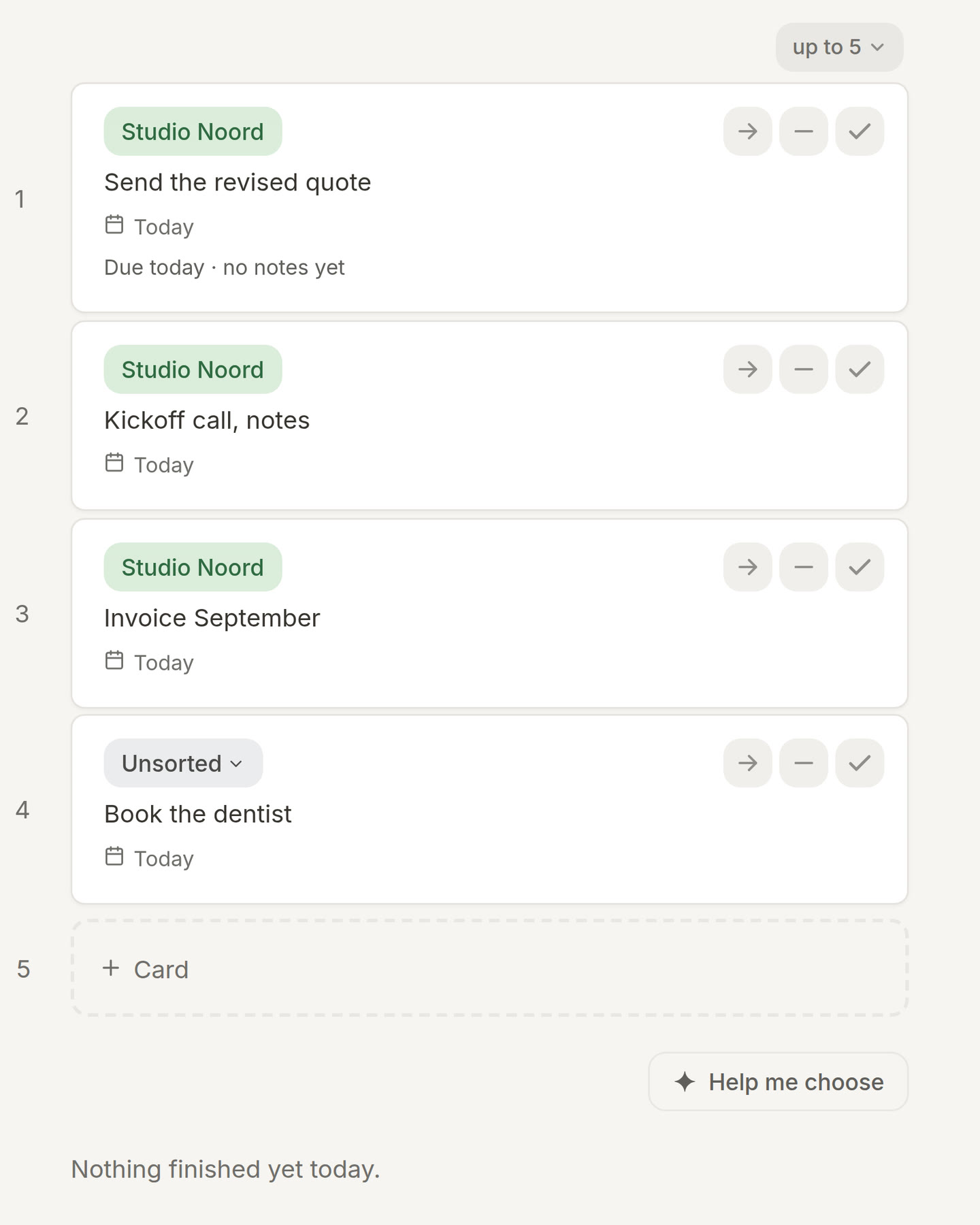
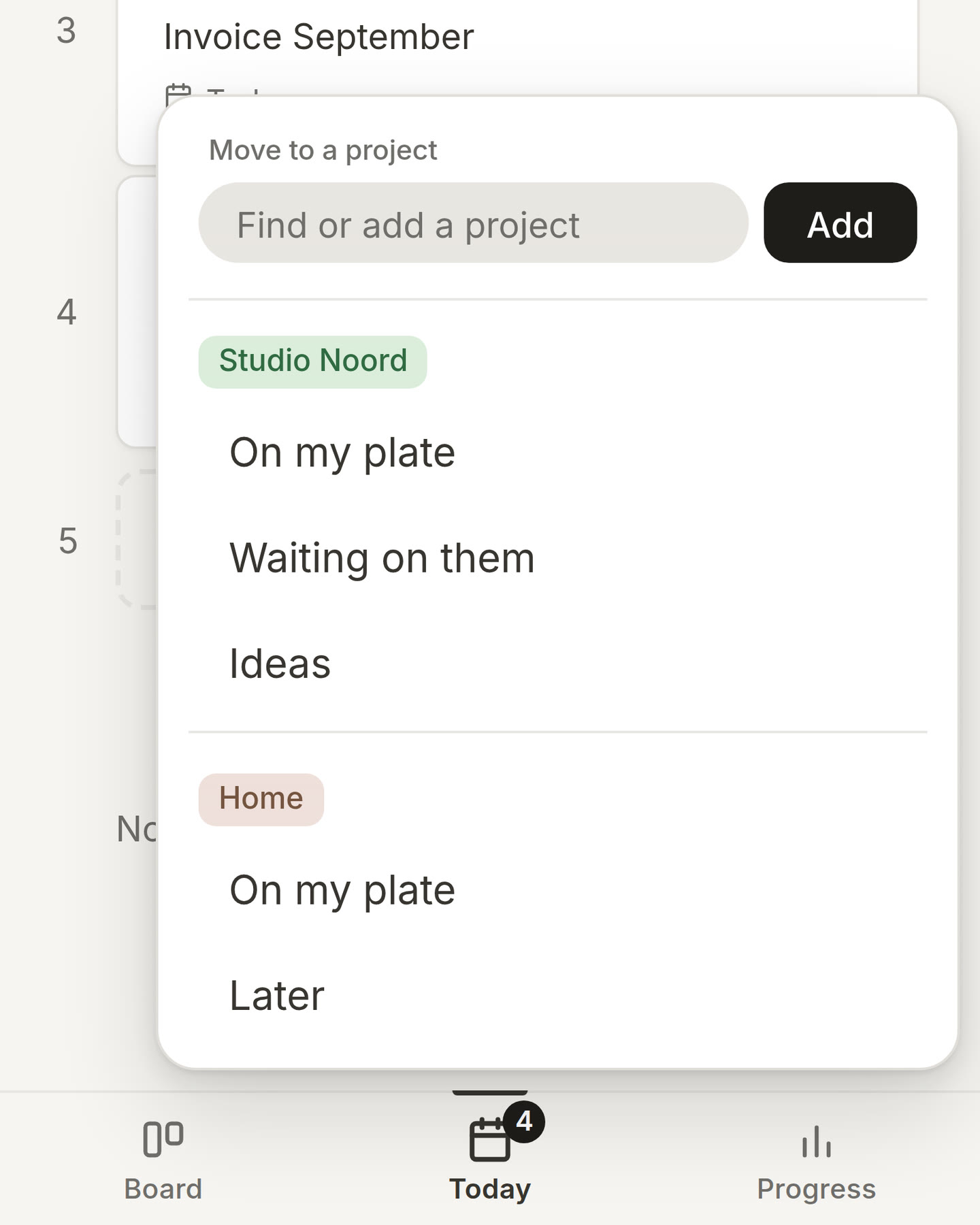
Move a card to another project from its label. On Today, the project label on each card now has a small arrow. Tap it and choose another project or list, and the card moves there while it keeps its place in your day. You can do the same at the top of an open card, where the project name is. (thanks to feedback from user Marco)
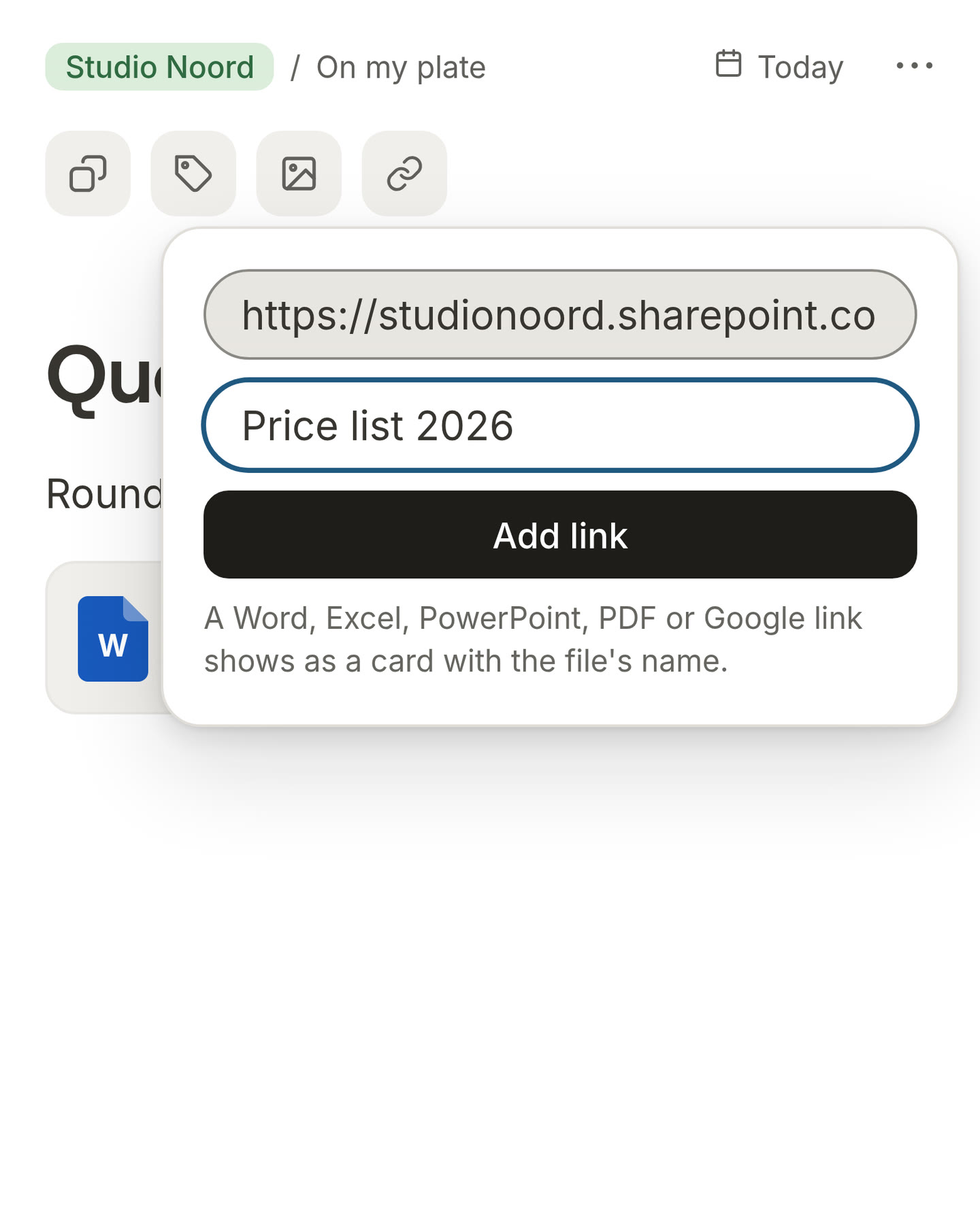
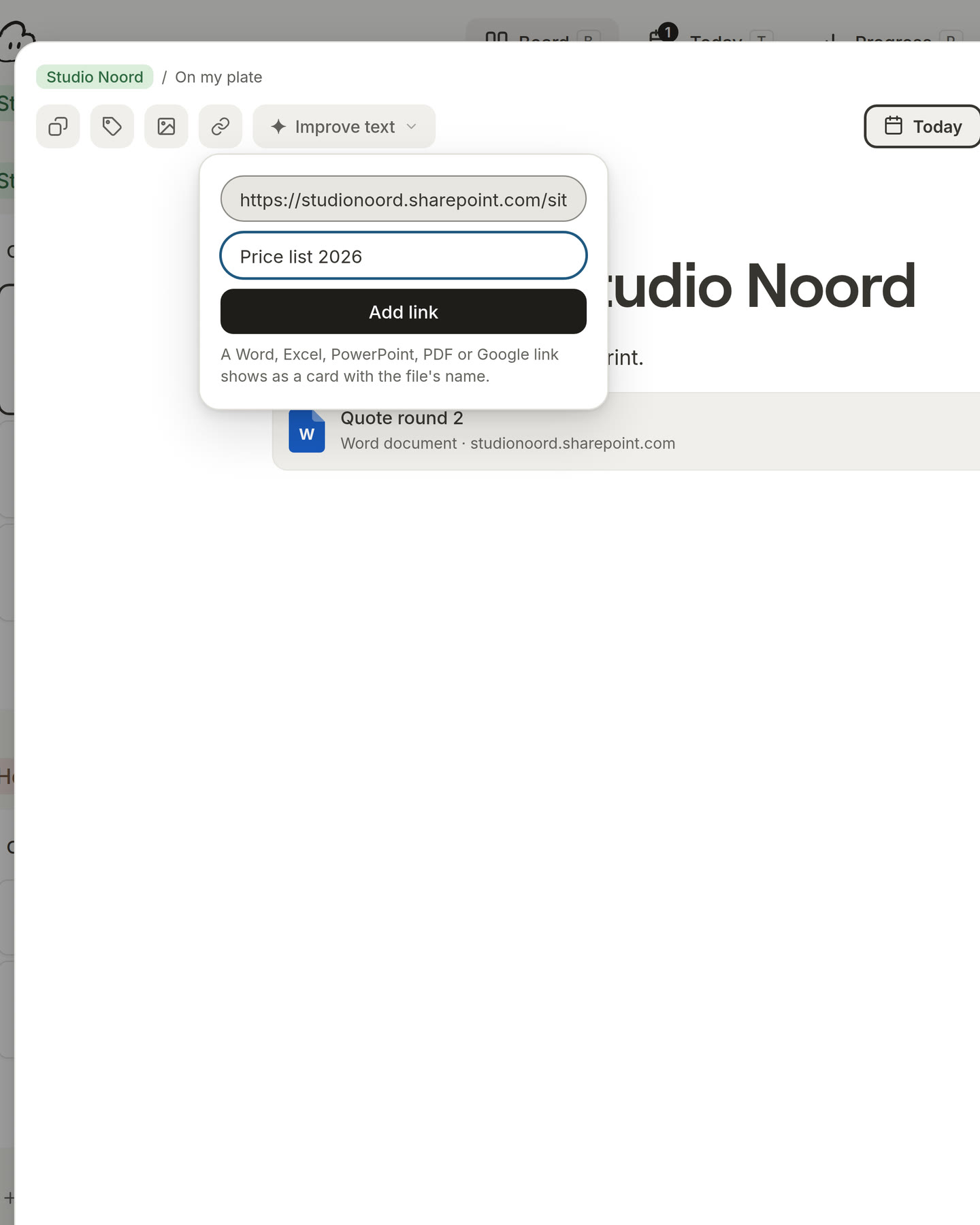
Add a link to a card. You can now add a link without copying it into the text first. Open a card and press the link button, next to Photo. Paste the address, give it a name if you like, and press Add link. A link to a Word, Excel, PowerPoint, PDF or Google file shows as a card with the file's name, so you can find it again at a glance. Other links show as a card too. (thanks to feedback from user Nandini)
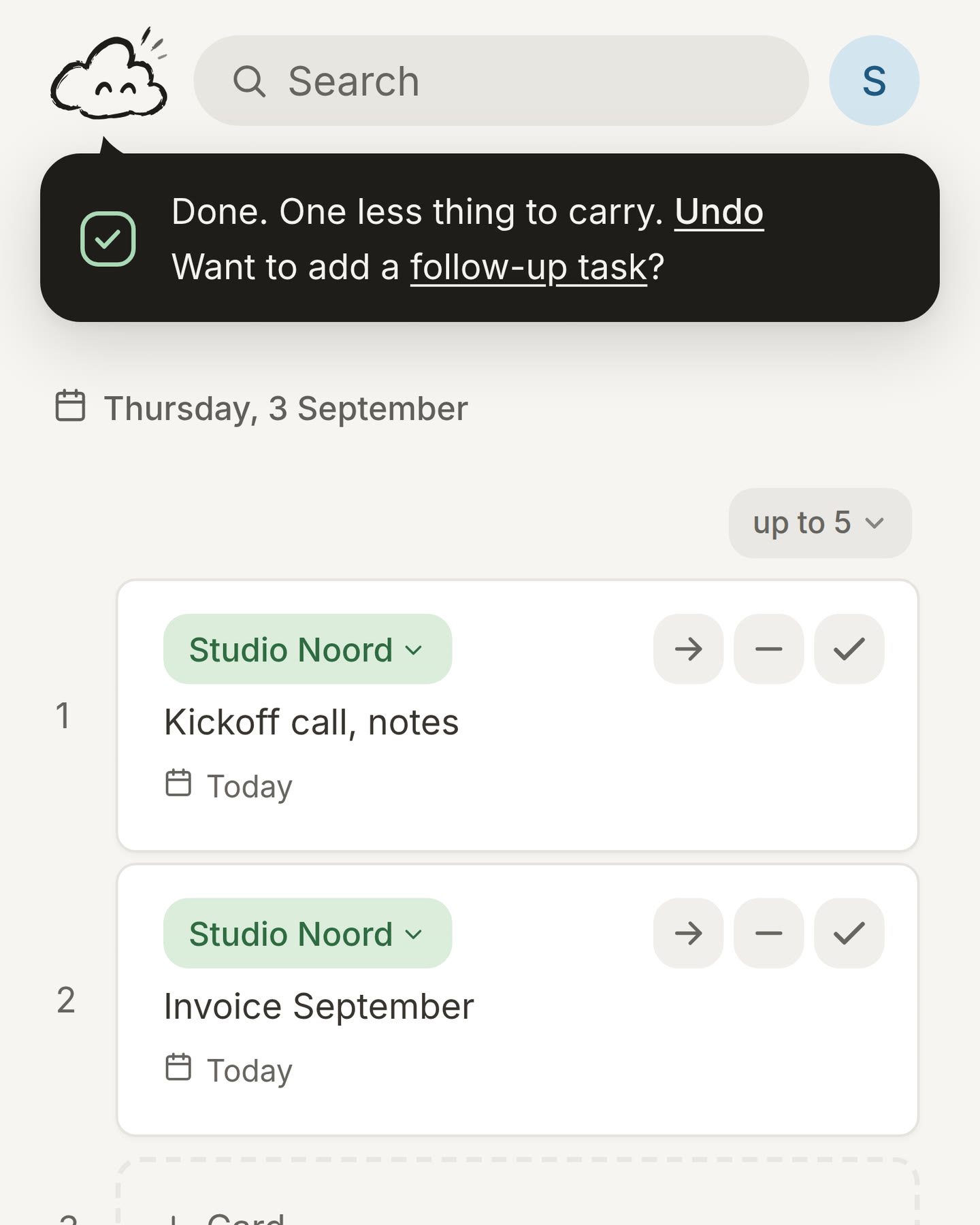
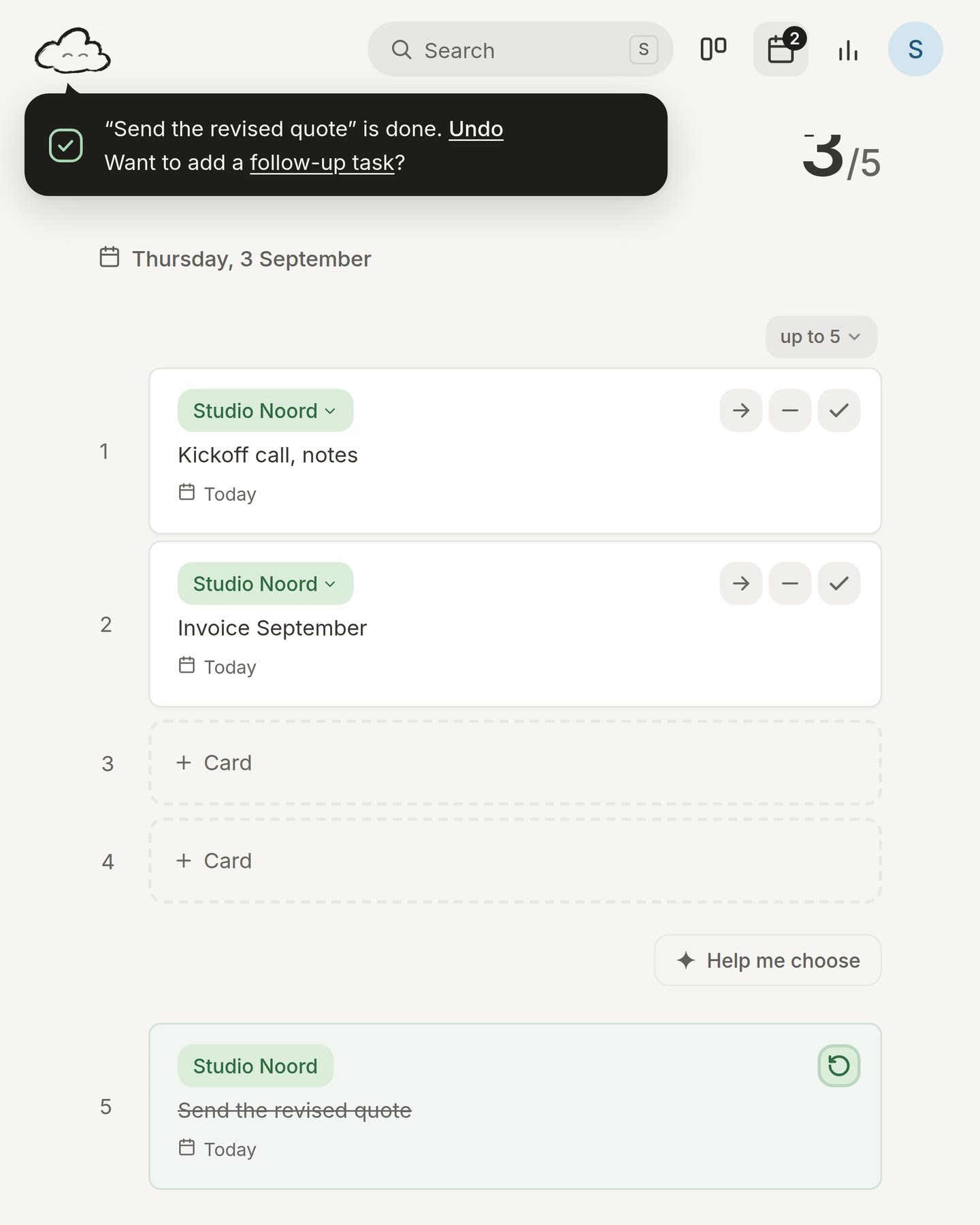
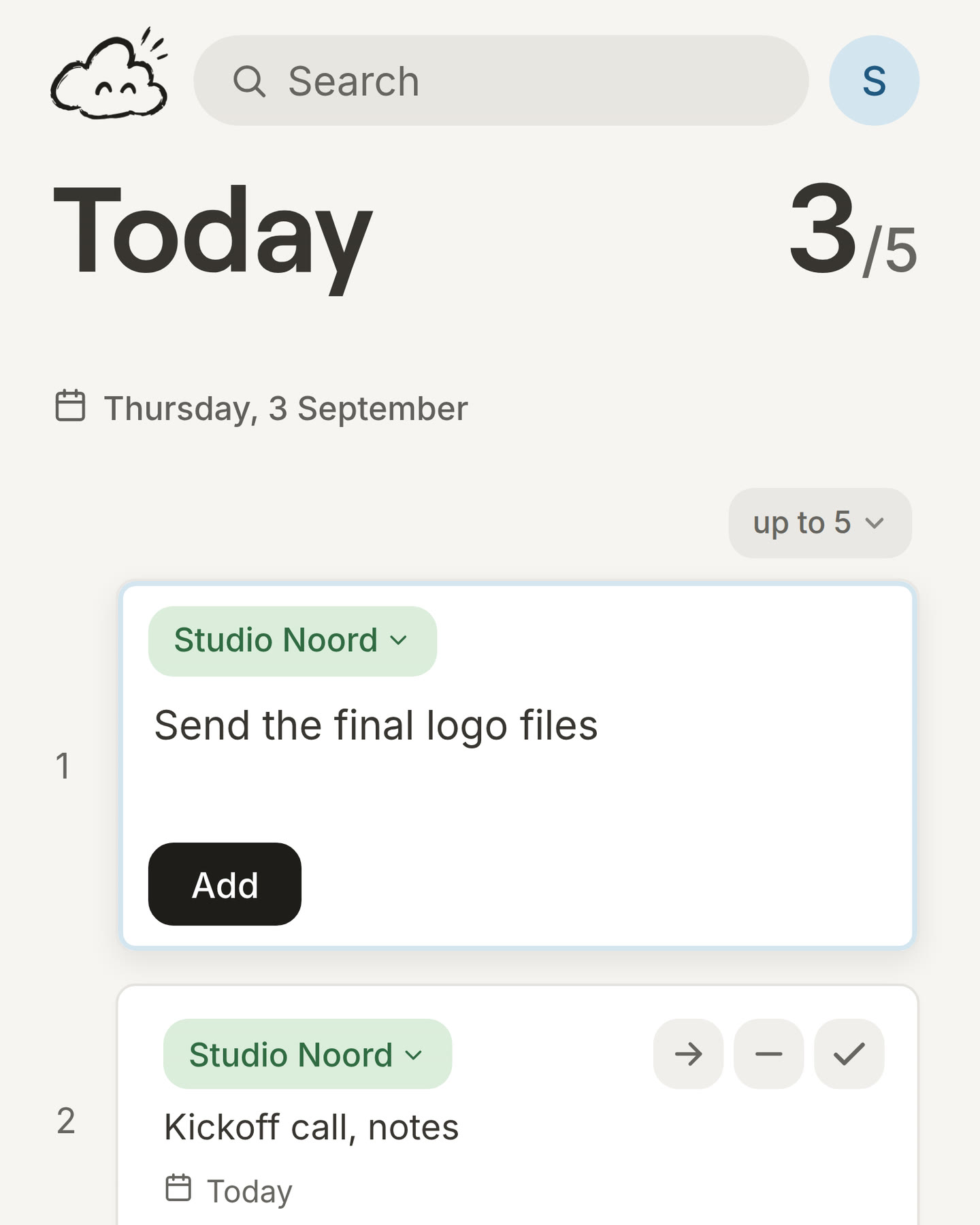
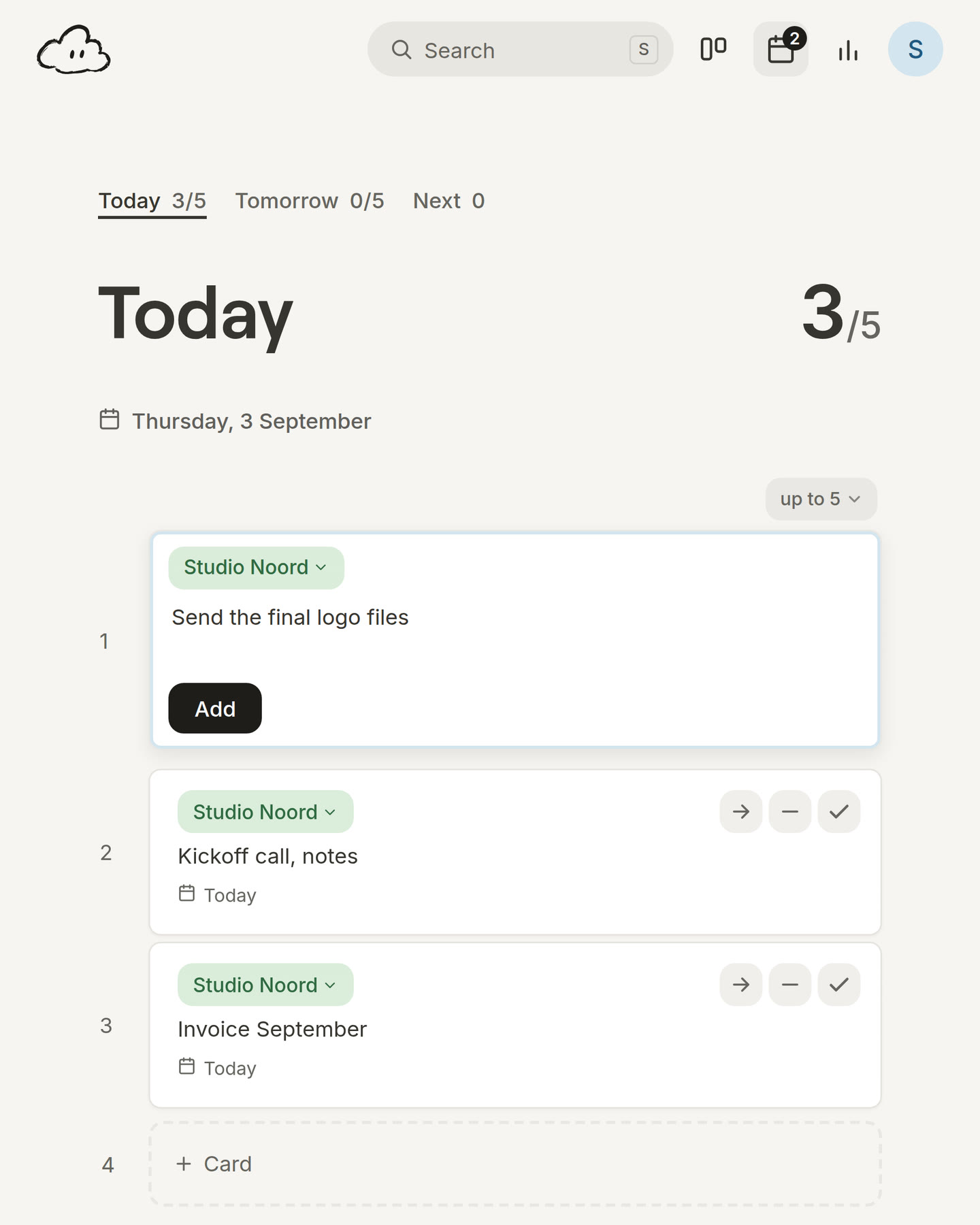
Add the next step right away. When you finish a card, you often already know what comes next. Now you can write it down before it slips your mind. After you tick off a card, the message that appears asks if you want to add a follow-up task. Press those words and a new card opens in the same project, ready for its title. On Today it goes to the top of your day. If your day is already full, it goes to the project on your board. (thanks to feedback from user Peter)
Easier to read and easier to use with a keyboard. We made Morrow clearer for everyone. Light grey text is darker now, so it is easier to read. Fields you type in have a thin edge, so you can see where they are. On your phone you can zoom in again. And on a laptop you can open a card, move through Today and use the menus with only your keyboard.
1.4.1
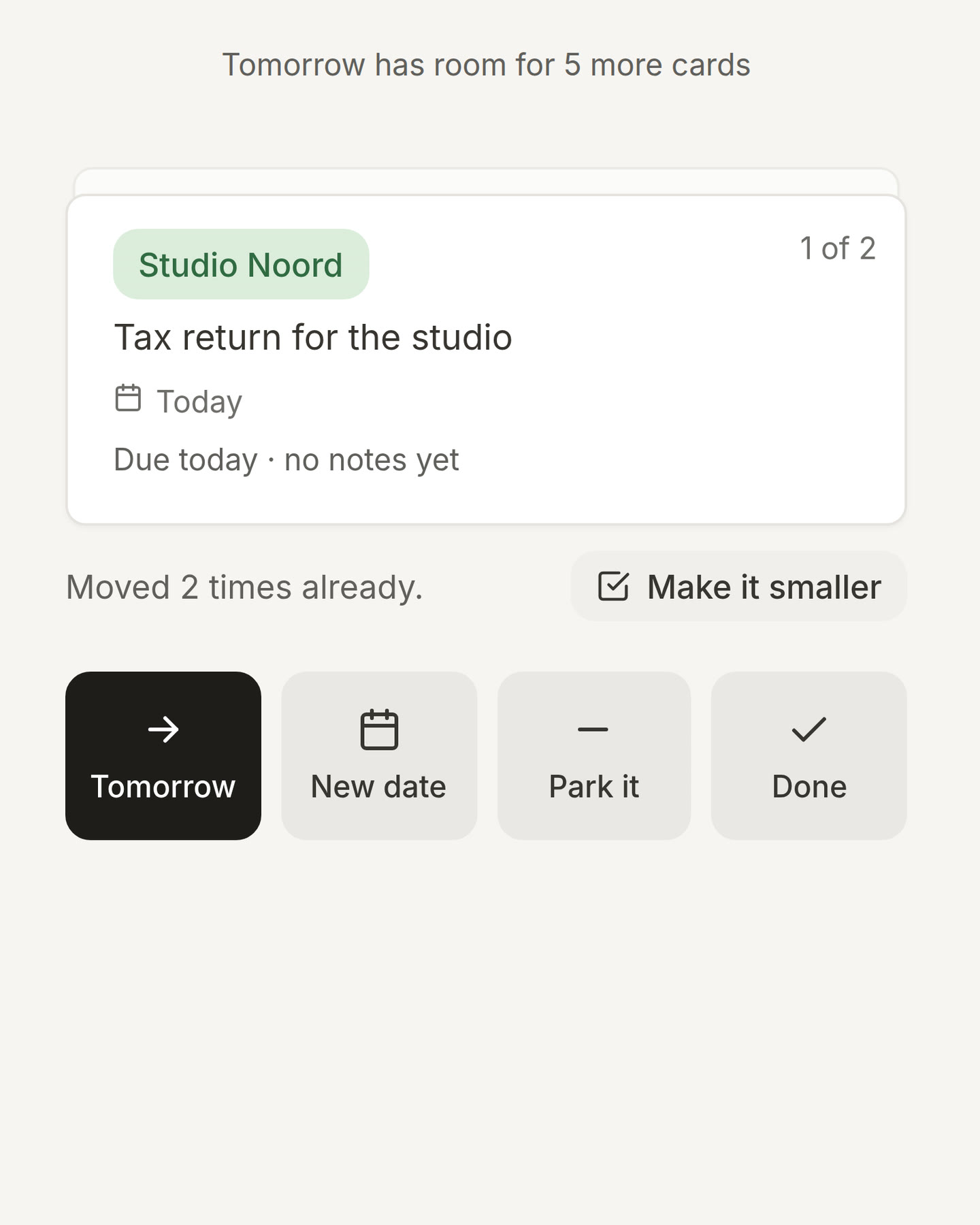
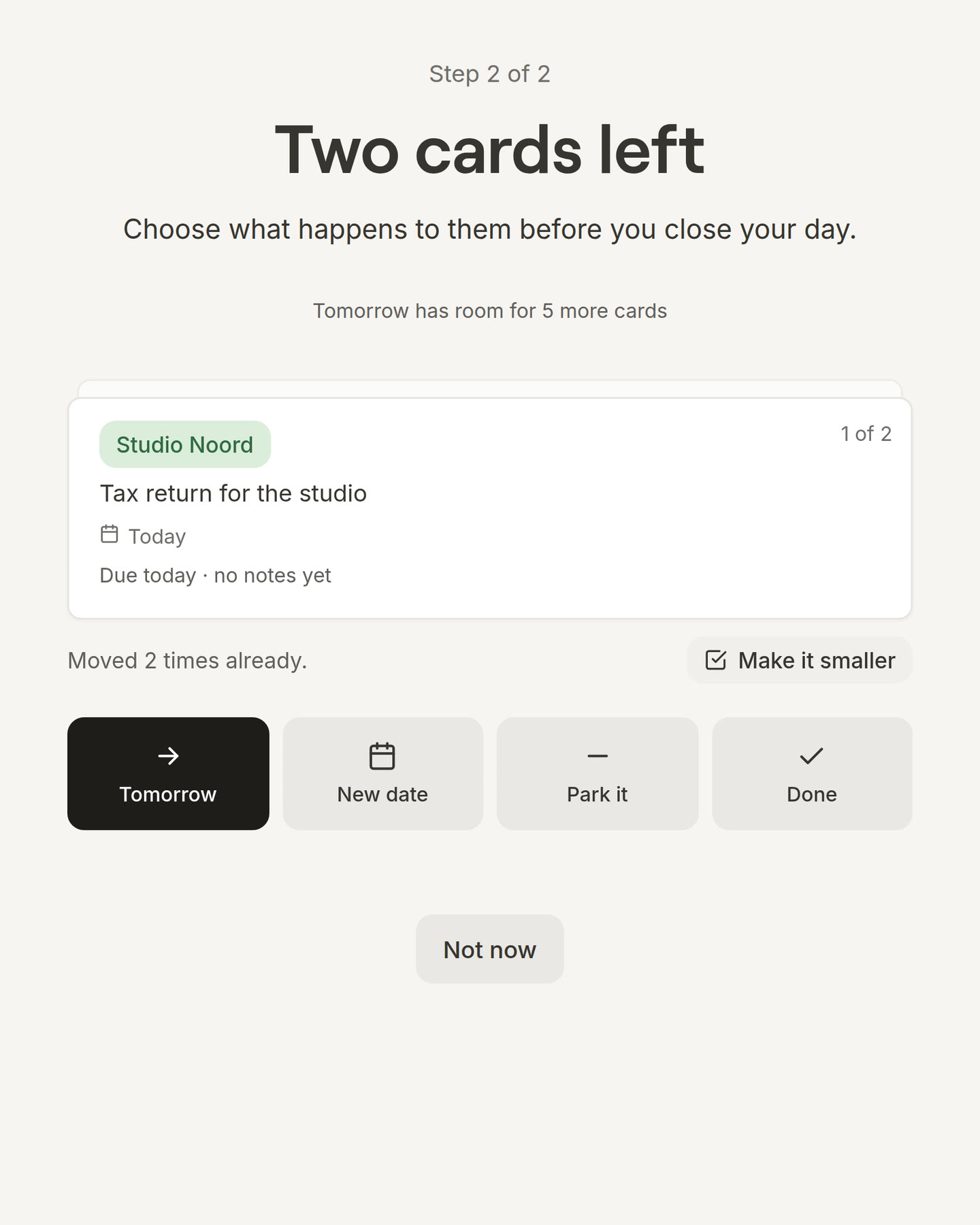
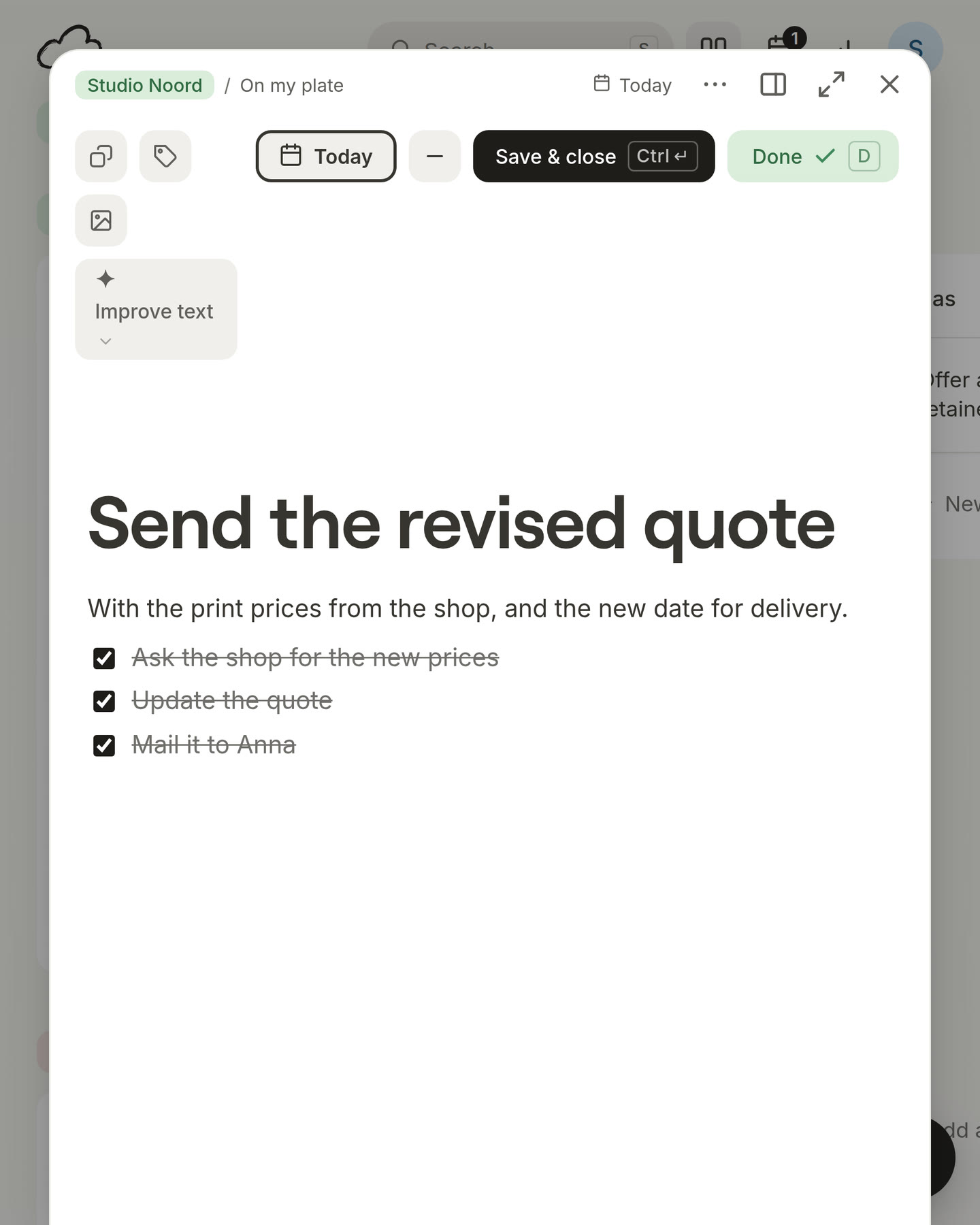
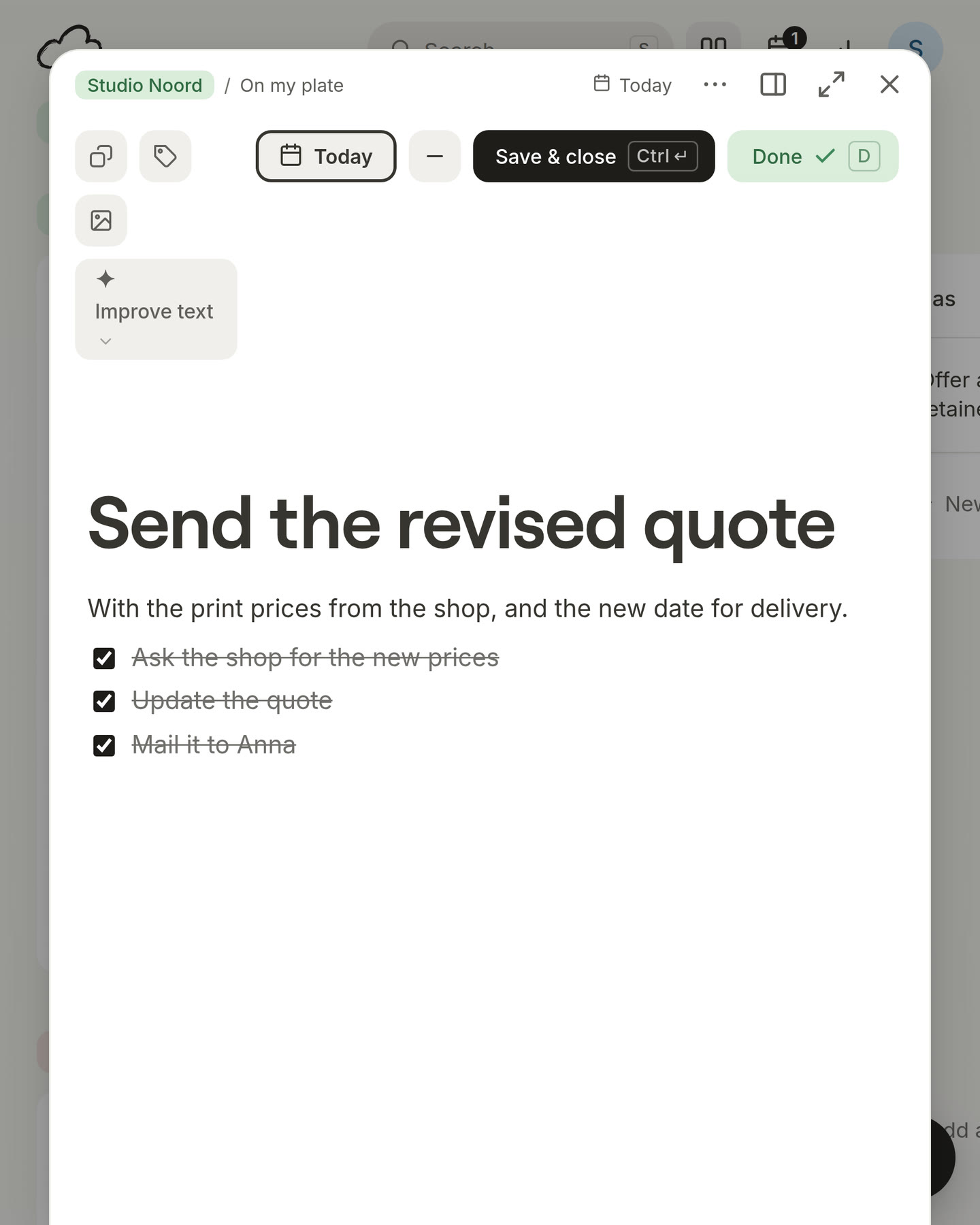
Make a card smaller. Some cards move to tomorrow evening after evening. When a card comes up in Close your day for the third time, you now see a Make it smaller button under it. Press it and Morrow breaks the card into a few small steps, so it is easier to start.
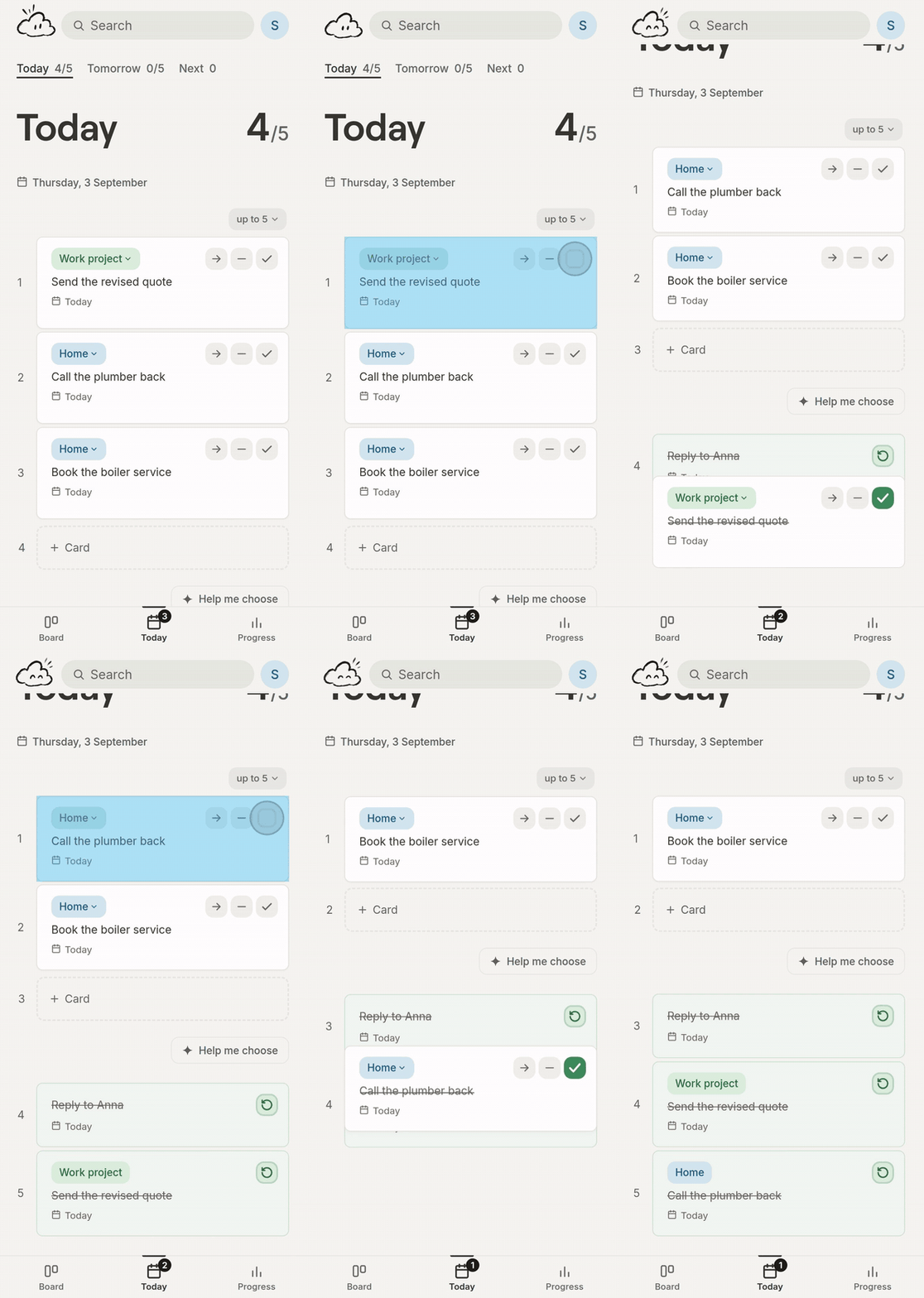
Finishing a card feels better. When you tick off a card, a line now runs around the button and turns into a check, and the button fills with green. On Today, the card then lifts a little and moves down to your done cards, so you can see where it went. (thanks to feedback from user Robert)
1.4
Put a card on Today from search. You know the moment: you search for a card, you find it, and then you still have to go to your board to put it on Today. That step is gone. In your search results, every card now has a plus. Press it and the card is on Today, while you keep searching. Is it already on Today? Then you see a minus, so you can take it off just as fast.
Put a card between your meetings. Some days are full of meetings, with an hour free here and there. Now you can use those hours on purpose. Drag a card from your Today list into a free moment in your calendar. It waits there between your two meetings, without a start time you have to keep. Did your day change? Just drag the card back to your list. (thanks to feedback from users Nandini and Marco)
Connect Google or Outlook from Today. If you have not connected a calendar yet, Today now shows two buttons: Google Calendar and Outlook Calendar. Each one takes you through the steps for that calendar. Outlook calendars that did not work before now connect too, and if one still does not, Morrow tells you why.
A clearer pin. In your project list, the pin is now a square button with a bigger pin, so it is easier to see. When a project is pinned, the pin is filled in.
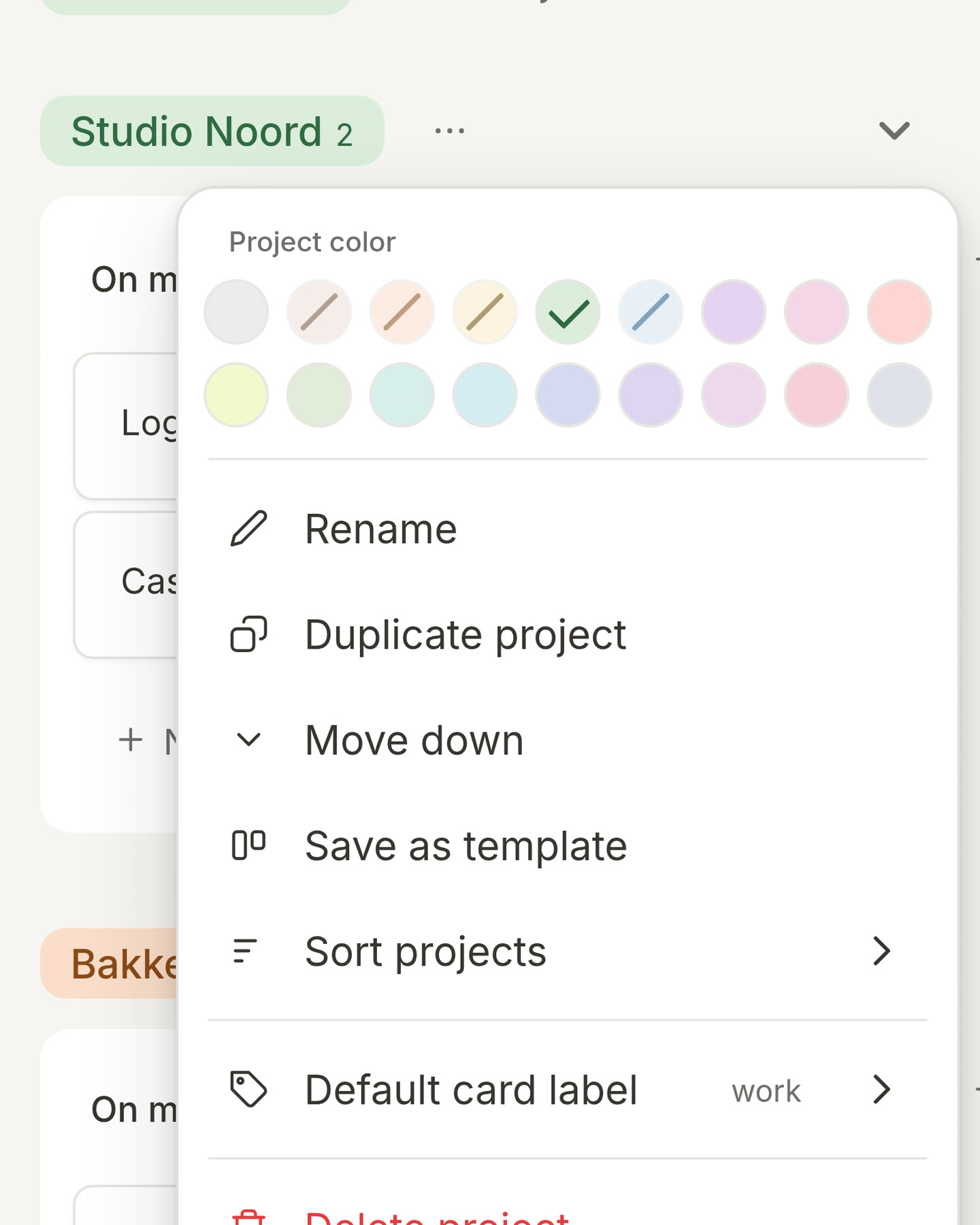
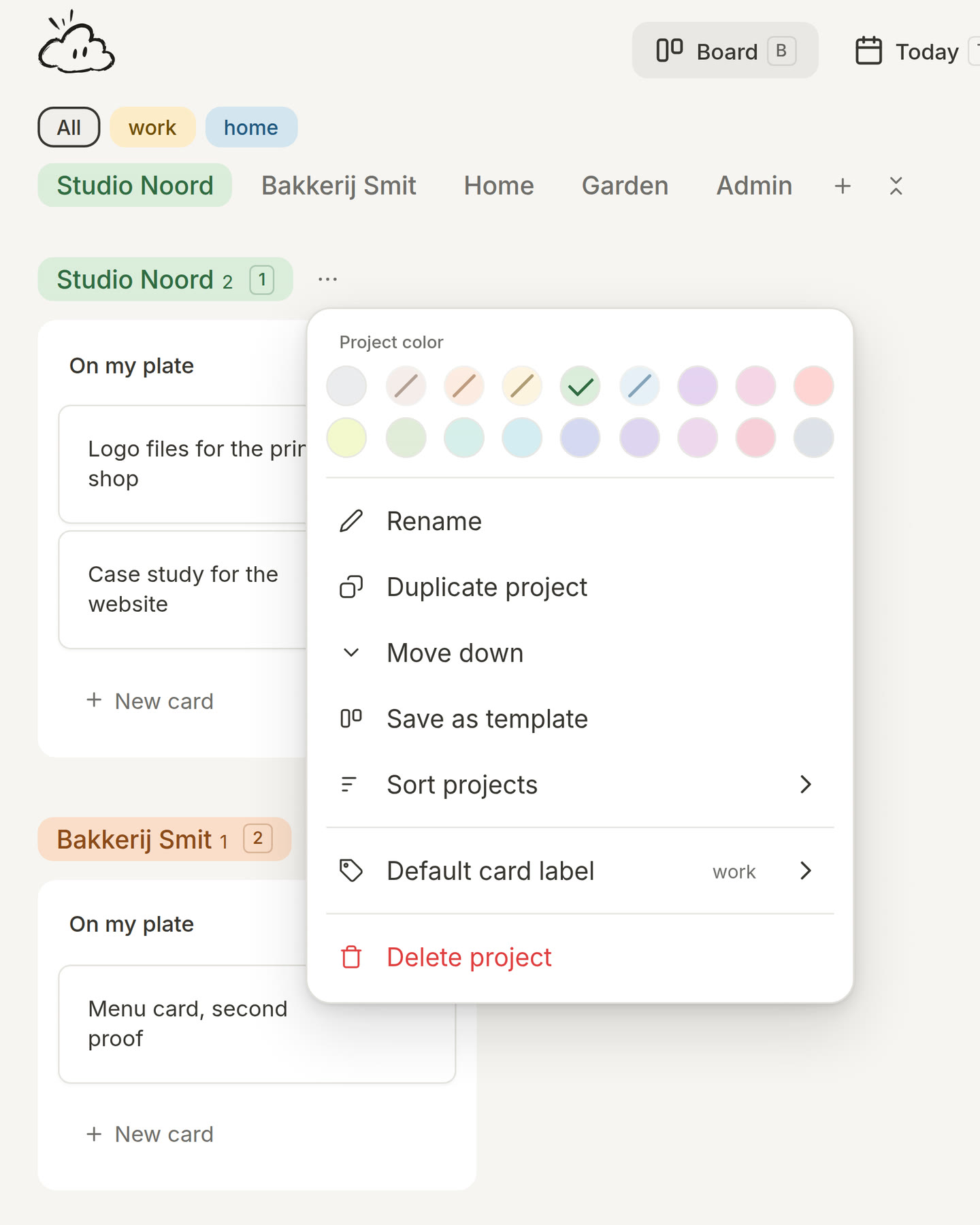
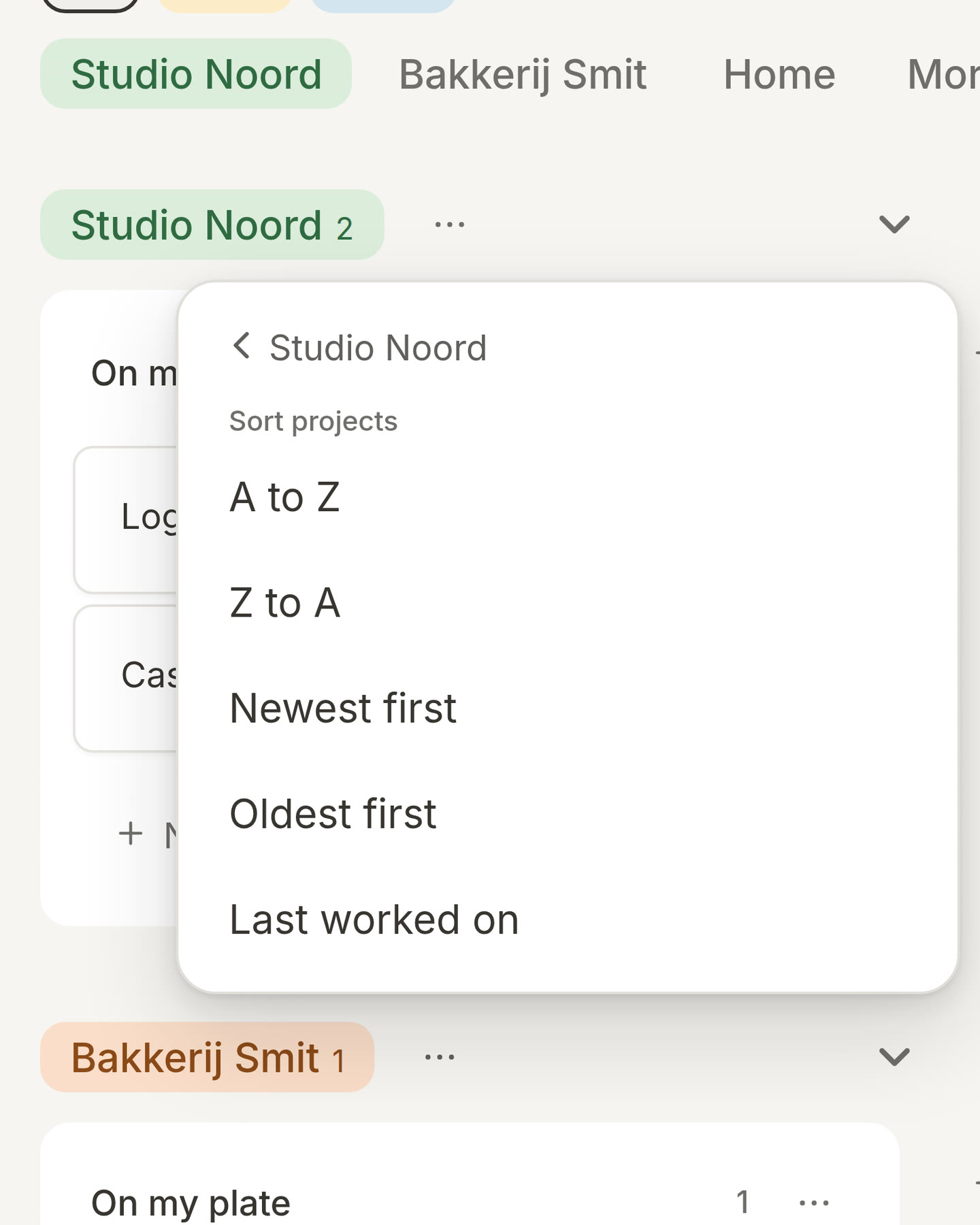
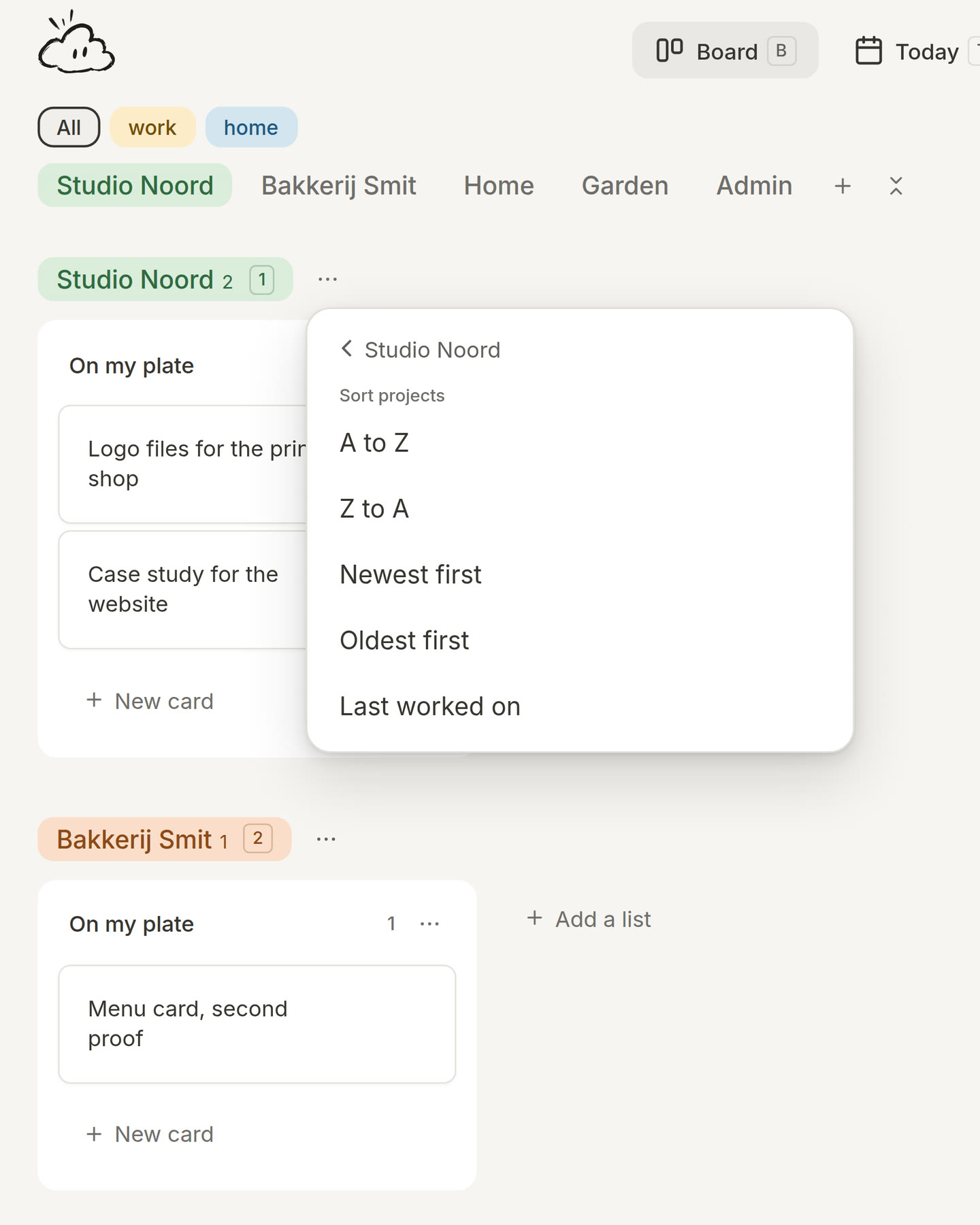
Sort your projects. When your board grows, it takes longer to find a project. Now you can put your projects in the order that works for you. Press ⋯ next to any project and choose Sort projects. Pick A to Z, Z to A, newest first, oldest first, or the projects you worked on last at the top. Morrow keeps that order, and you can still drag a project to another place yourself. (thanks to feedback from user Peter)
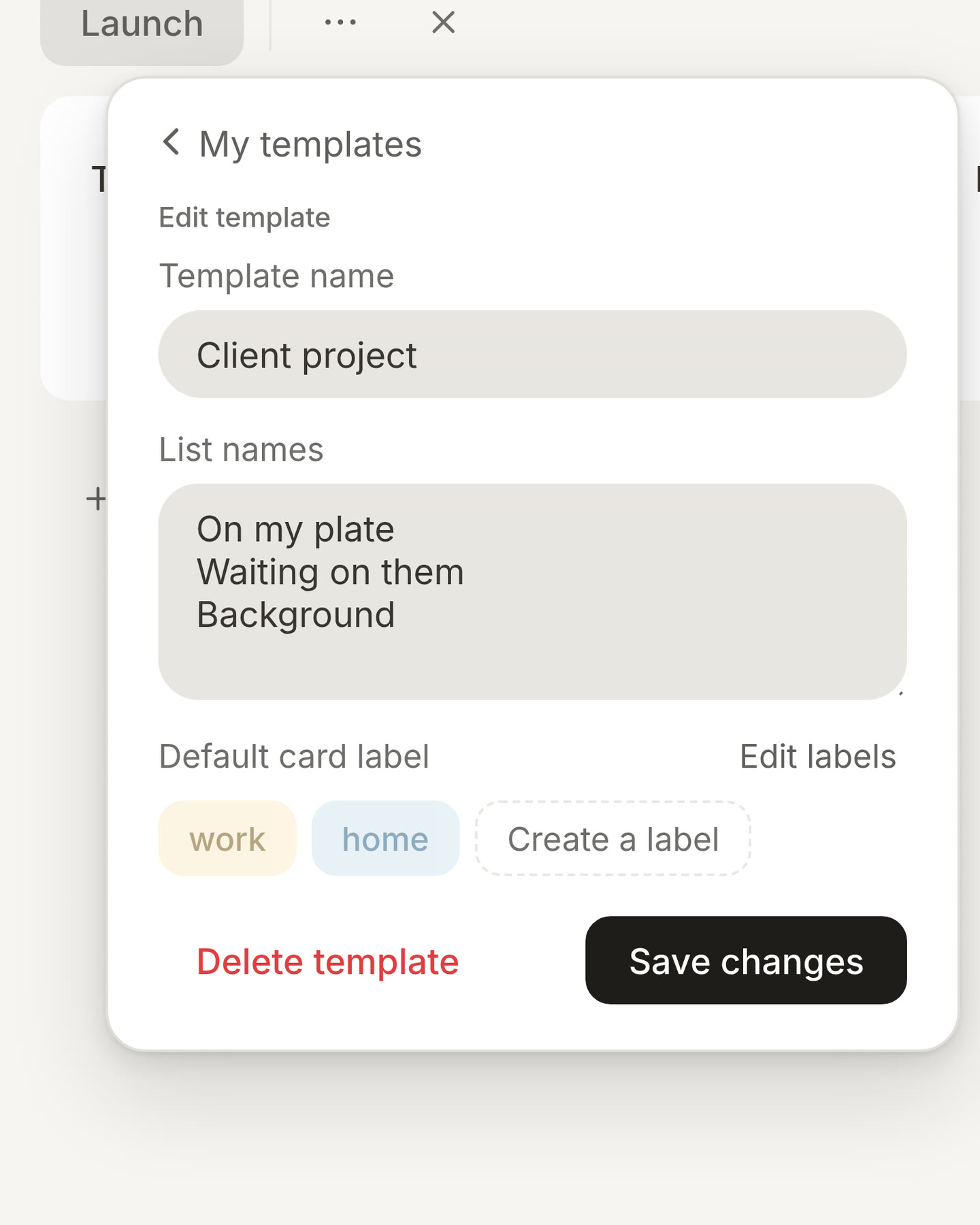
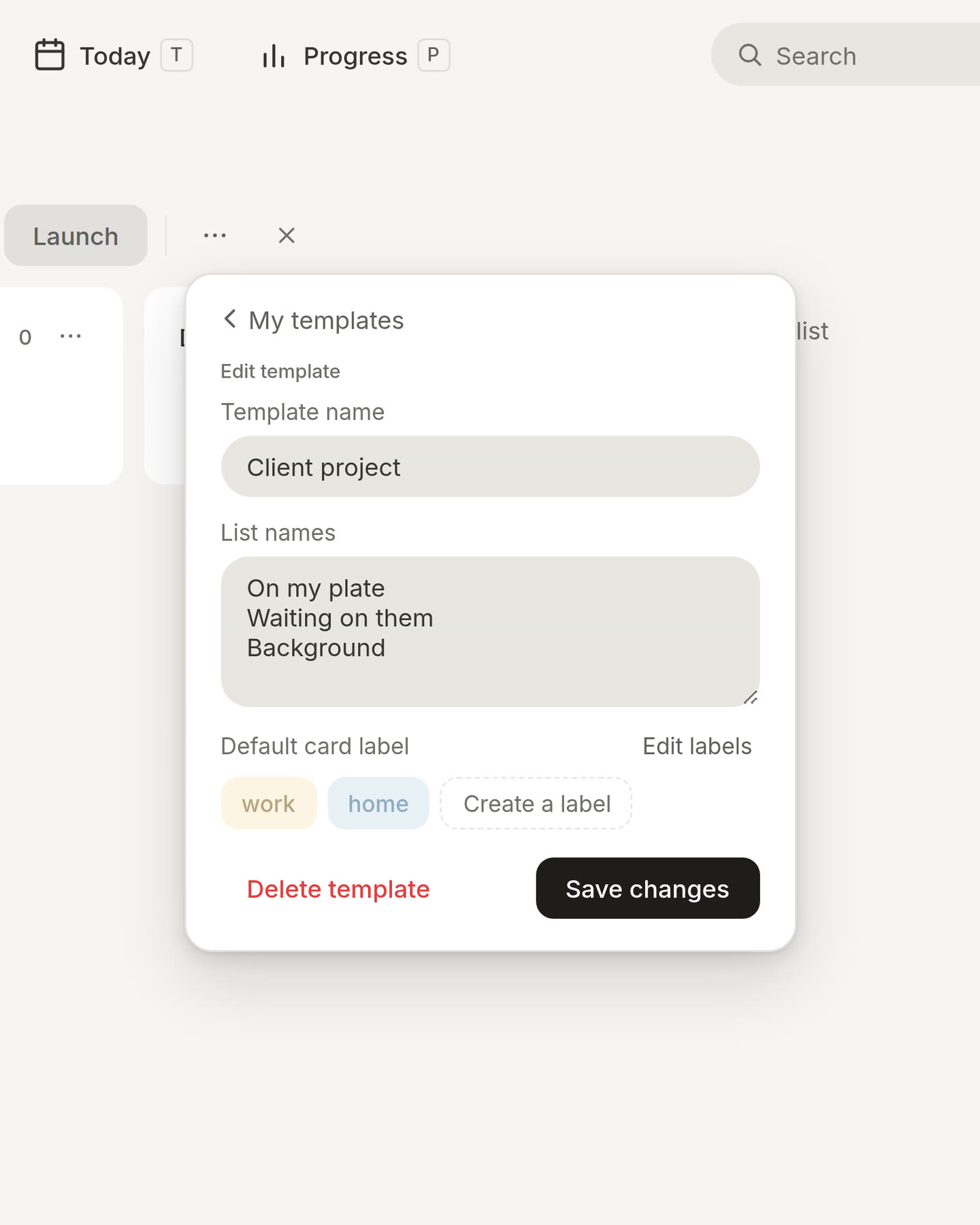
Make the templates your own. Do you start the same kind of project again and again? Then you can now make a template that fits your work. On a new project, press ⋯ next to the templates. Rename a template, change its lists, delete one or make a new one. A template can also give every new card a label, like work. Do you already have a project that works well? Save it as a template from its own ⋯ menu, and your next project starts the same way. (thanks to feedback from user Peter)
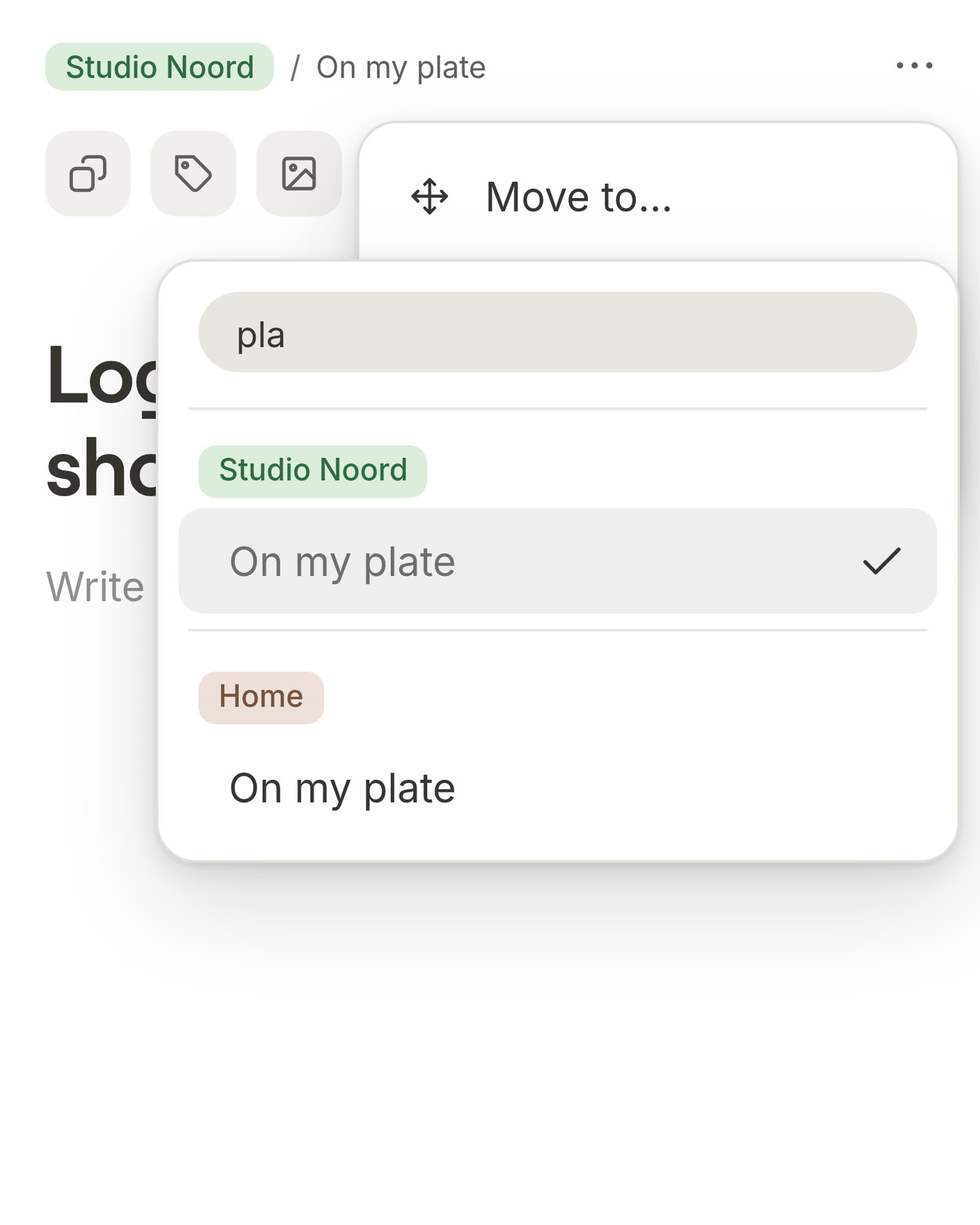
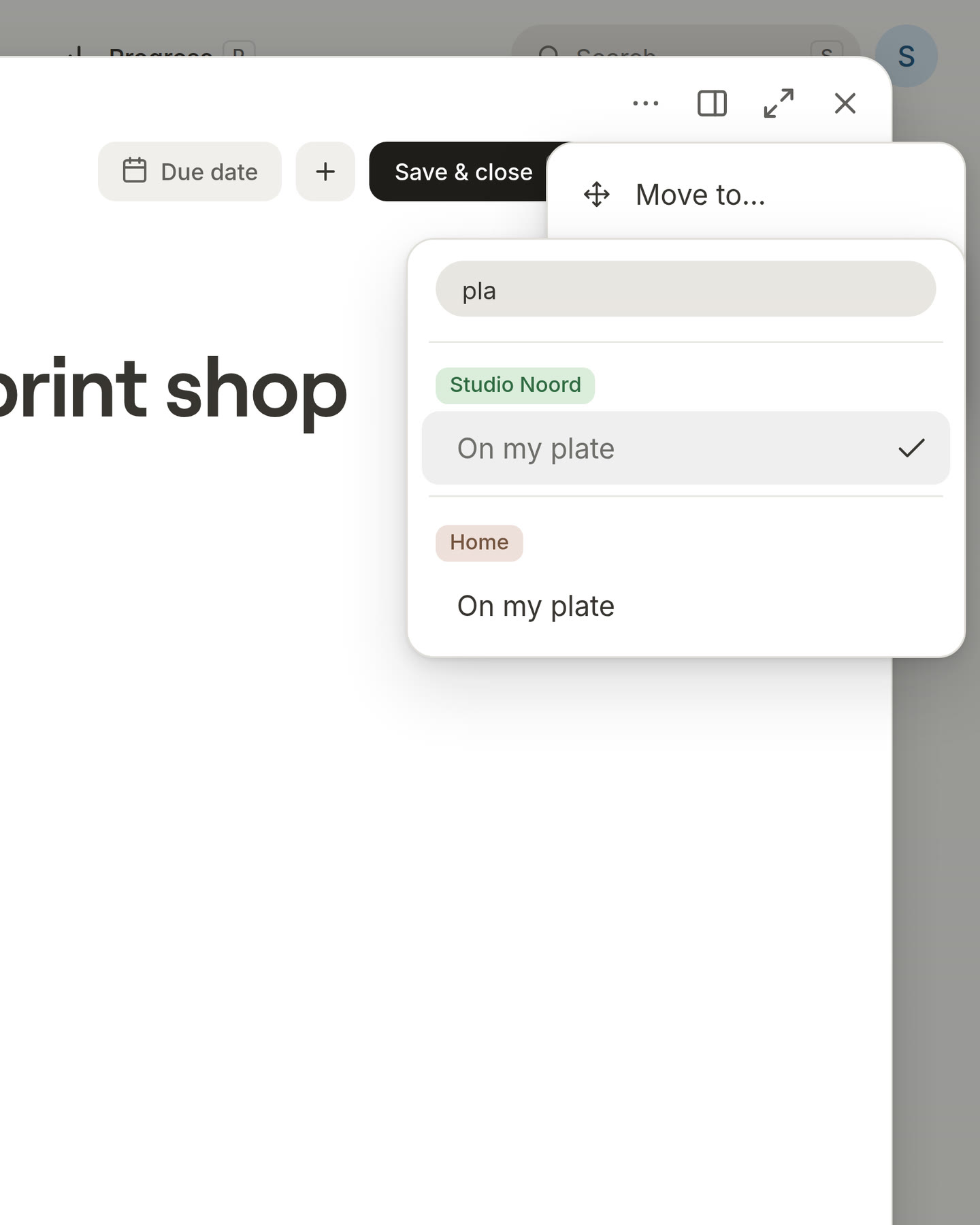
Find a project when you move a card. Open a card, press ⋯ and choose Move to. Type a few letters at the top to find the project or list you want, then press Enter. The card moves there right away.
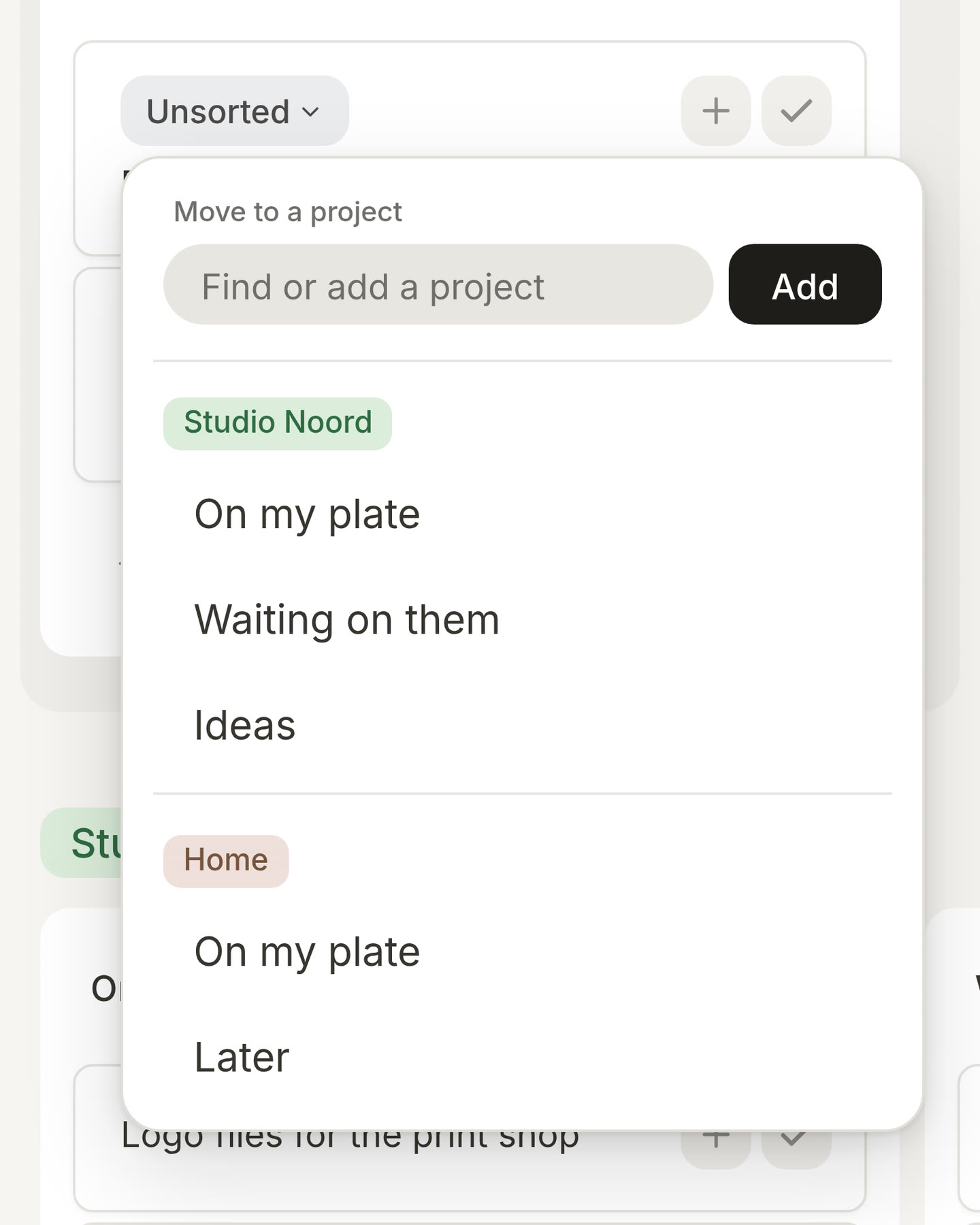
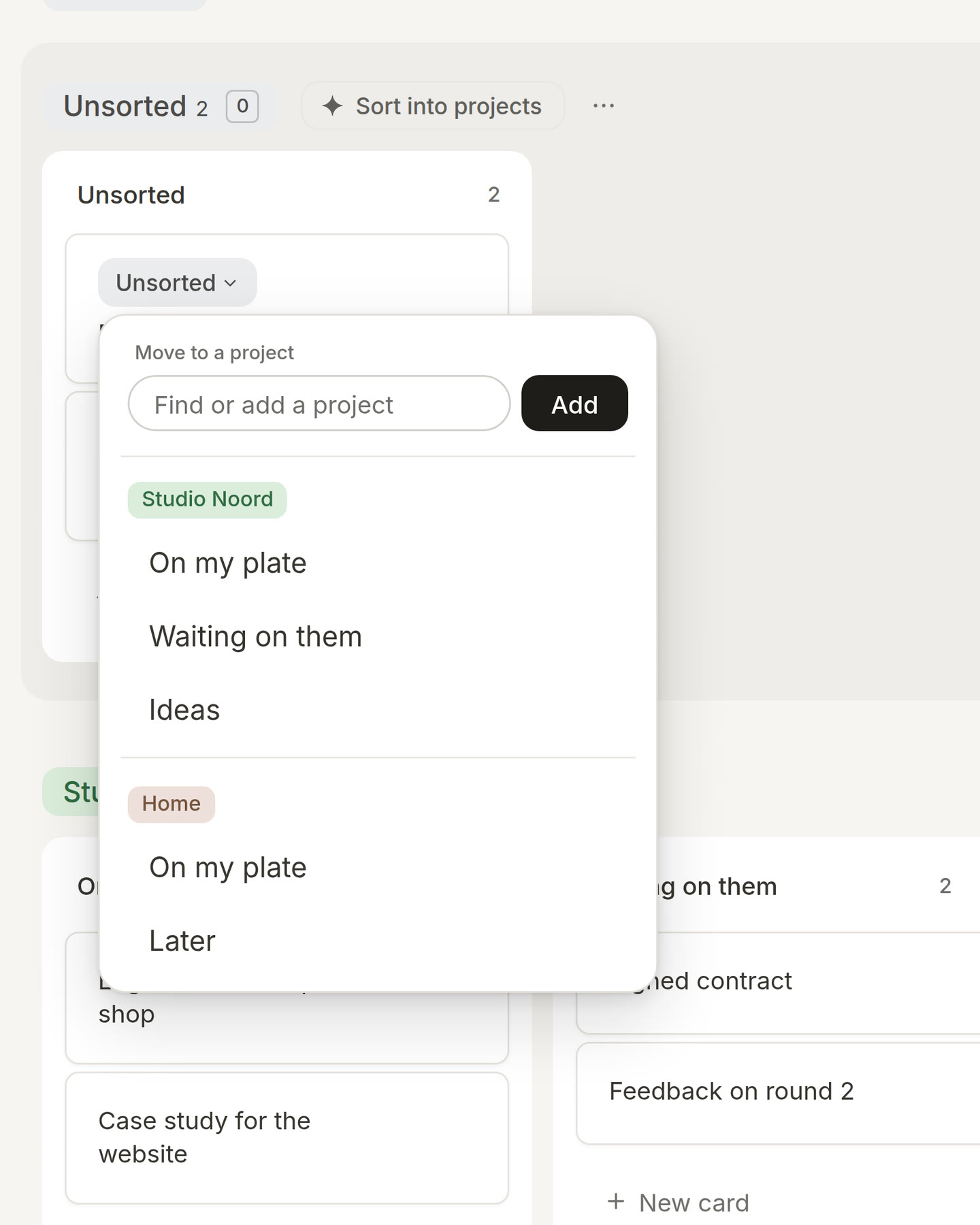
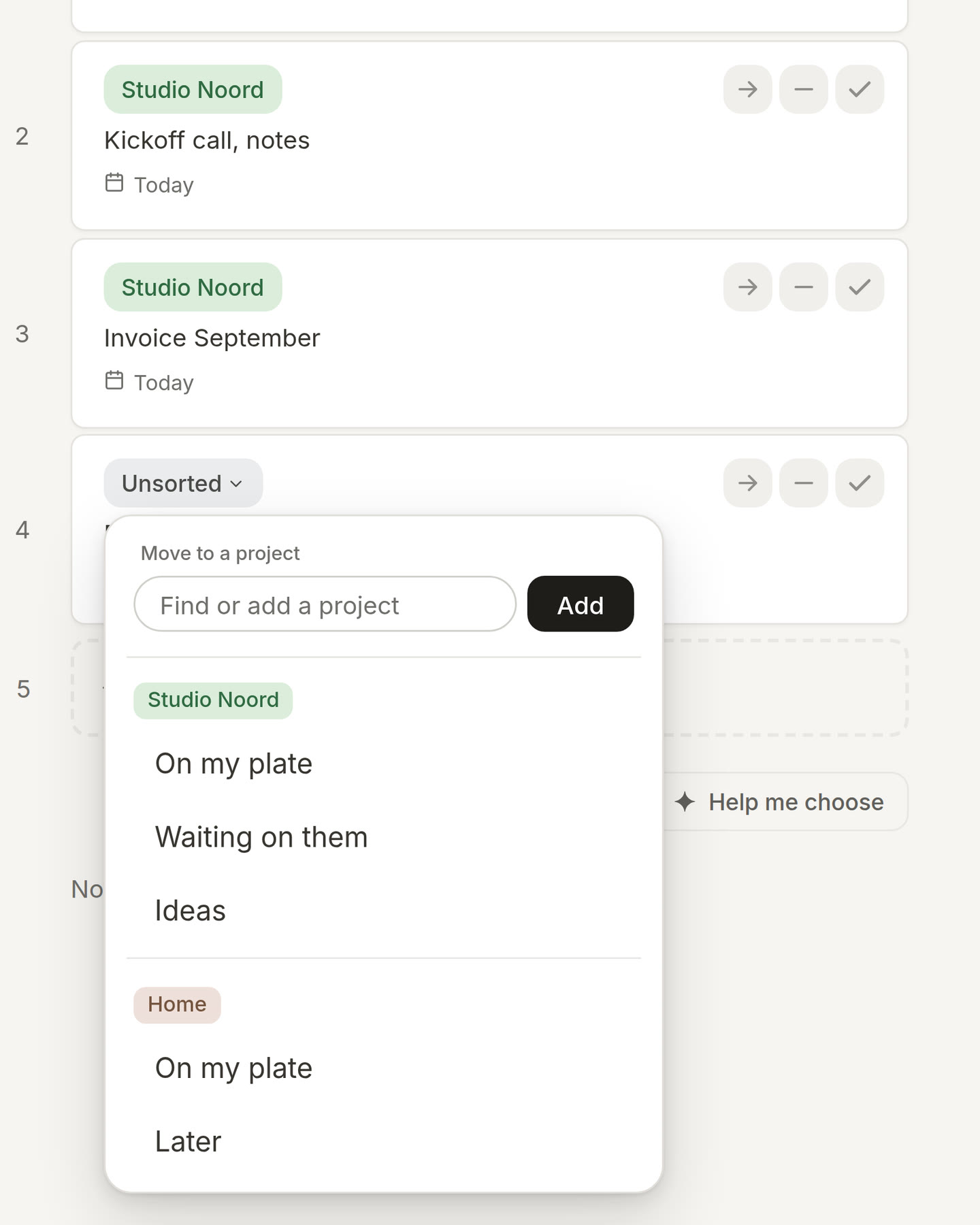
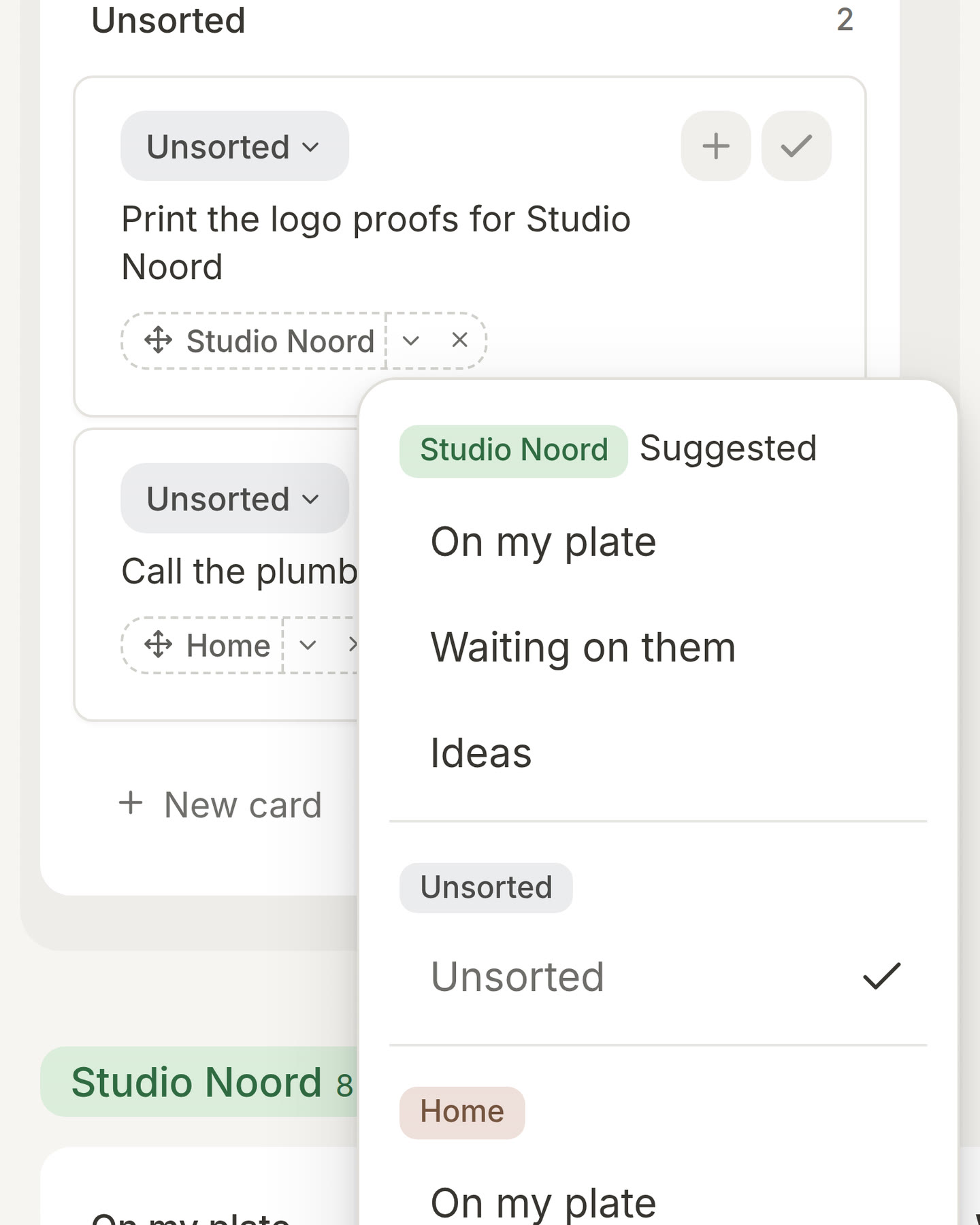
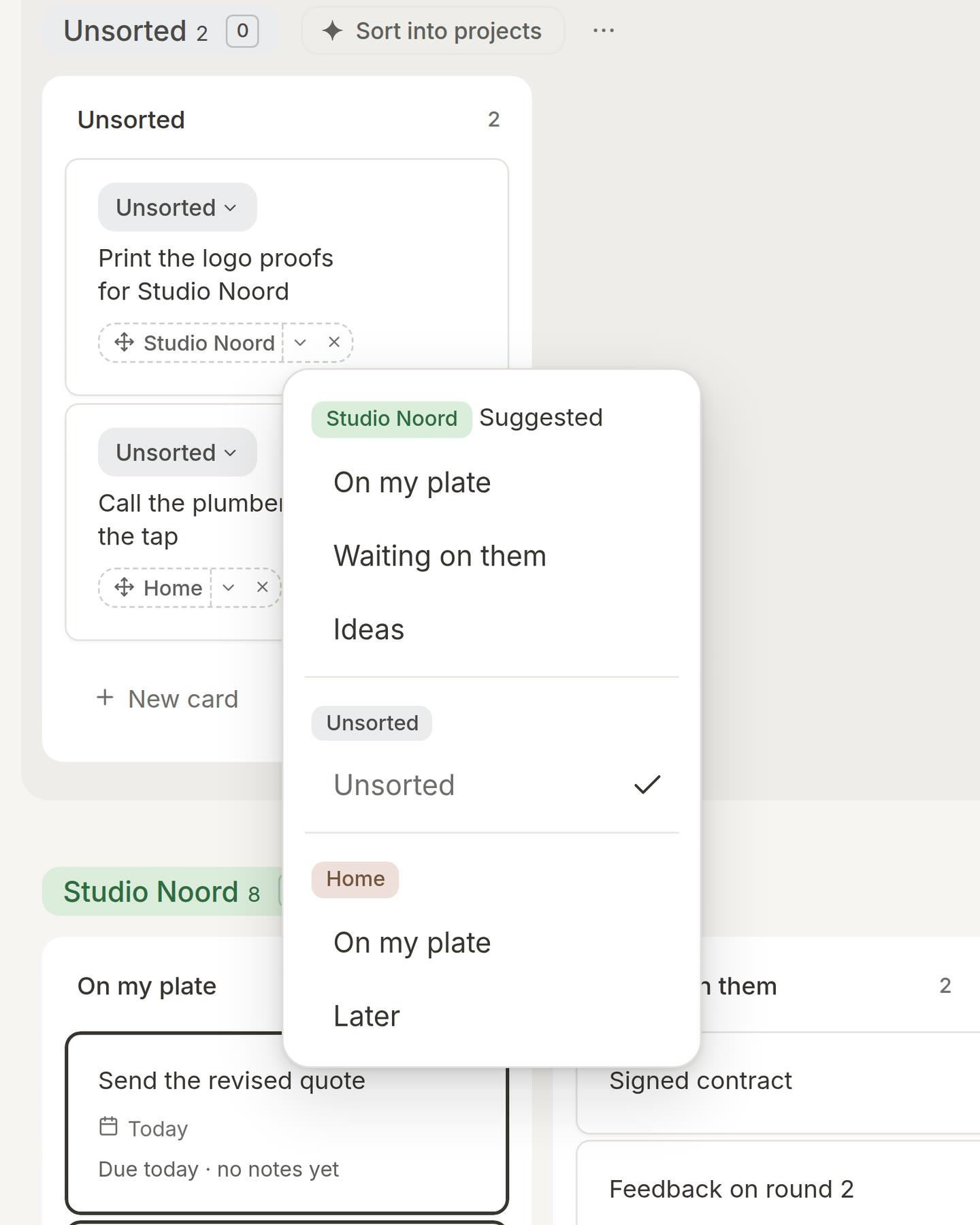
Choose a project from your board. New cards often land in Unsorted, at the top of your board, while you decide where they belong. Each of those cards now shows an Unsorted label. Tap it and choose a project and a list, or type a name to start a new project. One tap, and the card is where it belongs.
1.3.5
Put a card in a project from Today. Sometimes you add a card straight to Today, before it has a project. You no longer have to go to your board to fix that. The card now shows an Unsorted label on Today. Tap it and choose a project and a list, or type a name for a new project. The card stays on Today, in the same place. (thanks to feedback from user Nandini)
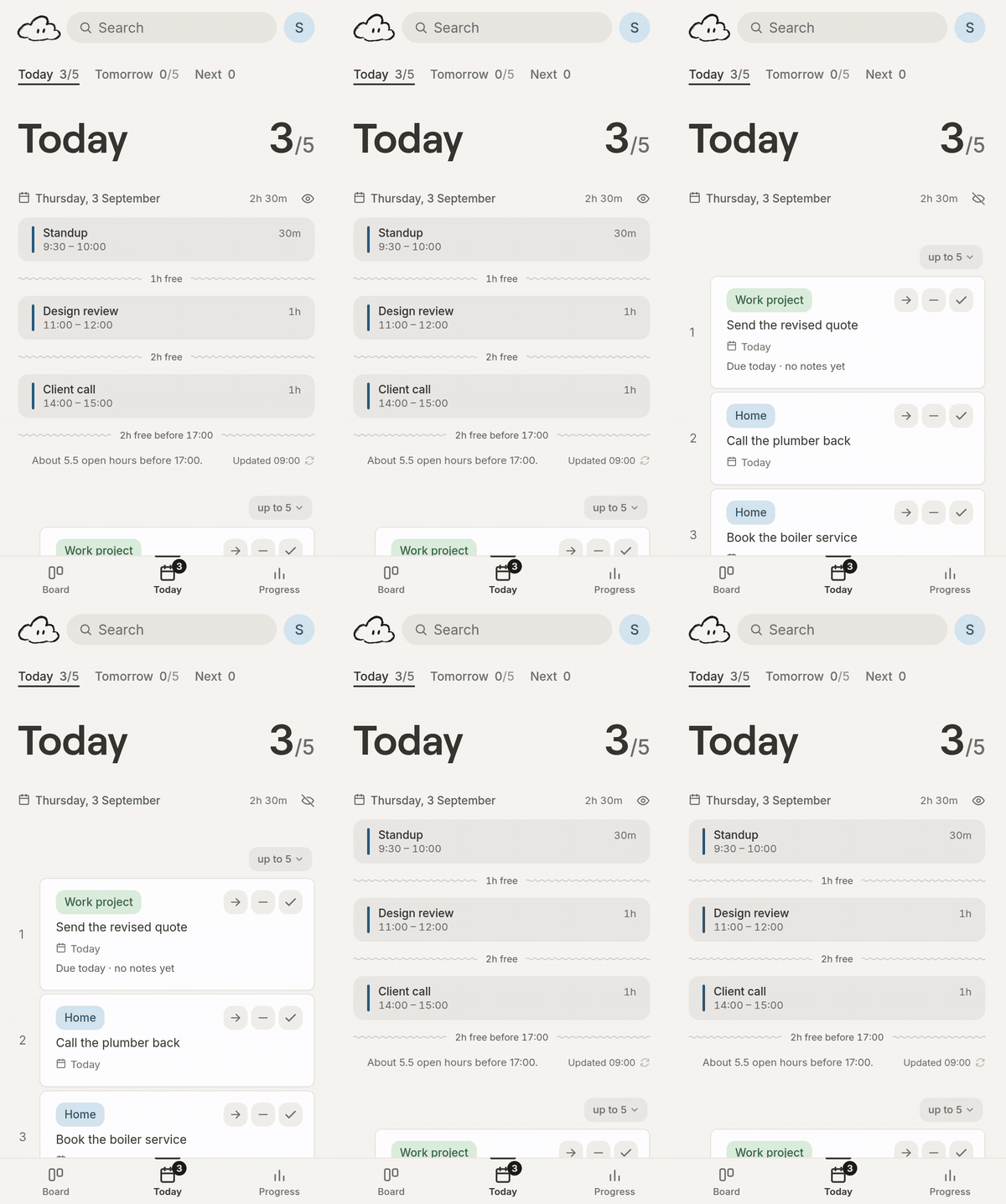
Show or hide your meetings with an eye. Your calendar on Today is useful, but sometimes you only want to see your cards. Next to the date there is now an eye. When the eye is open, you see your meetings. Tap it and they are hidden, and the eye is crossed out. Tap it again to bring them back. (thanks to feedback from user Nandini)
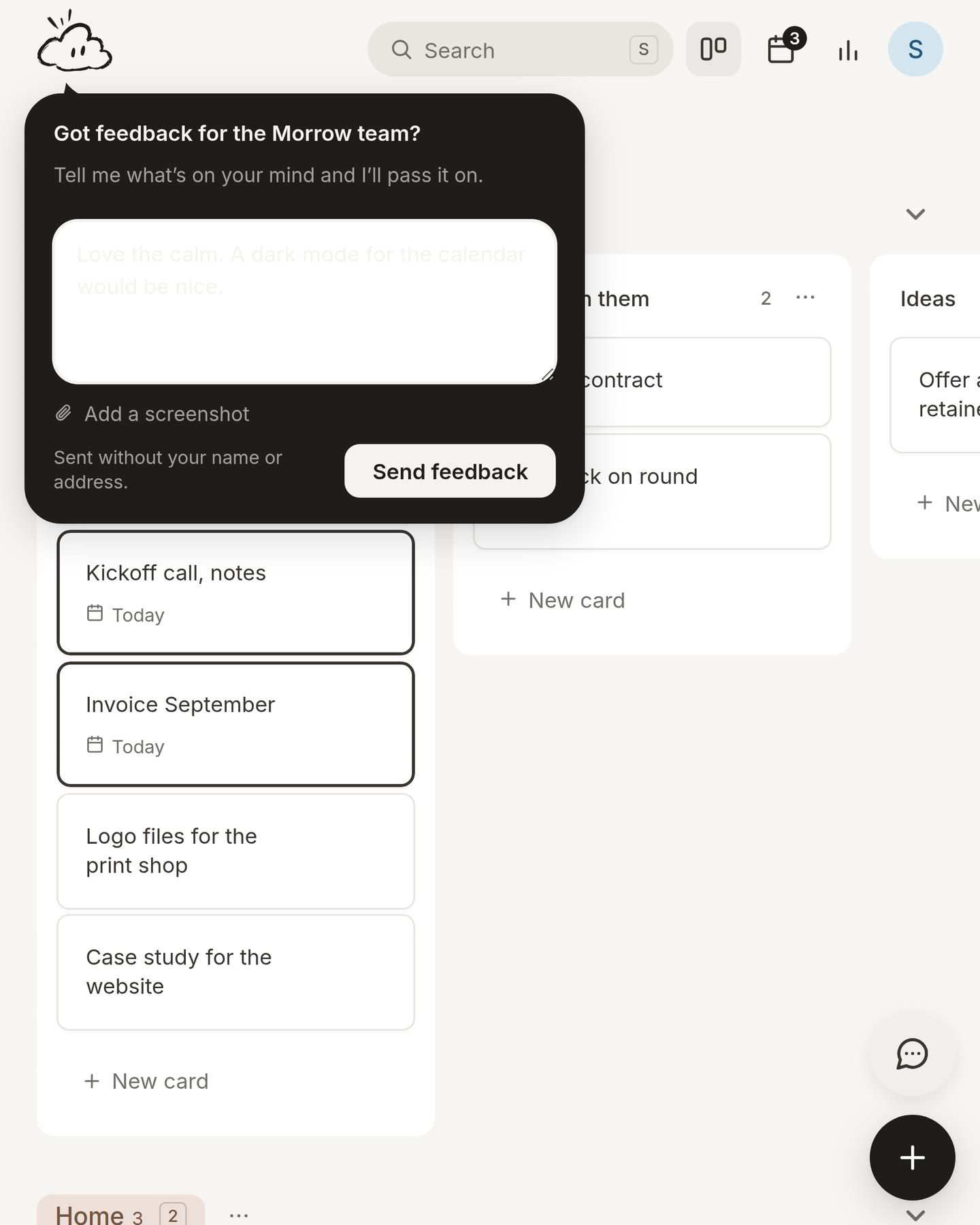
See where a card goes. When you press + on a card on your board, a copy now flies to Today, so you can see where it went. The card itself stays on your board. (thanks to feedback from user Nandini)
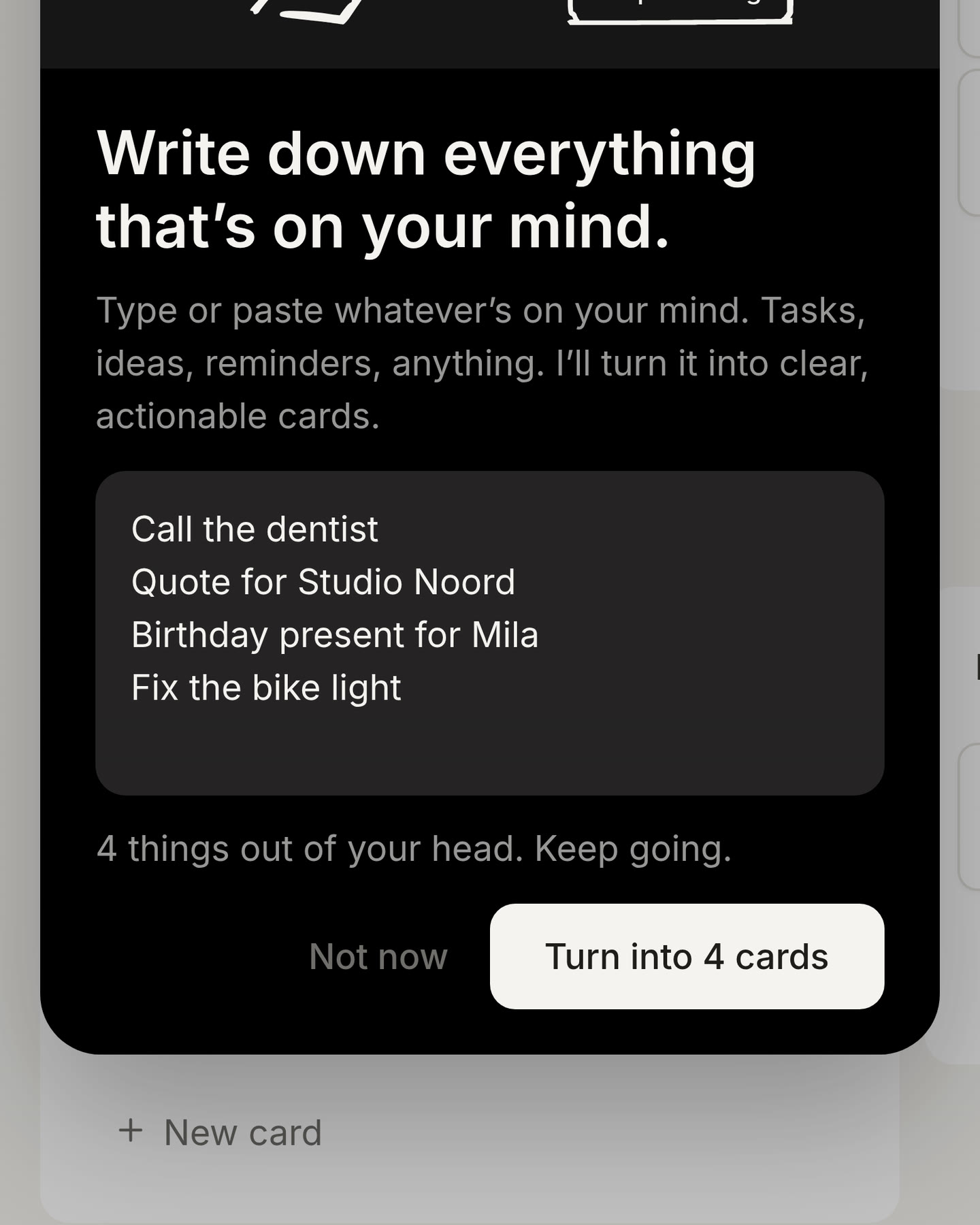
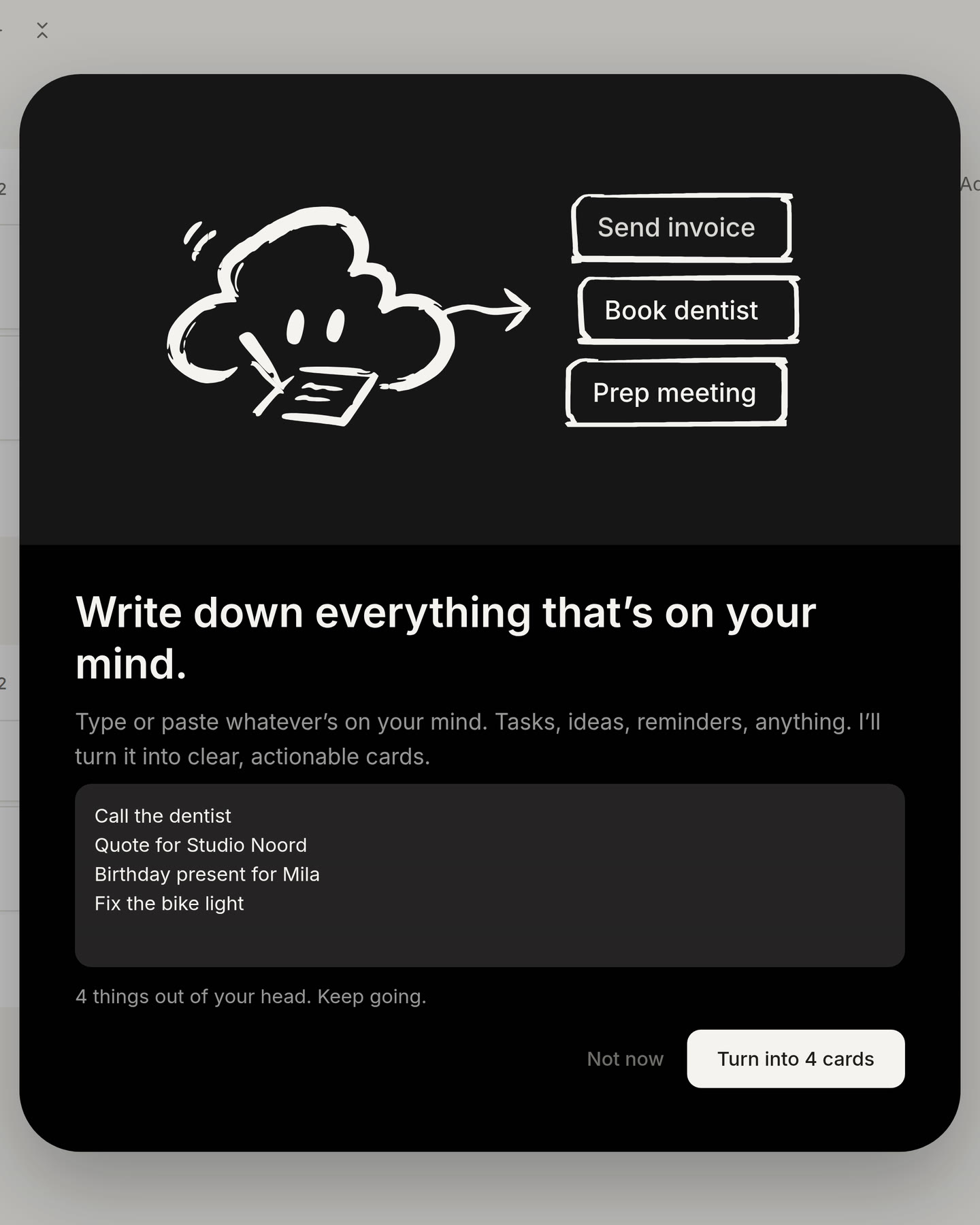
A new brain dump. When your head is full, it helps to write everything down before you decide anything. Open Brain dump from your profile menu and type one thing at a time, or paste a whole list. Every line becomes a card. Do you already know where a card belongs? Tap a project at the top to put it there. When you are done, press Add to my board and every card goes to its place. Your head feels lighter, and nothing is lost.
1.3.4
Clearer buttons on a card. On Today and Tomorrow, the buttons that move a card to another day are now simple arrows. They point where the card goes: left to Today, right to a later day. On an open card, the Done button is now green, so the button that finishes a card is easy to find.
Search on every page. On a laptop, you no longer need to go back to your board to search. The search bar now also stays at the top of Today and Progress. Press S on any page, type a few letters and open the card you need.
Clearer advice on cards that stand still. When a card has not changed for a few weeks, Morrow now tells you so. It also offers to break the card into small steps, which often makes it easier to start.
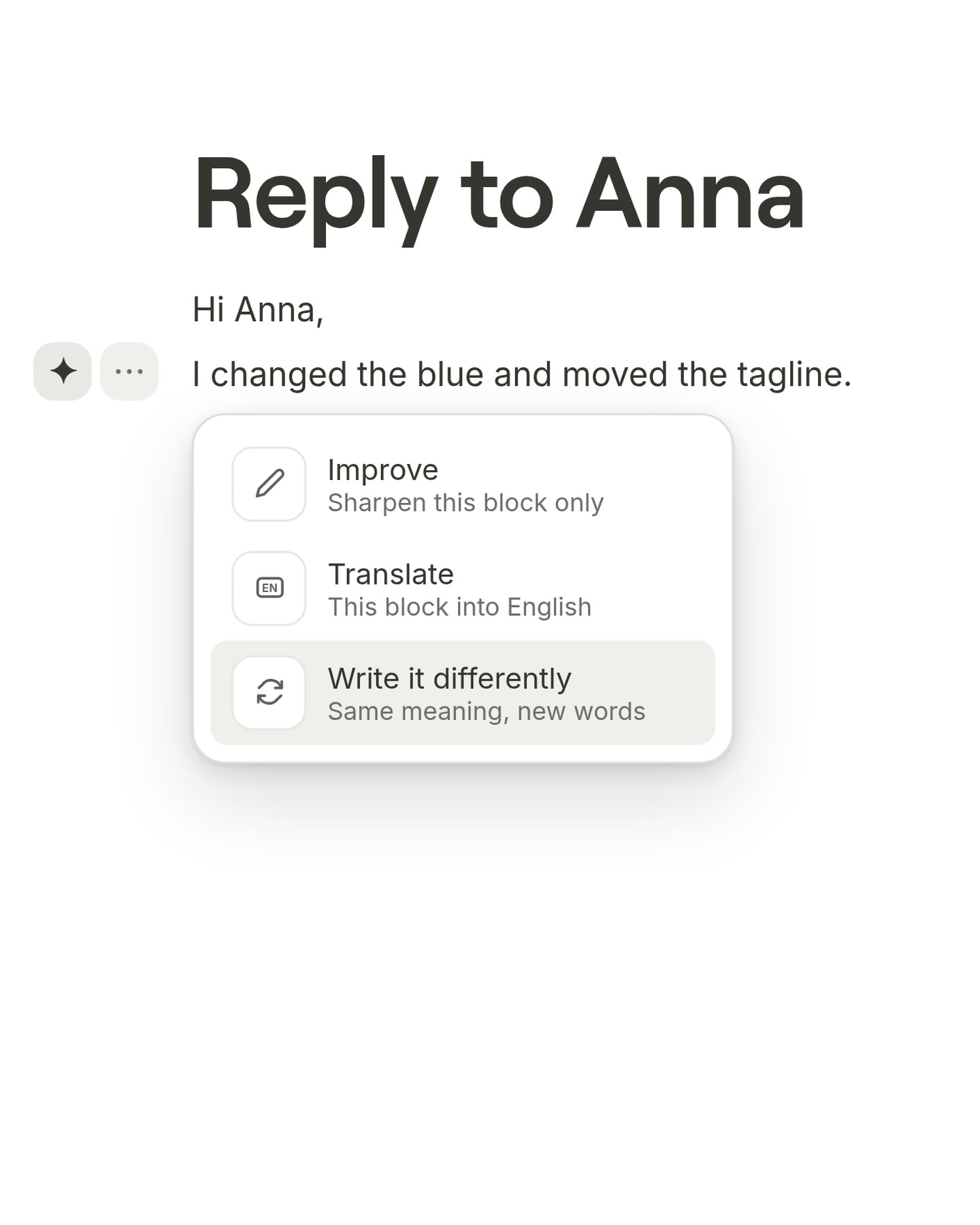
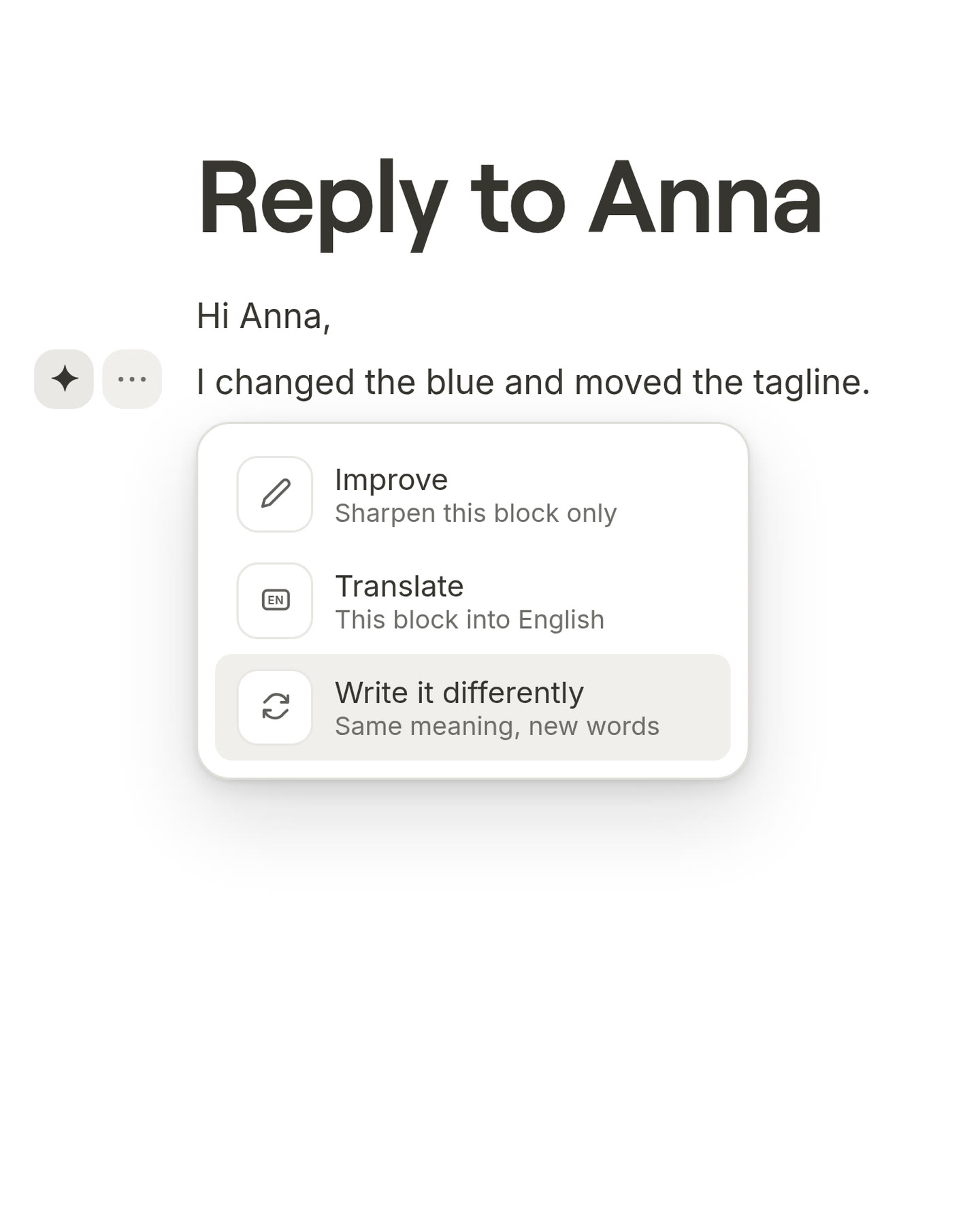
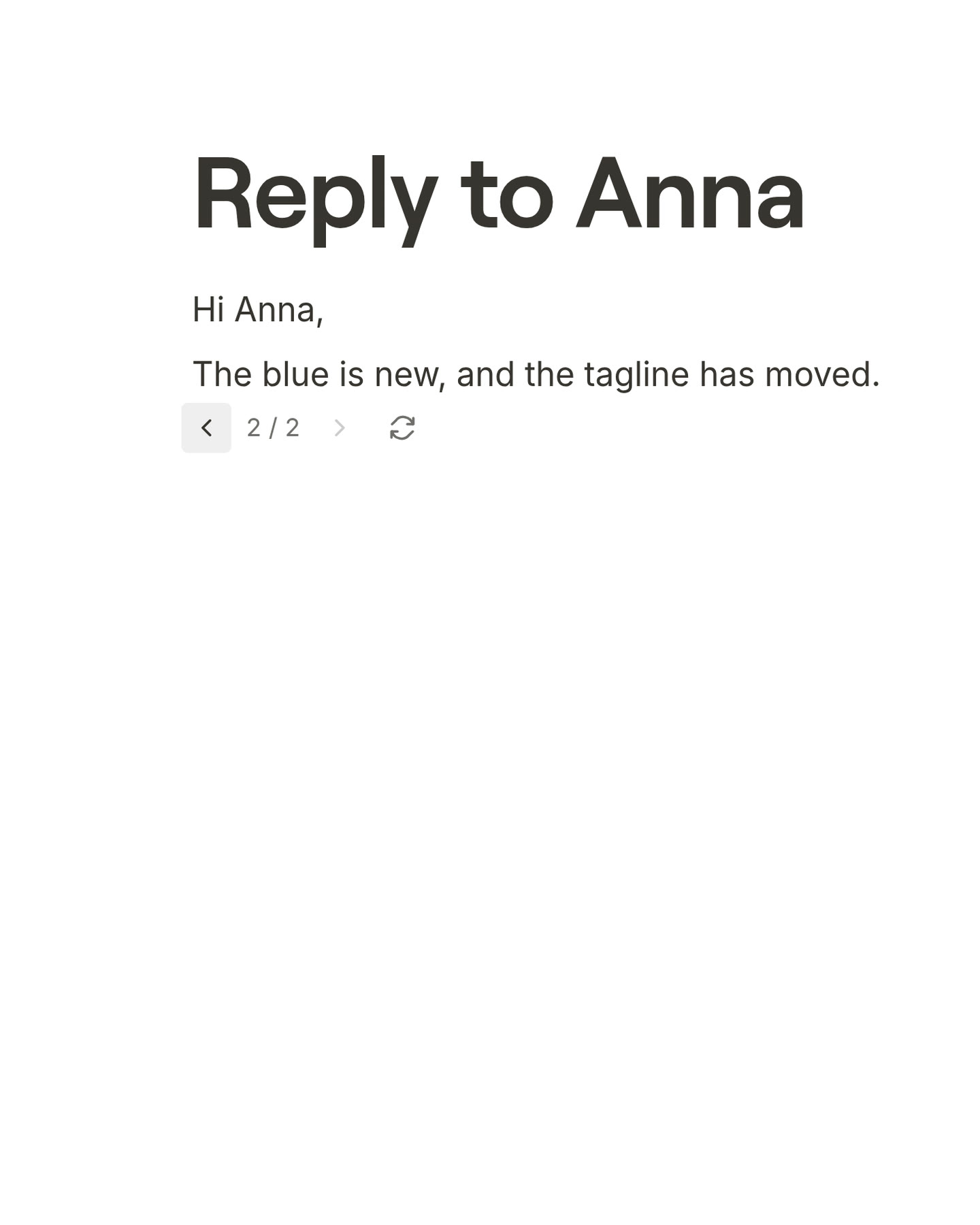
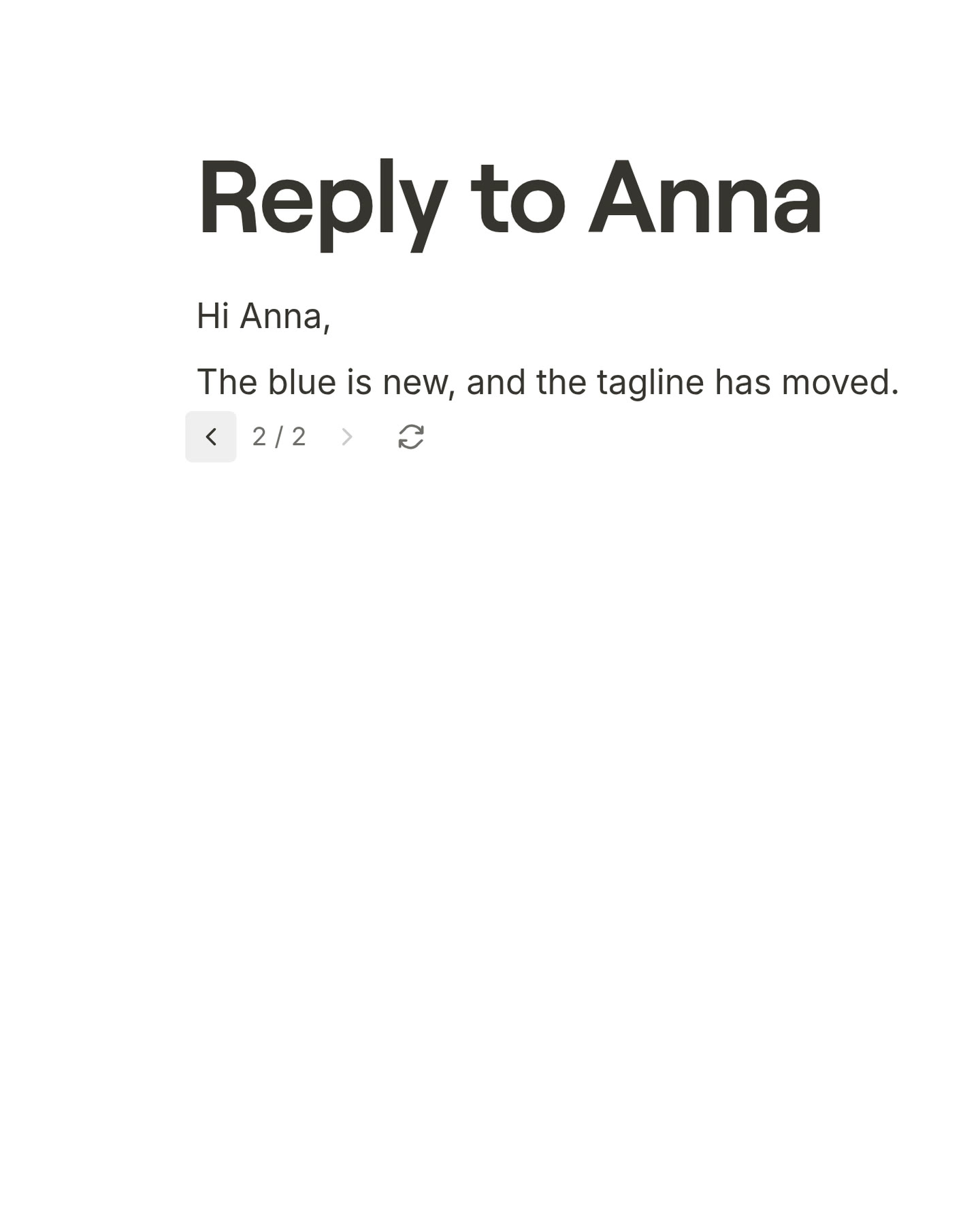
Write it differently. Sometimes a sentence says the right thing, but it does not sound right. On a laptop, move your mouse over the paragraph and press the AI button next to it. Choose Write it differently, and Morrow writes the same idea in new words. Not what you wanted? Use the arrows under the paragraph to try again or to go back to your own version. Your own words are never lost.
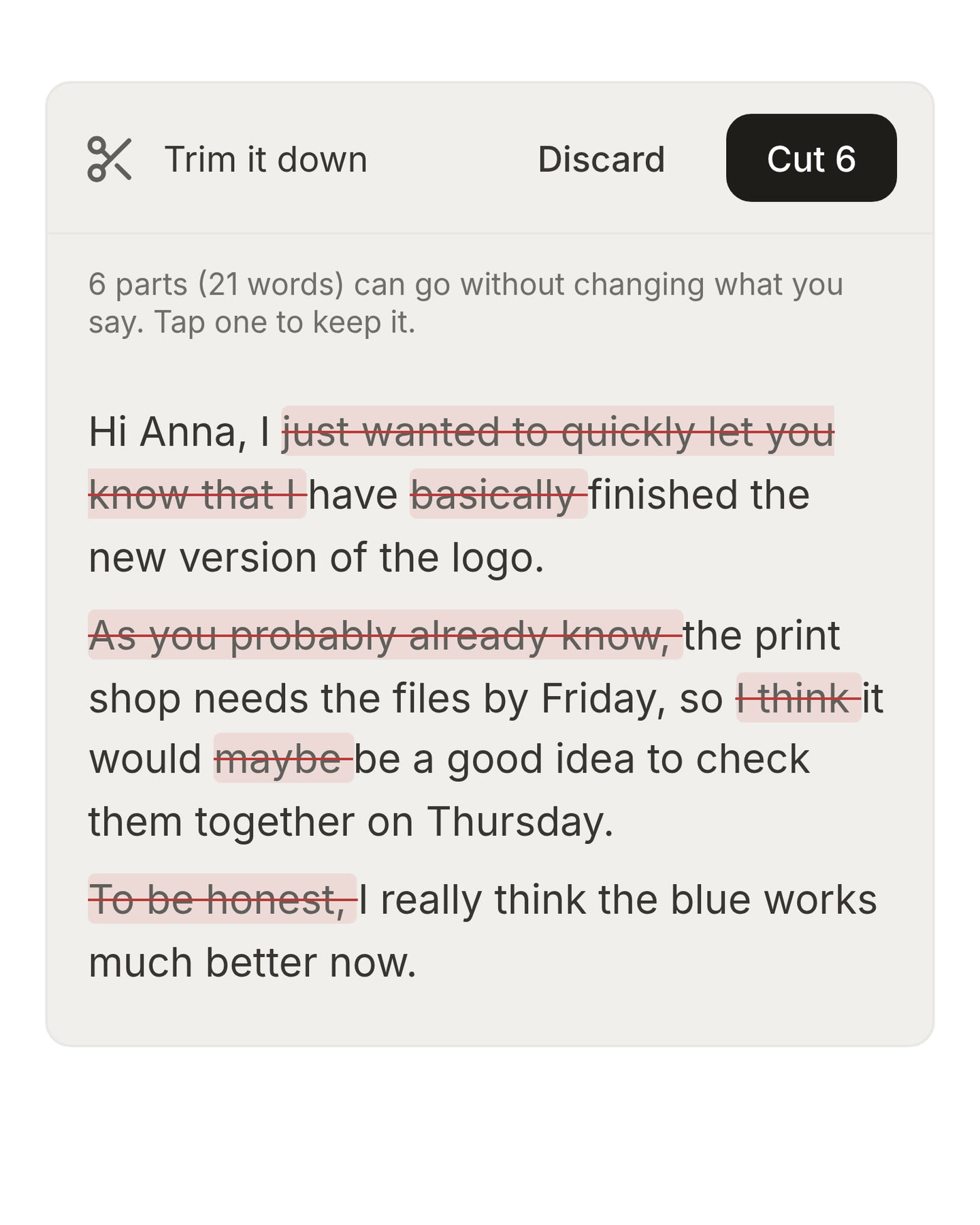
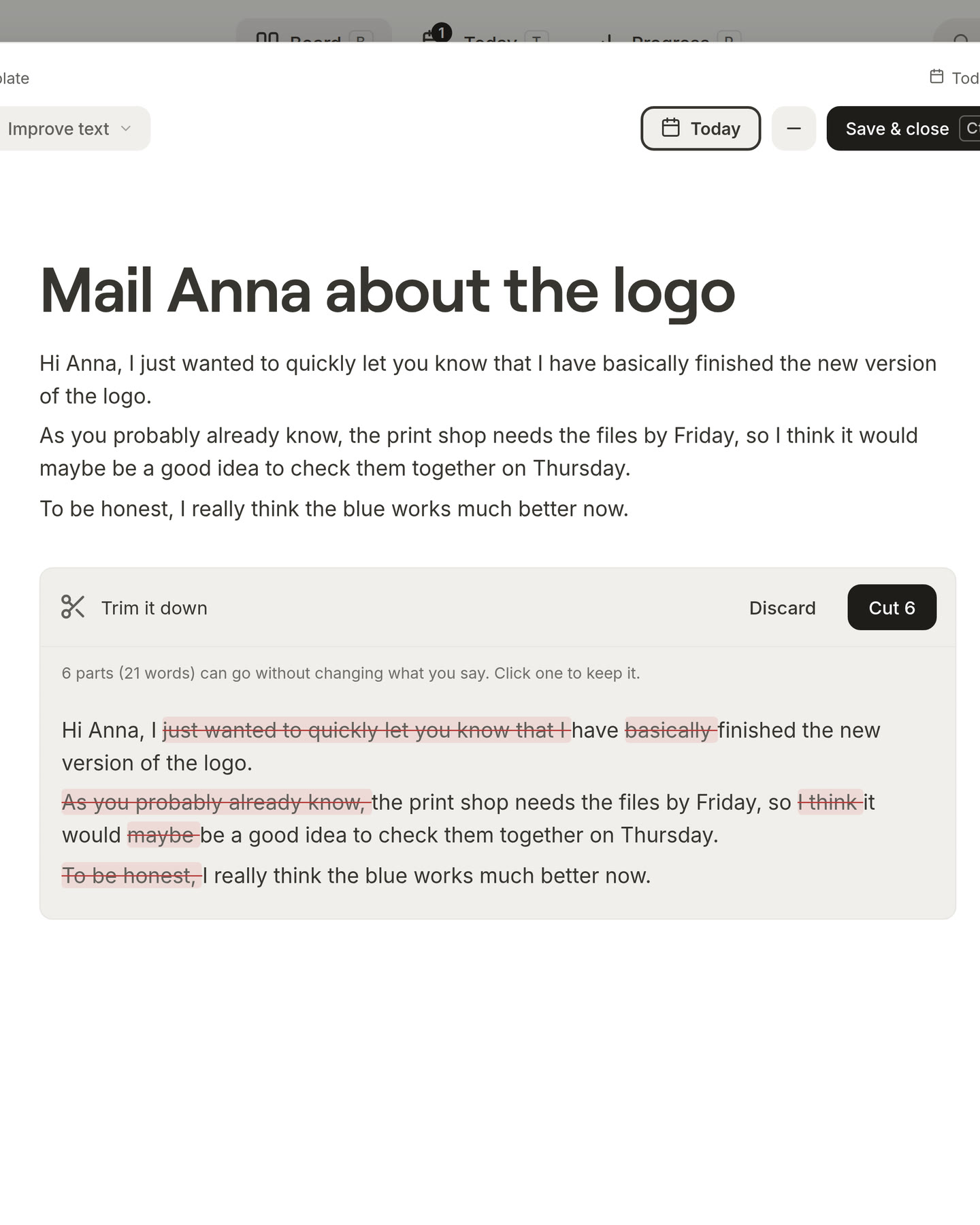
Trim it down. Long notes are hard to read later. Open a card, press the AI button and choose Trim it down. Morrow crosses out the words your text does not need, so you see what it would remove. You choose what goes and what stays, and nothing is removed until you agree.
1.3.3
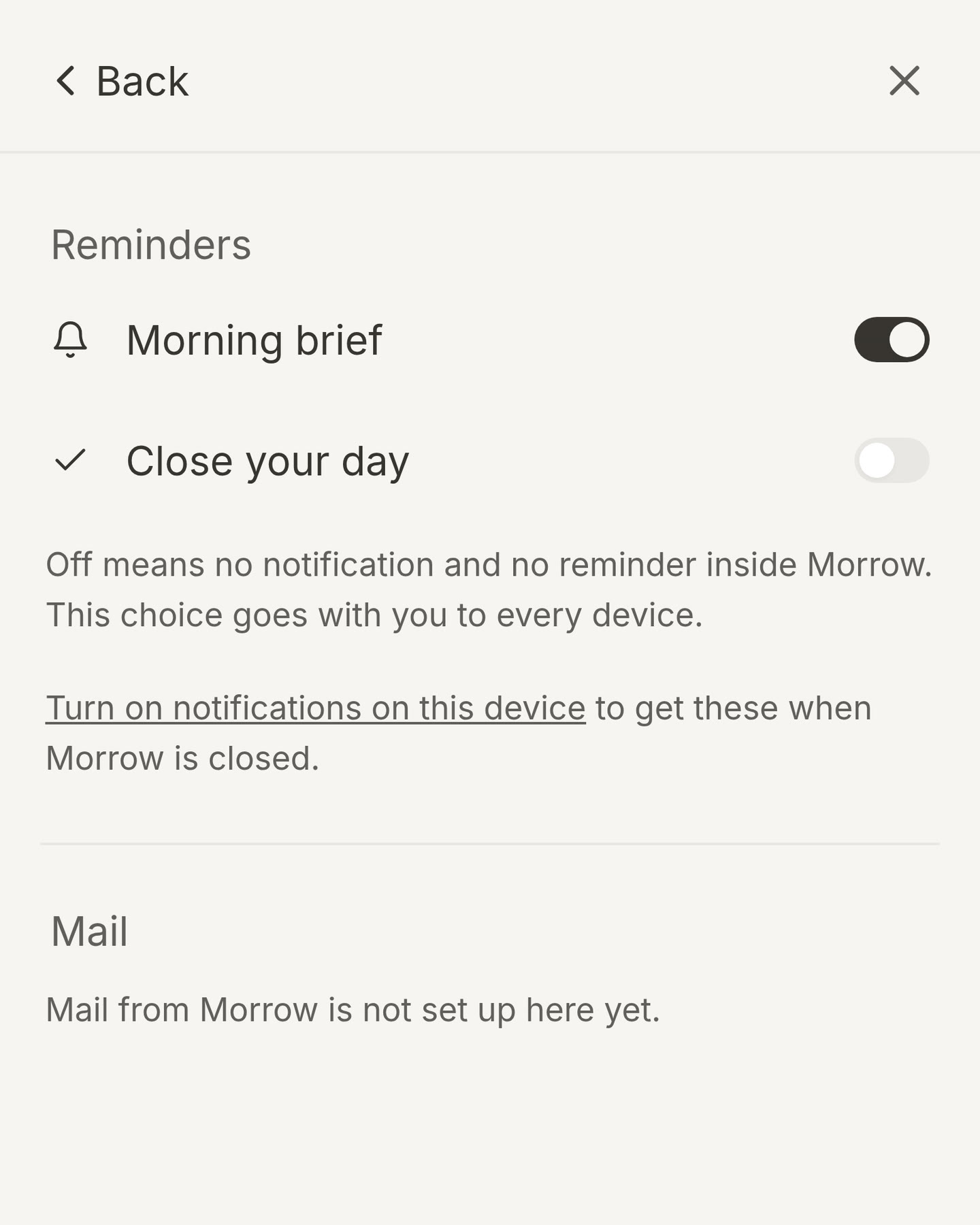
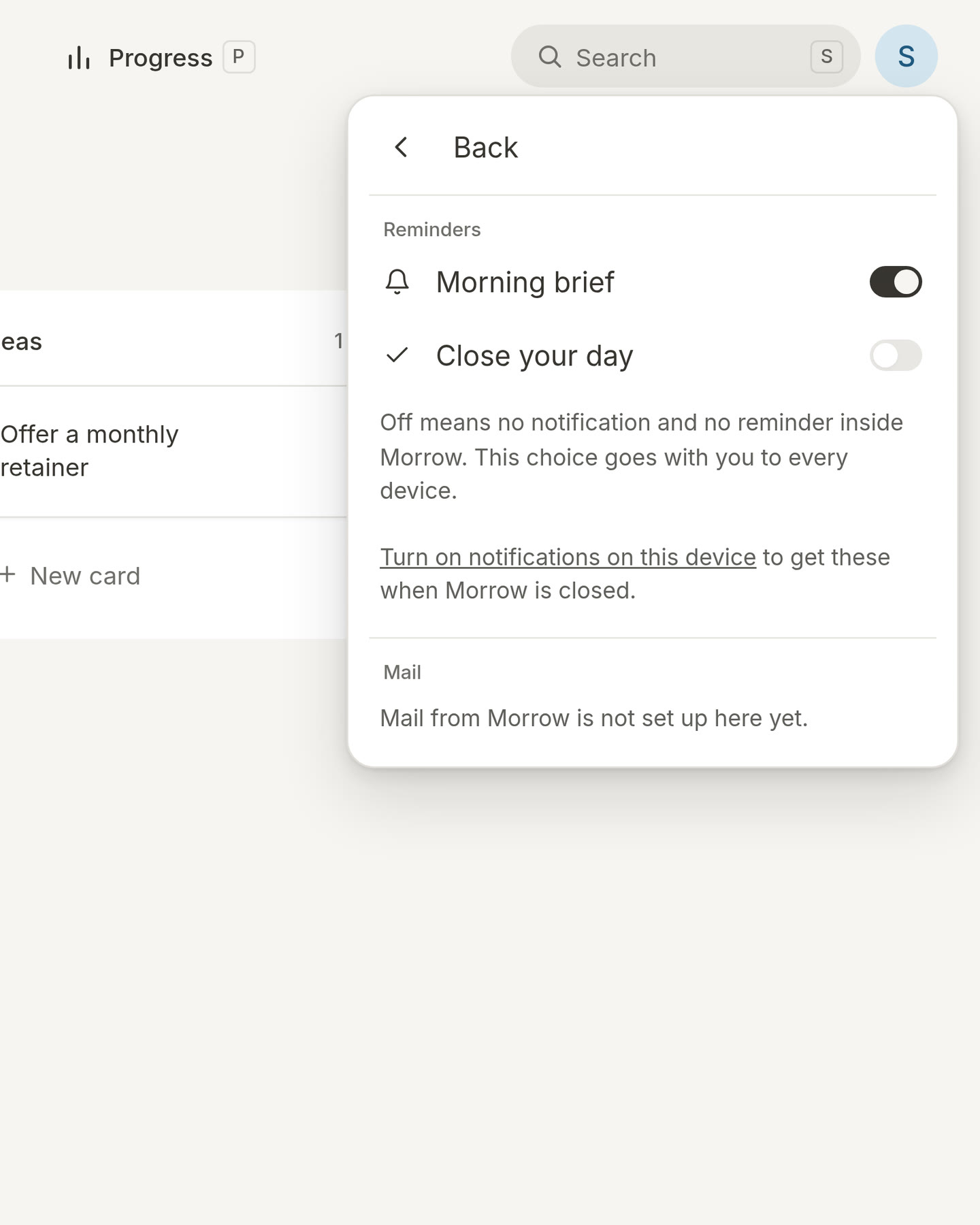
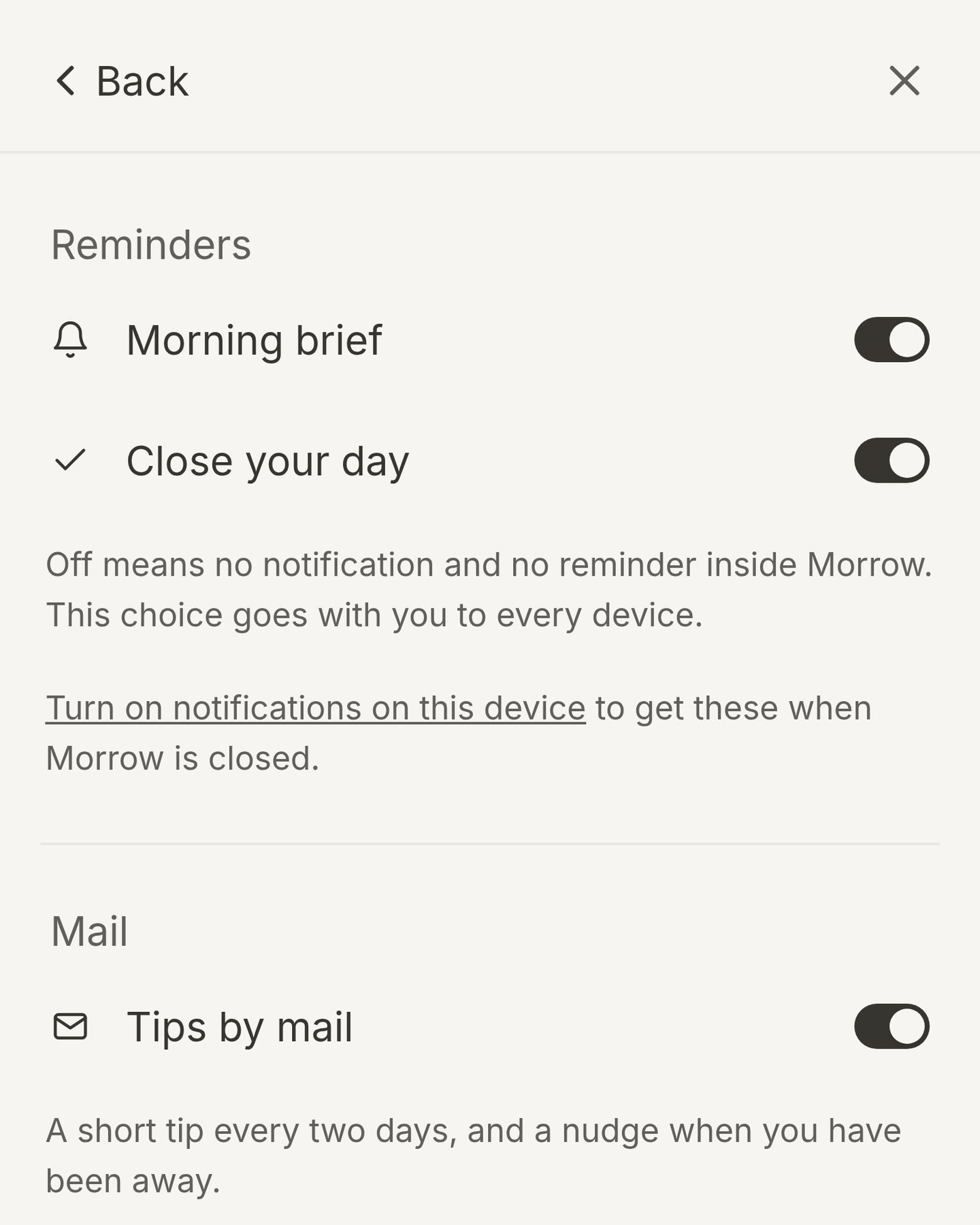
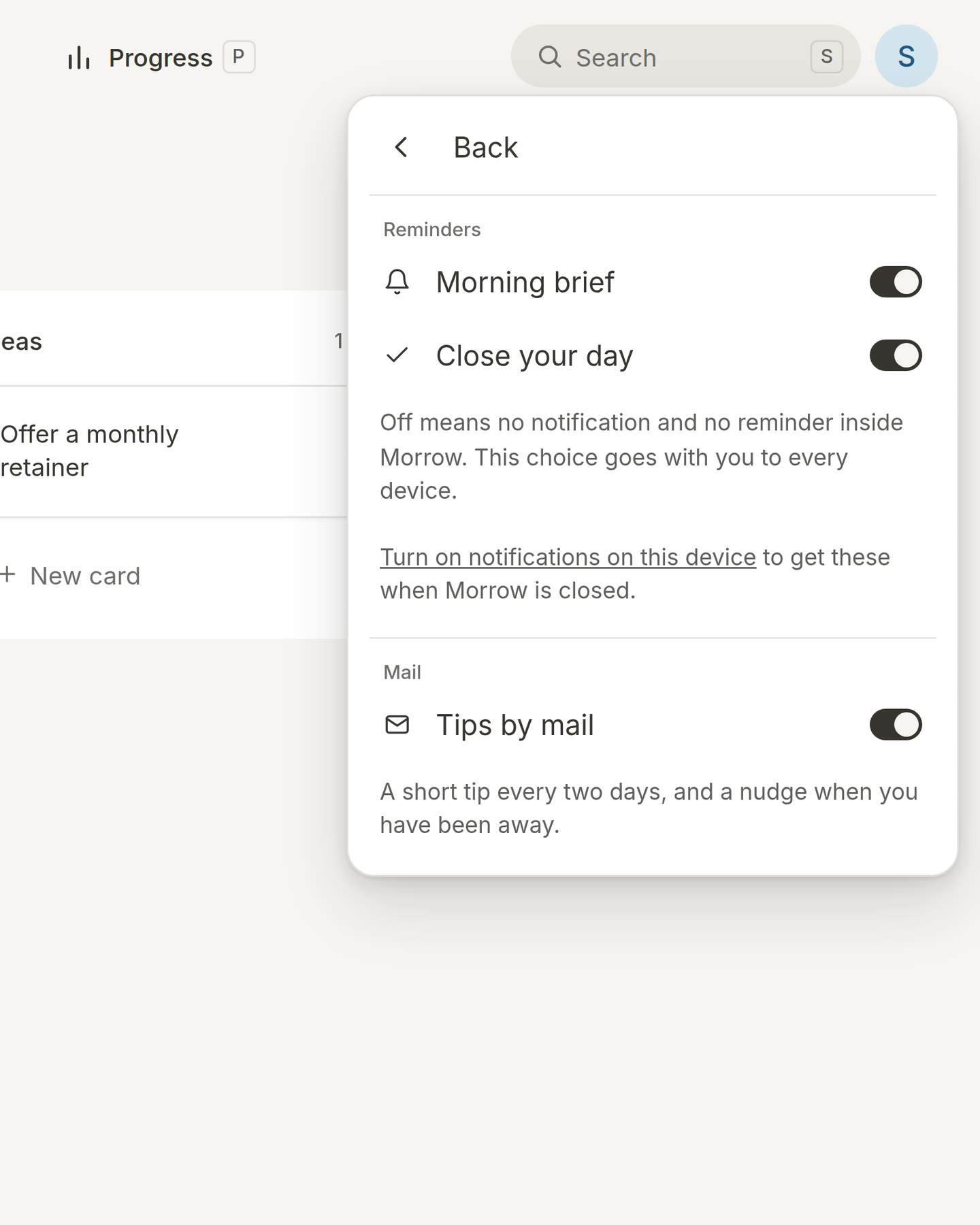
Choose your reminders. In Notifications, you can now turn off the morning brief or the reminder to close your day. When a reminder is off, you get no notification and no reminder inside Morrow, on any of your devices. You can still close your day whenever you like.
Checklists show their levels. When you indent a checklist item with Tab, it now also looks indented. So you can see at a glance which items belong together.
1.3.2
Easier lists.
To go back to normal text, press Enter twice at the start of a bullet.
To start a bullet, type a dash and a space at the start of a line. This now also works on a bold line and on the second line of a paragraph.
Pictures from your phone. When you open a card on your phone, the bar at the bottom now has a picture button. Use it to add a photo to your notes.
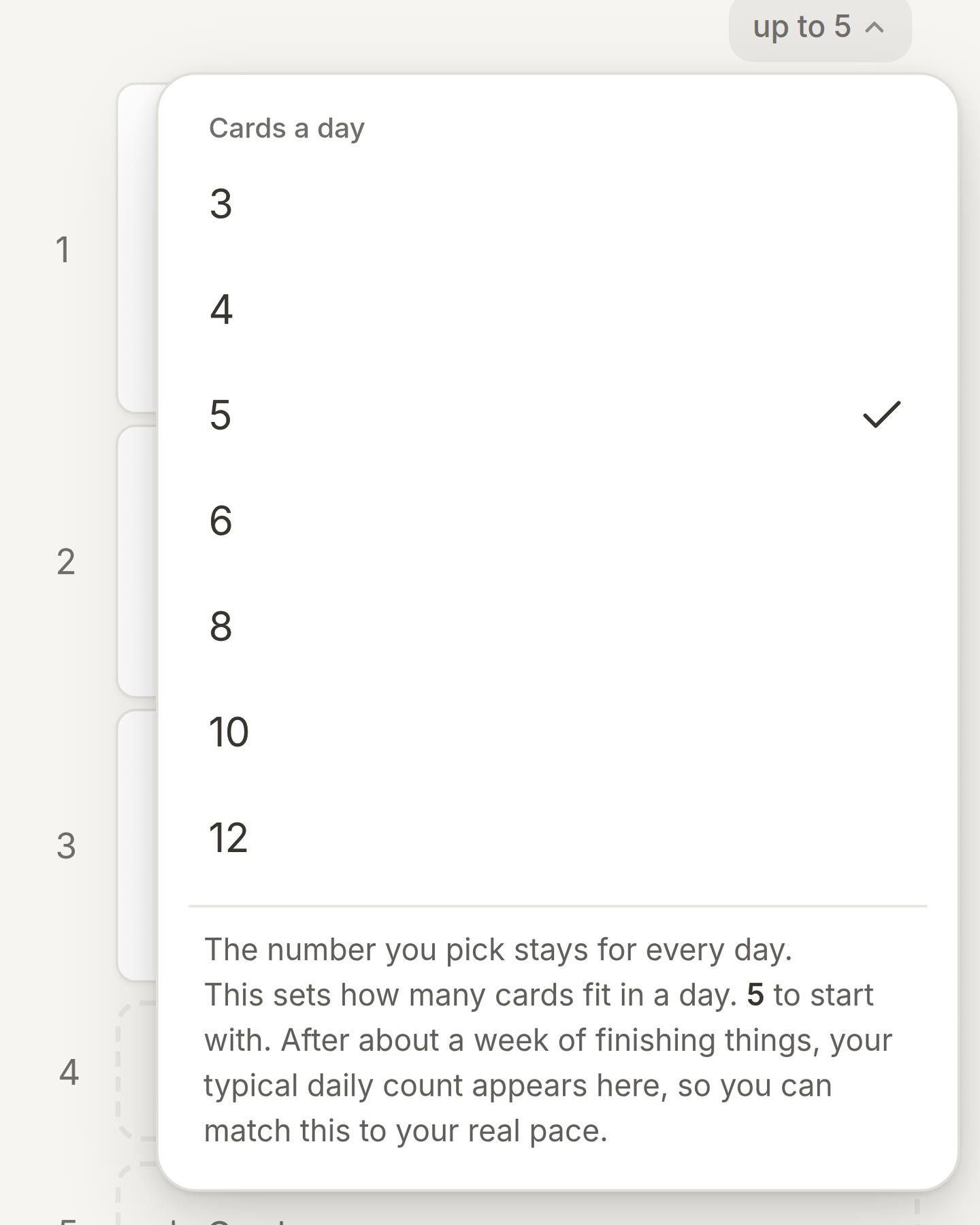
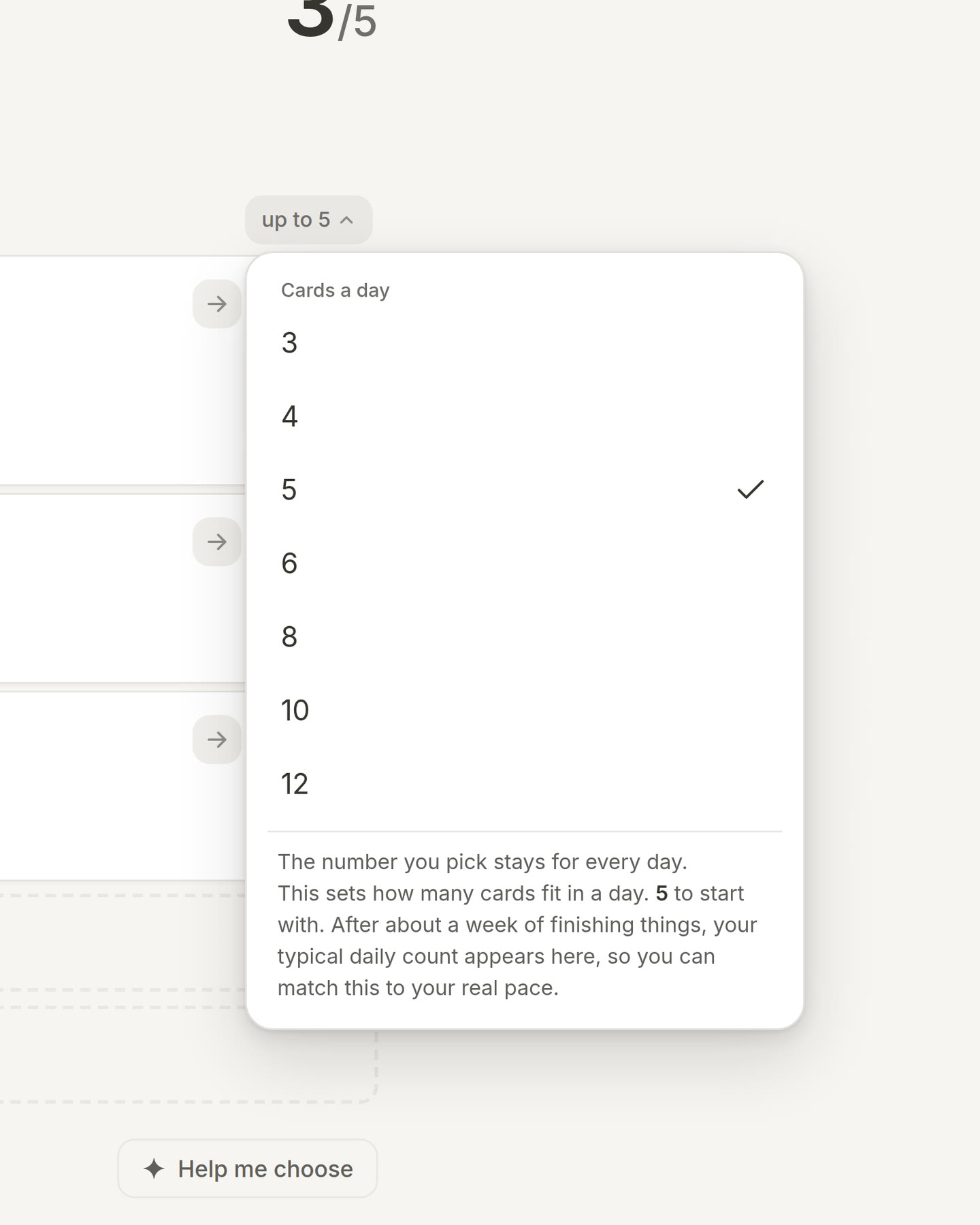
Clearer first steps. The walkthrough now explains why Today holds up to 5 cards, and that you can choose your own number. When it asks you to tick off your first card, it also tells you that one tap brings the card back. (thanks to feedback from user Robert)
Sub-points stay sub-points. When you press Enter on a sub-point, the next line is a sub-point too. Press Tab to go one level deeper. On an empty sub-point, press Enter to go one level back.
Clearer sign-in by email. After you ask for a sign-in link, the form now tells you to check your inbox and shows the address we sent it to. You can send the link again or use another address. (thanks to feedback from user Robert)
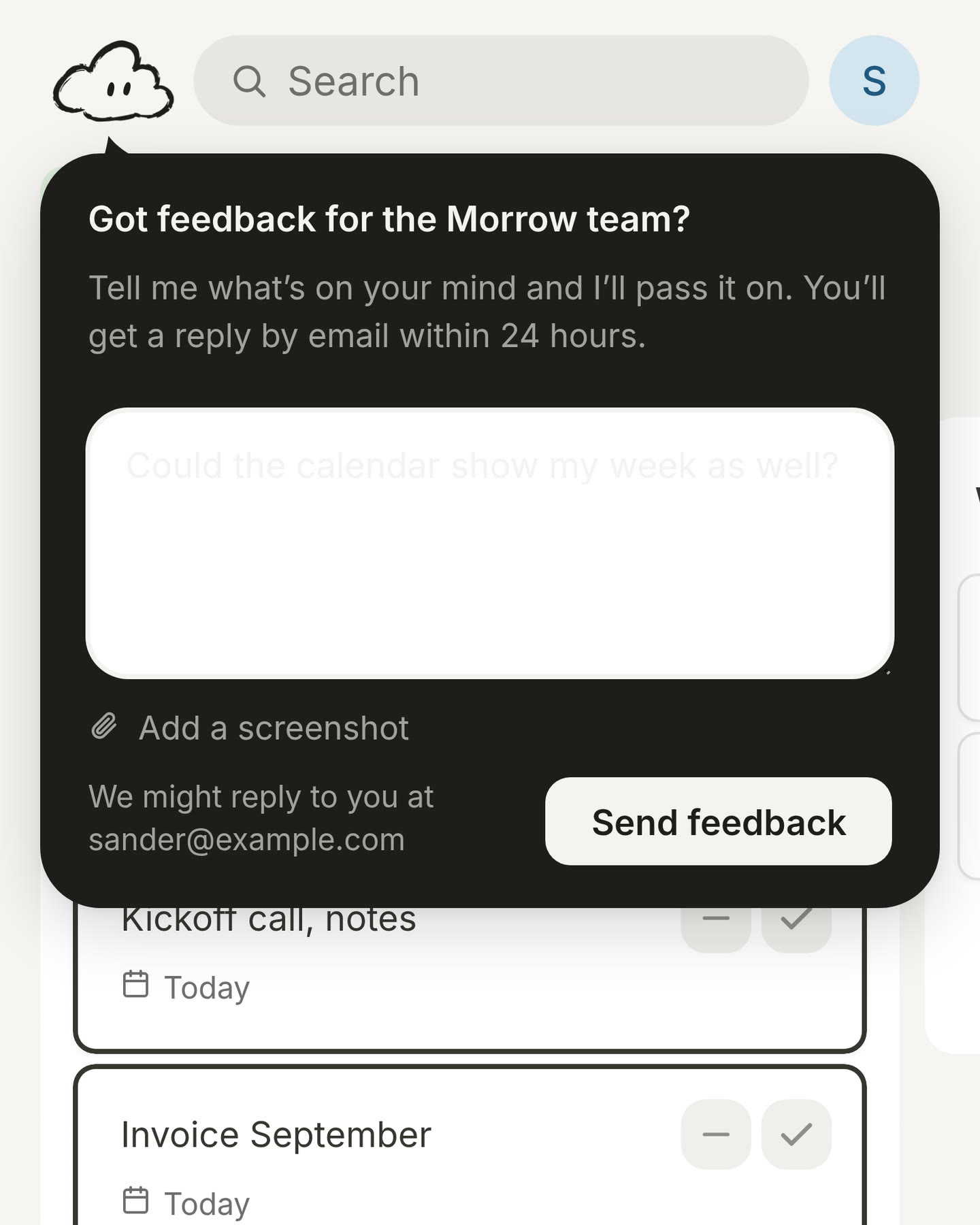
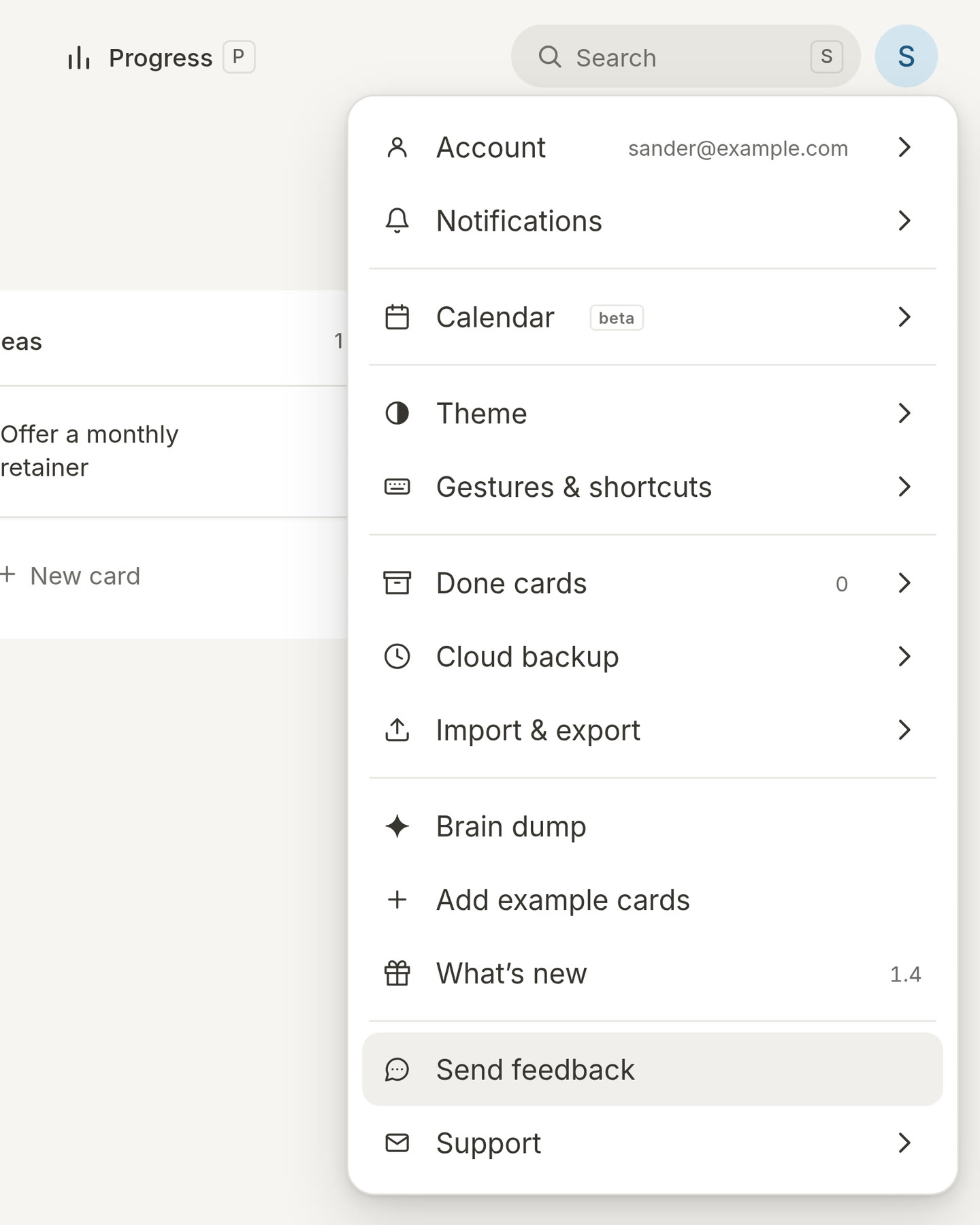
Feedback from any device. Open your profile menu and tap Send feedback. Tell us what Morrow could do better, and your message comes straight to us.
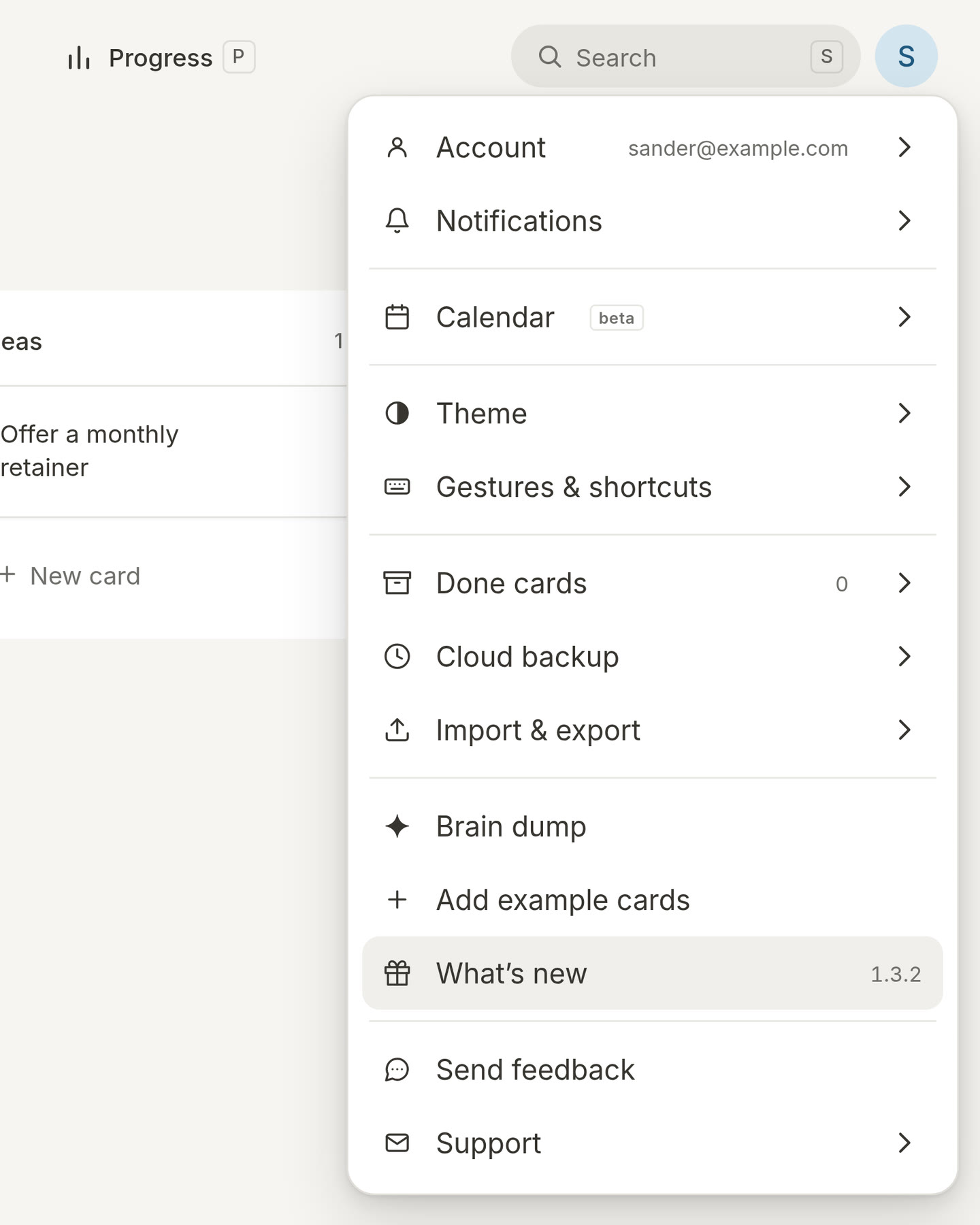
Every update has a number. Each day on this page now has a version number, starting at 1.0. You can find the version you are using next to What’s new in your profile menu.
1.3.1
Empty your head, then choose your day. The brain dump now shows a few example to-dos, counts what you write and asks you a question when you get stuck. Once your cards are on the board, Morrow helps you choose the few that belong on Today.
Two reminders a day, if you want them. Turn on notifications, and Morrow sends you your morning brief and a reminder to close your day at your usual time. If your device shows buttons on notifications, you can choose to get the evening reminder only on days you used Morrow.
Your calendars on every device. A calendar you connect now shows up on every device where you are signed in. Meetings you declined are left out. If you have not connected a calendar yet, Today offers to help you do it.
Close your day. The evening ritual is called Close your day again, everywhere in Morrow.
1.3
Tab makes a sub-item. On the line right below a checklist, press Tab. That line becomes a checklist item, indented under the one above. Press Shift+Tab to move it back. (thanks to feedback from user Marco)
Delete a card without finishing it. Drag a card to the Delete bin that appears at the bottom of your screen. On a laptop, you can also right-click a card and choose Delete card. A deleted card does not count as done in Progress, and Undo brings it back. (thanks to feedback from user Marco)
Documents look like documents. Paste a link to a Word, Excel, PowerPoint or PDF file, also from SharePoint or OneDrive. It now becomes a tidy row with the file's icon, its name and where it is stored. Clicking it opens the file itself, not a sign-in page.
Your number of cards a day stays. Choose a different number in the up to menu on Today, and Morrow keeps it for the days after too. When your day is full, the message now has a button to change that number.
1.2
Type a card the way you say it. Write "Call Robert monday #Work", and the card gets Monday as its date and goes to your Work project. This works with today, tomorrow, a day of the week or a date, in English and Dutch. It works on the board, on Today and with the + button. Did you not mean it as a date? Tap the word and it stays a normal word.
Bring your board along. Already keeping your work in Trello or Notion? The brain dump now has a link to import that board, with the steps to export it. That way Morrow starts with the work you already have.
1.1.3
Fewer repeats. When you finish a card that waited a long time, Morrow now congratulates you once, on that day. Other messages from Morrow no longer come back after you have read them.
Brain dump. The menu row that turns everything on your mind into cards is now called Brain dump, the same name it has everywhere else in Morrow.
Tips by mail, on or off. You can now choose if Morrow sends you tips by mail. Open your profile menu, go to Notifications and use the Tips by mail switch. Did you unsubscribe from a mail before? This is also the way to turn tips back on.
Menu pages fit. On a laptop, the pages in your profile menu, like Account and Calendar, now show everything at once. You no longer have to scroll inside them.
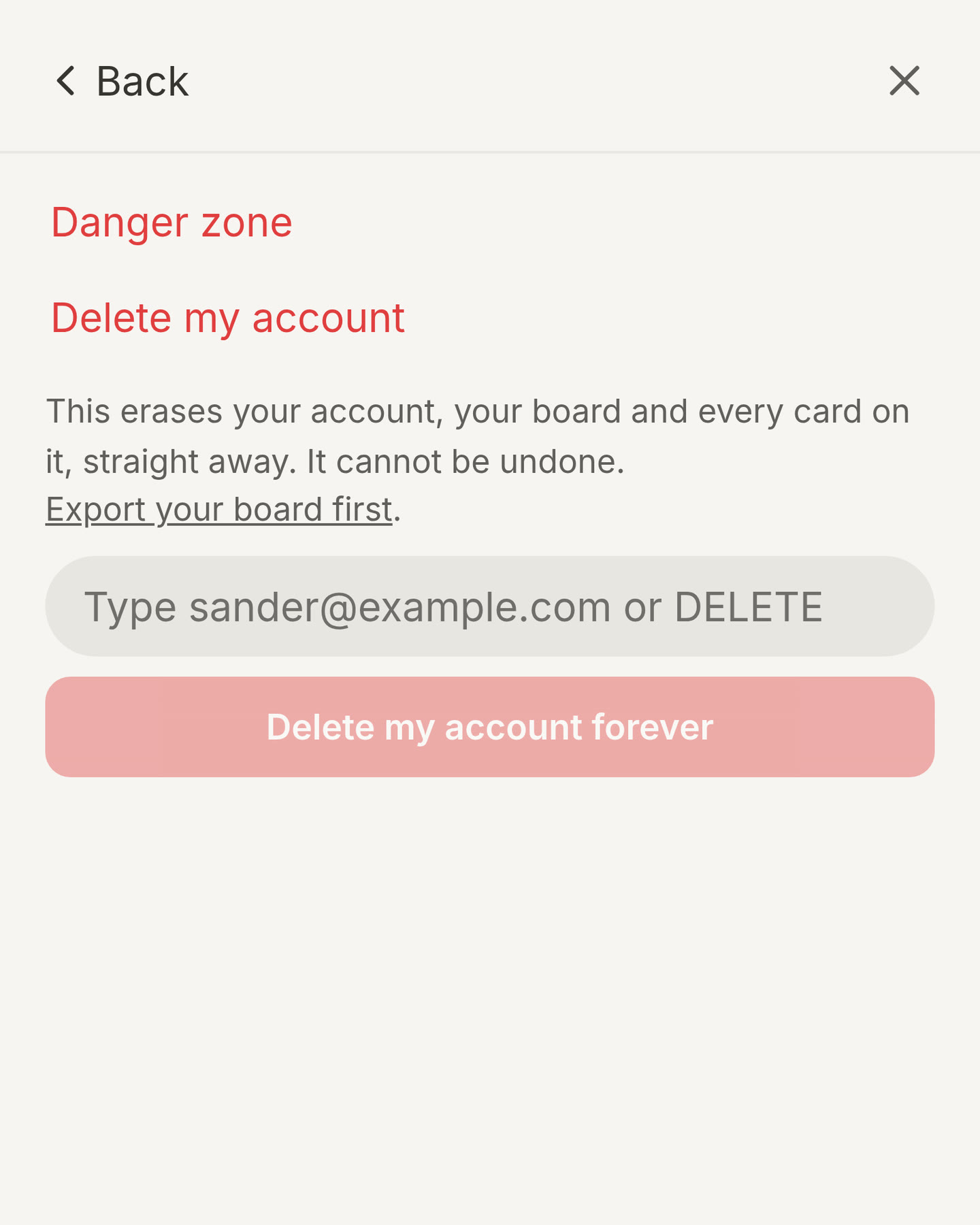
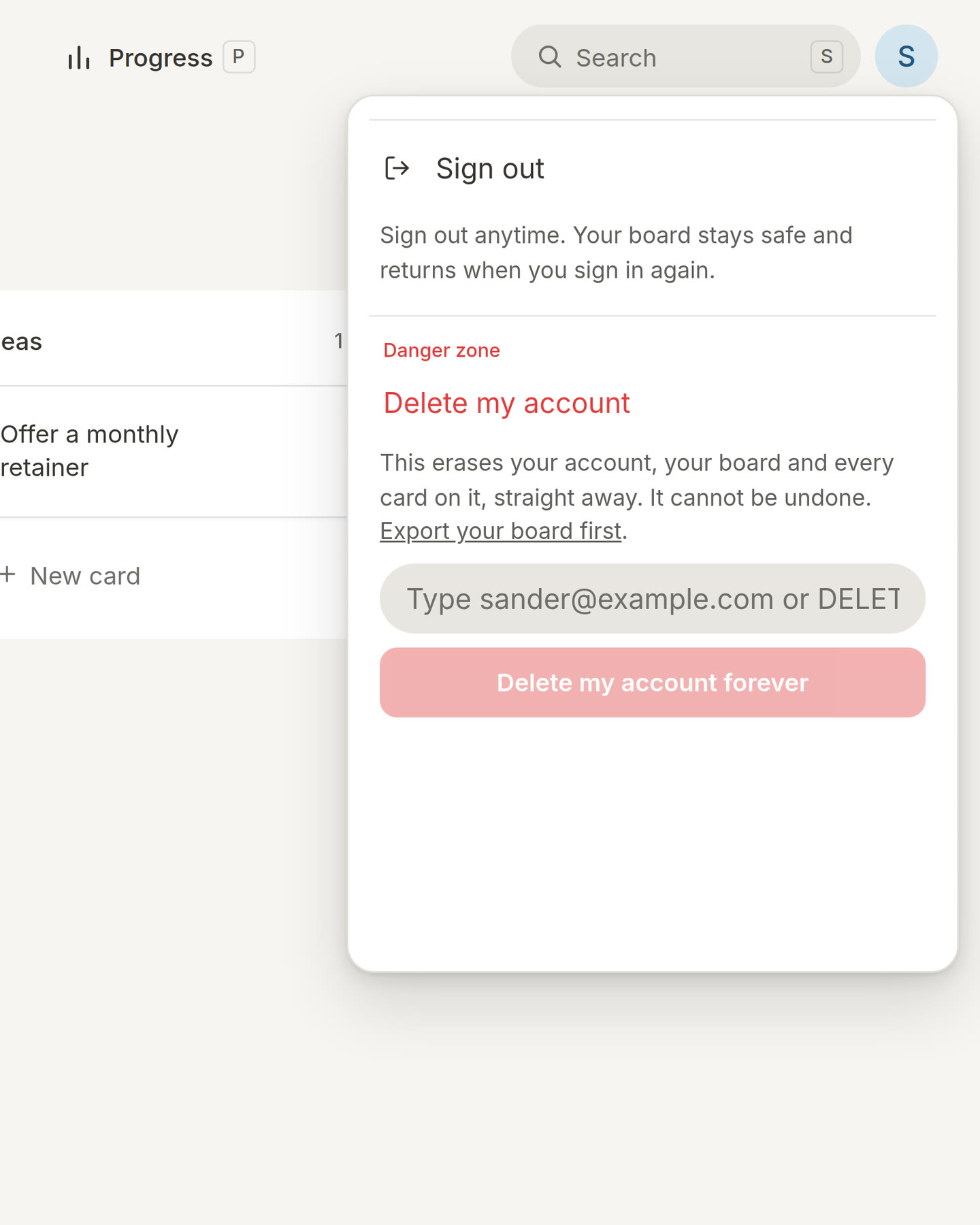
A clearer Sign out. Sign out now has its own icon, a door with an arrow, so it no longer looks like a Back button. Under Delete my account, the confirmation only opens when you press it.
Messages that stand out. In dark mode, messages from Morrow now have a light edge, so they are easy to spot on a dark board.
1.1.2
A way back from sign-in. Did you come to Morrow from our website? The sign-in page now has a Back link in the top left corner that takes you back to where you were.
1.1.1
You choose the project.
When Morrow suggests a project for a new card, you now see a list with that suggestion at the top. Choose it, or choose another project.
When you put a card in a project yourself, the suggestion goes away.
Sign in once, and What’s new in your menu.
When you sign in with Google, you now see the list of accounts once instead of twice.
Your profile menu has a new row, What’s new, that opens this page.
A new icon, and calmer suggestions.
Morrow’s icon is now the cloud, smiling on a sand background. To see it on your phone, remove Morrow from your home screen and add it again.
When Help me choose has nothing to suggest, it now tells you why in plain words.
Help me choose now has one Close button instead of two.
All notifications now have the same width.
Straight to your board. Once you are signed in, opening morrow.do takes you straight to your board. You do not have to sign in again.
A friendlier way in.
When you are not signed in, Morrow now always opens on the sign-in page. That way, your board is never visible to someone else.
When you sign in with Google, you can choose which account to use.
Tick the pen pals box, and we will send you something nice now and then.
1.1
Delete your account. Your account menu now has a Danger zone. Type your email address or DELETE to remove your account, your boards and everything in them for good.
Sign in when you start. New to Morrow? You now sign in first, with Google or your email address. That way your board is safe on every device from your very first card. Already using Morrow? Nothing changes for you.
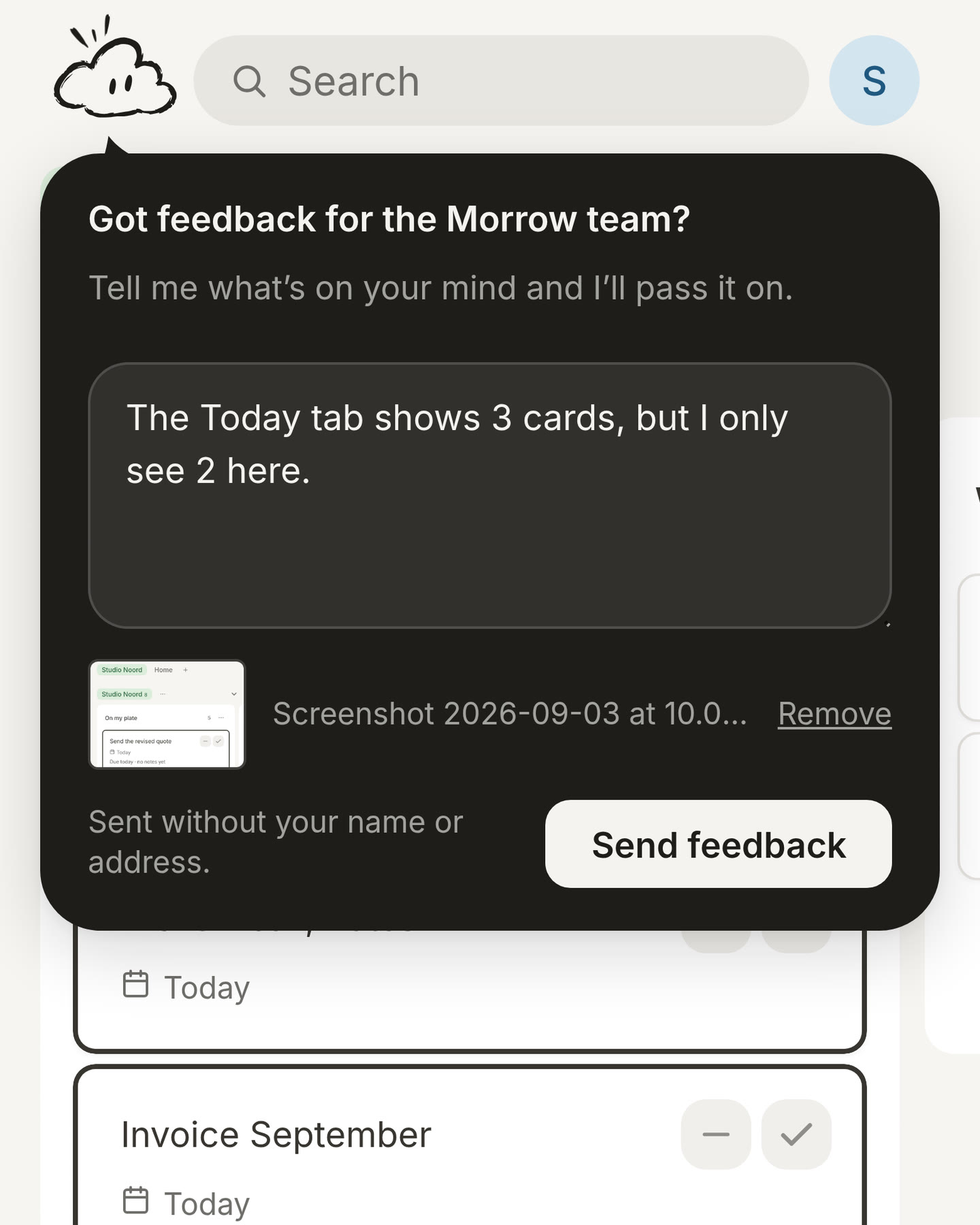
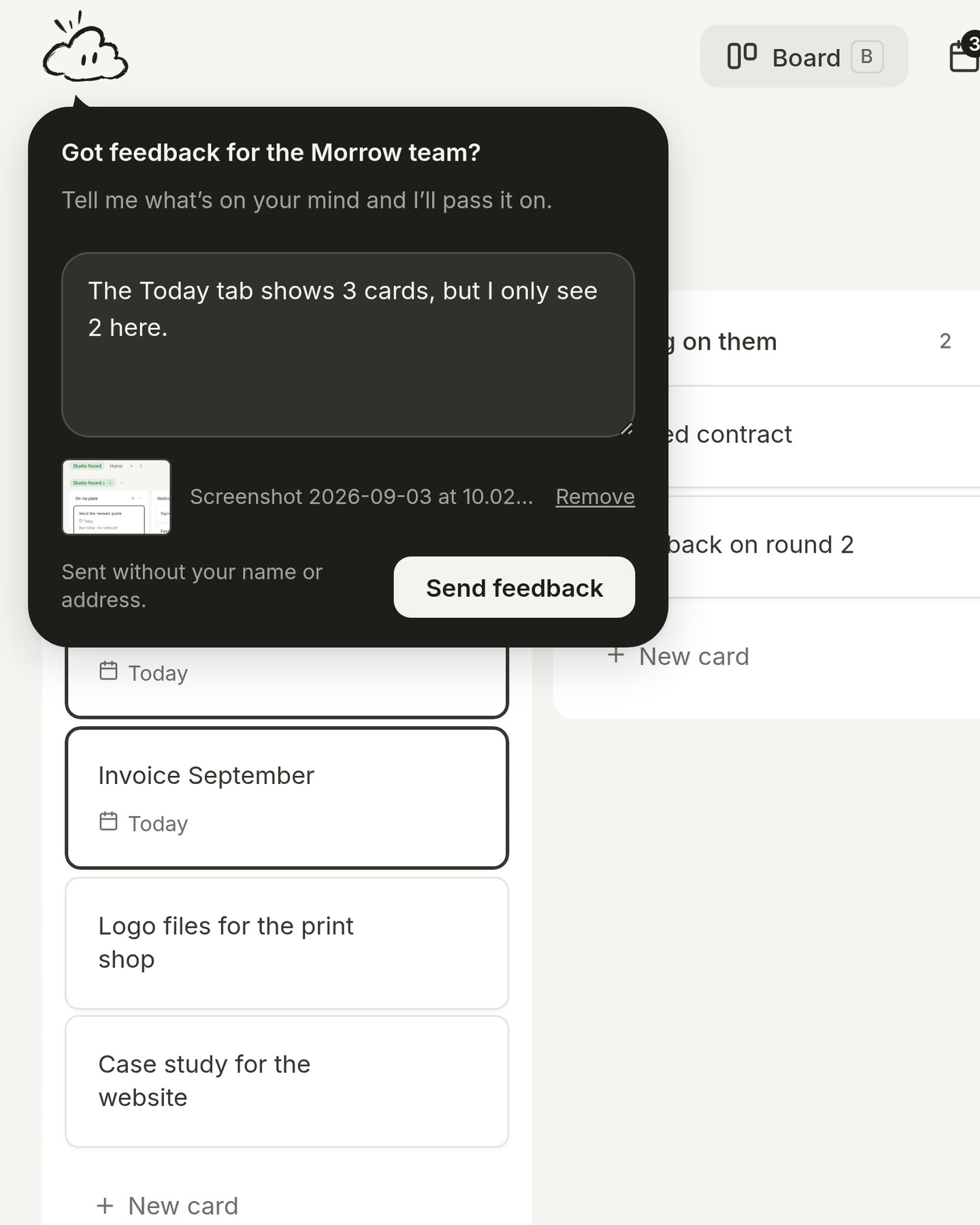
Send a screenshot with your feedback. Found a bug? Open the feedback button at the bottom right and press Add a screenshot, or paste one into the field. It is sent with your message, so we can see exactly what you saw.
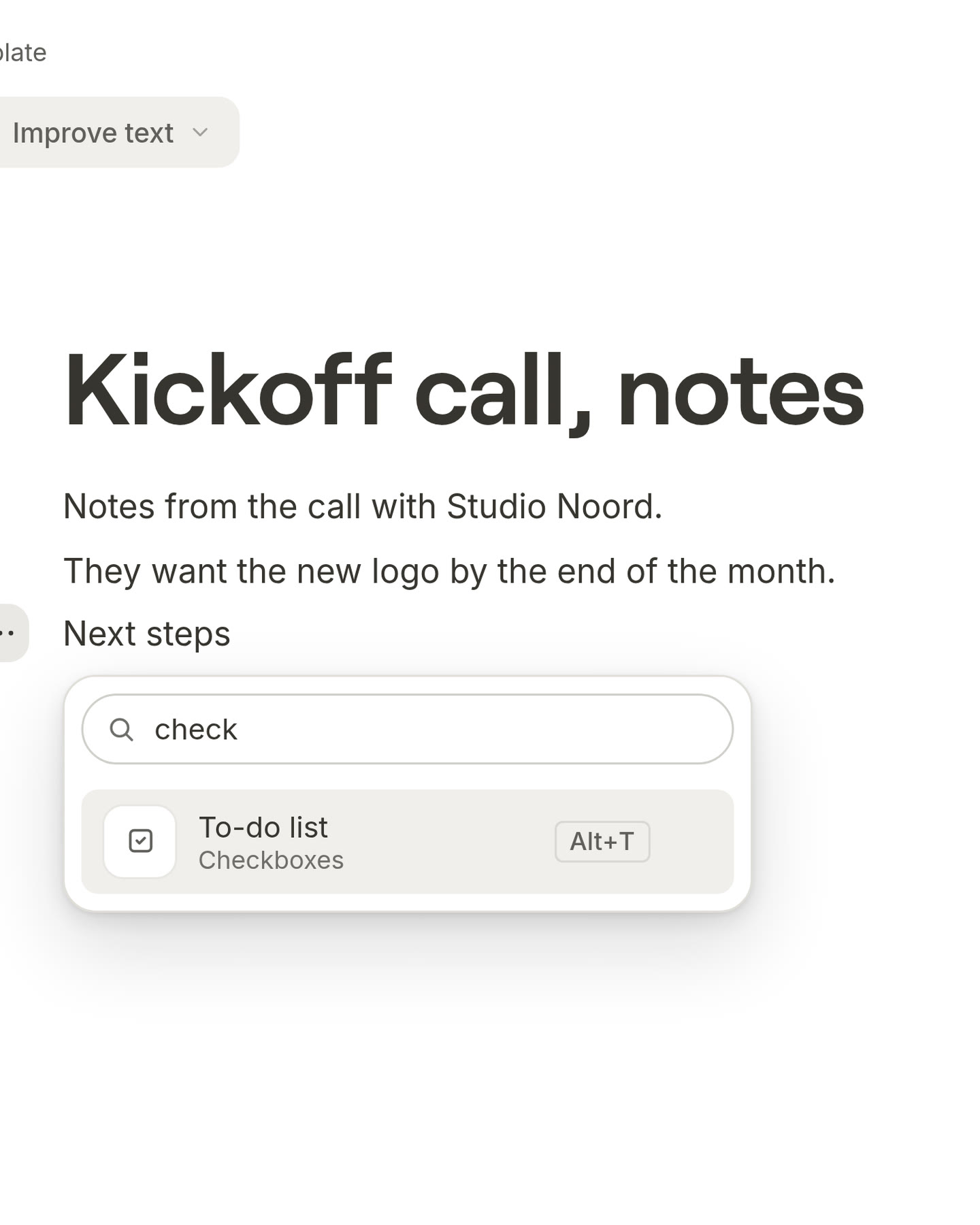
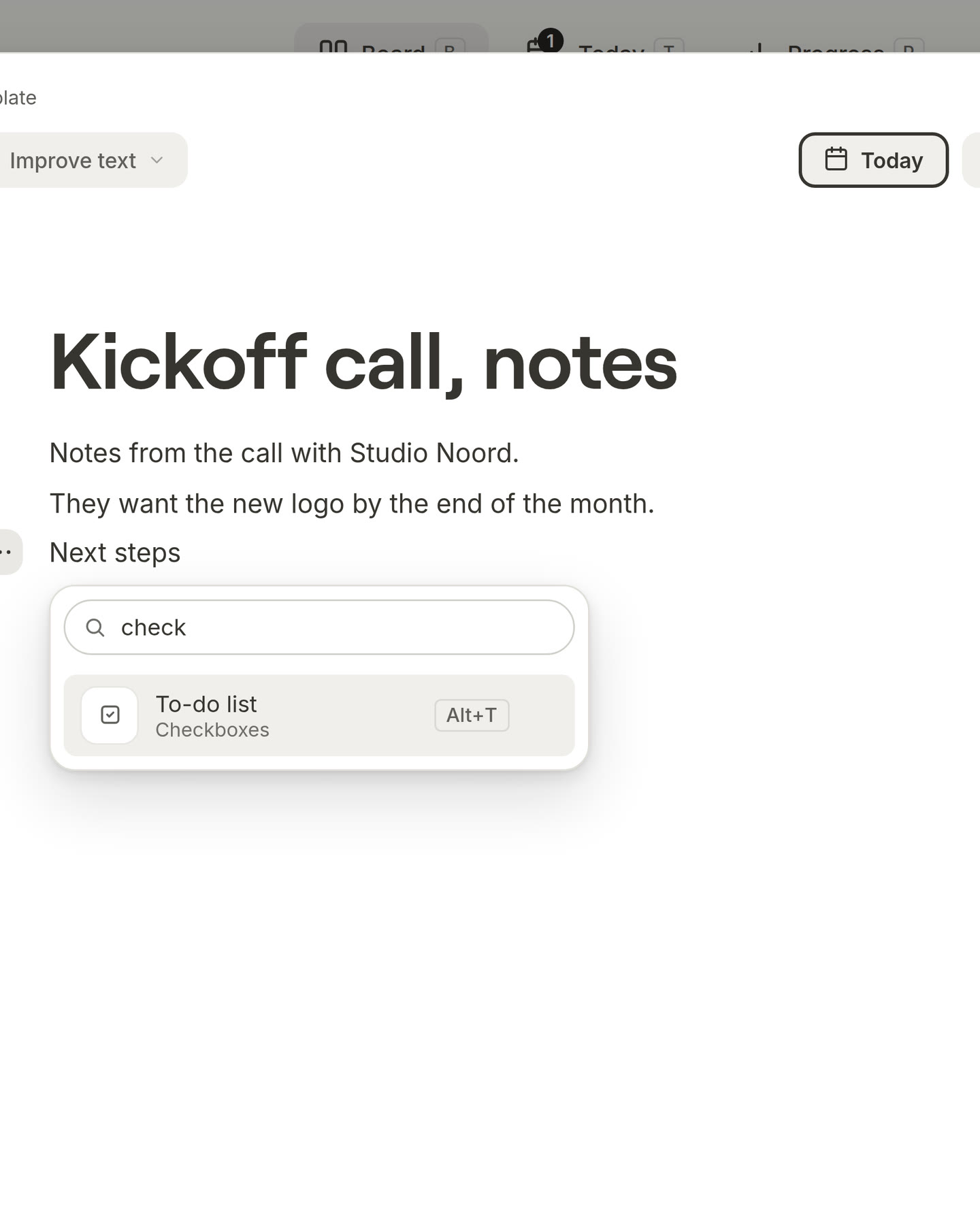
Find a block by typing. Open the block menu and start typing. A search field at the top shows the blocks that match, for example “check” for a to-do list. Press Enter to use the first one.
Signing in is no longer a walkthrough. When you sign in with an account you already have, Morrow no longer shows you the first steps. Those are only for your very first time.
One Google screen after signing out. Did you sign out and then sign in again with Google? You now go through Google once, not twice.
A calmer Progress page. We removed two tiles: Planned and done, and Your first card. The page now shows only what tells you the most.
A new copy icon. The copy button has a new icon: the copy you make in front, the original behind it.
A friendlier calendar picture. In the calendar settings, before you connect a calendar, you now see the cloud standing in front of a calendar, looking at it.
See what is new. When a new version of Morrow is ready, the cloud's message now links to this page. Here you can read about every update in plain words.
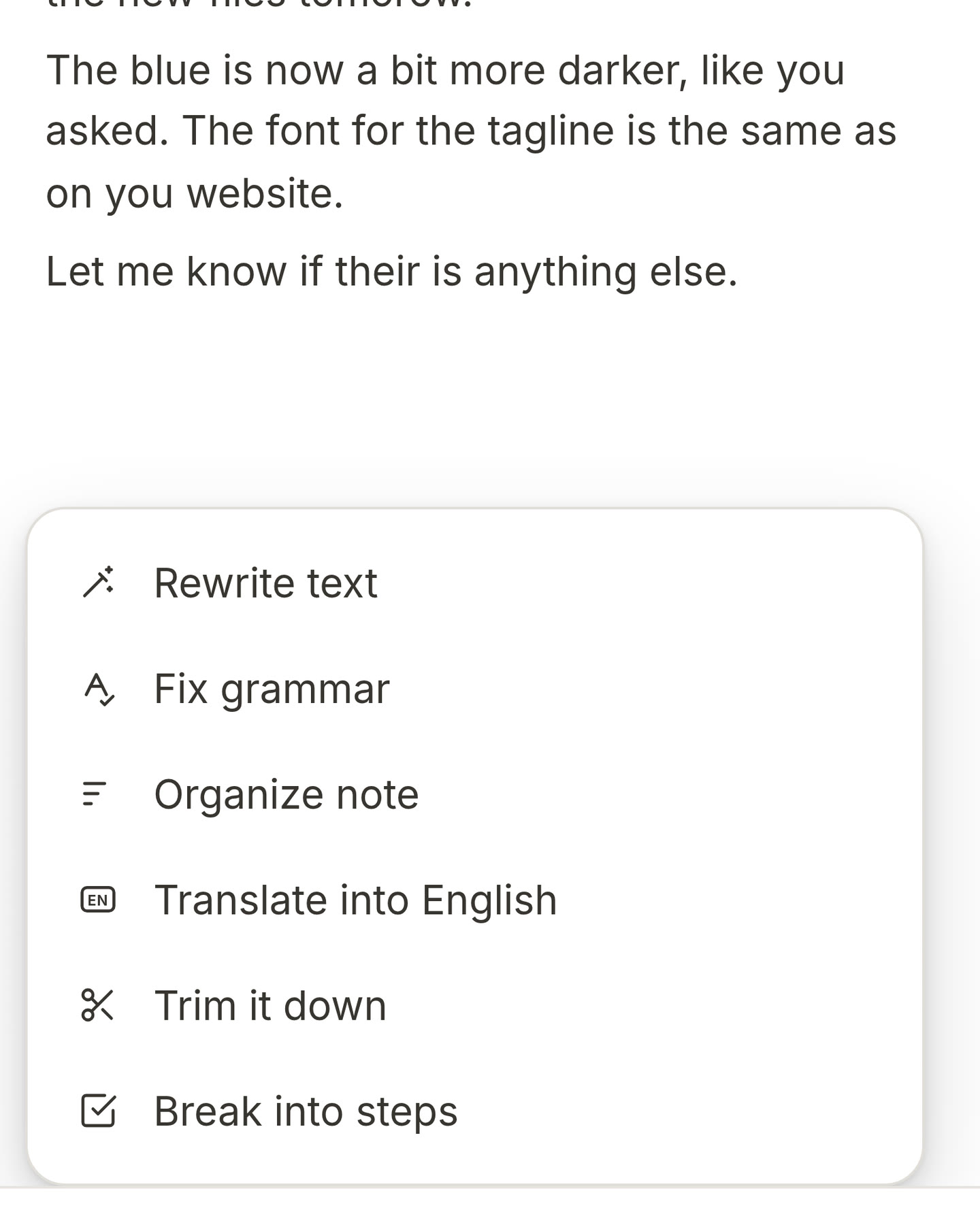
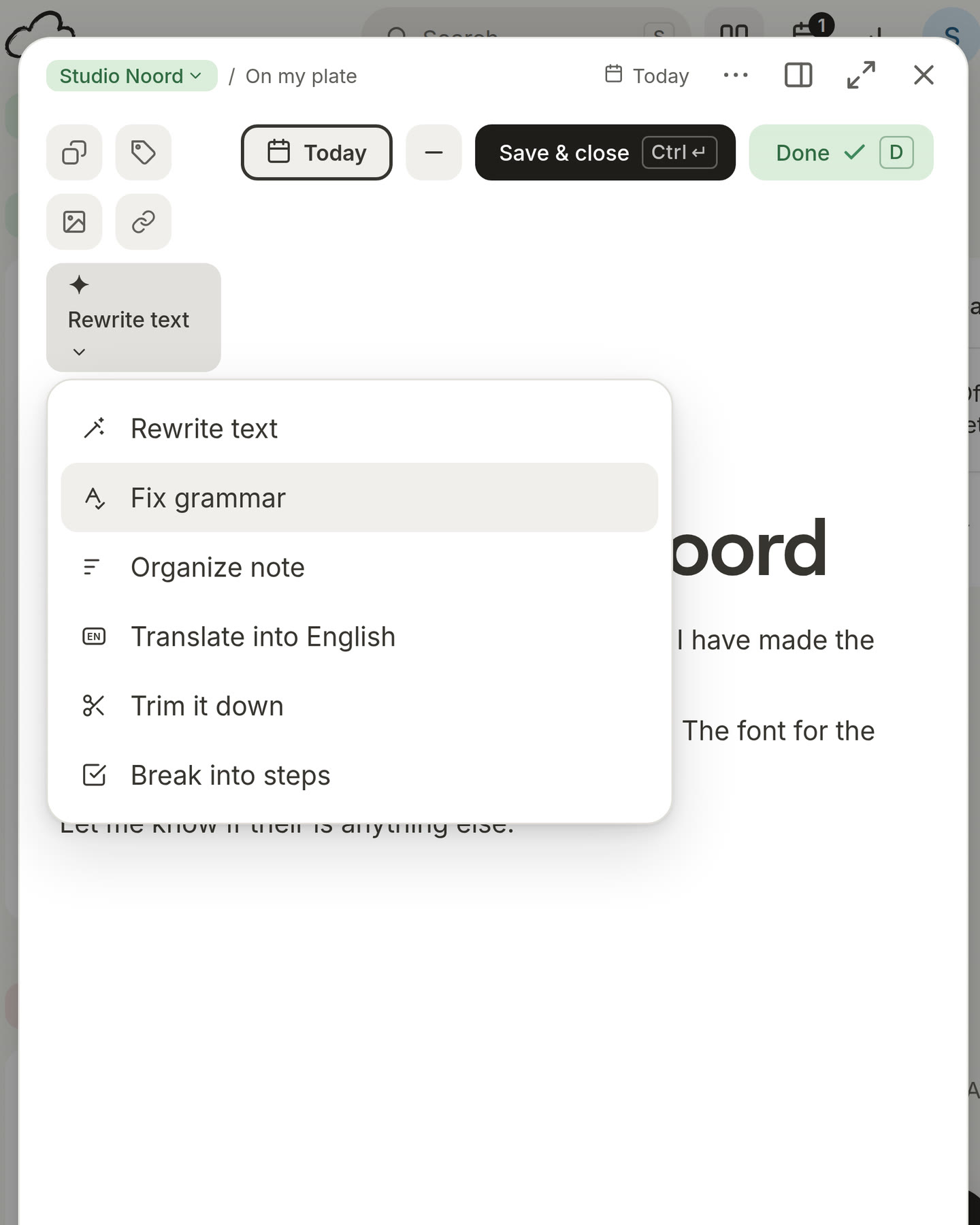
Fix your spelling and grammar. Open a card, press the AI button and choose Fix grammar. Morrow fixes the mistakes and keeps your own words.
Your daily limit stays the same everywhere. When you change your usual number of cards for a day, your other devices now keep it too. A number you choose for one day only still resets the next morning, unless you make it your usual.
Clearer Progress tiles. “Planned and done” and “Your first card” now stand side by side, with simpler words that say what they count.
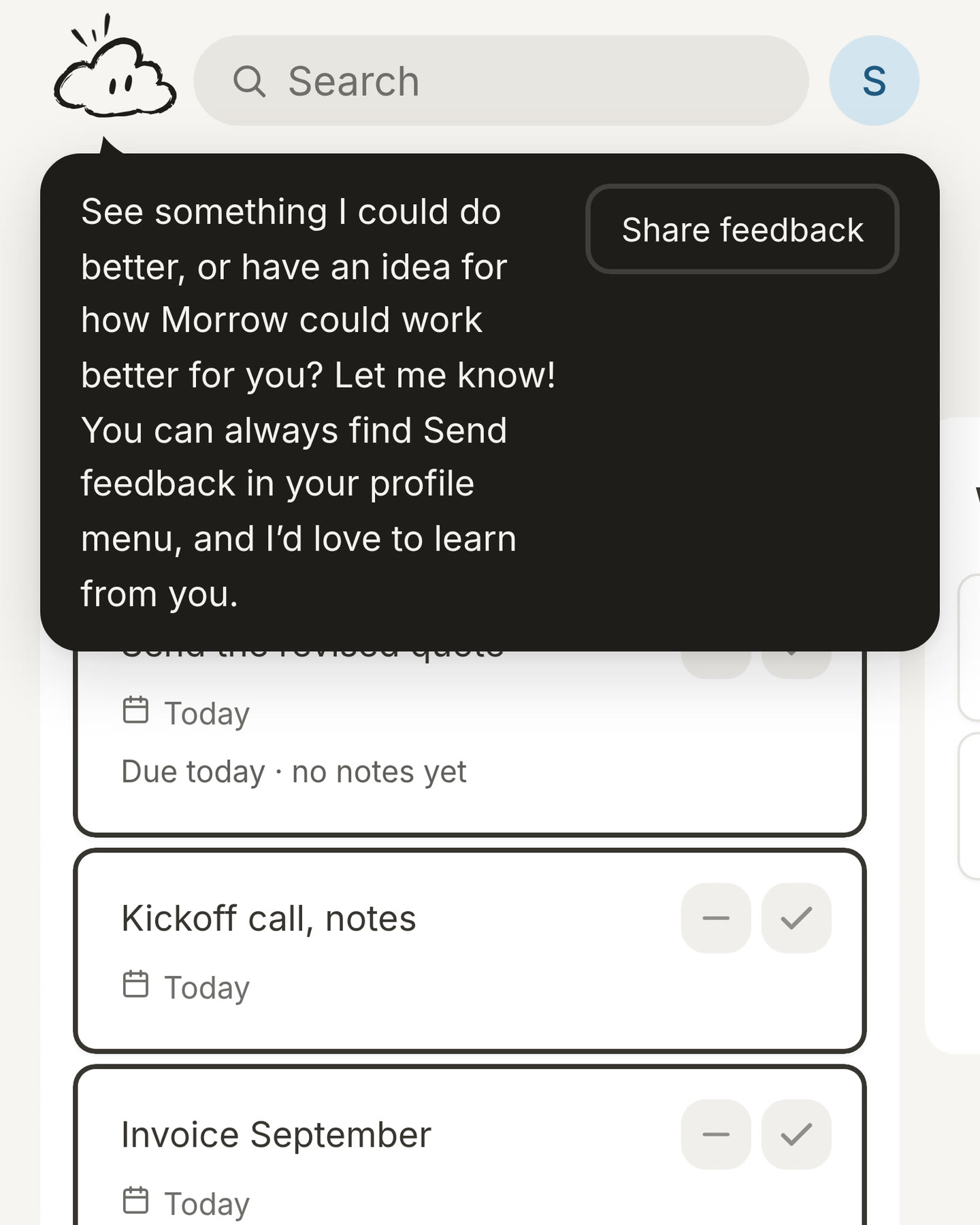
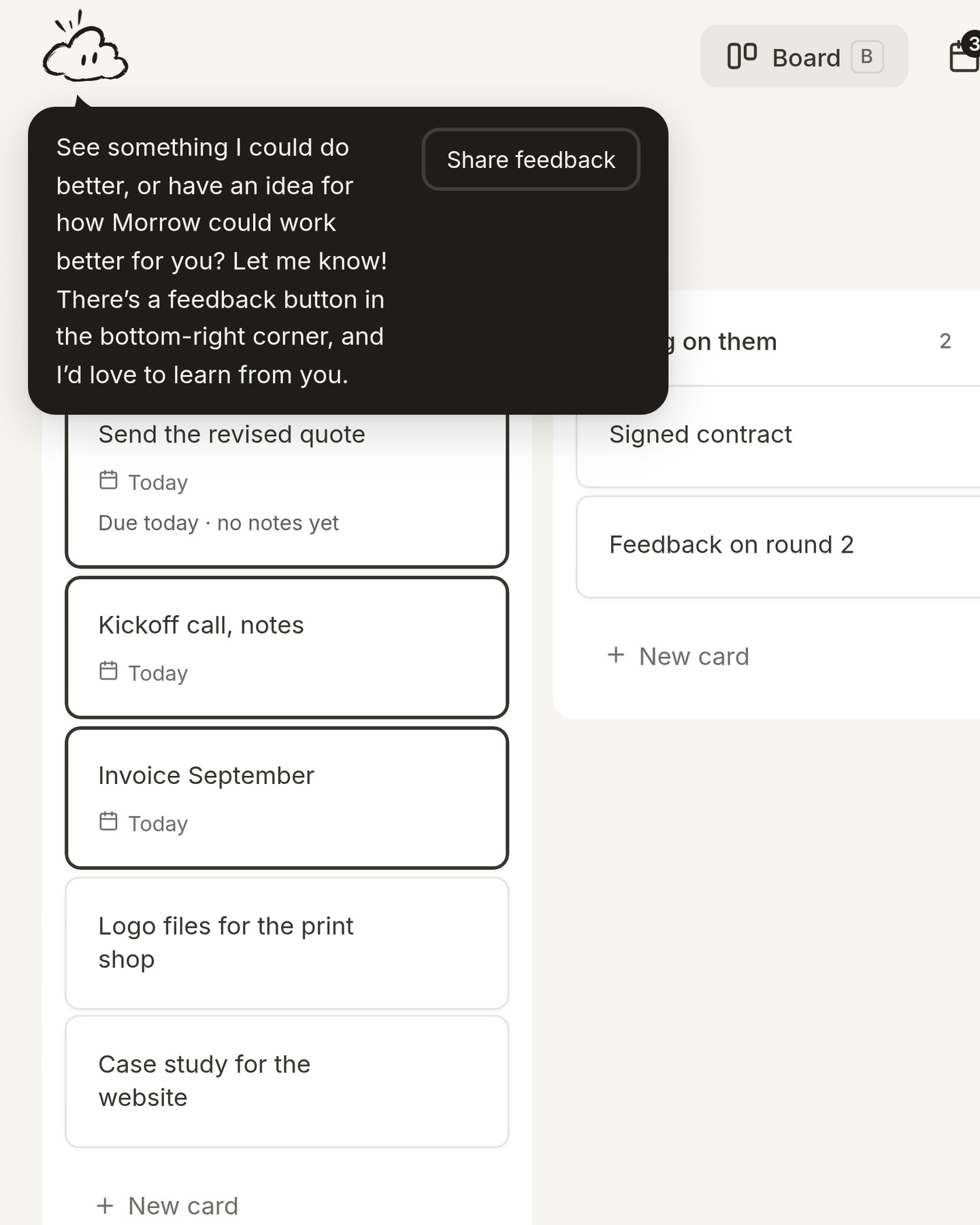
Morrow asks what you think. Once a month, the cloud asks if you have an idea or noticed something that could be better. The feedback button is always there, in the bottom right.
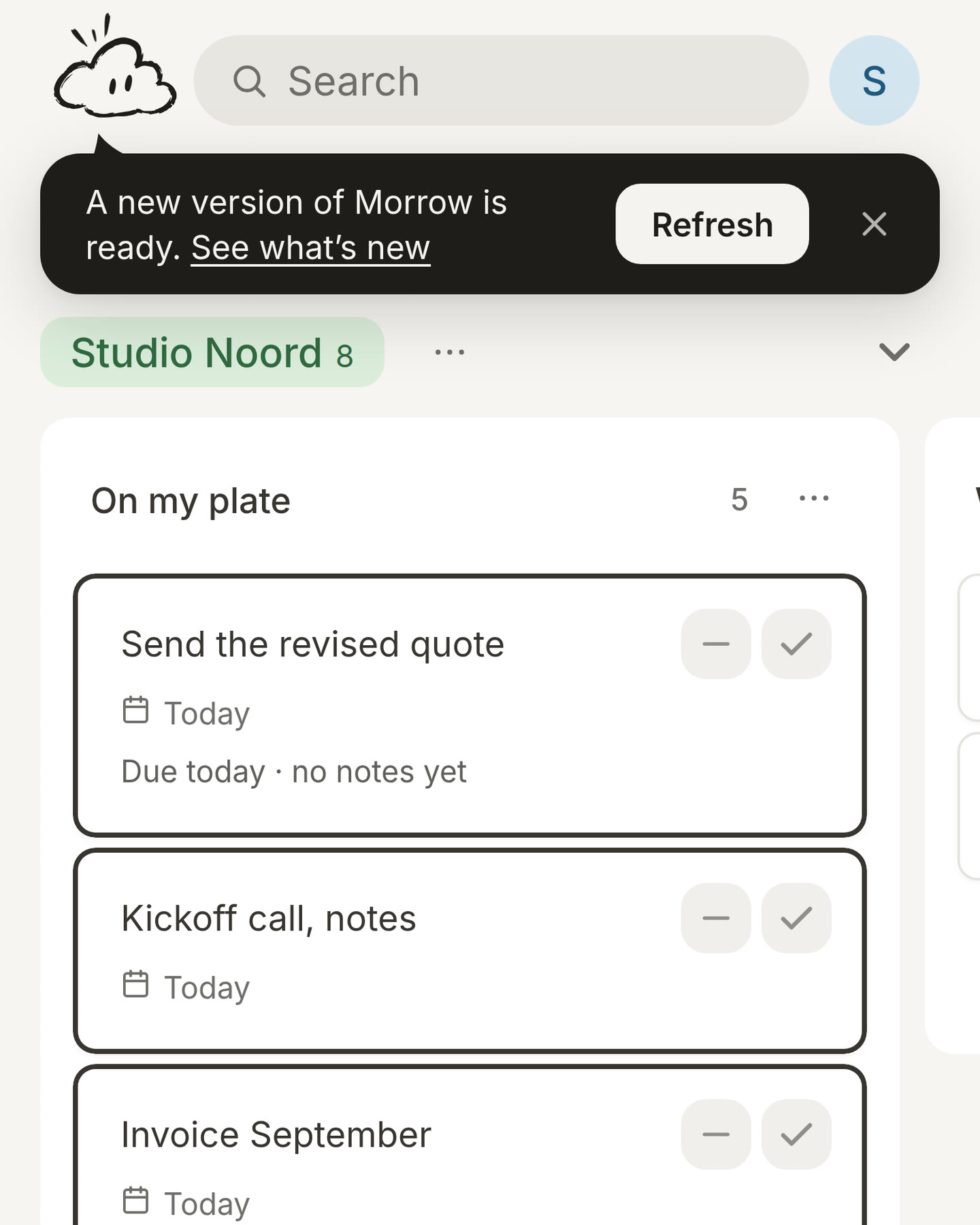
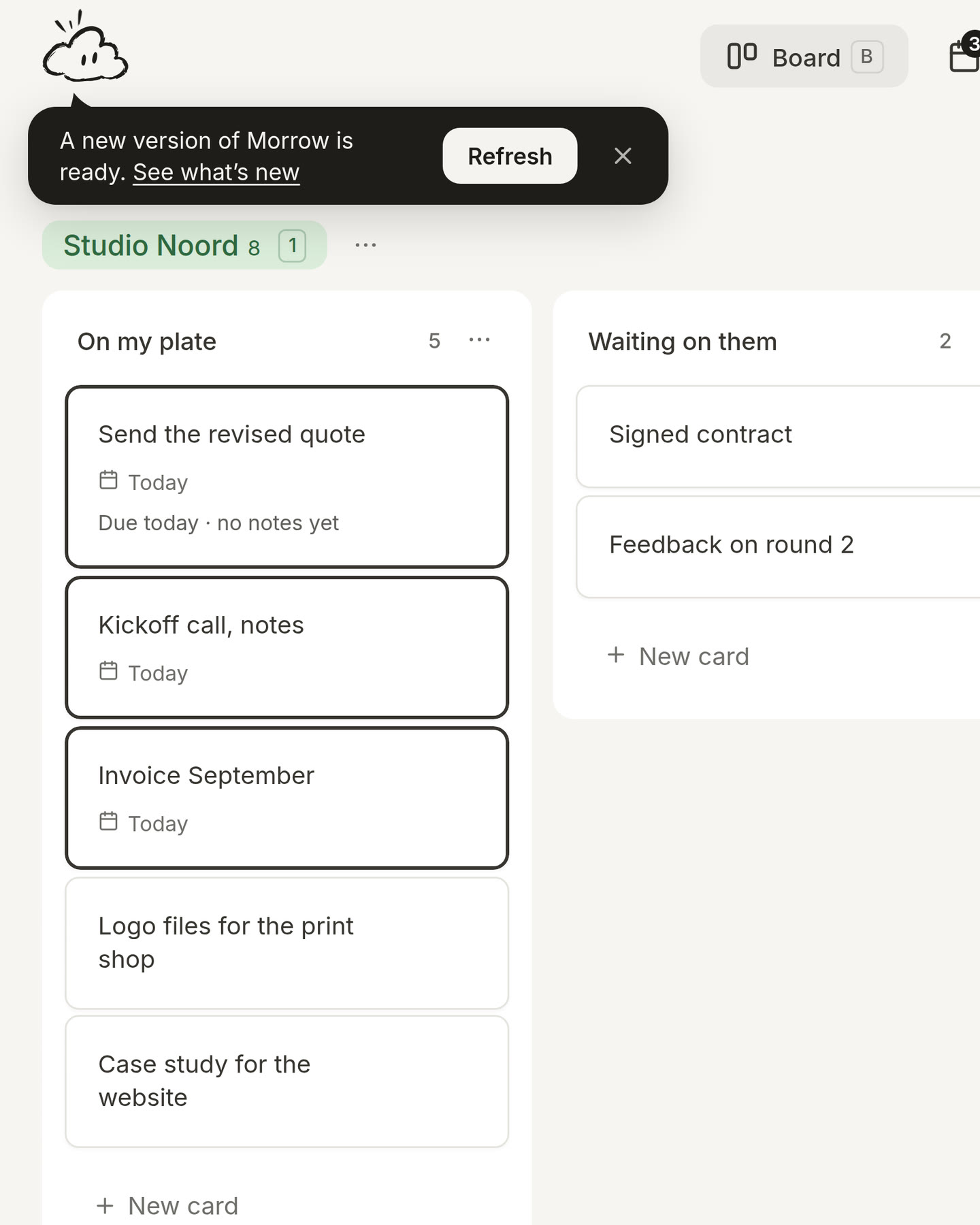
New versions ask before they reload. When a new version of Morrow is ready, the cloud lets you know, and you press Refresh when it suits you. Morrow no longer reloads while you are working.
A feedback button. Press the round button in the bottom right, write what you think and send it. That is all it takes. (thanks to feedback from user Marco)
Warmer, clearer words. We rewrote what Morrow says, everywhere: shorter sentences, plainer words and the same friendly voice in every message.
1.0.9
New drawings. The brain dump and the calendar have new pictures, drawn by hand in the same style as the cloud.
Say hello to the cloud. Morrow has a new logo: a small cloud with a face. It blinks, smiles when you finish a card, writes when Morrow writes and falls asleep when you take a break.
1.0.8
Press D to finish a card. On a laptop, open a card and press D to mark it as done. The button now says Done, so you know what it does.
1.0.7
Closing your day counts all your work. When you close your day, Morrow now shows every card you finished today, also the ones that were not on your Today list.
1.0.6
Your brain dump lands in your project. After your first walkthrough, the cards from your brain dump go into the project you just made, instead of into new extra projects.
1.0.5
A new first walkthrough. Your first minutes in Morrow are now seven small steps: make a project, add a card, put it on Today, open it, add a block and tick it off. After that, you empty your head into the brain dump.
1.0.4
One card, not two.
Adding a card on Today sometimes made two cards. We fixed that.
When you delete a card, it now also disappears from Today right away.
See where your cards go. When you close your day and move a card to tomorrow, it now flies to the Today tab, so you can see where it went.
No more double meetings.
When two of your calendars hold the same meeting, Morrow now shows it once.
You can no longer add the same calendar twice by accident.
1.0.3
Tick off cards on Tomorrow. Finished something early? You can now also tick off a card on the Tomorrow page.
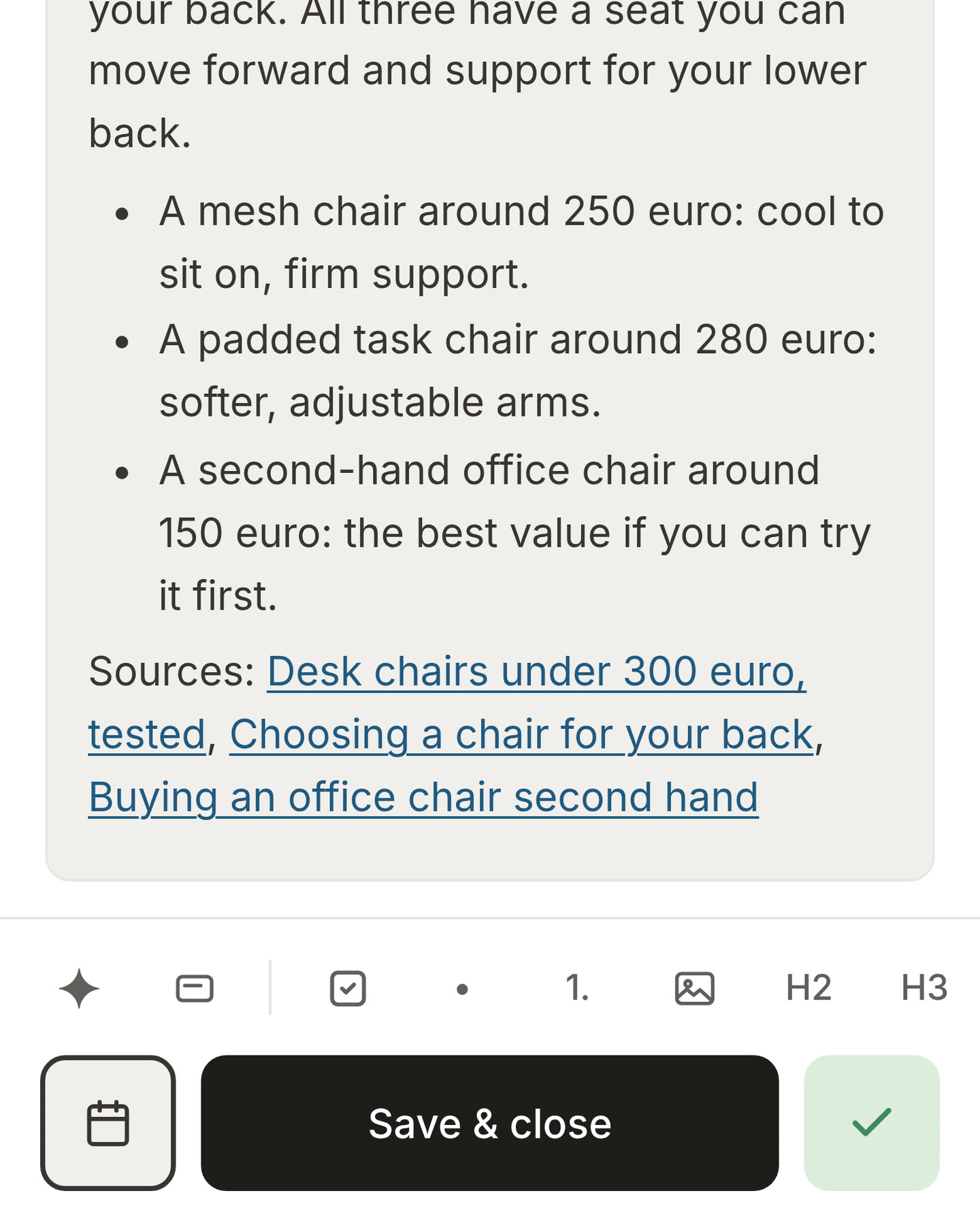
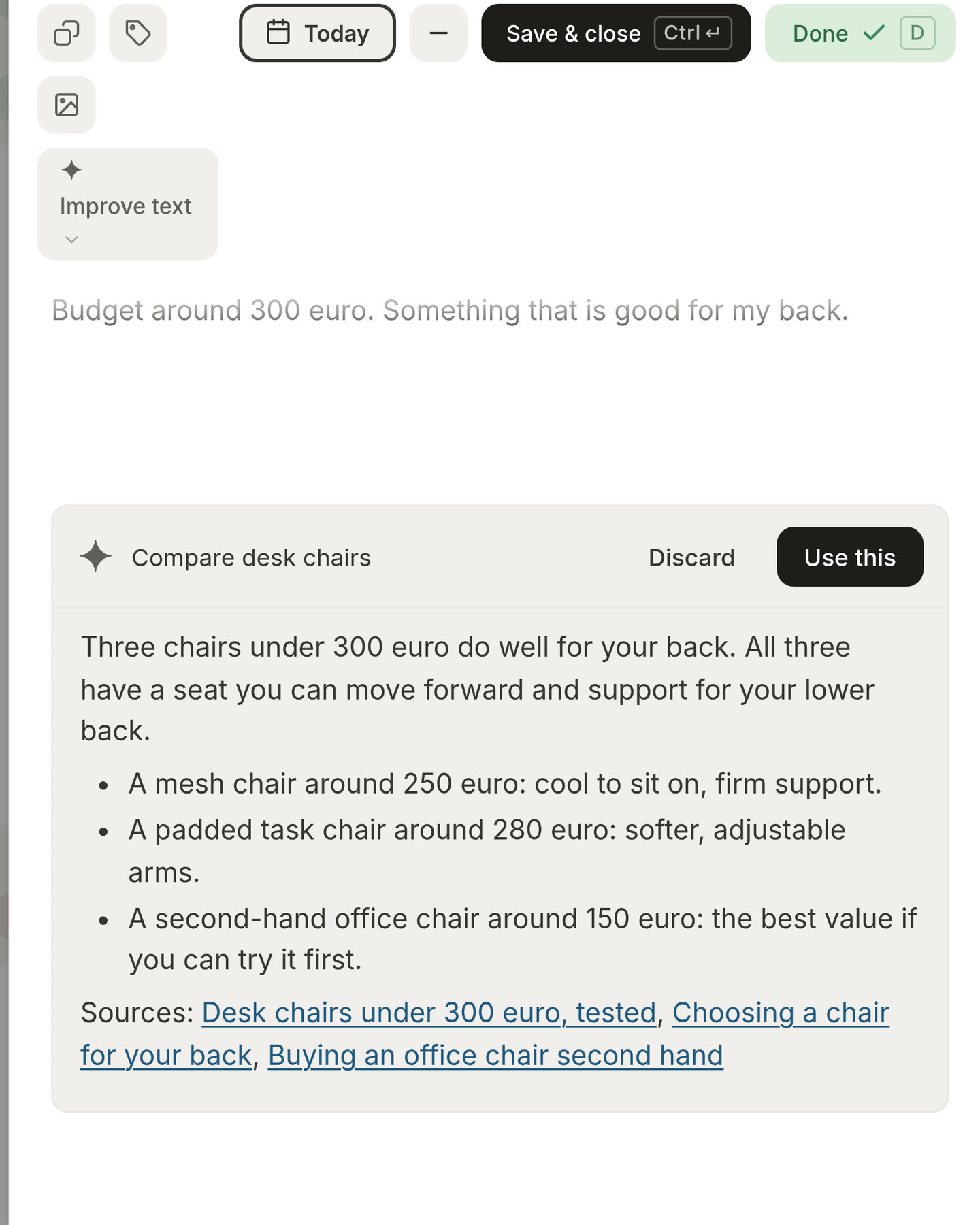
See where the AI looked. When Morrow searches the internet for you, it now tells you while it works, and it puts the links it read under the answer.
1.0.2
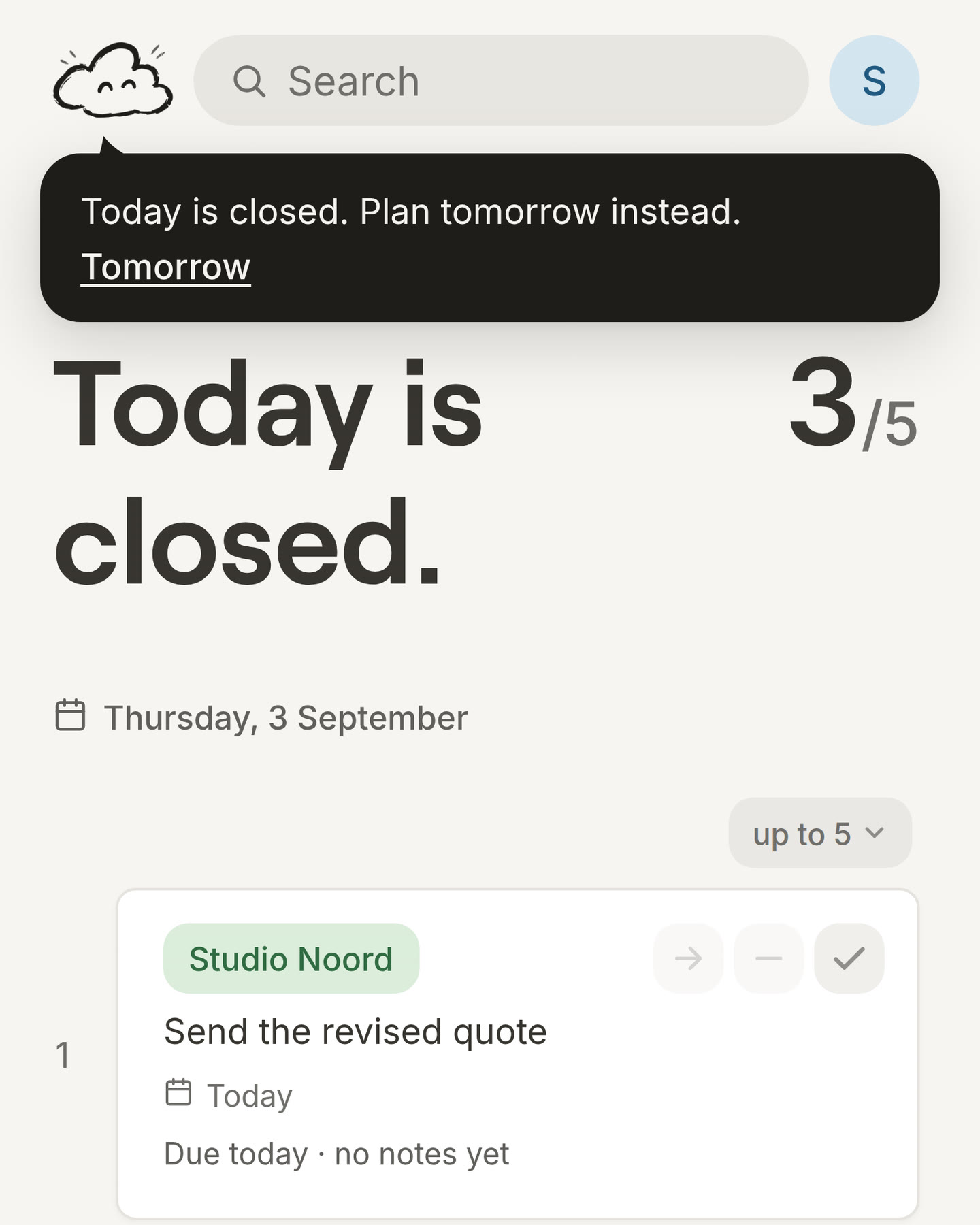
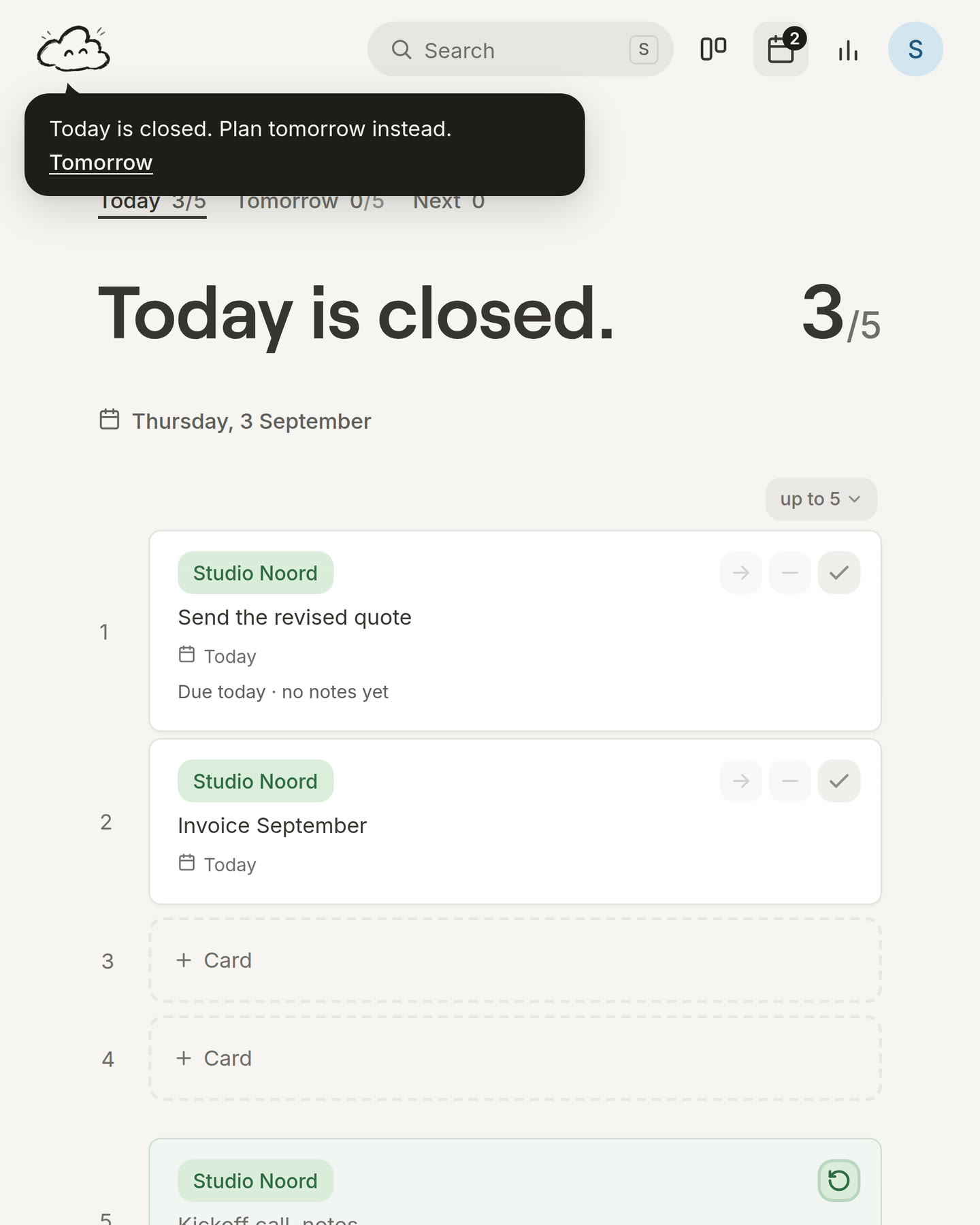
A closed day stays closed. Once you have closed your day, you can no longer add or move cards on Today. You can still tick off what you finish. This helps you plan tomorrow and stop for the day.
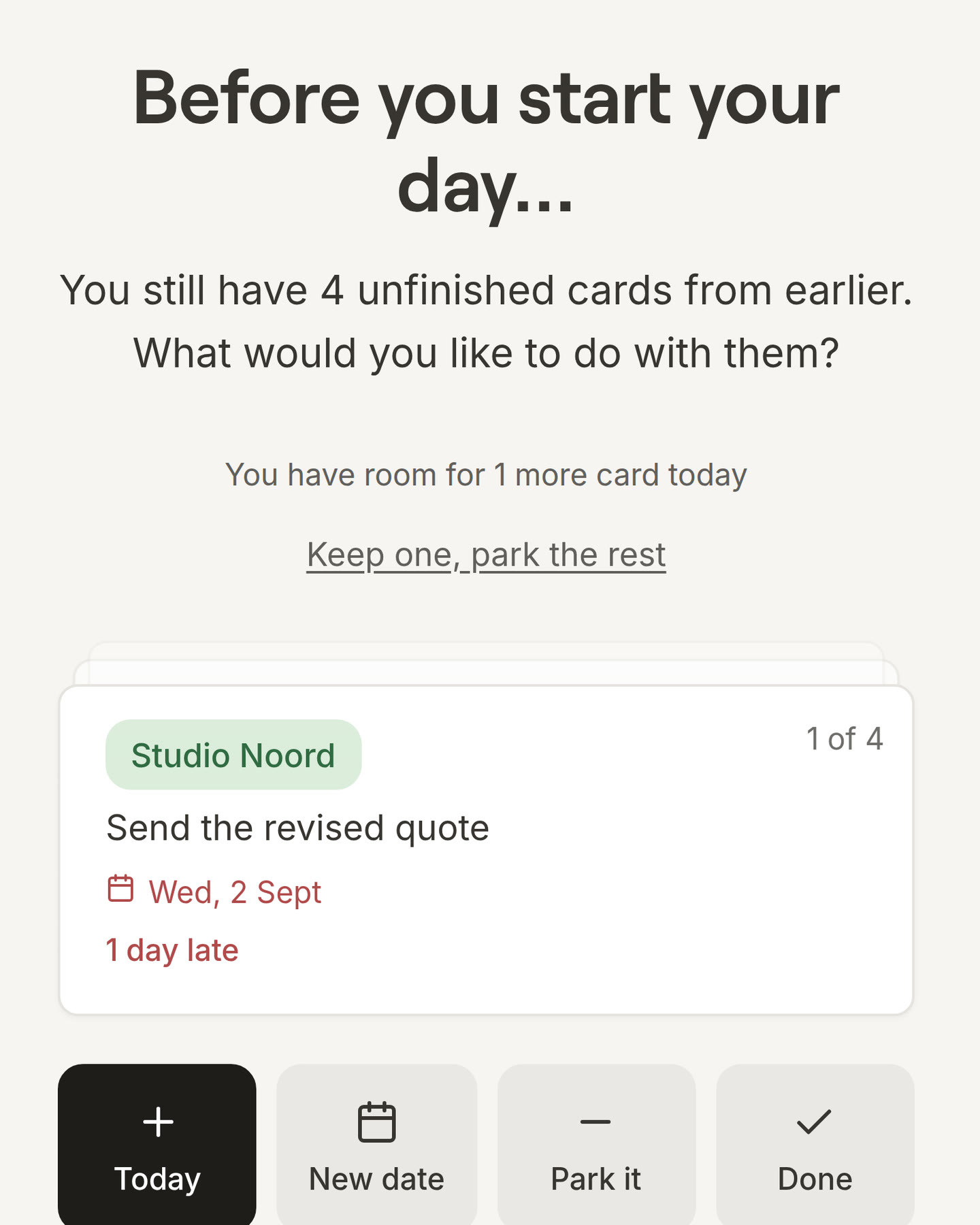
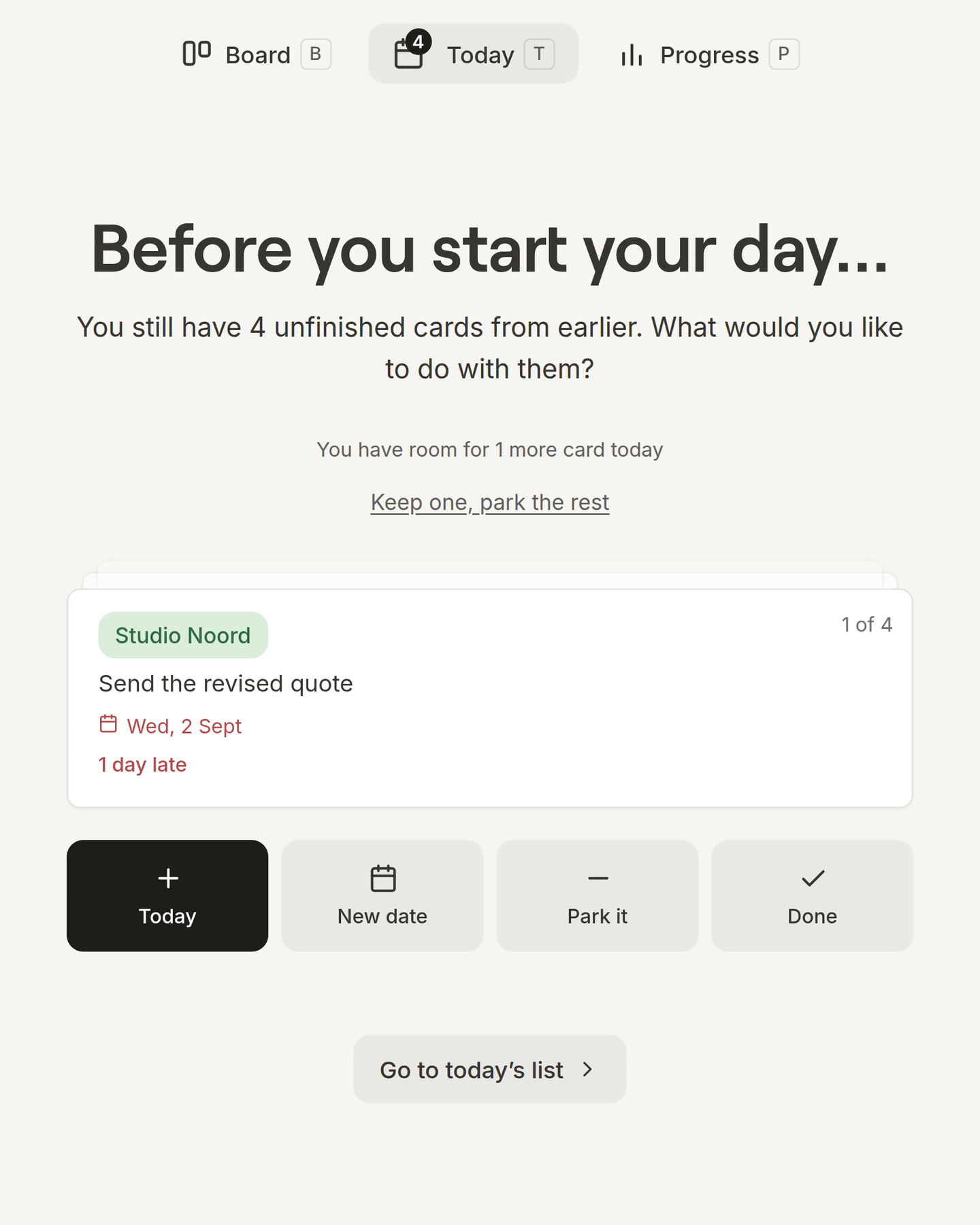
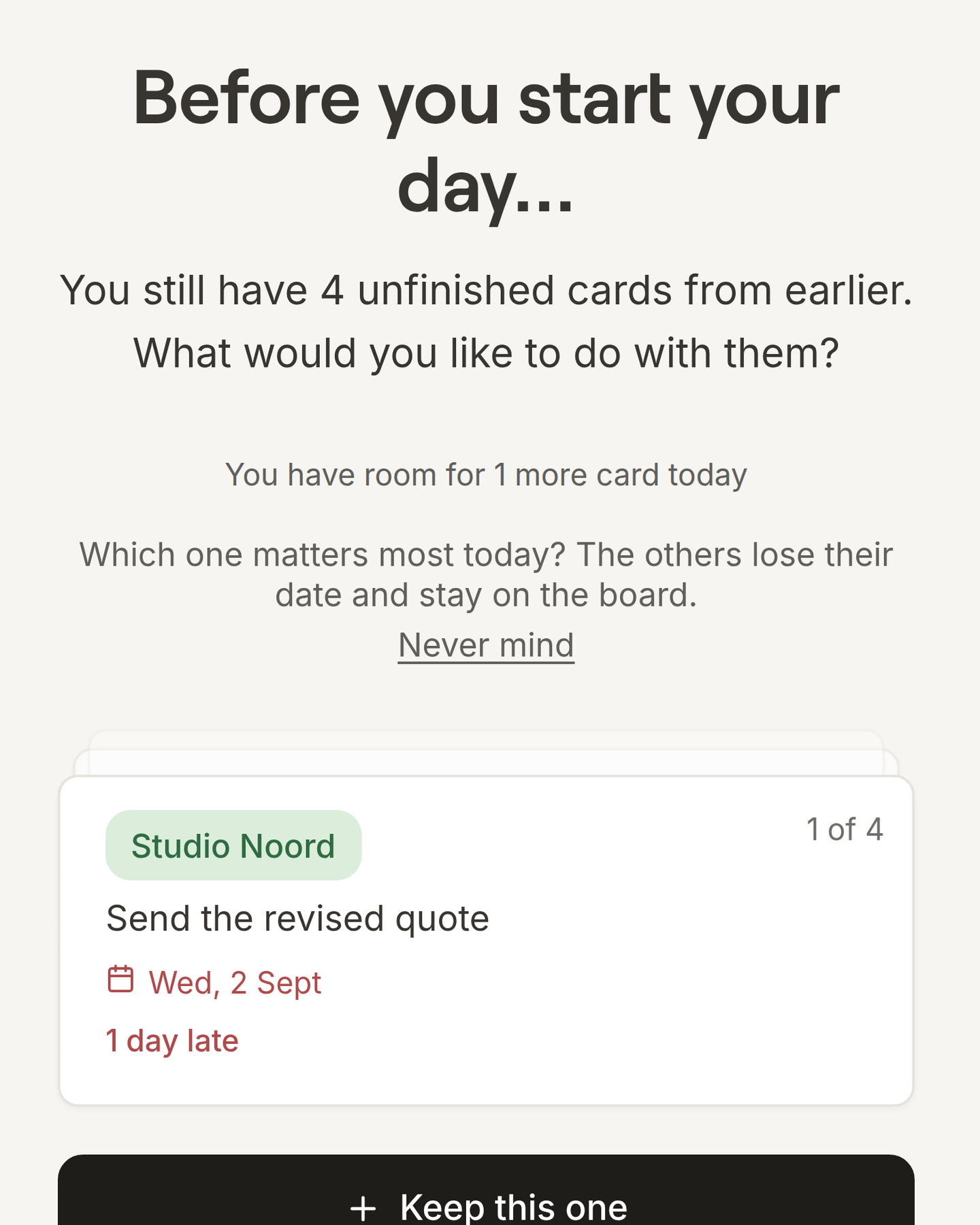
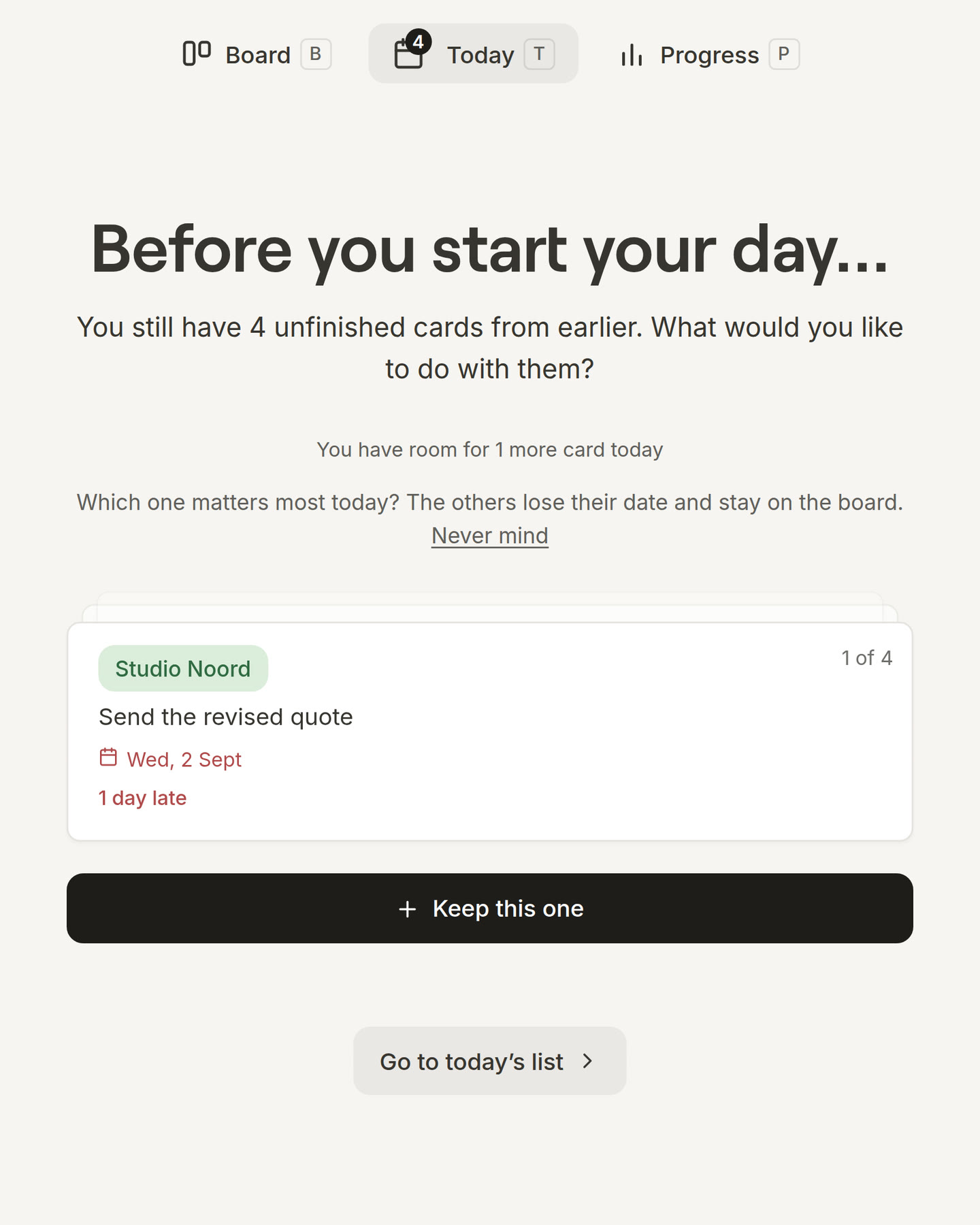
Your morning cards, one at a time. Cards left over from yesterday now come as a small pile. For each card, choose Today, New date, Park it or Done, and the next card moves up.
1.0.1
Keep one, park the rest. Did yesterday not go as planned? With one press, you keep one card for today and take the date off all the others. One undo puts everything back.
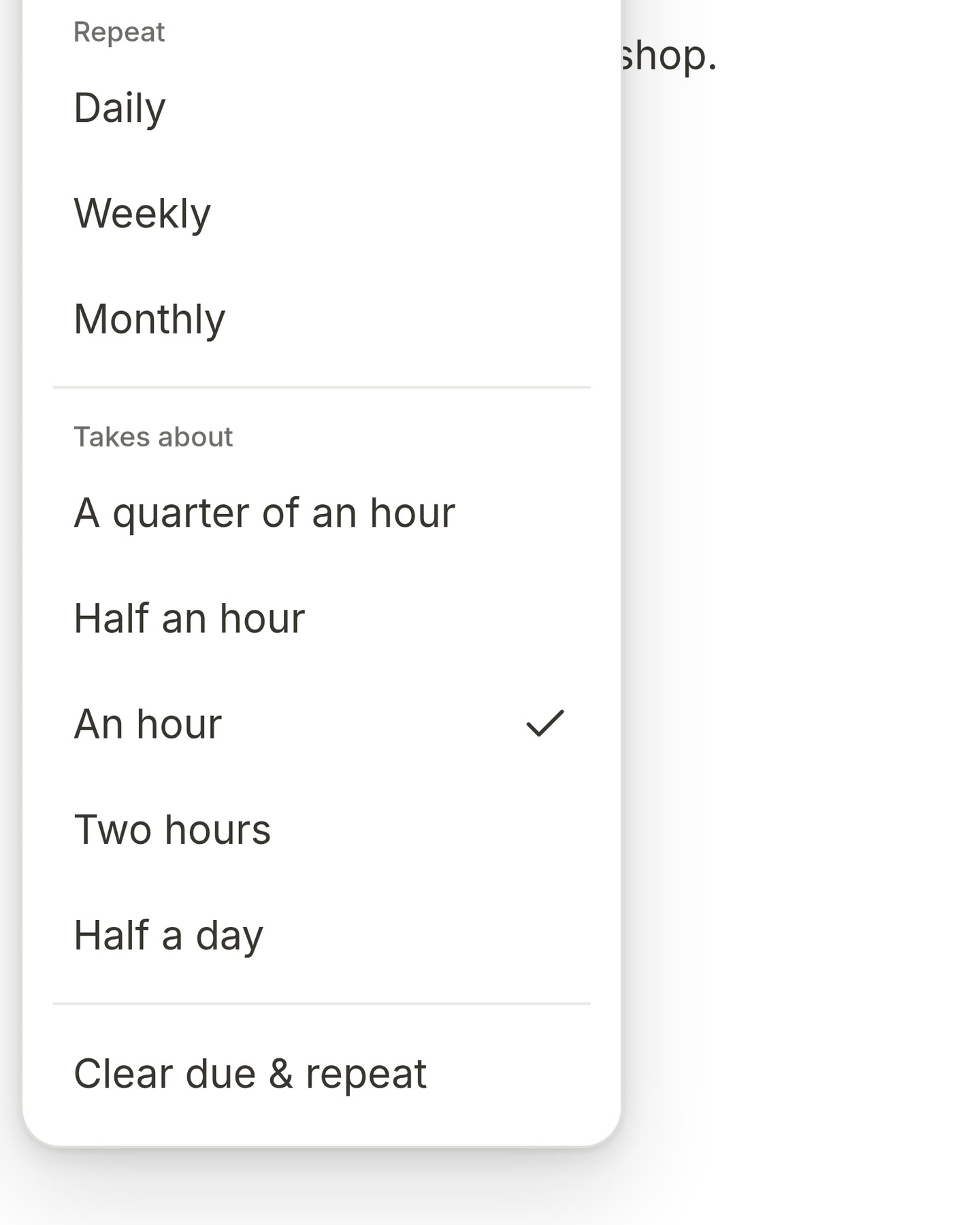
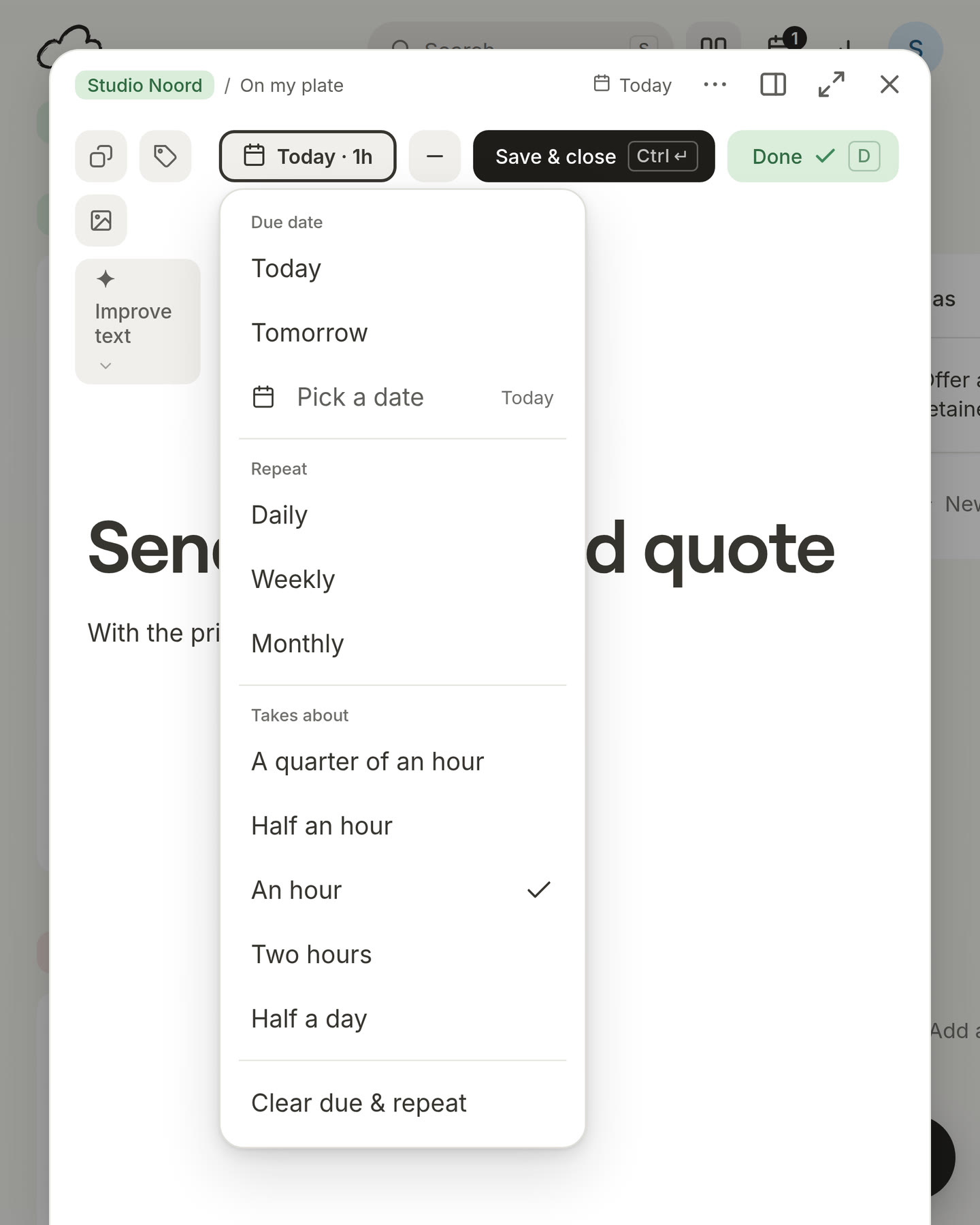
Say how long a card takes. You can now give a card a size, from 15 minutes to half a day. It is never required. Morrow uses it to check if your day still fits.
Your calendar adds up right.
Meetings that overlap are no longer counted twice.
Monthly meetings now land on the right day.
Morrow now tells you when a calendar did not update.
1.0
No more lost taps in the morning. When you go through your morning cards quickly, every tap now counts. Before, some taps got lost, and the same cards came back on your other device.
Today never goes over your limit. Cards left over from yesterday now count towards your daily limit. So Today never shows more cards than you chose.