Empty your head in a minute.
Type one thing per line, or paste a whole list from your notes. I suggest a project for each one, and everything lands safely on your board. Coming from Trello or Notion? Bring your board with you.
Every morning, I bring you a brief.
What you finished yesterday, where you left off, and what’s waiting today. One question first, so you can say yes or not now.
Type a card the way you say it.
Write “Call Robert Monday #Work project” and I add the date and the project for you. No menus, no extra clicks.
Add a label or a project as you type.
When you write a card, type @ to give it a label. On Today, type # to put it in a project. A short list opens under your words, and you can make a new label or project right there.
You choose what matters today.
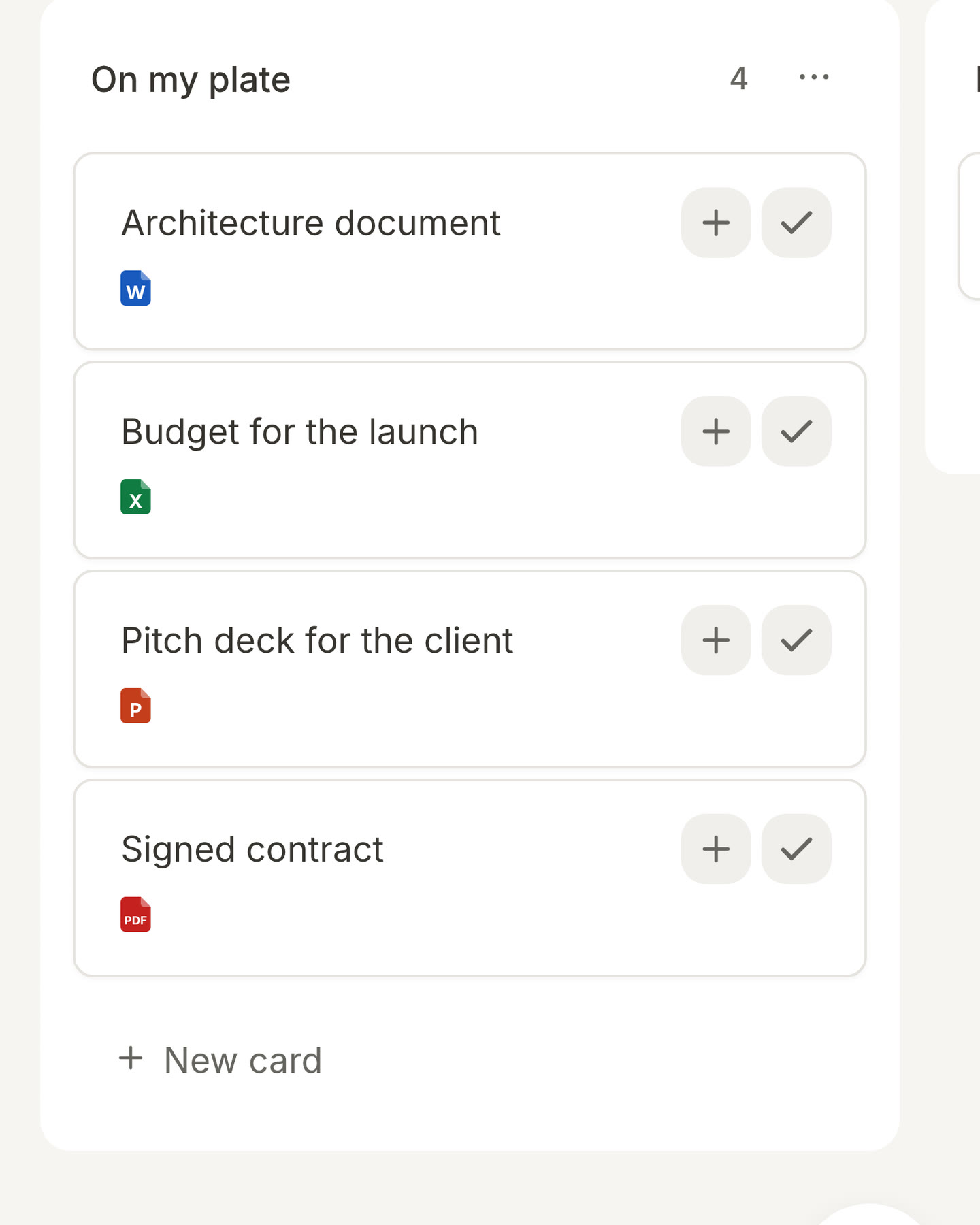
Every card has a plus button. Press it to add it to Today. Pick five. That’s your focus for the day.
Not sure what to pick? Ask me.
Press Help me choose and I look across your whole board. I suggest a few cards that matter today and tell you why. You decide what goes on.
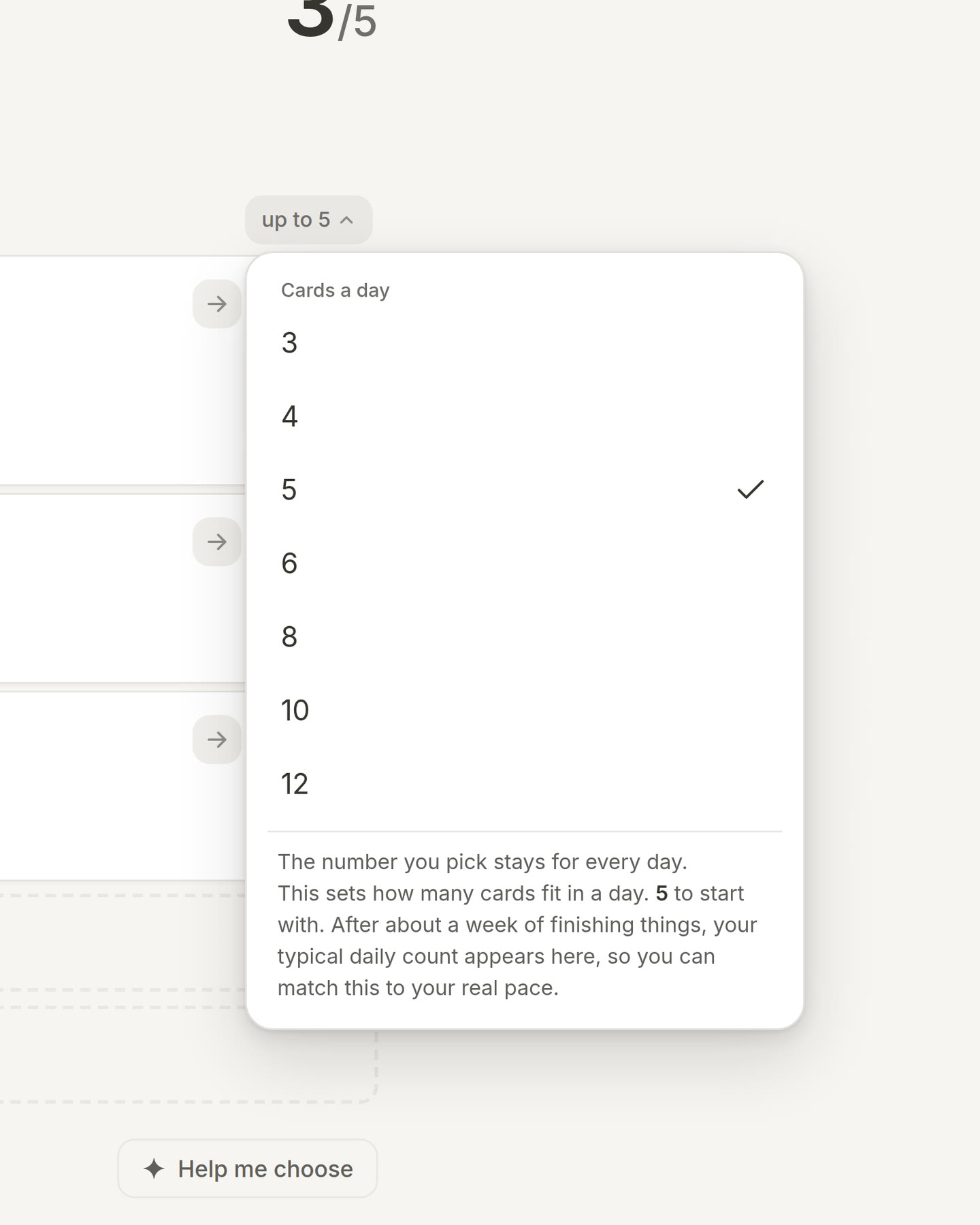
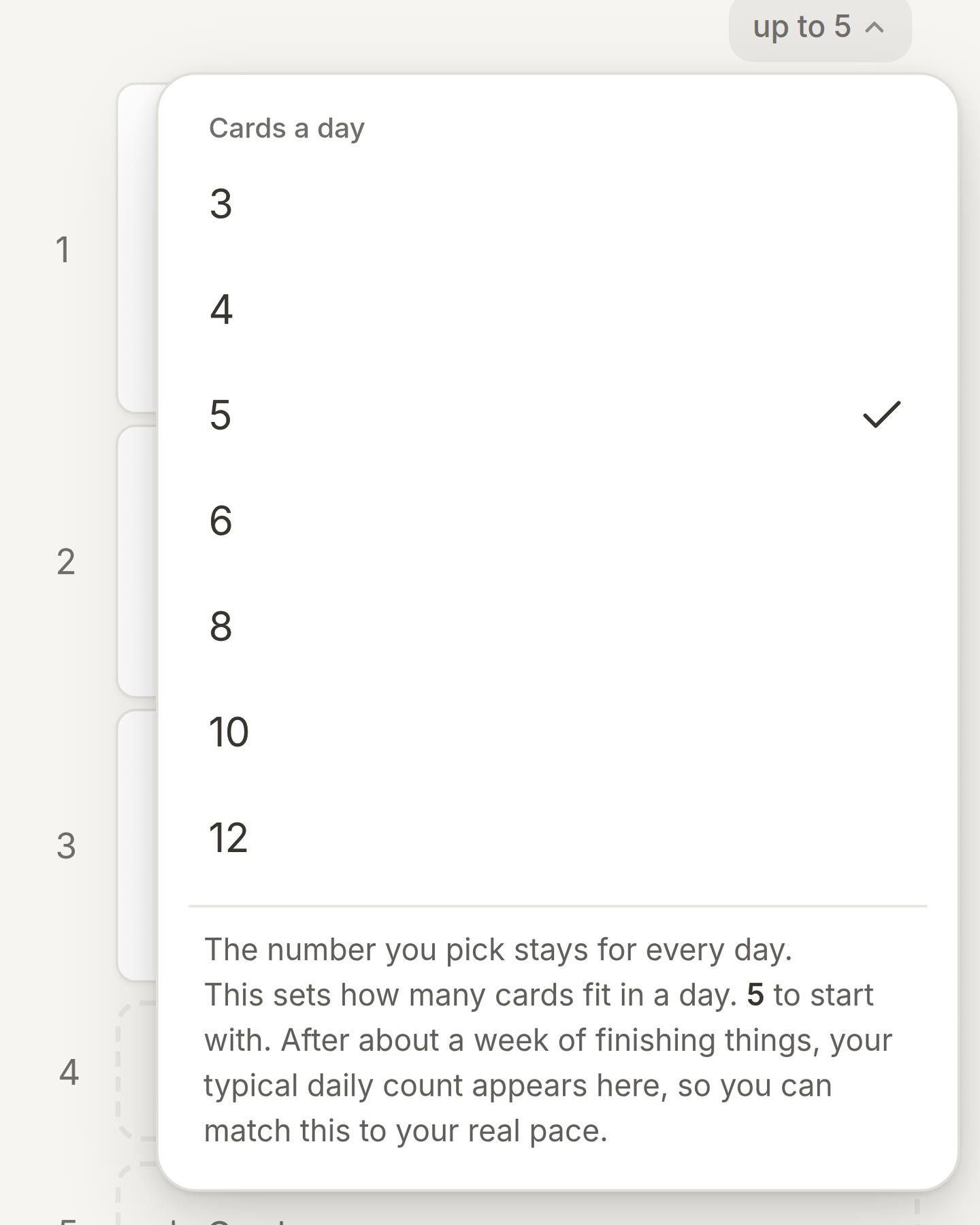
Choose how many cards fit your day.
Five is where you start. Open the up to menu on Today and choose a different number, and I keep it for the days after too.
Done with something? Tick it off.
The button animates, the card disappears, and you hear a little ding. One down. Do that five times and you’ve had a productive day.
Done? Add the next step right away.
When you tick off a card, I ask if you want to add a follow-up task. Press it and a new card opens in the same project, ready for its title, before the next step slips your mind.
Not today? Move it to tomorrow.
One press on the arrow and a card moves to tomorrow. Today only holds what you can still do.
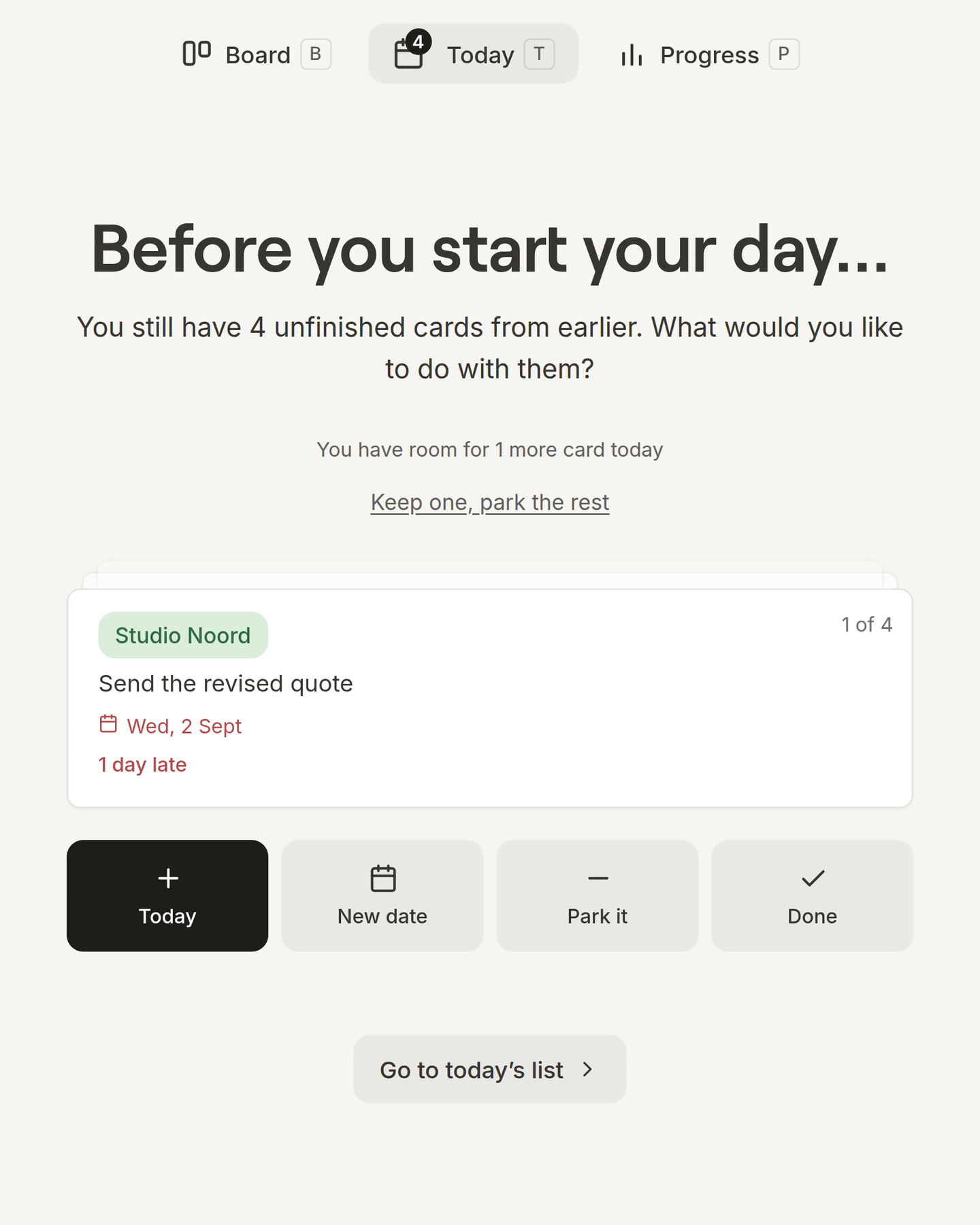
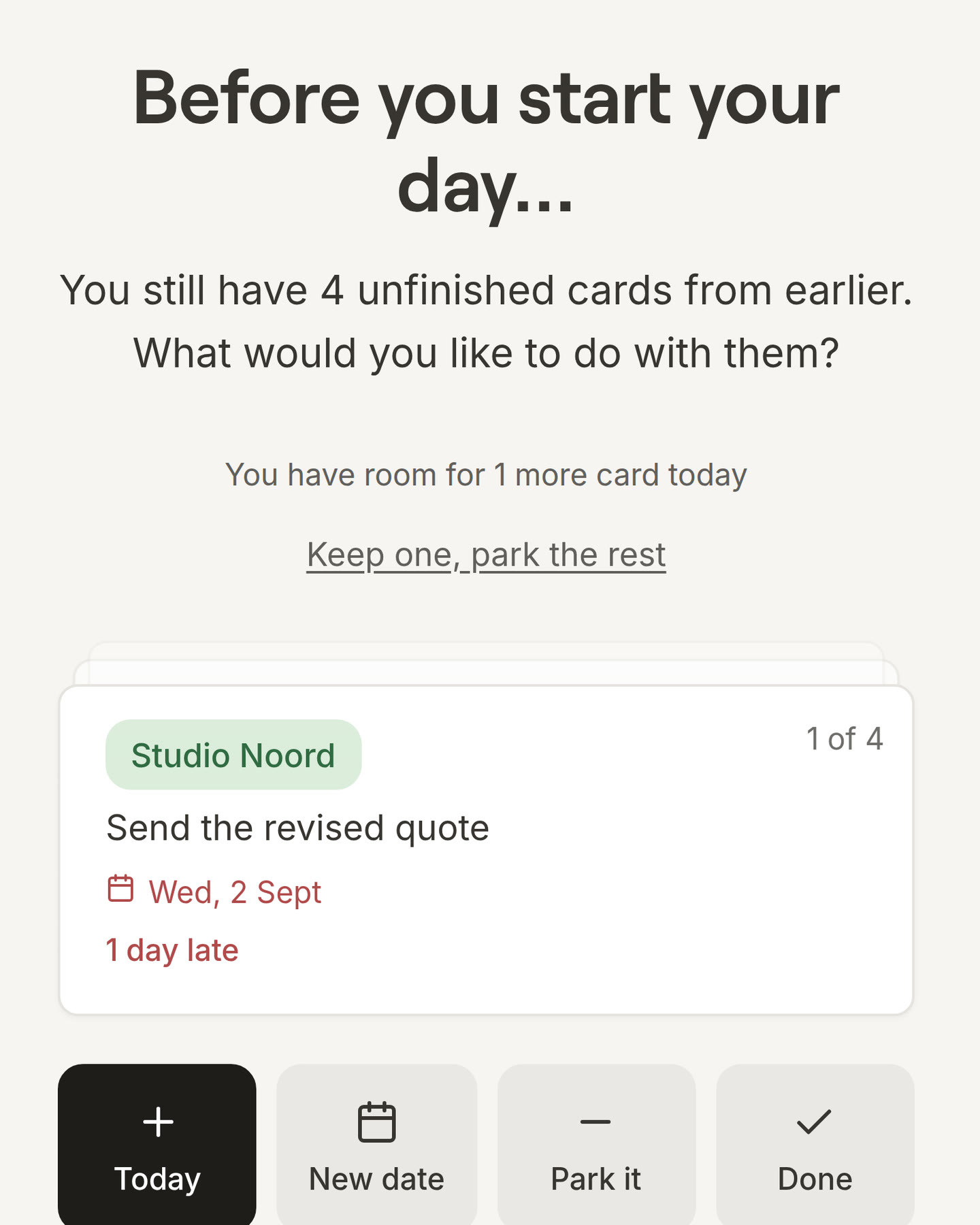
Yesterday’s leftovers, one at a time.
Cards you didn’t finish come back in the morning as a small pile. For each one, choose Today, New date, Park it or Done. Did the day get away from you? Keep one, park the rest does the whole pile in one press, and one undo puts it all back.
A card that keeps moving? Make it smaller.
When the same card comes up at the end of the day for the third time, I offer to break it into small steps. Small steps are easier to start.
Not doing it? Delete it, don’t tick it.
A tick means you finished it. Changed your mind about a card? Drag it to the Delete bin, or right-click it on a laptop. You can always undo it.
See how much time you actually have.
Connect Google, Outlook or any other calendar. Your meetings stand next to your day, with the free time between them, so you know what really fits. Want only your cards? Press the eye to hide the meetings.
Put a card between your meetings.
Got a free hour between two meetings? Drag a card into it. It stays there, without a start time. Plans change? Drag it back to your list.
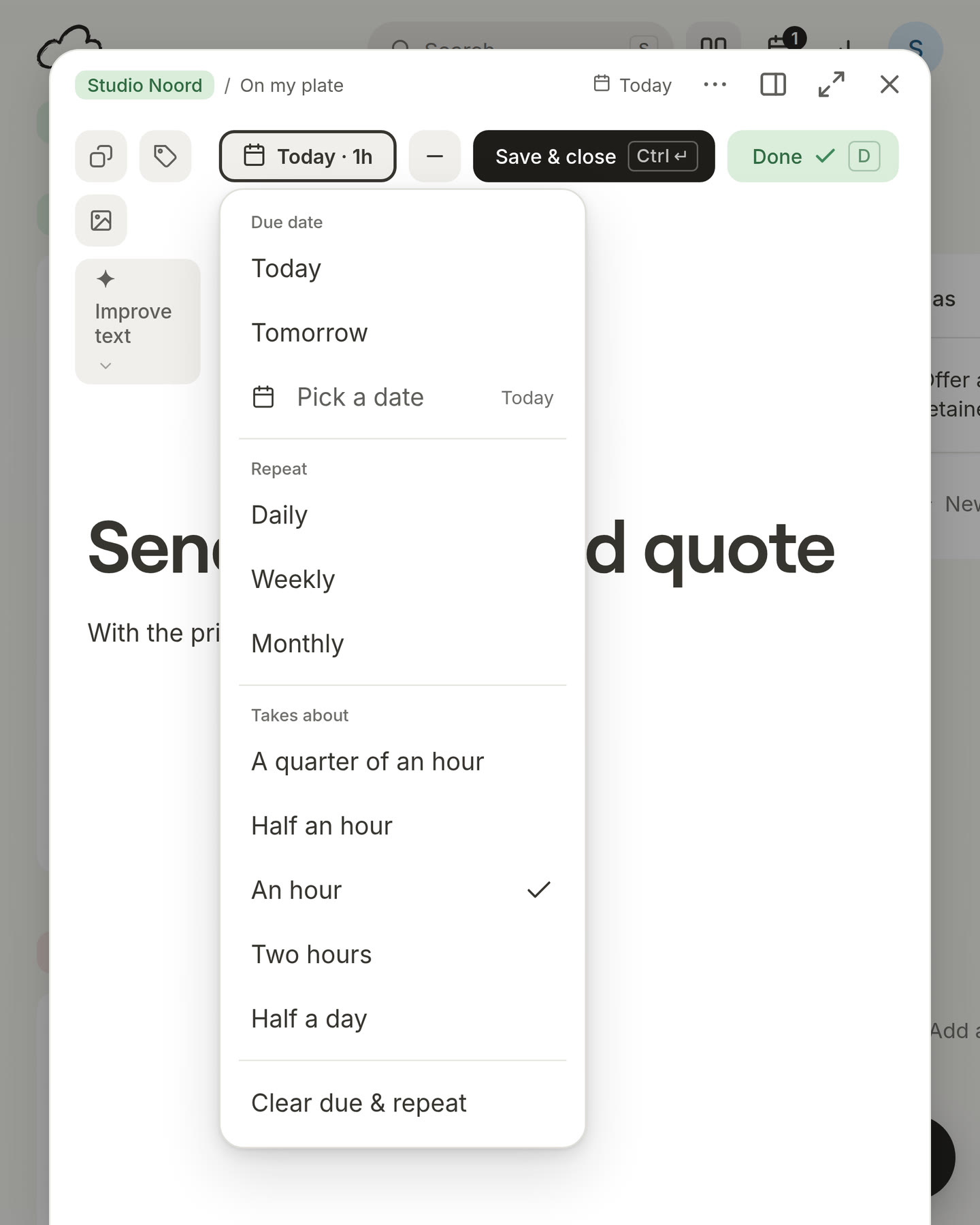
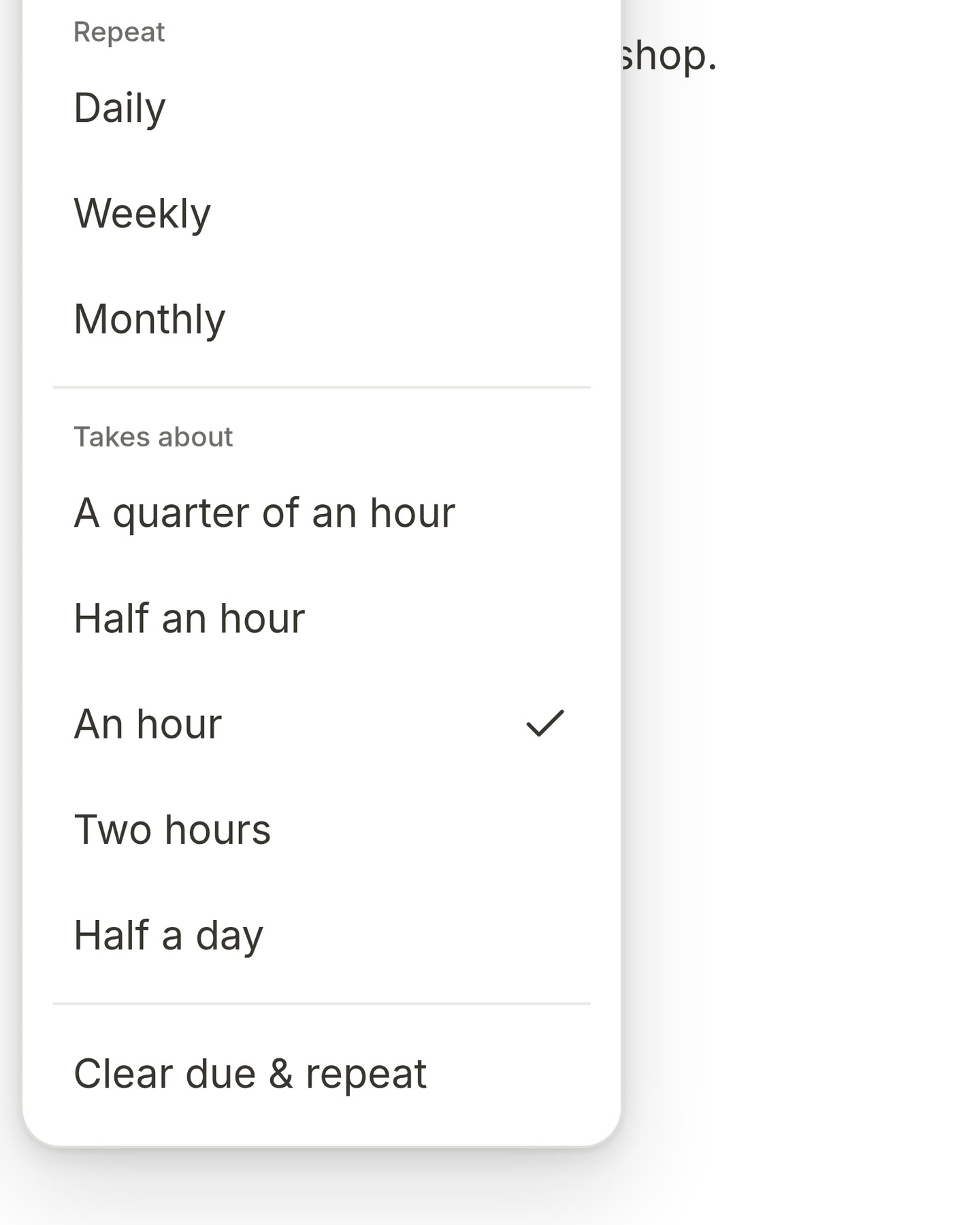
Say how long a card takes.
Give a card a size, from 15 minutes to half a day. It’s never required. When you ask me to help you choose, I use it to keep your day realistic.
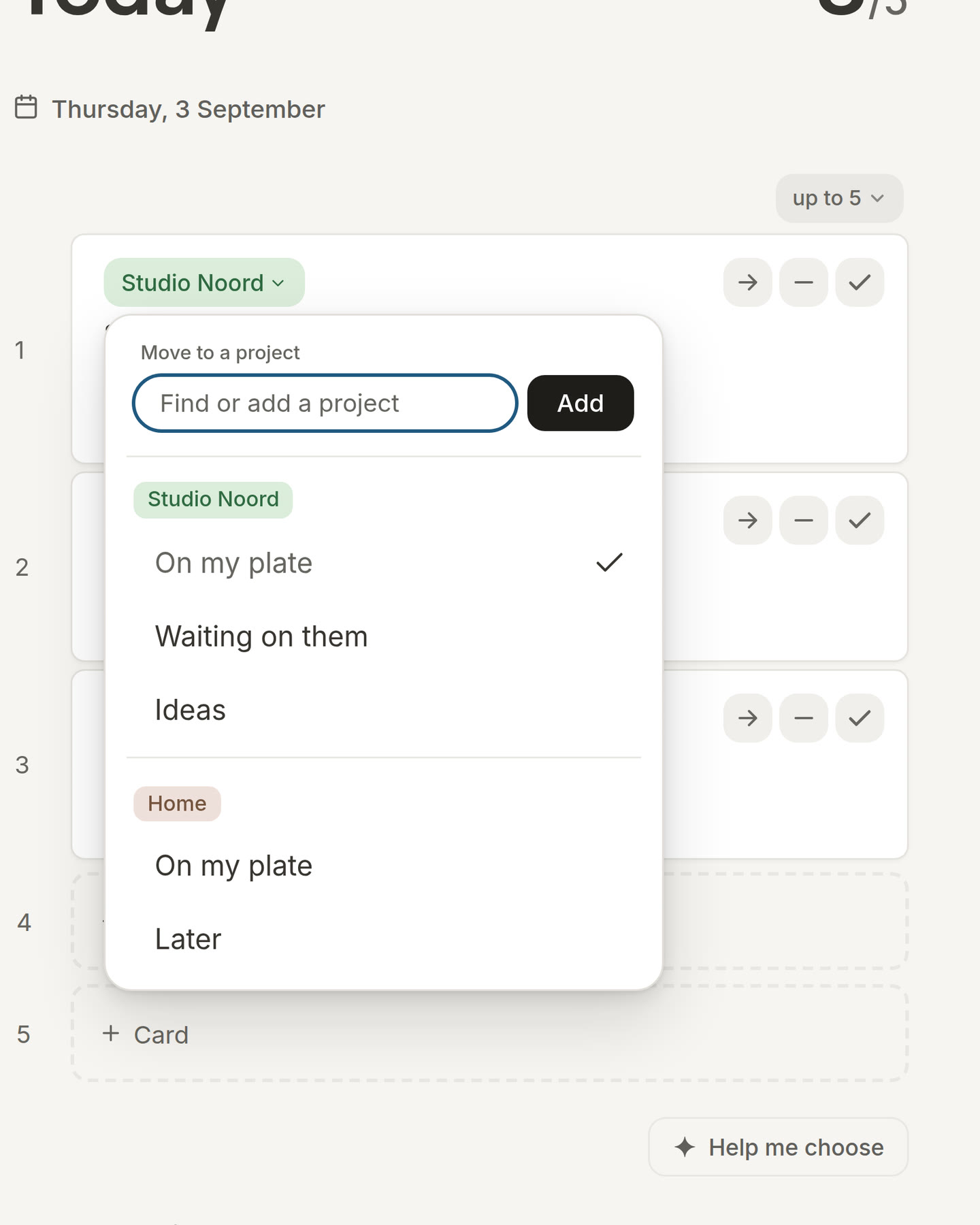
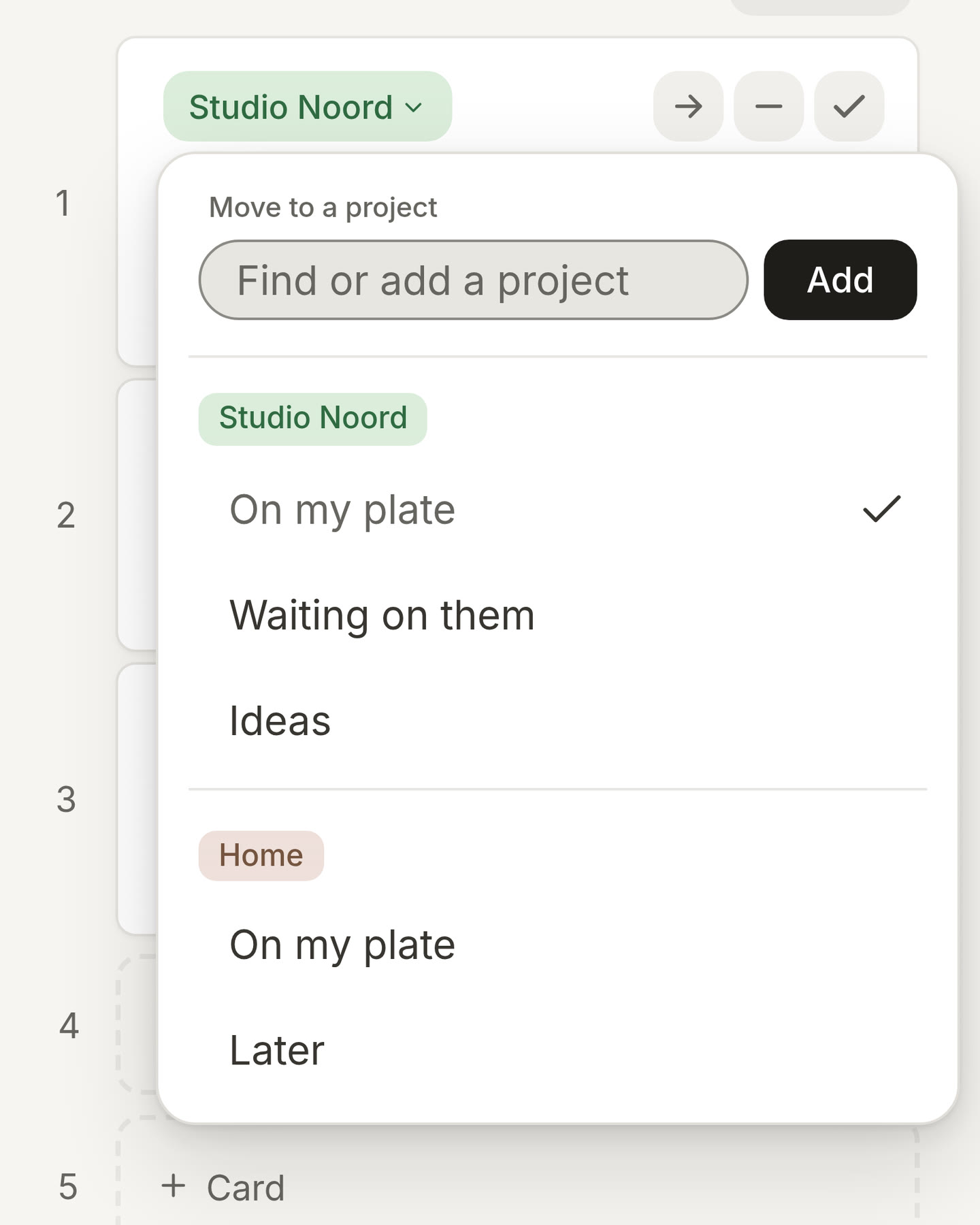
Move a card to another project from its label.
Every card shows its project. Press the label and choose another project or list, and the card moves there while it keeps its place in your day. With many projects, type a few letters to find the right one.
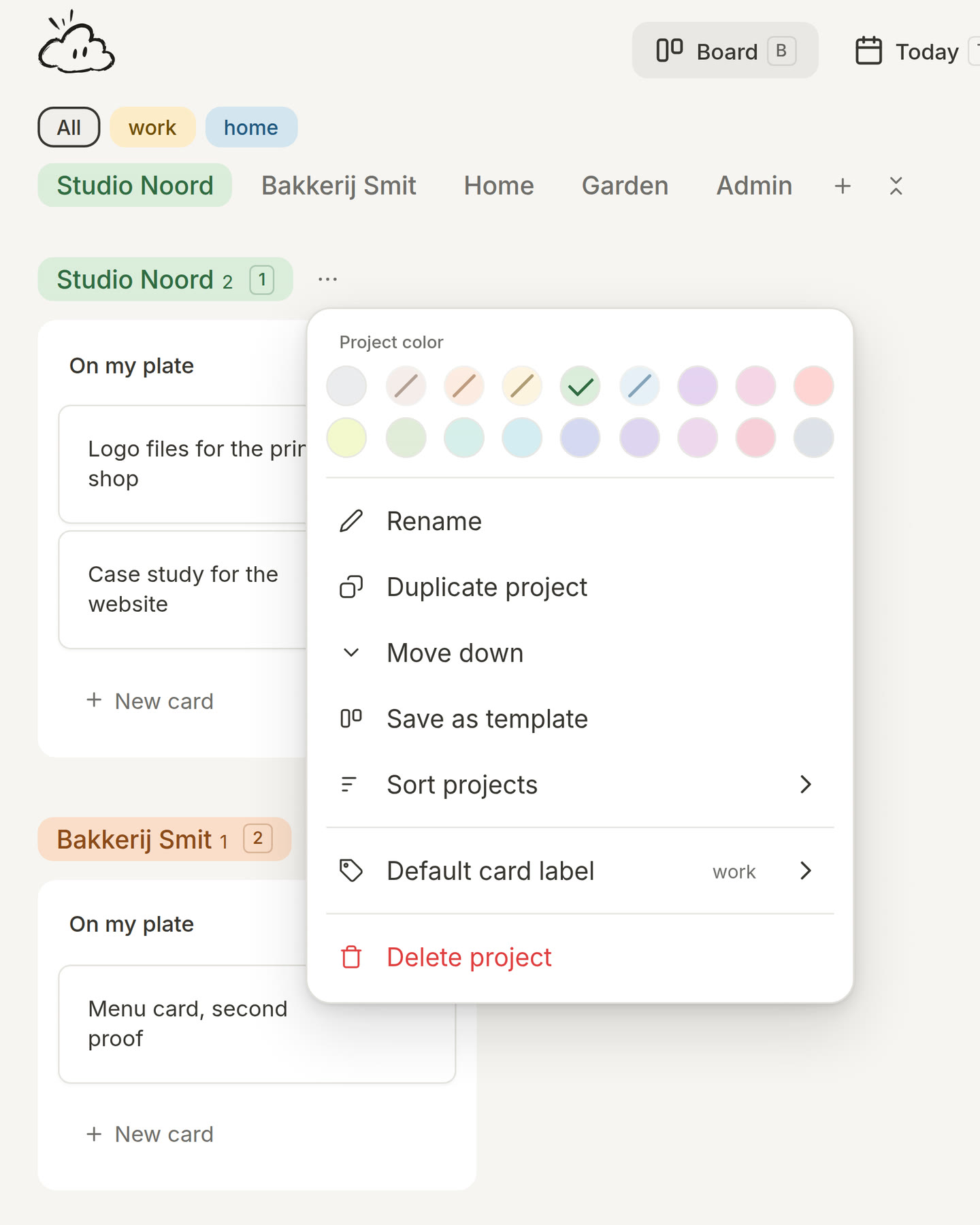
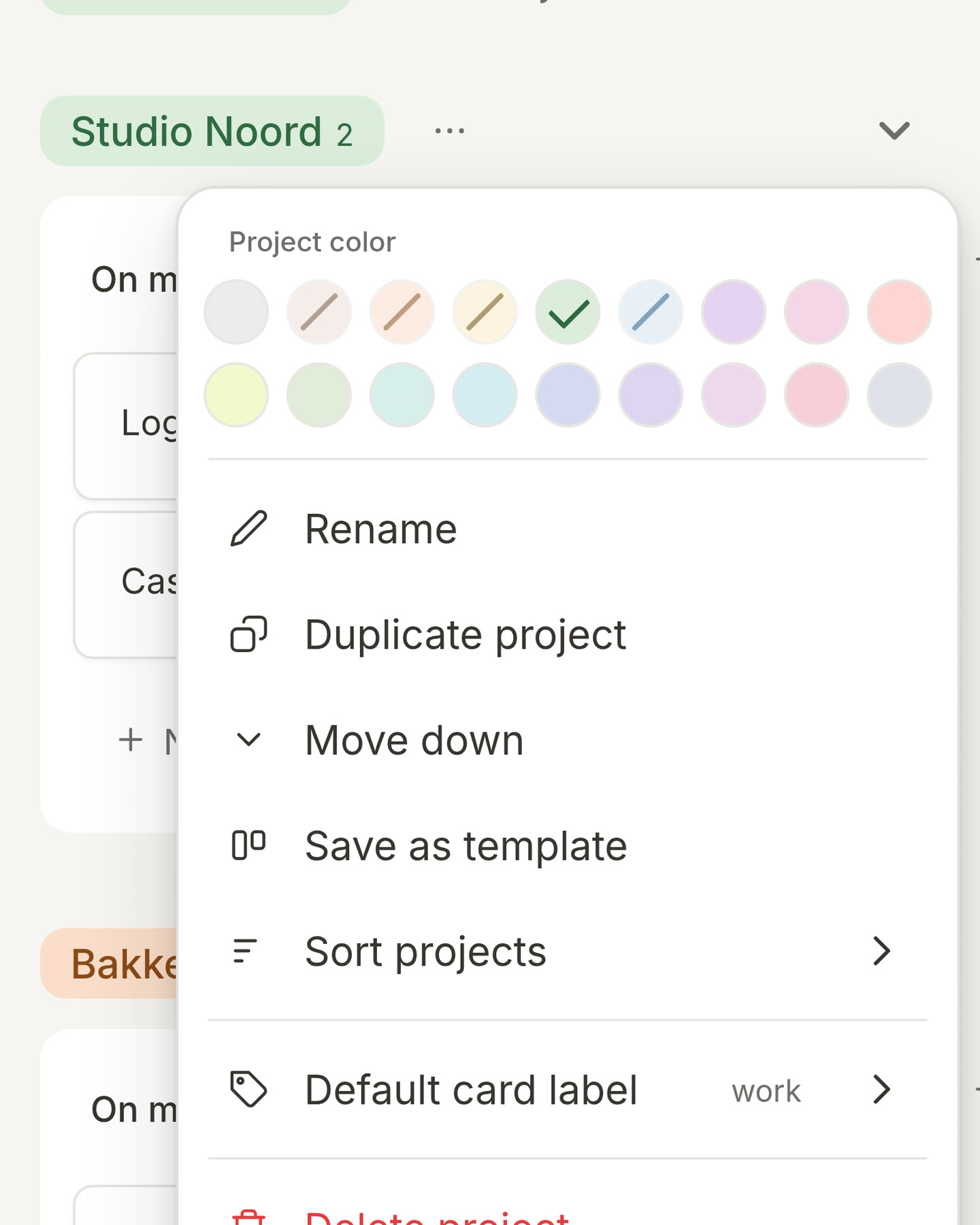
Put your projects in your own order.
Open a project’s menu to sort your projects, give it its own colour, or rename it. Your board looks the way you think about your work.
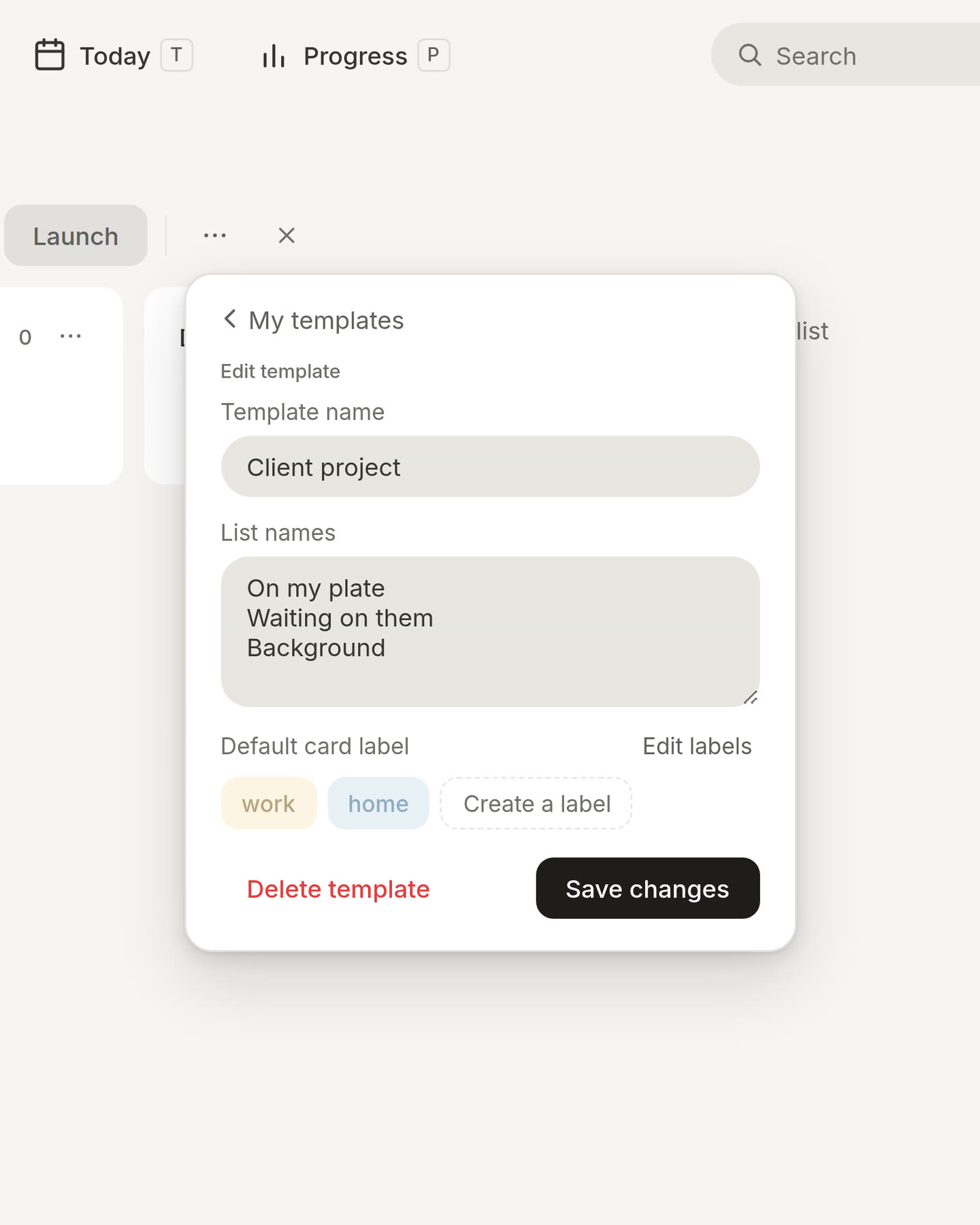
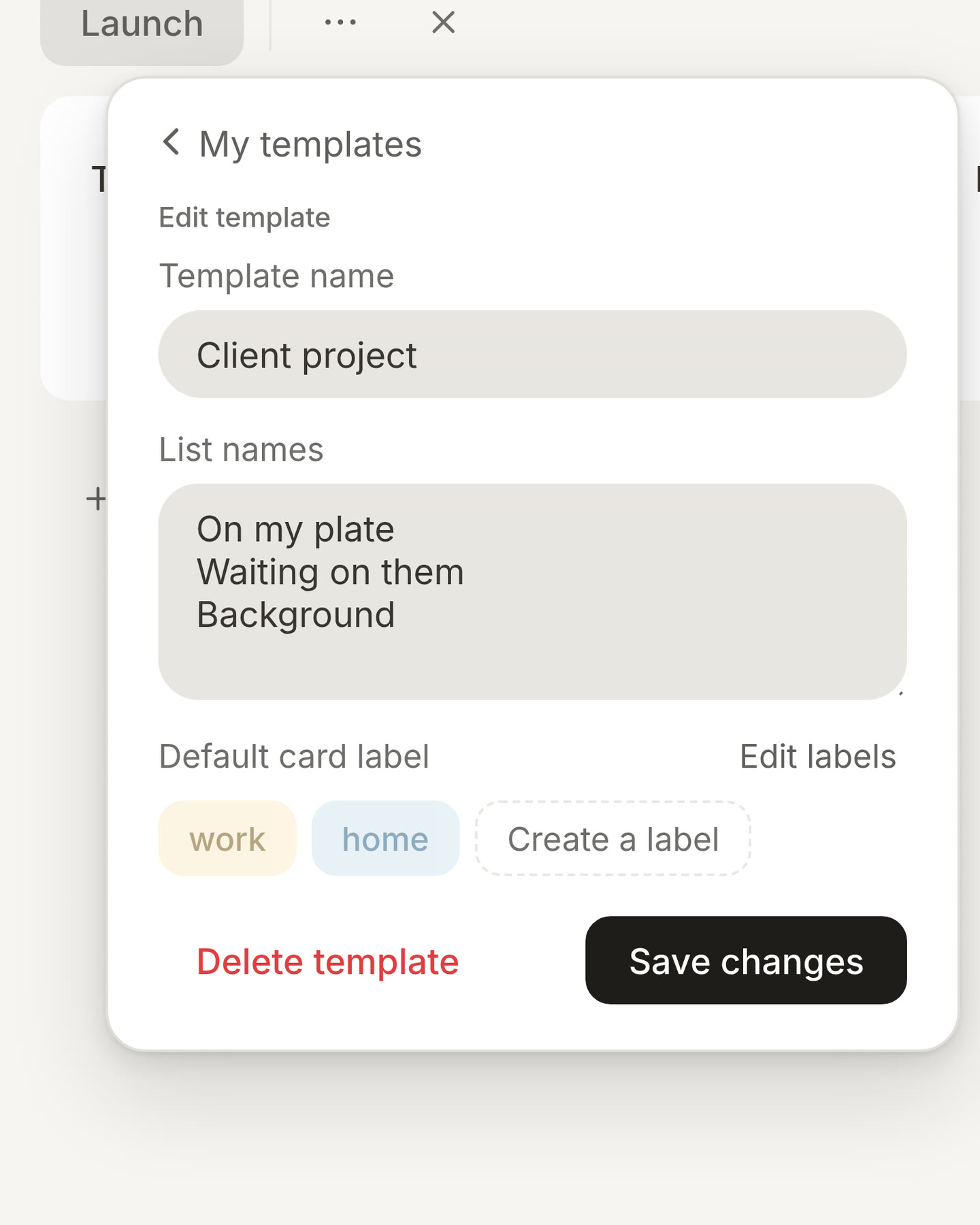
Start a project from your own template.
Save a project’s lists as a template, or make one from scratch. Give it a default card label, and every new project starts the way you like it.
Every card has an editor with superpowers.
Turn a quick task into a detailed note. Add headings, lists, images, tables, quotes and checklists. Start simple. Add more when you need it.
Drop a file anywhere.
On a laptop, drag a PDF, a Word document or a picture from your computer onto Morrow. When you let go, it becomes a new card in Unsorted. Several files at once? Each one gets its own card.
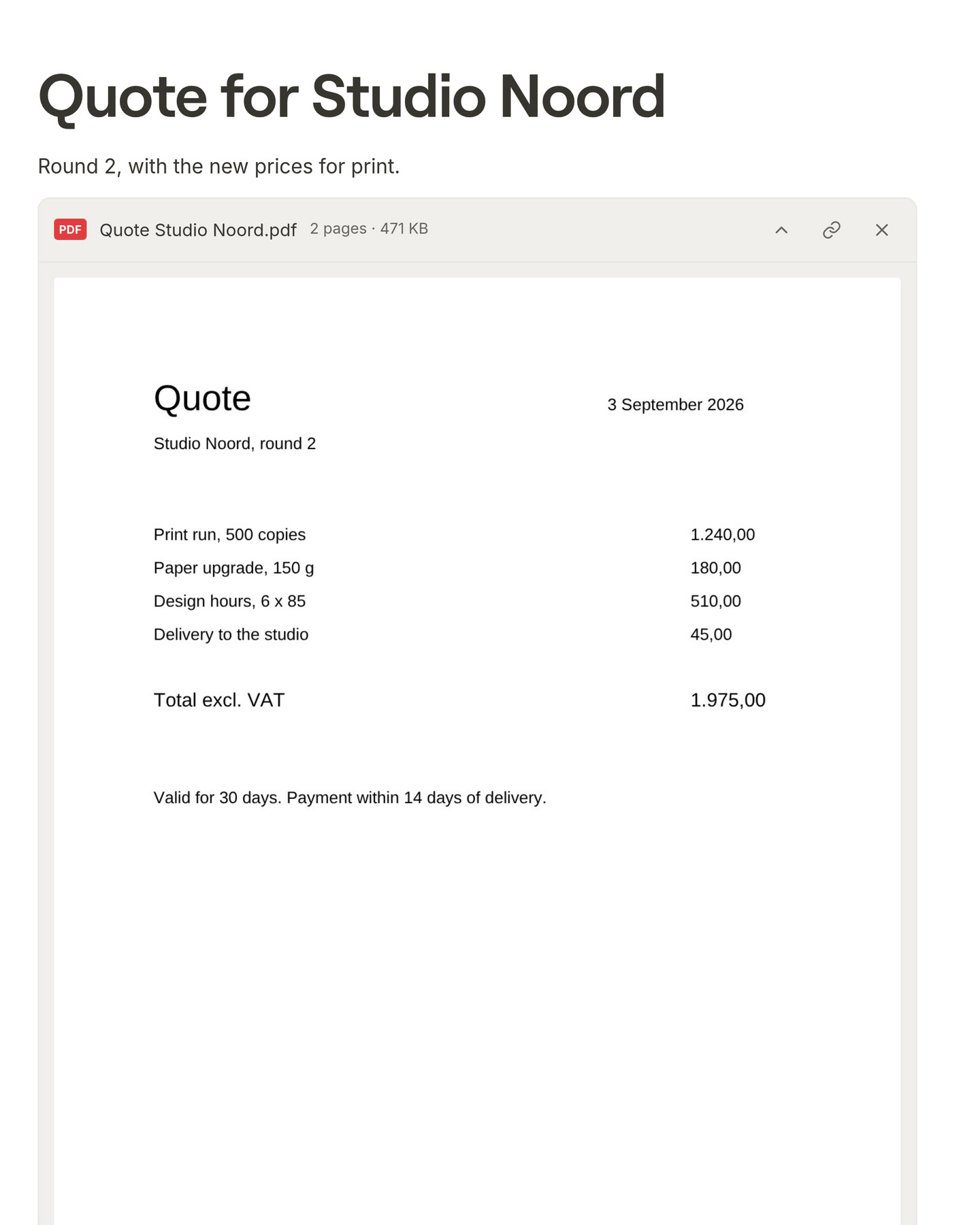
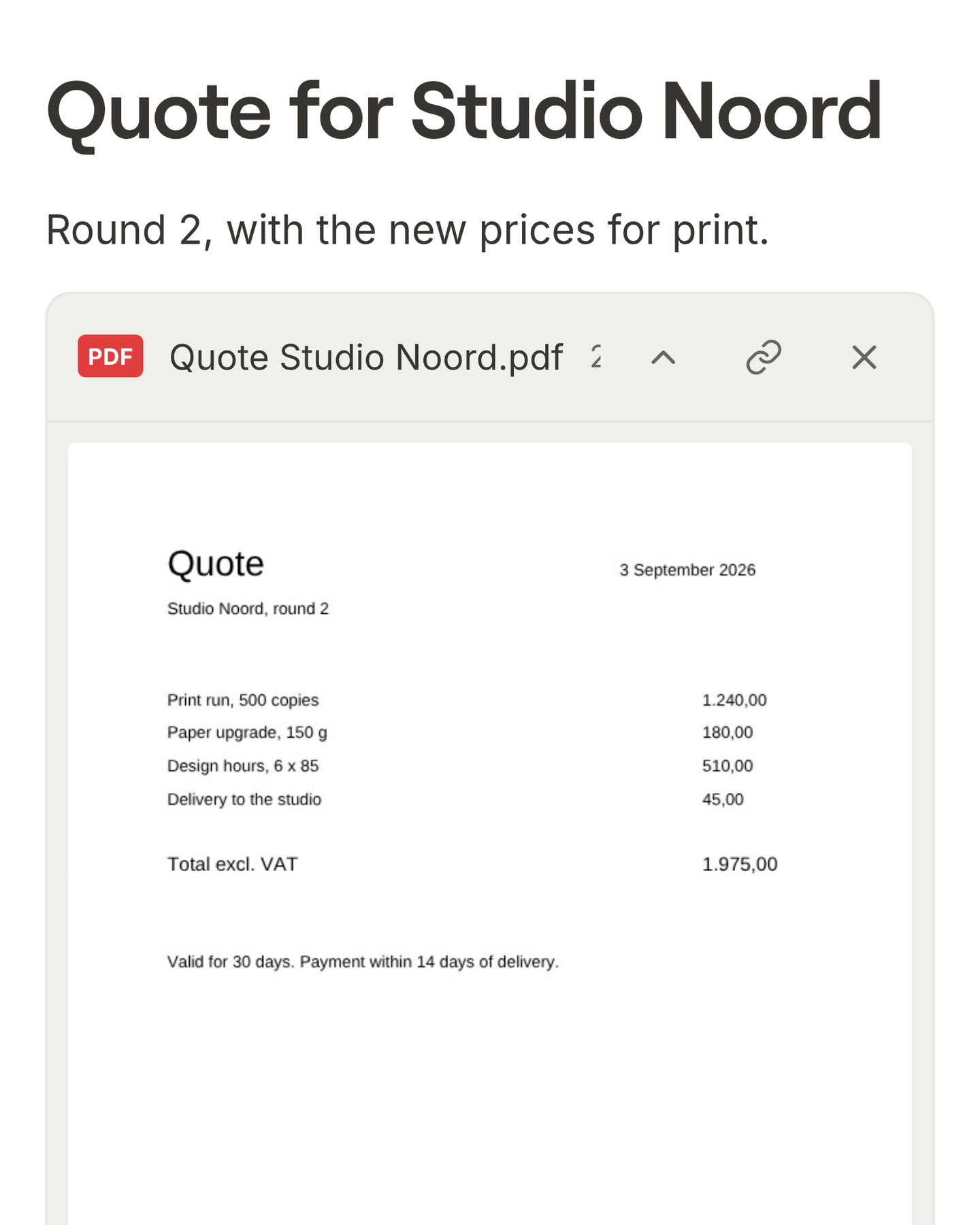
Keep a PDF in a card.
Drag a PDF into an open card, or choose PDF in the block menu. It stays in the card with its name and size, and you can scroll through its pages right there.
Word and OpenDocument files too.
Drag a Word document or an ODT file from LibreOffice into an open card. Its pages show right under it, and you can fold them away or download the file.
Summarize a PDF or Word document.
Press Summarise this PDF or Summarise this document under a file, and I write the main points right under it, in the language of the document.
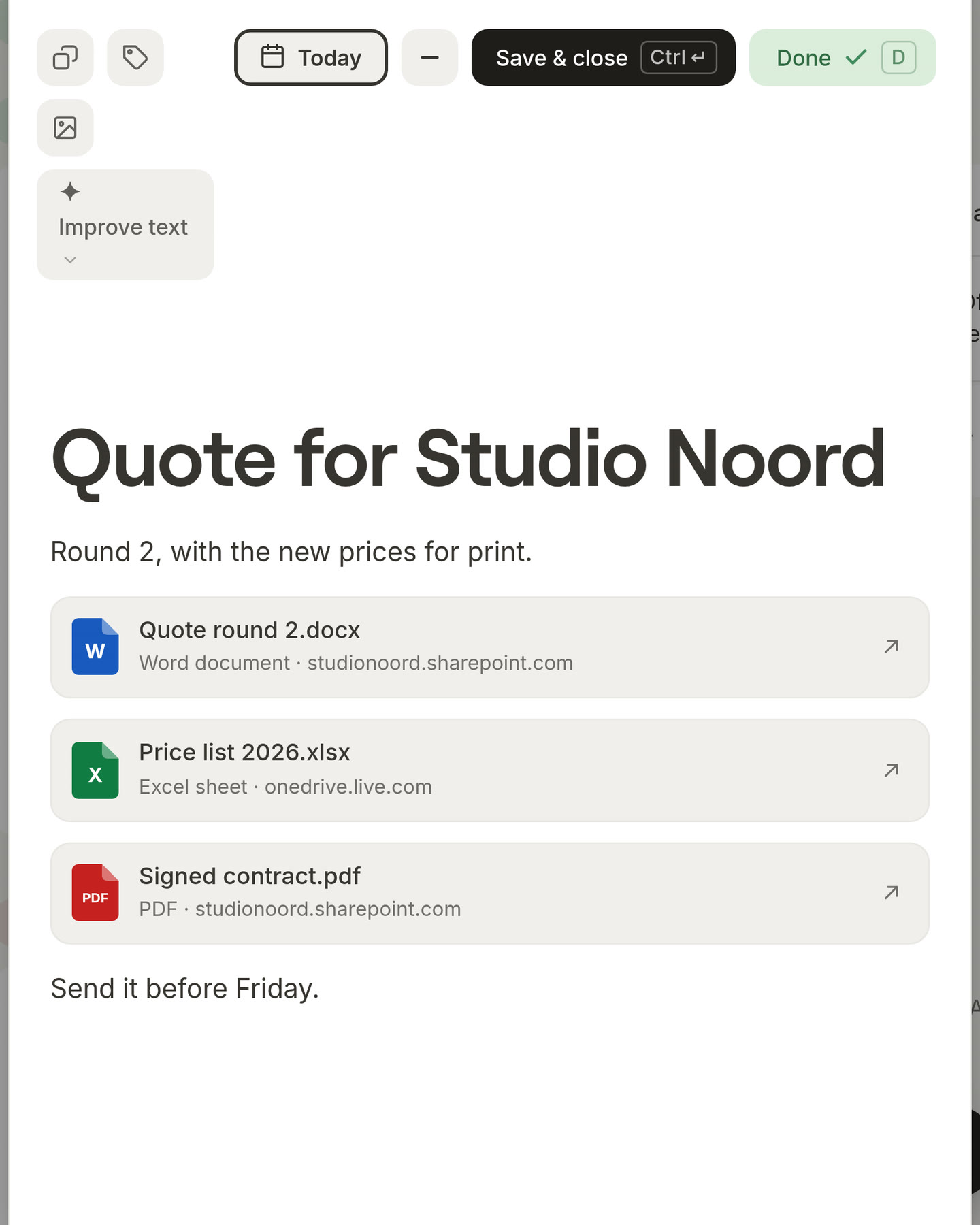
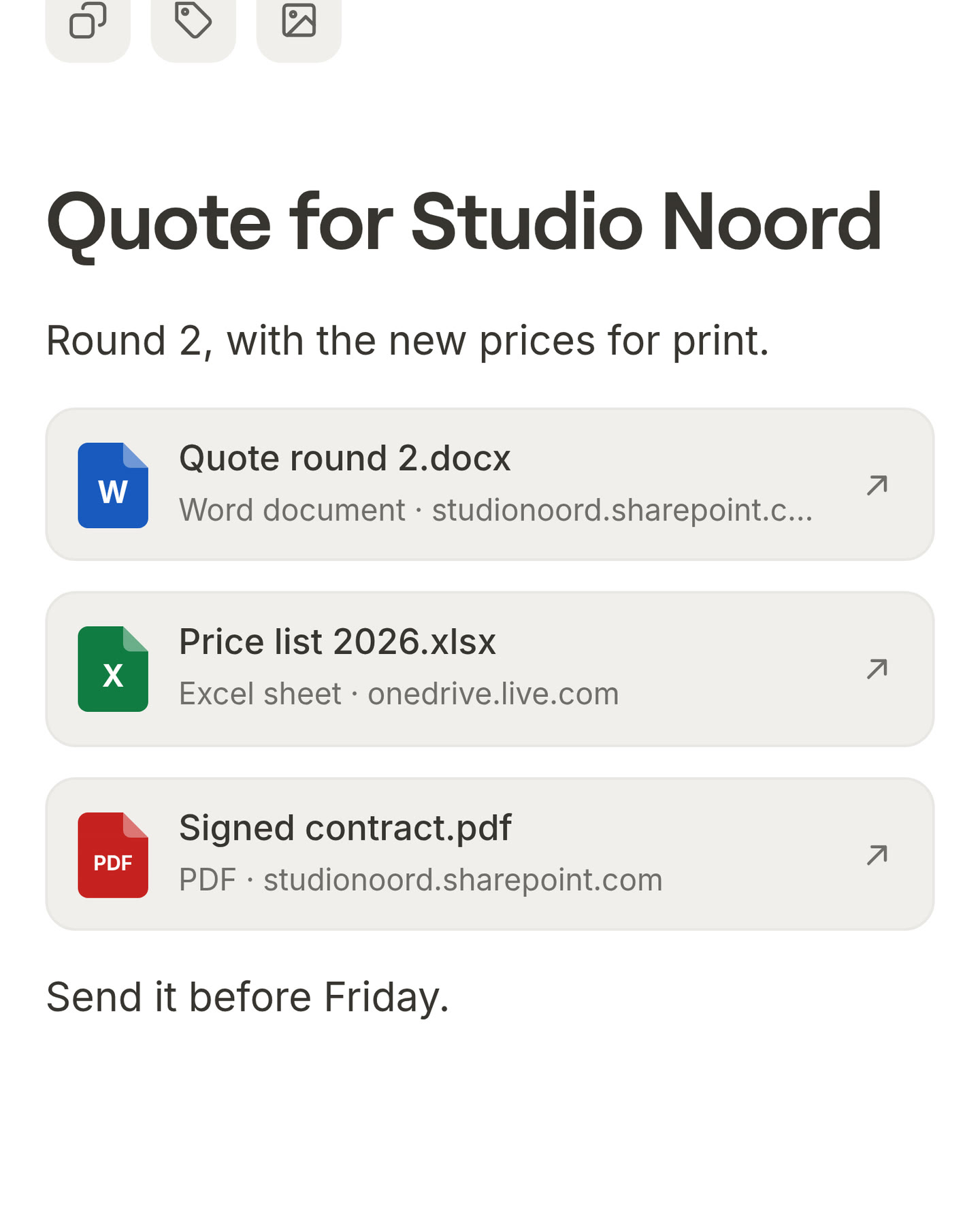
Links that look like what they are.
Press the link button in a card and paste an address. A link to a Word, Excel, PowerPoint, PDF or Google file shows as a tidy row with its name, and a web address on a line of its own becomes a bookmark.
See which file is on a card.
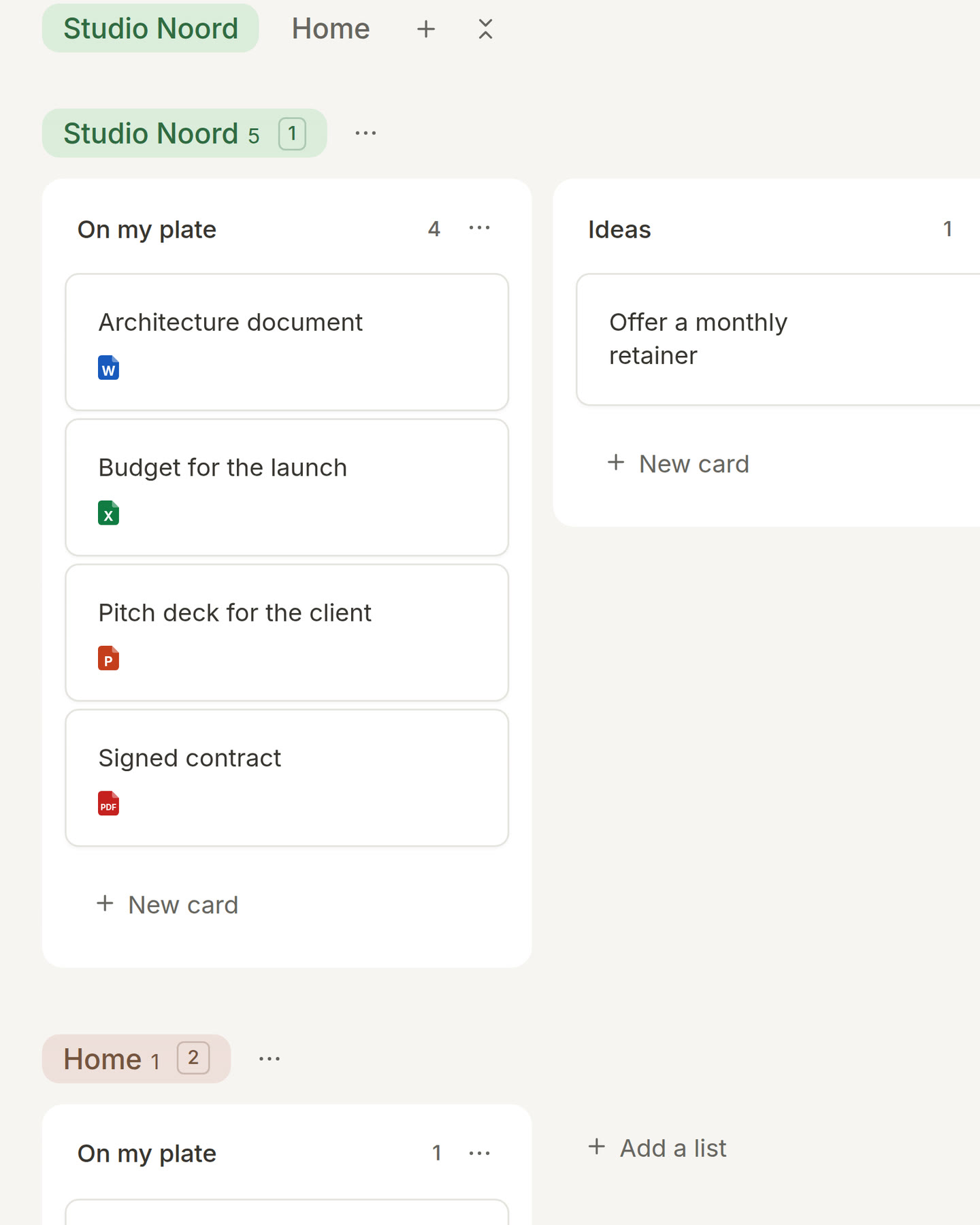
A card with a file shows a small page on your board: blue for Word, green for Excel, orange for PowerPoint, red for PDF. You see the same marks when you search.
AI tools to improve your words.
Polish something you wrote in a hurry. Fix the grammar without changing your voice. Turn messy notes into something structured, translate them, or break a big task into smaller steps.
Try another version of a paragraph.
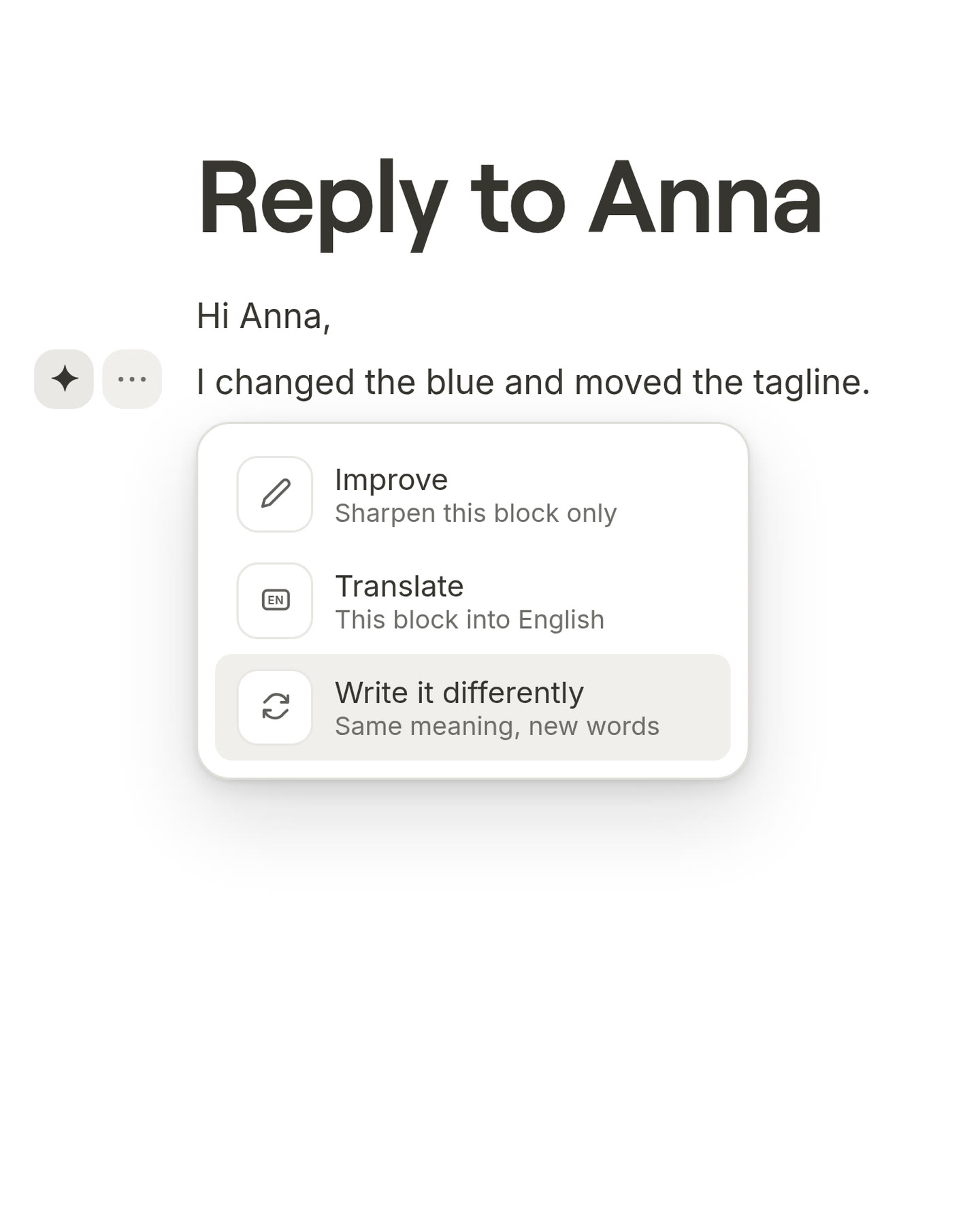
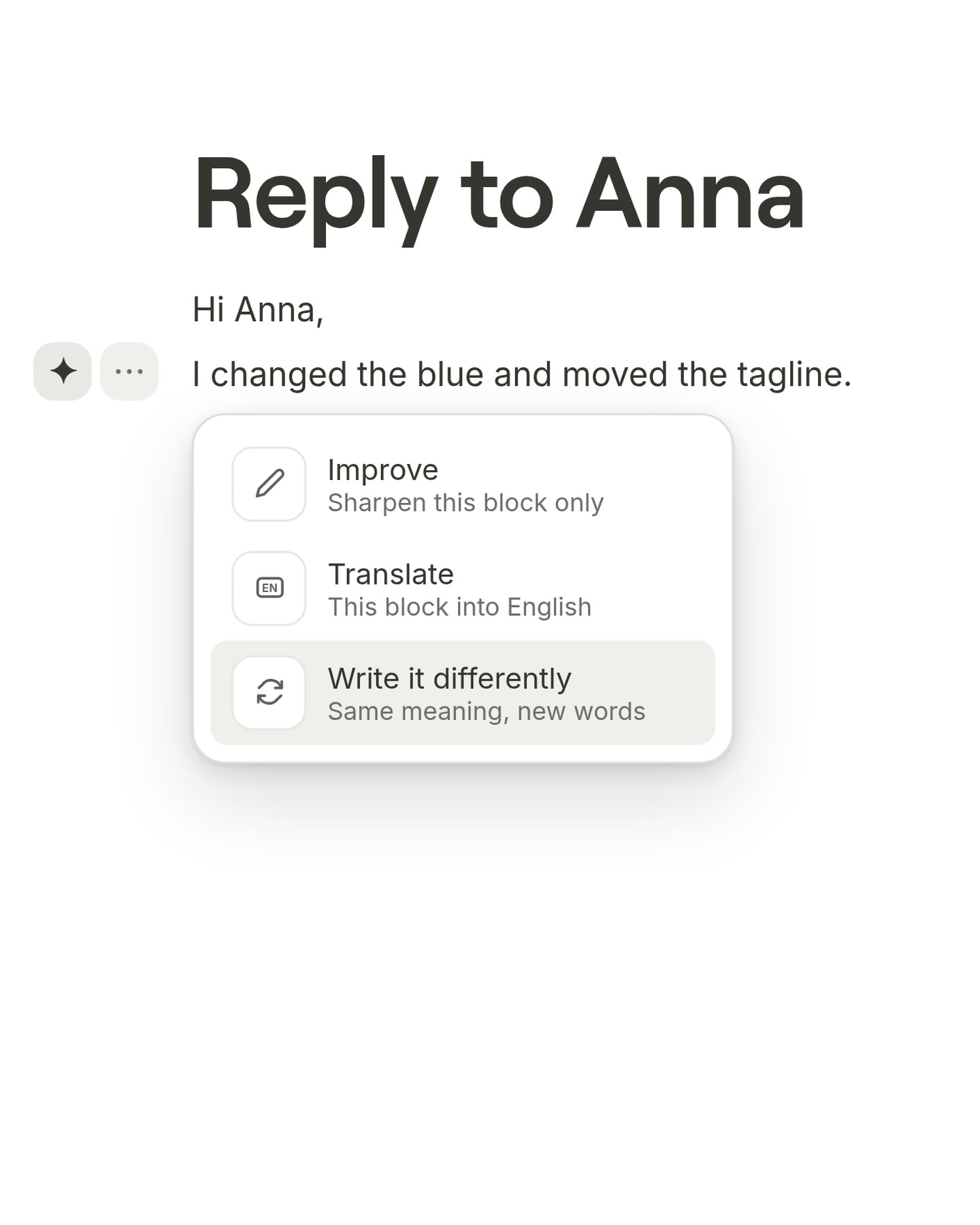
Something sounds wrong but says the right thing? On a laptop, press the AI button next to a paragraph and choose Write it differently. Switch between the versions and keep the one you like.
Trim it down.
Long notes are hard to read later. Choose Trim it down and I cross out the words your text doesn’t need. You choose what goes, and nothing is removed until you agree.
Let’s close the day, together.
Two minutes to wrap things up. See what you finished, move what can wait, and get tomorrow ready. Then you’re done. See you tomorrow.
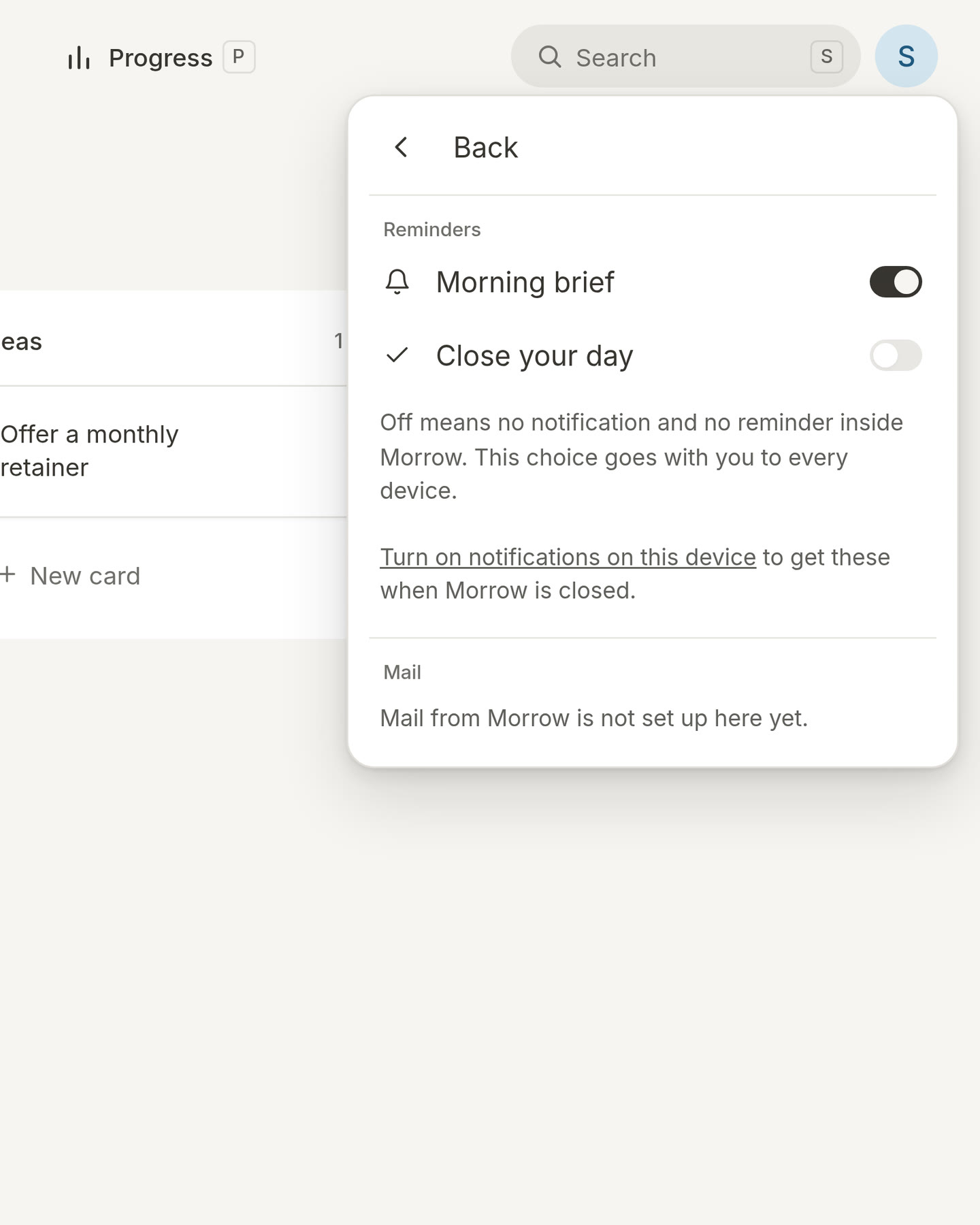
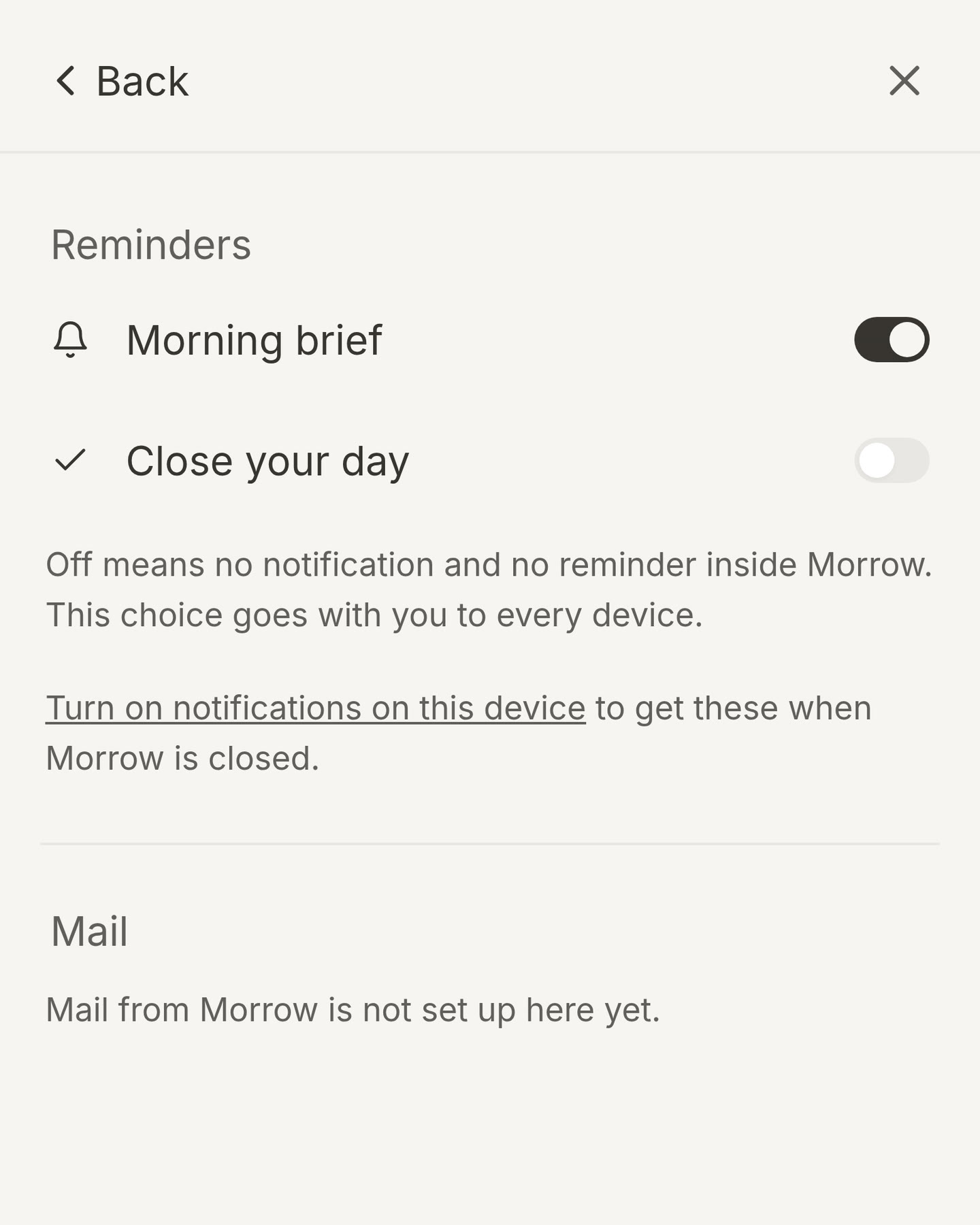
Two reminders a day, if you want them.
Turn on notifications and I send you your morning brief and a reminder to close your day. Switch either one off whenever you like, on every device at once.
Install me like an app.
I’m a web app, so there’s nothing to download from a store. Install me on your laptop and on your phone, and I get my own icon and my own window. Sign in on both and it’s the same board everywhere.
- Laptop. Open Morrow in Chrome or Edge and press the install icon at the right of the address bar. In Safari on a Mac, choose File, then Add to Dock.
- iPhone. Open Morrow in Safari, press Share, then Add to Home Screen.
- Android. Open Morrow in Chrome, open the menu and press Install app.
See your progress. Spot your patterns.
See when you get things done, how much really fits into a day, and where your time goes. The more we work together, the clearer your patterns become.
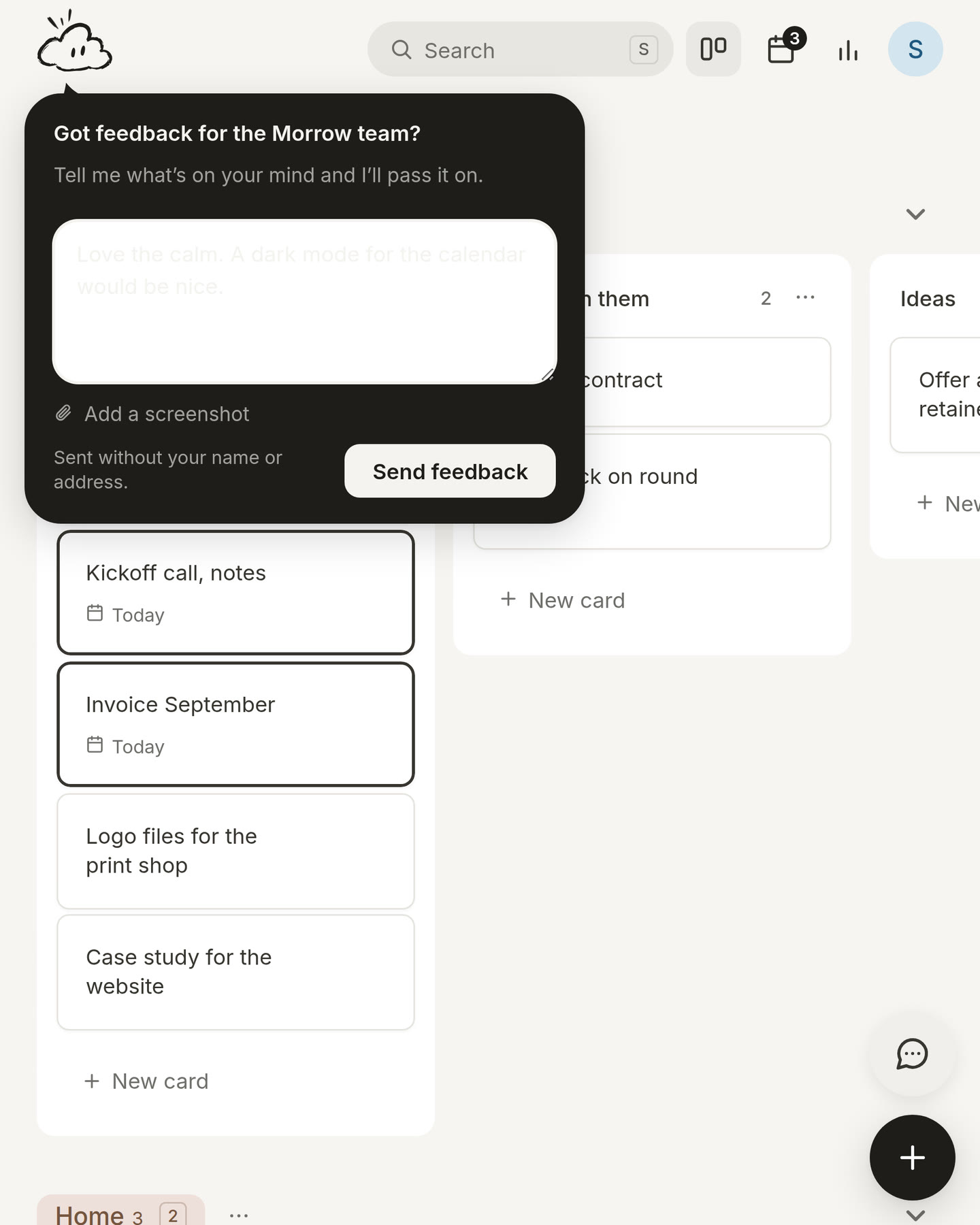
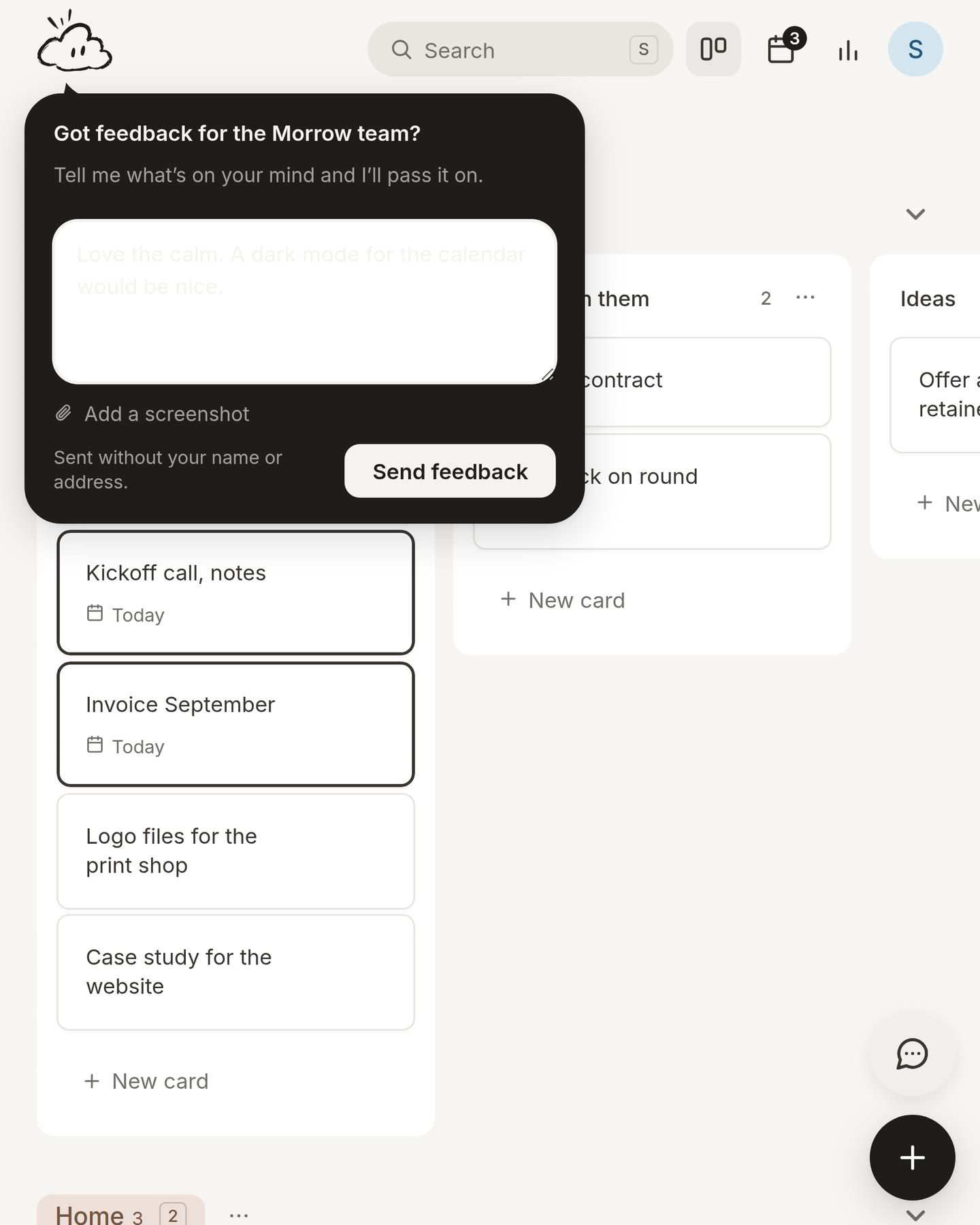
Tell us what you think.
Press the round button in the bottom right on a laptop, or Send feedback in the profile menu. Add a screenshot if you like. Your message comes straight to the people who make Morrow.